

Connectors: connect your apps so agents can use them
A connector links Voxido to an app you already use — a calendar, a CRM, a spreadsheet, a payment tool, a phone carrier. Once it's connected, your AI agents can look things up and take action in that app during a call or chat.
Find it: Sidebar → Agents section → IntegrationsWho can use it: Owners and Admins
Pick your path: connector, Custom API or inbound API?
The problem: "I want my agent to work with another system." There are three ways. Pick by direction and by whether the app is on the list.
| If you want… | Choose | Why |
|---|---|---|
| The agent to use a well-known app (Google Calendar, Gmail, Google Sheets, HubSpot, Salesforce, Slack…) | A connector (this page) | Sign in once, then switch on ready-made tools. No code. |
| The agent to use your own system or an app that isn't listed | Custom API — outbound | You describe one web address (URL) the agent can call, such as "check availability". |
| Your system to send new leads, bookings or orders into Voxido | Custom API — inbound | Your system posts data to a Voxido URL, and Voxido creates or updates the contact. |
| Your system to make an agent act now for one person | Webhook trigger | A signed request starts the agent for that contact. |
| Your own phone carrier, hotel PMS or DoubleTick WhatsApp number | A system connector (Apps → System) | Voxido-built connections with their own setup forms. |
Example — Brightway: Brightway books appointments in Google Calendar (connector), keeps prices in its own booking system (Custom API outbound), and gets new leads from its website form (Custom API inbound).
The Apps tab
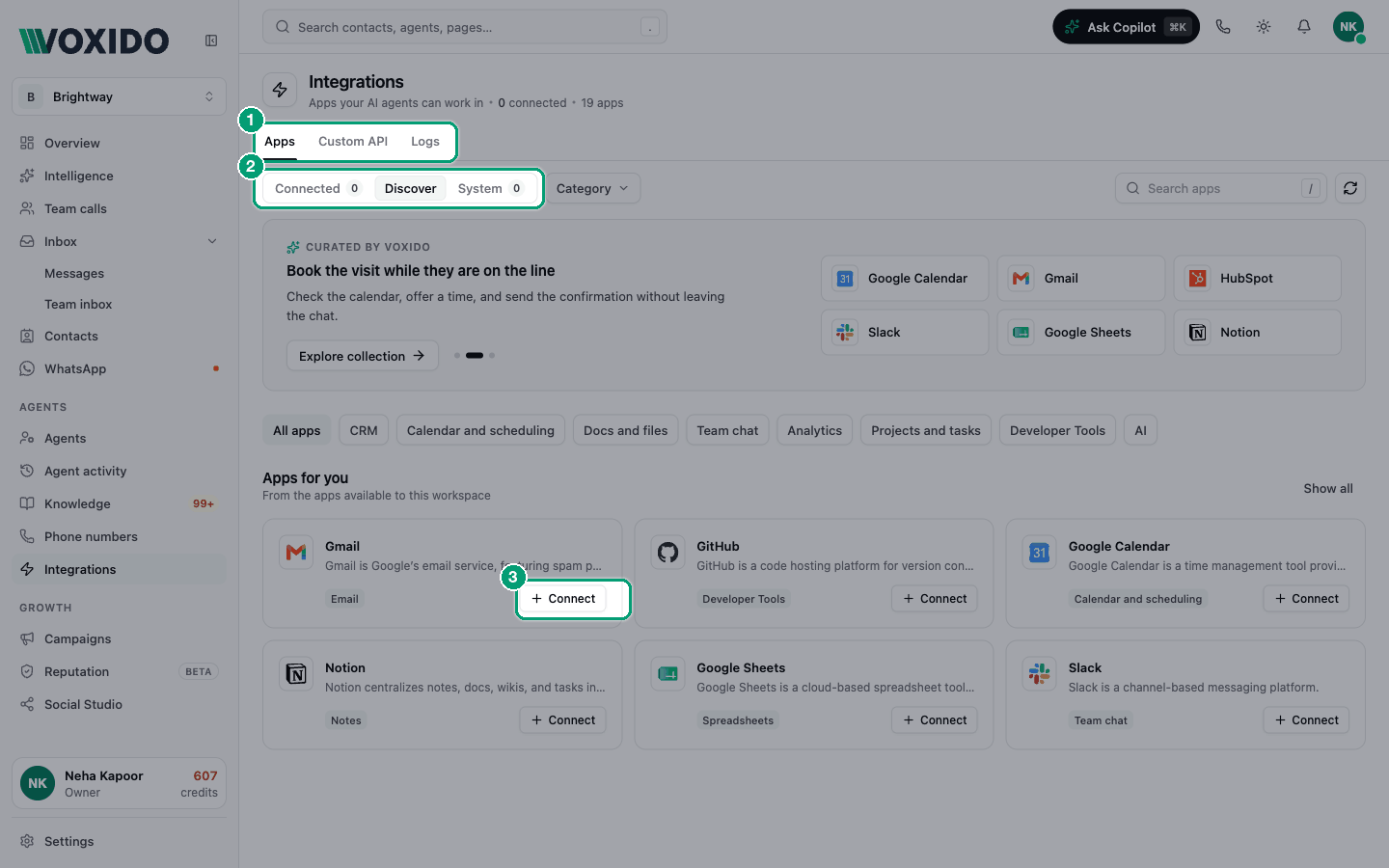
The Apps tab has three views:
| View | What it shows |
|---|---|
| Connected | Apps you've connected, the account each is signed in as, and how many tools are on |
| Discover | Every app you can connect. Browse Apps for you, pick a category, or search. |
| System | Voxido-built connectors: Twilio, Exotel, DoubleTick, and hotel PMS systems (for hotel accounts) |
Use the Category chip (Discover) or Type chip (System) to filter, and the search box to find an app. Press / to jump to search. Click the reload icon to refresh the list.
Connect an app
- Go to Integrations → Apps → Discover and find the app. Click + Connect on its card. You'll see: the app's panel with Overview and Tools tabs.
- Click + Connect at the top of the panel. You'll see: a Connect (app) box. It says whether the app uses sign-in or an API key.
- Follow the type of sign-in:
- Sign in with the app: click Continue to sign in. A small window opens. Sign in and approve the access listed under Access requested. You'll see: "Finish sign-in in the window. This page stays open." Then the window closes.
- API key: paste the key from the app into API key (and Key ID only if the app gave you one). Click Connect.
- You'll see: "(App) is connected — Signed in as (account). Choose what each tool is allowed to do." Click Done.
Tools start switched off
Connecting doesn't let any agent do anything yet. You choose which tools are on, next.
If your browser blocks the window, you'll see "Allow the sign-in window, then try again." Allow pop-ups for Voxido and click Try again.
Choose what each tool may do
Each app comes with tools — single actions such as "find free time", "create an event" or "add a row". Each tool is a Read, a Write or a Delete.
- Open the app's panel → Tools tab.
- Switch on the tools your agents need. You'll see: a permission menu next to each tool you switched on.
- Pick how it runs:
| Permission | What happens | Good for |
|---|---|---|
| Always allow | Runs as soon as the agent decides to use it | Reads, such as checking a calendar |
| Ask customer first | The agent confirms with the customer, then runs it | Booking a slot the customer chose |
| Needs team OK | Waits in Team Inbox until a teammate approves | Refunds, deletes, anything risky |
| Off | No agent can use it | Everything you don't need |
When you switch a tool on, Reads start as Always allow; Writes and Deletes start as Needs team OK.
Use All / Enabled, the Kind and Runs chips, and Search tools to find tools fast.
Fewer tools, better choices
Turn on only what the agent needs. The Skills section reminds you: agents choose best with fewer than 25 tools. Each agent can use at most 20 tools from your apps.
Give the tools to an agent
Turning a tool on in Integrations makes it available. You still add it to each agent that should use it.
- Go to Sidebar → Agents → open the agent → Skills.
- Click From your apps. You'll see: a Your apps box listing every connected app that has tools on, such as "3 on · 12 available".
- Click the app, then switch on the tools this agent should use.
- Click Save at the top of the agent editor.
The agent now uses those tools when they help, on calls and in chats. For example, Brightway's front-desk agent with Google Calendar can check free slots and book Priya Sharma's appointment during the call. See Skills.
If a tool isn't in the list, it's off in Integrations. Click Open (app) in Integrations to switch it on.
Approving "Needs team OK" tools
When an agent wants to run a Needs team OK tool, your team gets an Approve (app) item in Team Inbox. Click Approve to run it once, or Decline.
System connectors
These are set up from Apps → System, each with its own form:
| Connector | Use it to | Guide |
|---|---|---|
| Twilio | Use your own Twilio number for SMS, WhatsApp and AI voice | Connect Twilio |
| Exotel | Use your own Exotel number in India | Connect Exotel |
| DoubleTick | Let the agent answer on the WhatsApp number your team already uses in DoubleTick | Connect DoubleTick |
| Hotel PMS (eZee, Stayflexi, BookingJini, WinCloud) | Live room availability, bookings and guest sync | Connect a hotel PMS |
See what your apps did: the Logs tab
Integrations → Logs lists every time an agent used a connected app.
- Filter by App, Period (default: last 7 days) and Status (Succeeded / Failed).
- Click a row to see the Request the agent sent and the Response it got back.
- Each app's panel also has an Activity section with the same list for that app.
Logs covers catalog apps. Custom API and system connector calls aren't listed here.
Disconnect or reconnect
- Open the app's panel and click Disconnect. You'll see: Disconnect (app)? — "Agents lose access right away."
- Click Disconnect.
Disconnecting clears the tool permissions for this workspace. Nothing already sent is undone. To reconnect, click + Connect again and switch the tools back on.
Common problems
"Sign-in did not finish. Try again." The sign-in window was closed or took longer than a minute. Click Try again and finish sign-in in the window.
"API key was not accepted." Copy the full key again from the app. Check it hasn't expired.
The agent doesn't use the app. Check both switches: the tool is on in Integrations, and it's on in the agent's Skills.
Logs shows Failed runs after it used to work. The app's sign-in may have been revoked on the app's side. Disconnect, then + Connect again.
The agent did something it shouldn't have. Set that tool to Needs team OK or Off.