

Create and manage API keys
An API key is a long secret password for software, not for people. Your own system (a booking tool, a website form, a CRM) sends it with each request, so Voxido knows the request really comes from your company.
Find it: Sidebar → Settings → API keysWho can use it: Owners and Admins
Which key do I need?
Voxido has three kinds of secrets. Pick by what you're building:
| If you want to… | You need | Where you get it |
|---|---|---|
| Send contacts or form data into Voxido | An API key with the inbound permission | The inbound API's own panel: Integrations → Custom API → Inbound → open the API → Generate key. See Custom API. |
| Start an agent from Zapier, n8n or your own code | A webhook trigger signing secret (not an API key) | The agent's When an external system notifies us trigger. See Webhook triggers. |
| Let an agent call your system | Your system's own key, saved in Voxido | Integrations → Custom API → an outbound API → Auth. See Custom API. |
Keys made on this page can't send data in yet
Inbound APIs only accept keys with the inbound permission. Keys you generate on this page don't get it, because this page has no permission picker. Generate the key from the inbound API's panel instead — it also shows up in this list, where you can revoke it.
Generate a key
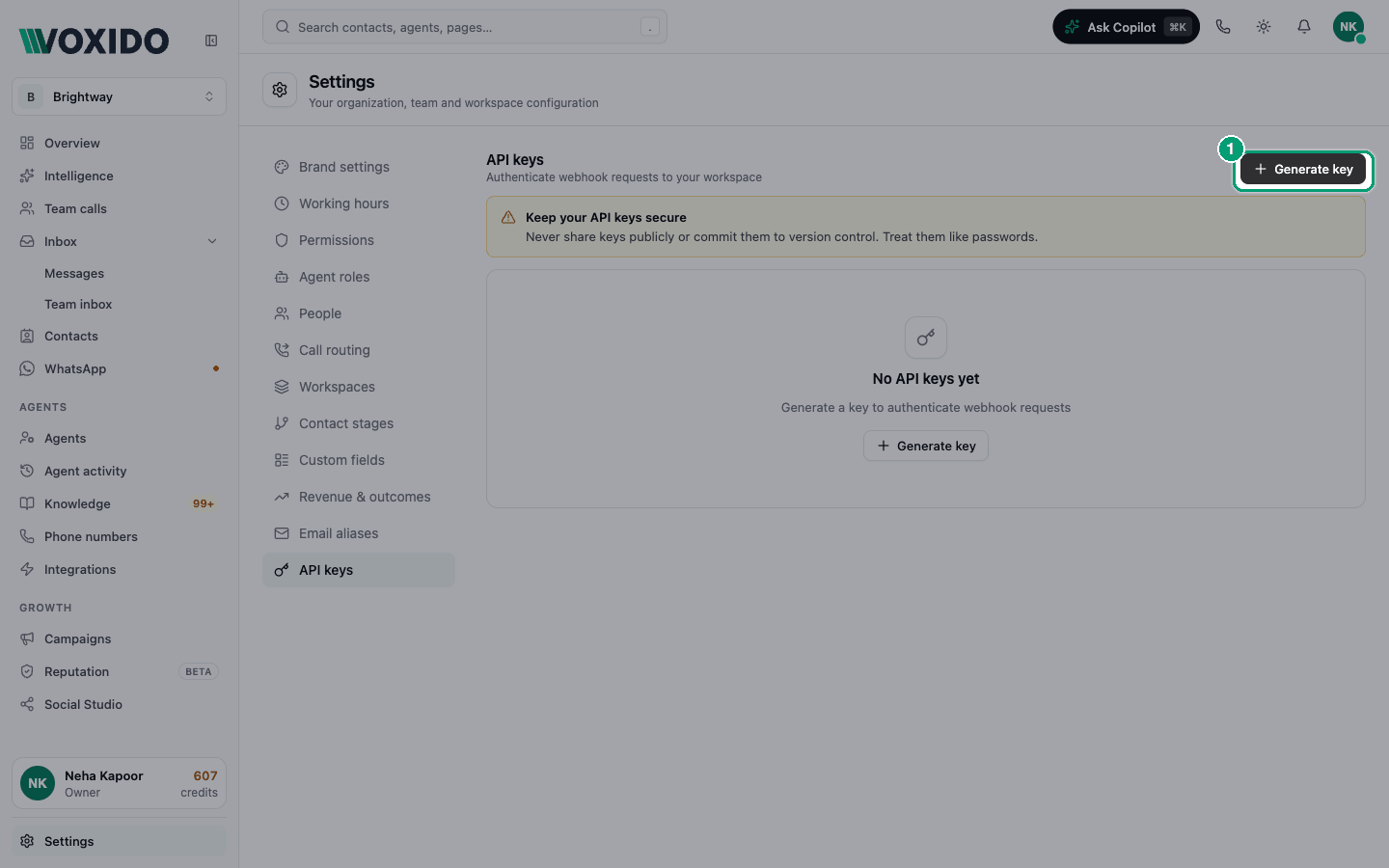
- Go to Sidebar → Settings → API keys and click Generate key. You'll see: a Generate new API key box.
- Type a Key name you'll recognise later, for example
Booking system – production. - Optional: type a Description, such as "Used by the website form".
- Click Generate key. You'll see: API key created — "Copy your key now — it won't be shown again".
- Click Show to check it, then Copy. Paste it straight into the system that will use it, or into your password manager.
- Click Done.
You only see the full key once
Voxido keeps a scrambled copy (a hash), not the key itself. Nobody — not even Voxido support — can show it to you again. If you lose it, revoke it and make a new one.
The key list
Each key shows:
| Item | What it means |
|---|---|
| Name and Active / Revoked pill | Whether the key still works |
| Description | Your note, if you added one |
Ab3xY9z2••• | The key's first 8 characters, so you can tell keys apart |
| Created / Last used | When it was made, and the last time a request used it |
Revoked keys stay in the list so you can see their history.
Revoke a key
- Click Revoke on the key's row. You'll see: Revoke API key? — "Any integrations using this key will stop working immediately."
- Click Revoke key. You'll see: "API key has been revoked." The pill turns red.
This can't be undone.
Replace (rotate) a key safely
There's no "rotate" button. Do it in this order so nothing breaks:
- Generate a new key.
- Put the new key into your system and check that it works.
- Revoke the old key.
Revoking first breaks your system straight away.
Keep keys safe
- Treat a key like a password. Never put it in a website's code, a public repo or a chat message.
- Use one key per system, so you can revoke one without breaking the others.
- Name keys after where they live ("Website form", "PMS bridge").
Common problems
I can't see the API keys tab. Only Owners and Admins can manage keys. Ask one of them, or see Roles.
My inbound request returns 401 Unauthorized. Check you're using the full key (not the 8-character start), that it's Active, and that it was generated from the inbound API's panel.
I closed the box before copying the key. Revoke it and generate a new one.