

Skills: choose what your agent can do
A skill is one action your agent is allowed to take, like "send a WhatsApp message" or "search the knowledge base". Your instructions say what the agent should do. Skills are the hands it uses to do it. If a skill is off, the agent cannot use it, even if your instructions ask for it.
Find it: Sidebar → Agents → open an agent → Skills
Used to be called the "tool belt"
Older pages and some screens still say "tools" or "tool belt". It means the same thing as skills.
How skills work, in three lines
- The agent only knows about the skills that are on. Nothing else exists for it.
- Voxido checks again every time the agent uses a skill. A skill that is off is refused, even if the agent tries.
- Fewer skills means better choices. The screen reminds you: Agents choose best with fewer than 25.
Pick your path: which skills does my agent need?
Start from the job, not the list. Find the row closest to your agent, turn those skills on, then add only what's missing.
| If your agent's job is… | Turn on these skills | Why |
|---|---|---|
| Answer questions on WhatsApp (Brightway front desk) | Send WhatsApp message, Search knowledge base, Talk to a human | Reply, find the right answer, and pass hard cases to a person. |
| Follow up new leads (real estate, coaching centre) | Send WhatsApp template, Update contact information, Move contact to a stage, Mark goal as done | Leads haven't messaged you in 24 hours, so you need templates. Save what they say and move them along your pipeline. |
| Book appointments (clinic, salon) | Send WhatsApp message, Ask the contact a question, Update contact information, plus a booking skill from your apps or a Custom API | The agent collects date and time, saves them, and writes the booking into your system. |
| Remind people of a date (school fees, loan EMI, appointment) | Send WhatsApp template, Record contact opt-out, Talk to a human | Reminders go out first, so they need approved templates. Respect "stop", and let a person take disputes. |
| Answer phone calls | Search knowledge base, Talk to a human, End the phone call | Look up answers, transfer the call to staff, and hang up politely. |
| Hotel front desk | Check room availability, Quote a room rate, Log booking request, Create a service request | Shown under Stays for hotel-type businesses. See Skills reference. |
Good / Better / Best
- Good: 5–8 skills that match one clear job.
- Better: each skill is named in your instructions, so the agent knows when to use it. See Writing instructions.
- Best: you tested each skill with Try it live before publishing.
What you'll see on the Skills screen
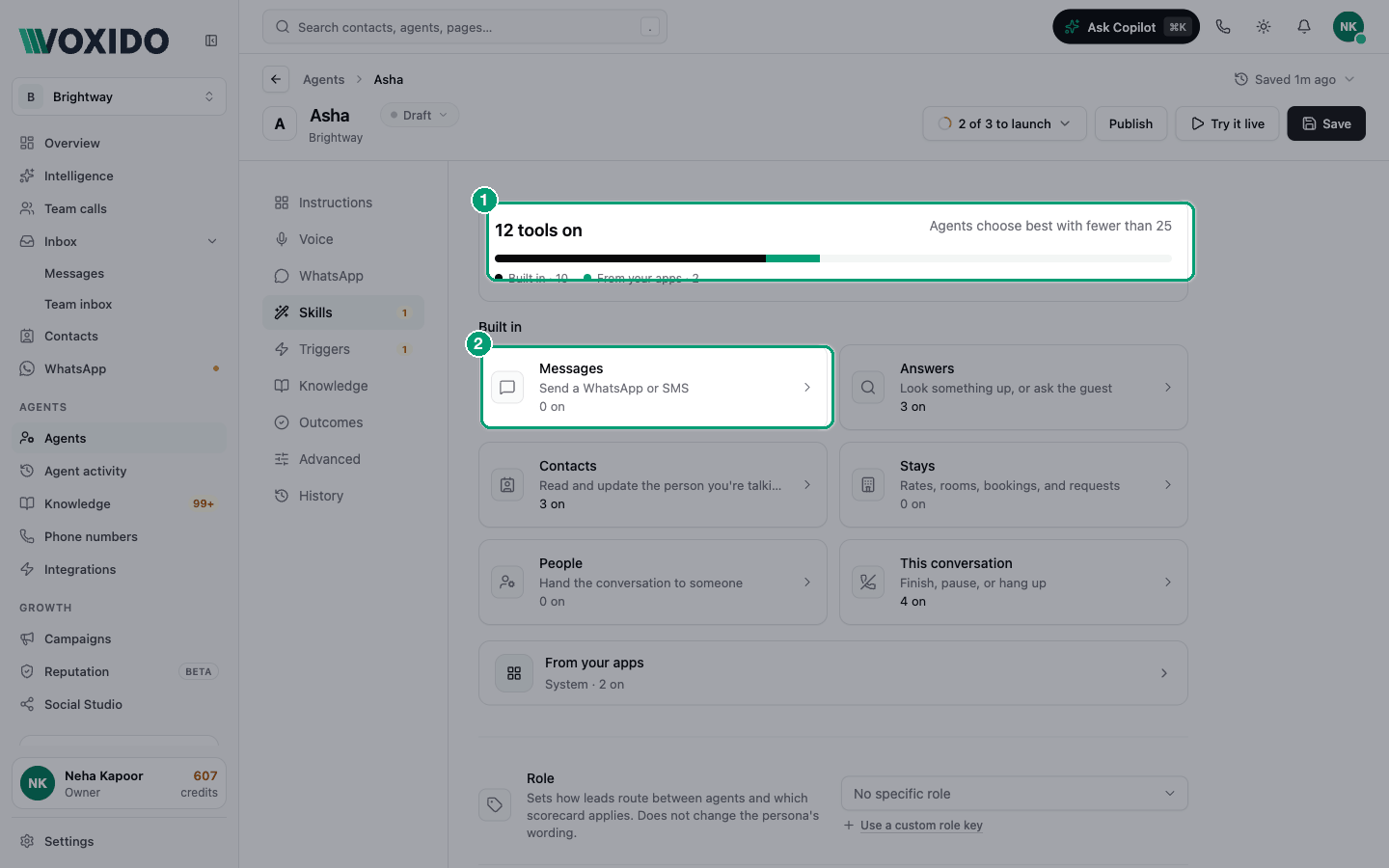
From top to bottom:
- A counter card. It says how many skills are on, for example "12 tools on". A bar splits them into Built in and From your apps.
- Built in groups. Each card is one kind of job, with a count of how many are on:
- Messages — Send a WhatsApp or SMS
- Answers — Look something up, or ask the guest
- Contacts — Read and update the person you're talking to
- Stays — Rates, rooms, bookings, and requests (hotel-type businesses only)
- People — Hand the conversation to someone
- This conversation — Finish, pause, or hang up
- From your apps. A button that opens the skills that come from connected apps and your own Custom APIs.
- Role and When done, hand off to. Two settings for passing conversations between agents. See Hand off a conversation.
Each skill row shows a friendly name, one line about what it does, and a small grey code name (for example kb_search). The code name is what Voxido uses inside. You only need it if support asks.
Turn a skill on or off
- Open your agent and click Skills in the left rail. You'll see: the counter card and the Built in groups.
- Click a group card, for example Messages. You'll see: the card opens and lists each skill with a switch.
- Flip the switch next to the skill you want. You'll see: the switch turns on, the row flashes, and the counter goes up by one.
- Click Save at the top right of the editor. You'll see: a "Saved" message. Skills are not saved until you click Save.
To remove a skill, flip its switch off and click Save.
Skills from your apps
Skills from connected apps (for example a calendar or CRM) and from your own APIs live behind the From your apps button.
- Click From your apps. You'll see: a Your apps window. System holds Voxido's extra skills and your Custom APIs. Your apps lists each connected app.
- Click Voxido or an app name. You'll see: that app's skills with switches, and how many are on.
- Turn on the ones this agent needs, close the window, and click Save. You'll see: the From your apps number in the counter goes up.
If an app or skill is missing, it isn't turned on in Integrations yet. The window tells you where to go. Step-by-step: Use connected apps and Custom APIs.
Badges and safety checks
| You see | What it means | What to do |
|---|---|---|
| Needs confirmation | The skill changes something important (for example checks a guest in). The agent must get a clear "yes" first. | Tell the agent in your instructions what to confirm. |
| Reads private data | The skill can read private data from a connected account. | You'll get a pop-up. Turn it on only for agents that talk to your own team. |
| Internal agents only | The skill is locked because this agent talks to the public. | Change who the agent talks to in Advanced settings, if that's right. |
When you turn on a skill marked Reads private data, a window asks "Enable …?". It warns that anyone who talks to this agent could get it to reveal that data. Click I understand — enable to go ahead, or Cancel.
Public agents can't read private data
If your agent talks to customers (the public), private-data skills are locked. Voxido also blocks them on its servers, so this can't be bypassed by instructions.
Before you can publish
An agent can't go live until at least one Messages skill is on. The publish checklist shows "Turn on a messaging tool" until you do. Even a phone-only agent needs one, so it has a way to reach people.
A new agent's starting skills
When you save a brand-new agent without choosing any skills, Voxido turns on a safe starter set. These skills don't message anyone or cost extra:
- Search knowledge base, Ask the contact a question, Flag a question we couldn't answer
- Look up contact information, Update contact information, Record contact opt-out
- Mark goal as done, Give up on this goal, Pause this session for later, End the phone call
- Remember and Note Session Fact (under From your apps → Voxido)
You still need to add a Messages skill before you can publish.
Common problems
The agent says it will do something, but nothing happens. The skill is probably off. Open Skills, find it, switch it on, and click Save. Then test again.
I turned a skill on but it's off again after I left. You left without clicking Save. Turn it on again and save.
The Stays group or the Property system list is missing. Stays shows only for hotel-type businesses. Property system skills appear only after your property system is connected in Integrations. See Skills reference.
The agent picks the wrong skill. Too many skills are on, or your instructions don't say when to use each one. Turn off what this agent doesn't need and name the right skill in your instructions.