

Use connected apps and Custom APIs inside an agent
Your agent often needs live information from another system. "Is Dr. Mehta free at 4 pm?" "Is a deluxe room free on Friday?" "What's the balance on this loan?" This page shows how to give your agent a skill that asks your system for the answer.
Find it: Sidebar → Agents → open an agent → Skills → From your apps
Pick your path: where should the agent get the answer?
There are three ways to give an agent information. Pick by asking: does the answer change often, and does it live in another system?
| Your situation | Use | Why |
|---|---|---|
| The answer rarely changes: prices list, opening hours, policies, FAQs | Knowledge base | Write it once, the agent searches it. No setup with other systems. See Knowledge. |
| The answer lives in an app Voxido can connect to (a calendar, CRM, sheet, hotel property system) | Connected app | Connect once in Integrations, then switch on the skills you want. No code. See Connectors. |
| The answer lives in your own system, or an app Voxido can't connect to | Custom API | You describe one web request to your system. The agent calls it during the chat. See Custom API. |
Examples
- A school shares its fee structure: knowledge base. A parent asks "how much do I owe?": Custom API to your fees system.
- A clinic shares its doctors and timings: knowledge base. A patient asks for a free slot today: connected calendar app, or a Custom API to your booking software.
- A loan recovery team needs each borrower's due amount: Custom API to your loan system.
- A hotel on eZee Absolute wants live room availability: connected property system (built in, see the example below).
Rule of thumb
If you would copy-paste it into a document, use the knowledge base. If you would have to log in to another screen to check it, use a connected app or a Custom API.
Use a connected app
Before you start, connect the app and turn on its skills: Sidebar → Integrations → Apps. For each skill you choose how it runs. See Connectors.
| How it runs (set in Integrations) | What the agent does |
|---|---|
| Always allow | Uses it as soon as it decides to. |
| Ask customer first | Confirms with the customer, then runs it. |
| Needs team OK | Waits in Team inbox until a teammate approves. The agent tells the customer it's with the team. |
| Off | No agent can use it. |
Then give the skill to your agent:
- Open your agent and click Skills. You'll see: the skill groups and the From your apps button.
- Click From your apps. You'll see: a Your apps window with a list of connected apps and how many skills each has on.
- Click the app, for example your calendar app. You'll see: its skills with switches. Each line says how it runs, for example "The agent asks the customer first."
- Turn on only the skills this agent needs. You'll see: the count at the top changes, for example "2 on · 14 available".
- Close the window and click Save. You'll see: "Saved", and From your apps in the counter goes up.
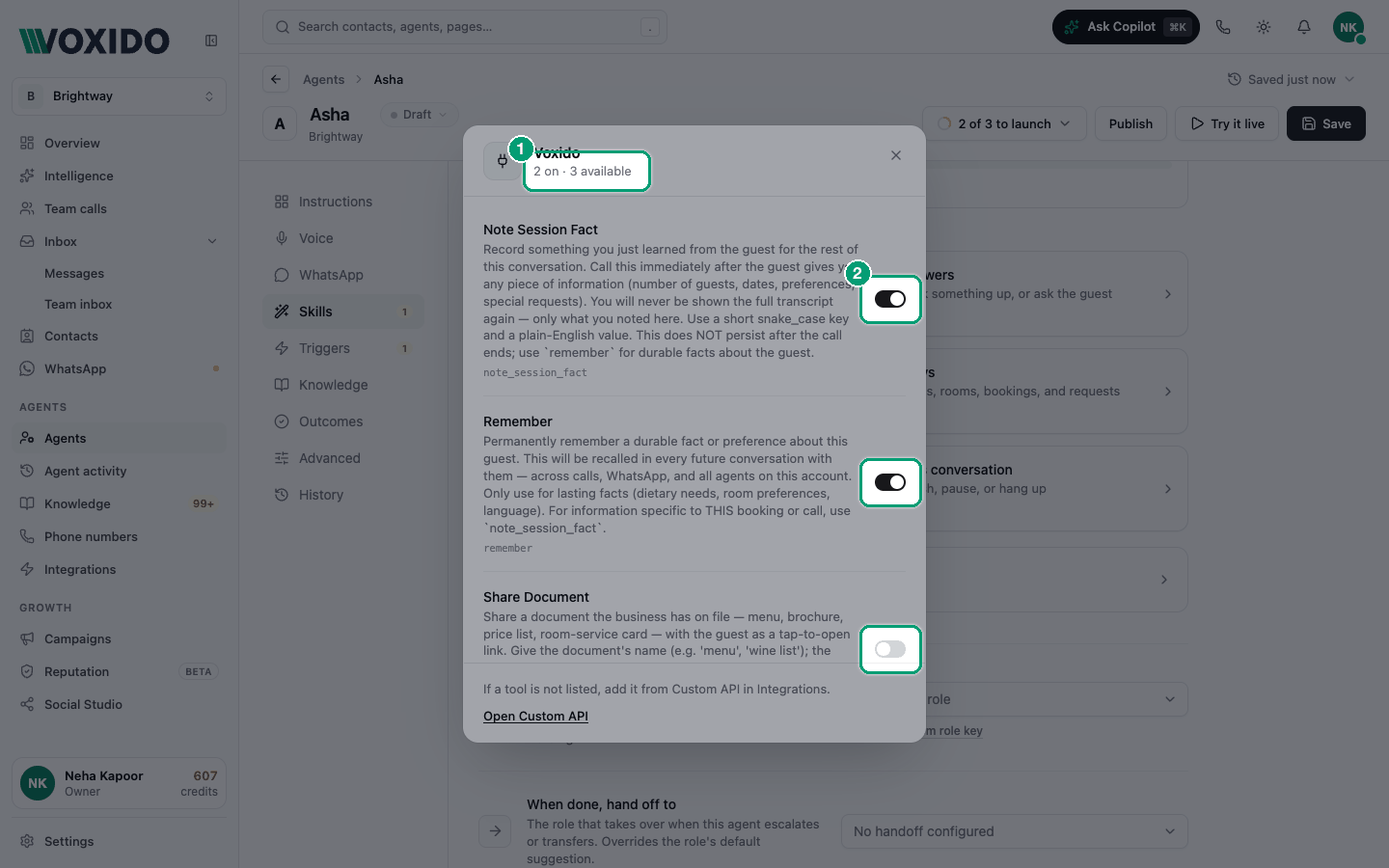
An app or skill is missing? The window lists only skills already turned on in Integrations. Click Open Integrations (or Open … in Integrations) at the bottom of the window to turn it on there.
Use a Custom API
A Custom API is one web request to your own system that you set up in Voxido. When you share it with agents, it becomes a skill.
Step 1: Build the request and share it with agents
Full details are in Custom API. The short version:
- Go to Sidebar → Integrations → Custom API → Outbound, and click New outbound API. You'll see: the editor, with a name, method, URL and tabs Auth, Headers, Body, Response, Routing and Agent.
- Fill in the name, method and URL, and set up Auth. You'll see: a tick next to Auth when the connection is valid.
- Open the Agent tab and turn on Expose to agents. You'll see: three more parts: Tool description, Parameters, and a note about output fields.
- Write the Tool description. Say when to use it and what it returns. The agent reads this to decide when to call it.
- Click Add parameter for each value the agent must fill in. Give it a name, a type (string, integer, number or boolean), a short description, and tick Required if needed.
- Optional but recommended: open Response and add Output fields, for example
data.slots. This keeps the agent's view small and clean. Without them, a yellow note says the agent will see the raw response. - Click Test, then Save. You'll see: the API in the list with an Agent tool tag.
How the agent's values reach your system
For a POST request, the values the agent fills in are added to the request body. For a GET request, put them in the URL, like ?date={{args.date}}.
Step 2: Turn it on for the agent
- Open your agent → Skills → From your apps. You'll see: System with Voxido.
- Click Voxido. You'll see: Voxido's extra skills and every Custom API you shared, by name.
- Switch on your Custom API, close the window and click Save. You'll see: "Saved".
- In your instructions, say when to use it. For example: "Before offering a time, check free slots with Check free slots."
Sharing a Custom API with agents doesn't give it to every agent. You still switch it on per agent.
Example: "check room availability from our booking system"
The problem: Brightway Suites gets WhatsApp messages like "Do you have a room for 2 on 14 March?" Staff check the booking system and reply hours later. Guests book elsewhere.
Which option fits?
- If your booking system is eZee Absolute, Stayflexi, BookingJini or WinCloud PMS, use the built-in property system skills. No Custom API needed.
- If it's another system that has an API, use a Custom API.
Path A: built-in property system
- Connect your property system: Sidebar → Integrations → Apps (see Connectors). You'll see: the app shows as connected.
- Open your agent → Skills → click Stays. You'll see: a Property system list. Before you connect, it shows a message to connect your PMS instead.
- Turn on Check room availability, and Book in PMS (single room) or Log booking request. You'll see: the switches turn on. Admins also see Show PMS list prices under availability.
- Click Save, then test with Try it live.
Path B: Custom API
- Build a Custom API called "Check room availability". Method POST, your system's availability URL.
- In the Agent tab, turn on Expose to agents. Tool description: "Check free rooms for a date range. Use before quoting a room. Returns room types with free count and price."
- Add parameters:
check_in(string, "Arrival date as YYYY-MM-DD", Required),check_out(string, Required),guests(integer, Required). - Under Response, add output fields such as
data.rooms. Click Test, then Save. - In the agent: Skills → From your apps → Voxido → switch on "Check room availability" → Save.
- Add one line to your instructions: "Always check availability before offering a room. Never guess."
Try it: Ask "Room for 2 from 14 to 16 March?" in Try it live. The agent should ask anything missing, call the skill, and answer with real rooms.
Common problems
My Custom API isn't in the Voxido list.Expose to agents is off, or the API isn't saved. Open it in Custom API, check the Agent tab, and save.
The agent never calls the skill. The tool description is vague, or your instructions don't mention it. Say exactly when to use it. If it still never runs, contact Voxido support.
The agent says a value is missing. A required contact field or parameter was empty. Ask the customer, or update the contact, then try again.
The agent reads too much or odd data back. Add Output fields under Response so it only sees what it needs.