

Custom API: connect your own system to Voxido
A Custom API connects Voxido to software that isn't in the Apps catalog — usually your own booking, order or CRM system. An API is a web address (URL) that one program uses to ask another program for something.
There are two directions:
- Outbound — your agent calls your system during a chat, for example "check free slots" or "create a booking".
- Inbound — your system sends data into Voxido, for example "a new lead filled in our form".
Find it: Sidebar → Integrations → Custom API → Outbound or InboundWho can use it: Owners and Admins
Pick your path
| If you want… | Choose |
|---|---|
| The agent to look up or change something in your system while it talks to a customer | Outbound API |
| New leads, bookings or orders from your system to appear in Contacts | Inbound API |
| A well-known app like Google Calendar or HubSpot | A connector instead — no setup of URLs |
| Your system to make an agent message or call someone right now | A webhook trigger |
Let Copilot do the first draft
Click Set up with Copilot, or open its menu → Paste cURL or API docs…, paste an example request or a page of your API docs, and click Send to Copilot. Copilot fills in the API and tests it. Check its work before you rely on it.
Outbound APIs: your agent calls your system
Text chats only, for now
Agents use outbound APIs in WhatsApp and other text conversations. They aren't offered to the agent on voice calls today.
1. Create the API and its connection
A connection holds your system's address and password-like credentials. You make it once and reuse it for every API on that system.
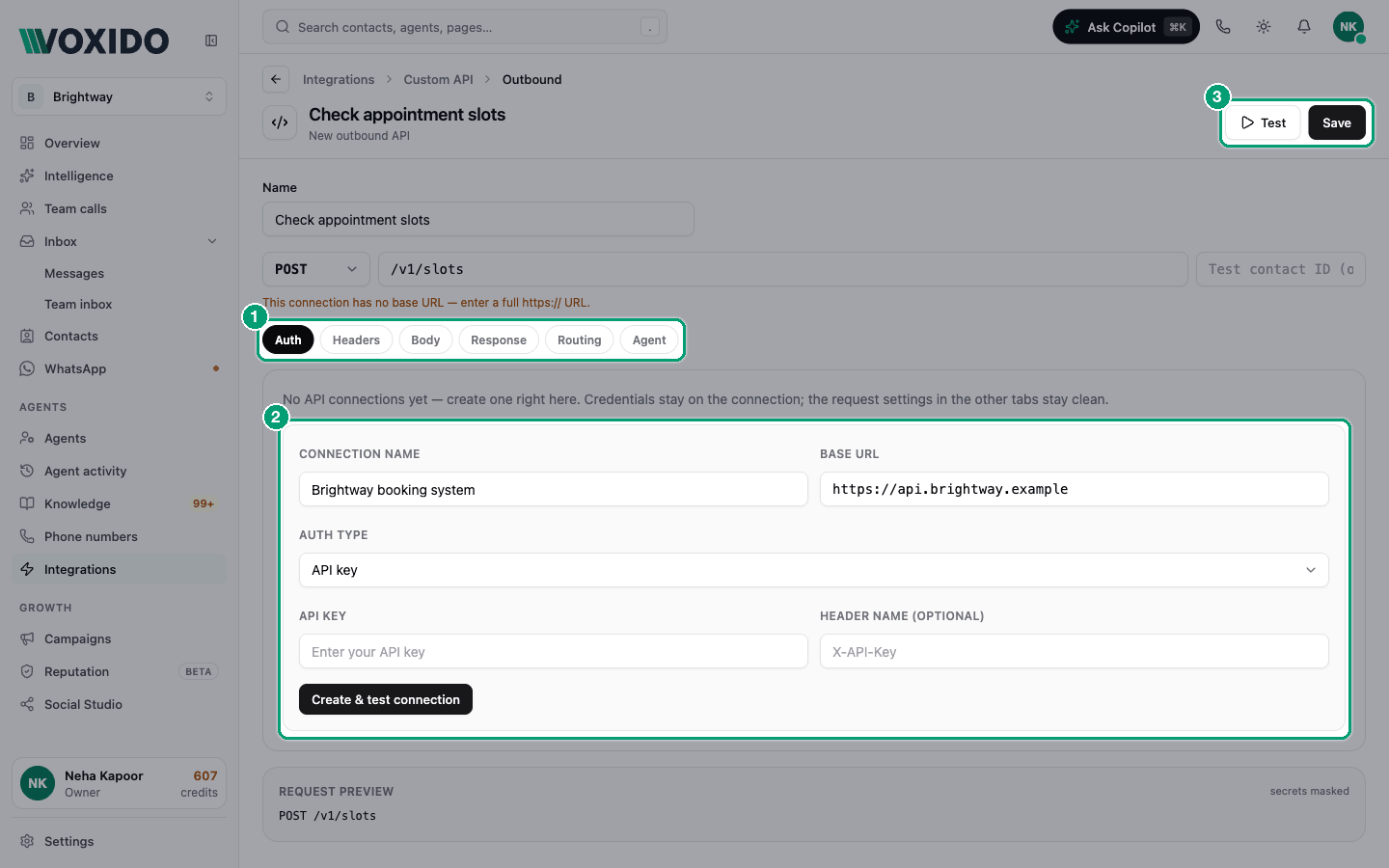
- Go to Integrations → Custom API → Outbound and click New outbound API. You'll see: the editor, open on the Auth tab.
- Click New connection and fill in:
| Field | What to enter |
|---|---|
| Connection name | For example Brightway booking system |
| Base URL | The start of every address, such as https://api.brightway.example |
| Auth type | API key, Bearer token or Basic auth — whatever your system asks for |
| API key + Header name | The key, and the header it goes in, such as X-API-Key. Always fill in the header name; if you leave it blank, the key is sent in Authorization. |
| Bearer token | Sent as Authorization: Bearer … |
| Username + Password | For basic auth |
- Click Create & test connection. You'll see: "Connected — credentials verified." (Voxido sends a test request to your base URL.)
No auth is also listed, but a connection without credentials can't be used today. Choose one of the other three.
2. Describe the request
- Type a Name (the agent sees it), such as
Check free slots. - Pick the method: GET, POST, PUT, PATCH or DELETE. GET reads, POST creates.
- Type the path, such as
/v1/slots. It's added to the base URL. You'll see "Requests go to …". - Headers tab — add query parameters (the
?date=…part) and extra headers. Don't put credentials here; names likeapi_key,tokenorauthorizationare refused. They belong on the connection. - Body tab (POST, PUT and PATCH) — choose:
- Build from fields — pick contact fields (Name, Email, Phone, custom fields…) and choose the name to Send as. Tick Required to make the agent ask the customer when a value is missing. Keep Include arguments the agent fills at call time ticked.
- Raw template — write the JSON yourself, using the variables below. Add a
Content-Type: application/jsonheader on the Headers tab.
Variables you can use
Type these into the path, query parameters, headers or raw template:
| Variable | Filled with |
|---|---|
{{args.date}} | A value the agent fills in (a parameter from the Agent tab) |
{{contact.name}}, {{contact.phone}}, {{contact.email}} | The customer's details |
{{contact.id}}, {{contact.status}}, {{contact.notes}} | More contact details |
{{contact.custom_fields.membership_no}} | Any custom field, by its key |
Use these exact forms
The Insert Variable button adds names like {{contact_name}}. Those only fill in during tests. In real conversations, use {{contact.name}}-style variables from this table.
3. Choose what the agent gets back
On the Response tab:
- Record path — if the useful part is inside a wrapper, type its path, such as
data.results. If it points at a list, the output fields are read from every item in it. - Output fields — the parts of the answer the agent should see, such as
start. Click Pick from a sample response to tick them from your last test.
Without output fields, the agent sees the whole raw response.
4. Let the agent use it
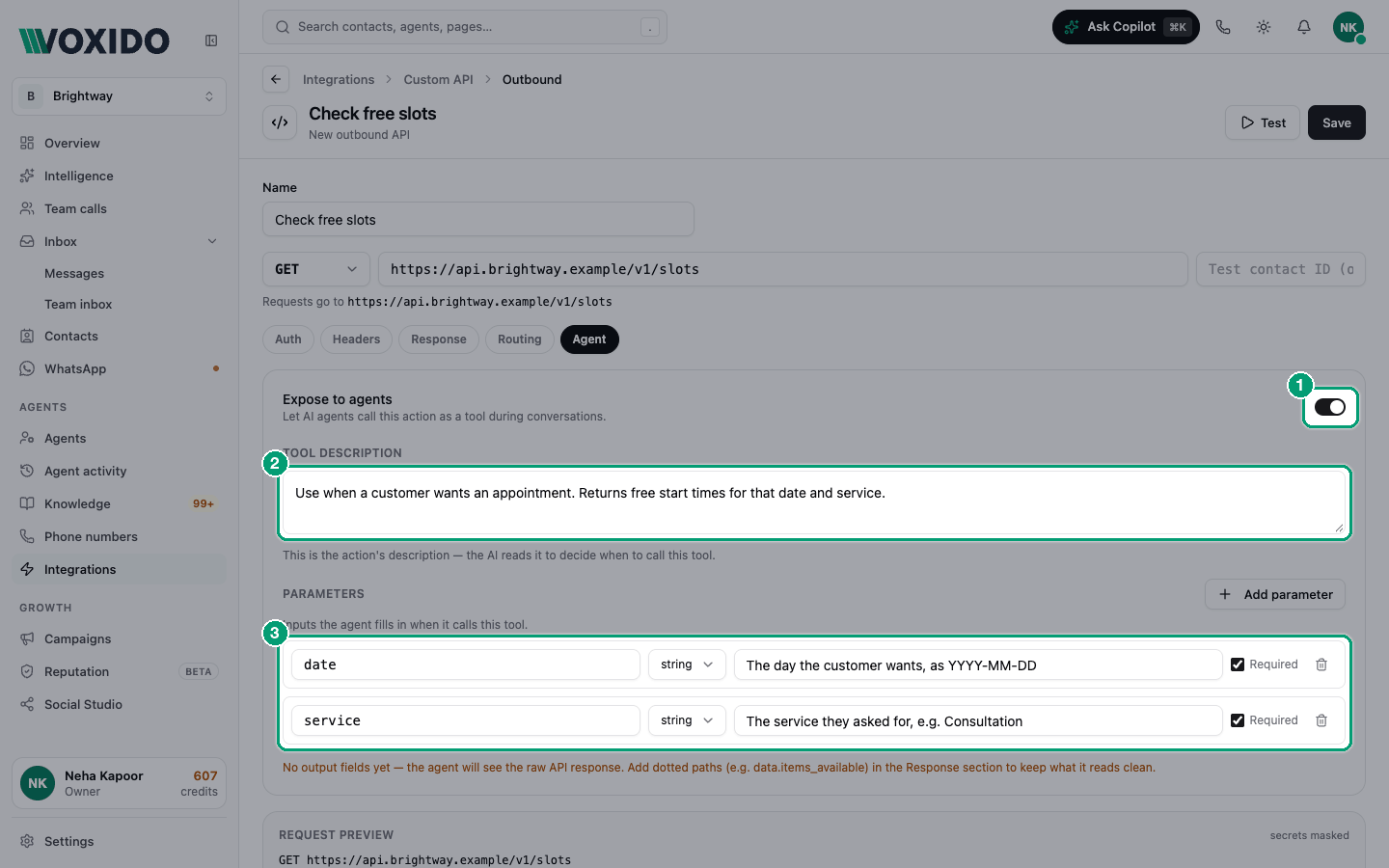
- Open the Agent tab and switch on Expose to agents.
- Write a Tool description: when to use it and what it returns. Example: "Use when a customer asks for a time. Returns free start times for that date and service."
- Under Parameters, click Add parameter for each value the agent must supply: a name (such as
date), a type (string, integer, number or boolean), what to pass, and Required. - Click Save.
- Go to Sidebar → Agents → open the agent → Skills → From your apps → System → Voxido, and switch the API on. Click Save.
5. Test it
Click Test in the editor. It saves, then sends a real request. Testing a POST really creates a record in your system, so use a test account or delete it afterwards.
You'll see: Success or Failed, the HTTP code, the time taken, the Raw response and What the agent sees.
To test with a real customer's details, use the ▶ Test with sample data button on the Outbound list and pick a contact.
Routing rules (optional)
On the Routing tab, send some contacts somewhere else — another connection, another URL, or extra values. Example: contacts with Branch is Pune go to the Pune server. Rules are checked top to bottom; the first match wins. Use Test with a contact → Resolve route to check.
Limits and safety
| Rule | Detail |
|---|---|
| Time limit | 30 seconds per request |
| Size | Responses over 2 MB are cut |
| Redirects | Not followed — use the final address |
| Private addresses | Addresses inside private networks are blocked |
| Retries | None. If a call fails, the agent is told and carries on. |
Inbound APIs: your system sends data to Voxido
An inbound API is a private web address. When your system posts a contact's details to it, Voxido creates or updates that contact.
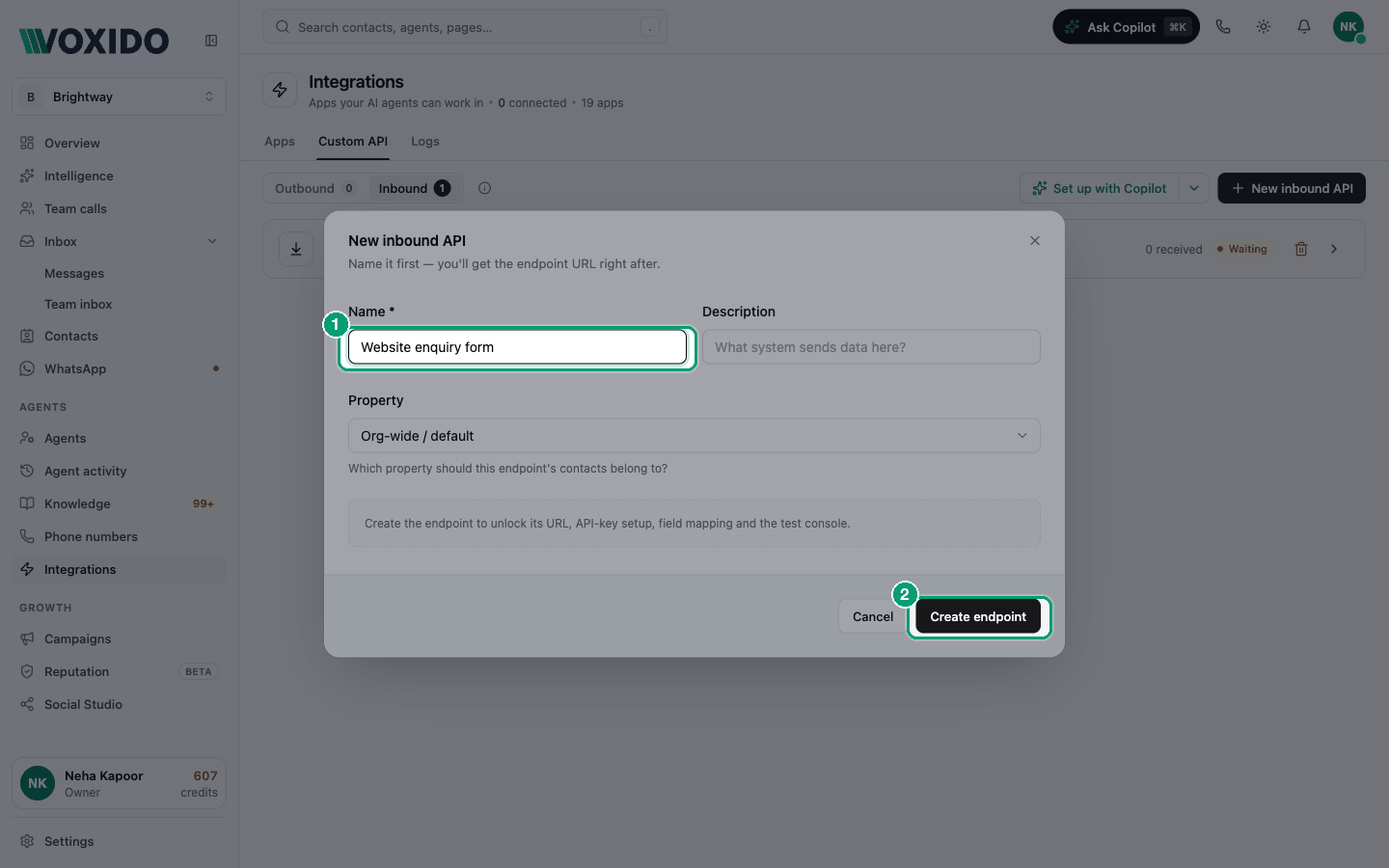
- Go to Integrations → Custom API → Inbound and click New inbound API.
- Type a Name, such as
Website enquiry form, and an optional Description. Click Create endpoint. You'll see: "Endpoint created — Your endpoint URL is ready". - Copy the Endpoint URL.
- Click Generate key. Copy the key now — it's shown once. Your system sends it in the
X-API-Keyheader. - Paste an example of what your system sends into Sample payload, or click Capture from a live request and send one real request within 5 minutes. You'll see: "N source fields detected."
- Under Field Mappings, match each source field to a contact field (Name, Email, Phone, Notes, Status, Pipeline stage or a custom field). Pick a Transform if needed, such as Phone → E.164 or Date → ISO 8601.
- Set Match existing contact by: Auto (email, then phone), Email or Phone.
- Leave After update on None (update contact only) unless you use goals.
- In the Test console, run Dry run (writes nothing), then Send test (writes a real contact).
- Click Save changes, then give your developer the URL, the key and the cURL example.
Requests with no email and no phone are skipped — there's nothing to match on. New contacts start in your default stage, with the API's name as their Reporter. Full request and response details: REST API and authentication.
Use the key from this panel
Keys made here can post to inbound APIs. Keys made under Settings → API keys can't, today.
The list shows each inbound API as Waiting (nothing received yet), Active or Paused. Deleting one makes your system get 401 errors straight away.
Worked example: Brightway's booking system
Brightway takes appointments in its own booking system. They want the WhatsApp agent to offer real free slots and book them, and new web bookings to show up in Contacts.
API 1 — Check free slots (outbound)
| Setting | Value |
|---|---|
| Connection | Brightway booking system, base URL https://api.brightway.example, API key in header X-API-Key |
| Method and path | GET /v1/slots |
| Query parameters | date = {{args.date}}, service = {{args.service}} |
| Response | Record path slots; output fields start, staff |
| Agent tab | Description: "Use when a customer wants an appointment. Returns free start times." Parameters: date (string, "YYYY-MM-DD", required), service (string, required) |
API 2 — Create booking (outbound)
| Setting | Value |
|---|---|
| Method and path | POST /v1/bookings |
| Body | Build from fields: Name → customer_name (required), Phone → phone (required), plus agent arguments |
| Output fields | booking_id, start |
| Agent tab | Description: "Use after the customer picks a slot. Books it and returns a booking ID." Parameters: start (string, required), service (string, required) |
API 3 — New web bookings (inbound): map customer.name → Name, customer.mobile → Phone (Phone → E.164), appointment_date → Appointment date (Date → ISO 8601).
How a chat goes: Priya Sharma writes "Can I come in Saturday for a check-up?" The agent calls Check free slots with date and service, offers 10:00 or 11:30, and when Priya picks 11:30, calls Create booking and replies with her booking ID. Her Appointment date is now set, so the reminder campaign can remind her the day before.
Common problems
The agent never uses my API. Check: Expose to agents is on, the API is switched on in the agent's Skills, the conversation is a text chat (not a call), and the tool description says clearly when to use it. If it still doesn't, ask Voxido support to check Custom API tools are enabled for your account.
The agent can't get an answer from my API. Your system returned an error, took longer than 30 seconds, or redirected. Click Test to see the HTTP code and fix the request.
"Missing required contact fields". The contact is missing a field you marked Required. The agent will ask the customer for it.
My variables are sent as text, like {{contact_name}}. Use {{contact.name}}-style variables. See the table above.
The inbound test returns 401. Use a key from Generate key on the inbound panel, sent in X-API-Key.