

Connect Contacts to your own systems
Typing contacts in, or uploading a spreadsheet, are only two ways to fill Contacts. Most businesses already have a website form, a CRM, a booking or billing system. Voxido can take new people from those systems automatically, and your agents can send details back to them.
Find it: Sidebar → Integrations → Custom API (Inbound and Outbound), and Sidebar → Agents → open an agent → TriggersWho can set it up: Owners and Admins. Your developer, or Copilot, can do the technical part.
Every way a contact gets into Voxido
| Way | Good for | How Voxido spots someone it already has | Workspace the contact lands in |
|---|---|---|---|
| Add contact | One person at a time | Same phone in the same workspace is refused | The workspace you're in |
| Import (CSV or Excel) | A list you already have | Same phone in that workspace. You choose Skip, Fill empty fields or Update. | The workspace you import into |
| A call or WhatsApp message | People who reach you first | Their phone number. New numbers become contacts. | The workspace of the number or agent |
| Inbound API | Your website form, CRM or booking system sends each new or changed person | Email, then phone (you choose) | The workspace you pick on the API, or your default workspace |
| Webhook trigger on an agent | Your system says "contact this person now" | contact_id, phone or email. Creates the contact if it's new. | The agent's workspace |
| Hotel PMS (eZee) | Guests from bookings | The booking, then phone or email | The PMS's workspace |
| Copilot | "Add Priya Sharma, +91 90000 12345, interested in a consultation" | No check, so search first | — |
Agents also keep contacts up to date on their own. During a conversation they can update fields and move the contact to the right stage, and after a call they fill in empty fields from what the customer said.
Pick your path
| Your situation | Use | Why |
|---|---|---|
| "Leads fill in a form on our website and someone retypes them." | Inbound API | The contact appears in seconds, with your fields filled in. Nobody types. |
| "When an order ships, our system should WhatsApp the customer." | Webhook trigger | It creates the contact if needed and starts the agent right away. |
| "We have 2,000 old customers in Excel." | Import | One upload, with duplicate checks. |
| "During a chat, the agent should save the lead in our CRM or check our booking system." | Outbound API (or an app such as HubSpot) | The agent calls your system as part of the conversation. |
| "Every stage change should update our CRM automatically." | Not available yet | Voxido doesn't send automatic webhooks when a contact changes. See Send details out for what works today. |
Bring contacts in with an Inbound API
An Inbound API is a private web address plus a key. Your system sends a person's details to it, and Voxido creates the contact, or updates it if it already exists. You decide which of your system's fields go into which contact field. That's called mapping.
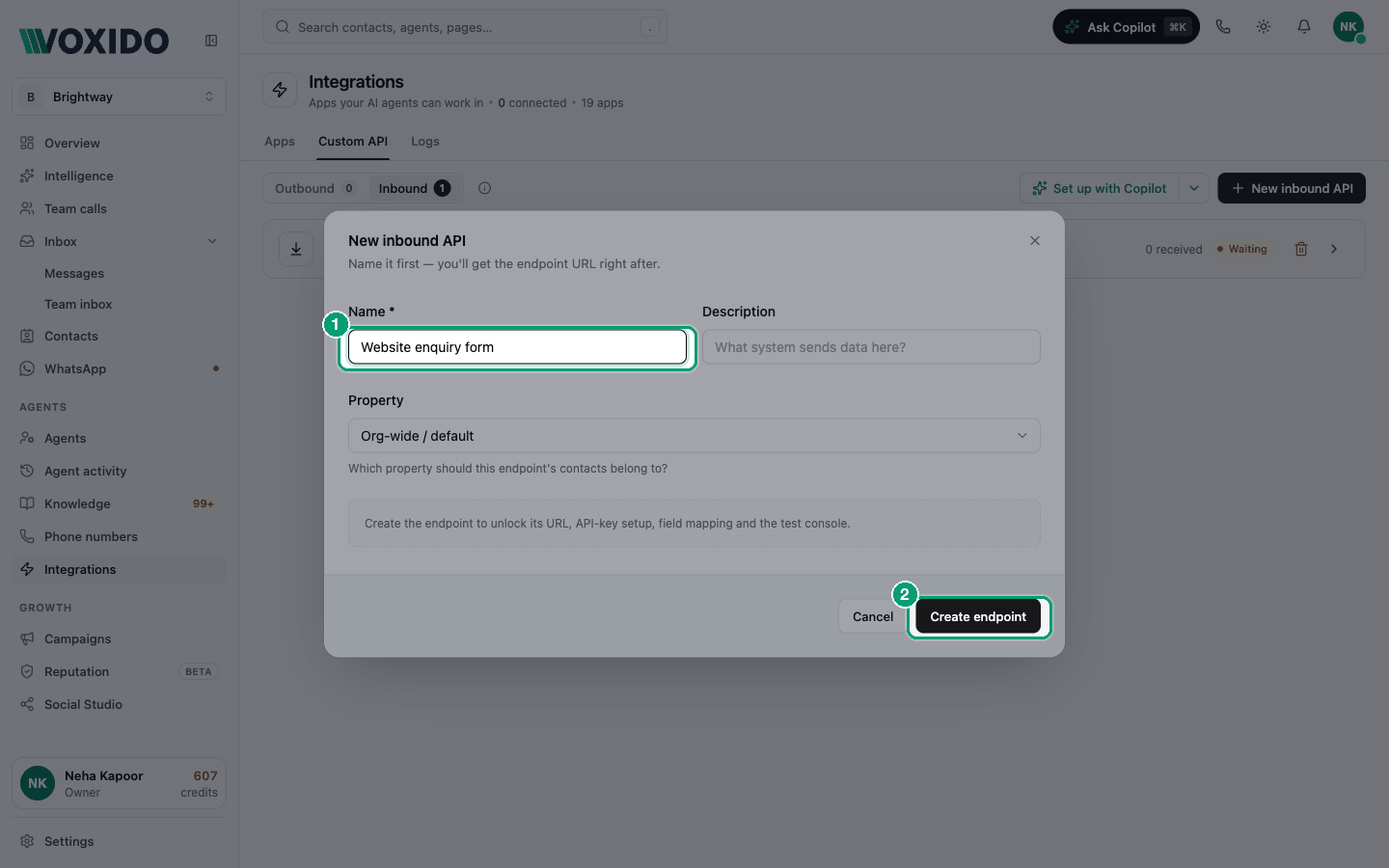
- Go to Integrations → Custom API → Inbound and click New inbound API.
- Type a Name, such as
Website enquiry form. If you have more than one workspace, pick the Property (workspace) new contacts should land in. - Click Create endpoint. You'll see: "Endpoint created" and the Endpoint URL.
- Click Generate key and copy it now. It's shown once. You'll see: the key. Your system sends it in the
X-API-Keyheader. - Paste an example of what your system sends into Sample payload (see the sample below), or click Capture from a live request and send one real request. You'll see: "N source fields detected."
- Under Field Mappings, match each source field to a contact field and pick a Transform where needed. Tick Required for fields that must be there.
- Set Match existing contact by: Auto (email, then phone), Email or Phone.
- In the Test console, click Dry run (writes nothing), then Send test (creates a real contact).
- Click Save changes. Give your developer the URL and the key, or copy the ready-made cURL example.
Use the key from the Inbound API panel
Keys made in Settings → API keys don't work on Inbound APIs. Click Generate key on the Inbound API itself.
Sample: a website enquiry form
This is what a typical form sends. Paste it into Sample payload:
{
  "full_name": "Priya Sharma",
  "mobile": "+919000012345",
  "email": "Priya.Sharma@mail.example",
  "service": "Consultation",
  "preferred_date": "2026-10-24",
  "message": "Can I come in on Saturday morning?"
}
Map it like this:
| Source field | Contact field | Transform | Required |
|---|---|---|---|
full_name | Name | Trim whitespace | |
mobile | Phone | Phone → E.164 | ✓ |
email | Lowercase | ||
service | your custom field Service | ||
preferred_date | your custom field Appointment date | ||
message | Notes |
Tips:
- Send dates as
YYYY-MM-DD. The Date → ISO 8601 transform only tidies spaces; it doesn't rewrite other date formats. - Use Phone → E.164 so
90000 12345and+91 90000 12345are seen as the same person. - A request with no email and no phone is skipped: there's nothing to match on.
Send it from your server:
curl -X POST "https://api.voxido.ai/api/v1/inbound/YOUR_ENDPOINT_ID" \
  -H "Content-Type: application/json" \
  -H "X-API-Key: $VOXIDO_INBOUND_KEY" \
-d '{"full_name":"Priya Sharma","mobile":"+919000012345","email":"priya.sharma@mail.example","service":"Consultation","preferred_date":"2026-10-24"}'// Run this on your server, never in the browser: the key must stay secret.
const res = await fetch("https://api.voxido.ai/api/v1/inbound/YOUR_ENDPOINT_ID", {
method: "POST",
headers: {
"Content-Type": "application/json",
"X-API-Key": process.env.VOXIDO_INBOUND_KEY,
},
body: JSON.stringify({
full_name: form.name,
mobile: form.phone,
email: form.email,
service: form.service,
preferred_date: form.date, // "2026-10-24"
}),
});
console.log(res.status, await res.json());import os, requests
r = requests.post(
"https://api.voxido.ai/api/v1/inbound/YOUR_ENDPOINT_ID",
headers={"X-API-Key": os.environ["VOXIDO_INBOUND_KEY"]},
json={
"full_name": "Priya Sharma",
"mobile": "+919000012345",
"email": "priya.sharma@mail.example",
"service": "Consultation",
"preferred_date": "2026-10-24",
},
timeout=10,
)
print(r.status_code, r.json())You'll get back:
{ "status": "ok", "contact_id": "8b1d…", "result": "created", "goal_fired": false, "assignee": null }result is created, updated or skipped. Every status code is listed in REST API and authentication.
Sample: from a tool, without code
Zapier, Make, Pabbly and n8n can all send this request. Add a Webhook or HTTP request step after your trigger (a new form entry, a new CRM deal…):
| Setting | Value |
|---|---|
| Method | POST |
| URL | Your Endpoint URL |
| Headers | X-API-Key = your key, Content-Type = application/json |
| Body | JSON with your fields, as in the sample above |
If a form builder can only send a webhook without custom headers, send it to Zapier, Make or n8n first, and let that step add the X-API-Key header.
Let Copilot set it up
Copilot can create, change and test Inbound APIs for you. You approve each change. Open Ask Copilot and paste something like:
Create an inbound API called "Website enquiry form" in this workspace. Our form sends:
{"full_name":"Priya Sharma","mobile":"+919000012345","email":"priya@mail.example","service":"Consultation","preferred_date":"2026-10-24"}. Map full_name to Name, mobile to Phone with E.164 (required), email to Email in lowercase, service to the Service field and preferred_date to Appointment date. Match existing contacts by phone. Then do a dry run.
Then open the Inbound API, click Generate key yourself, and send one real test.
Make an agent act when your system says so (webhook trigger)
Use this when your system should start a conversation now: "booking confirmed, send the details", "order shipped, tell the customer".
- Open an agent → Triggers → Add trigger → When an external system notifies us.
- Copy the Webhook URL. Click Generate next to Signing secret and copy it.
- From your system, send a
POSTto the URL with the contact's phone (or email, orcontact_id) and anything the agent should know:
{
  "phone": "+919000012345",
  "trigger_source": "order_shipped",
  "context": { "order_id": "BW-1042", "items": "2 × water filter", "eta": "Friday" }
}- Sign it: the
X-Voxido-Signatureheader is the HMAC-SHA256 (lowercase hex) of the exact body, using the signing secret. Don't send the secret itself.
If no contact has that phone or email, Voxido creates one in the agent's workspace. The agent must be Active to act. Code samples in Python and Node.js: Webhook triggers: payload and HMAC signing. Step-by-step: Webhook triggers and signing secrets.
| Inbound API | Webhook trigger | |
|---|---|---|
| Creates or updates the contact | Yes, with your field mapping | Creates it if missing. Doesn't map fields. |
| Starts an agent | Only if you pick a goal under After update | Yes, straight away |
| Authentication | X-API-Key header | X-Voxido-Signature (HMAC of the body) |
| Best for | Keeping Contacts in step with your form or CRM | "Do something for this person now" |
Send details out to your systems
Voxido doesn't push automatic updates (webhooks) to your systems when a contact is created or changes stage. Today, details go out in these ways:
| Way | When it runs | Works on |
|---|---|---|
| Outbound API exposed to the agent | When the agent decides to call it during a conversation, for example after it has the customer's name and need | Text chats (WhatsApp and others). Not voice calls yet. |
| An app from the Apps catalog, such as HubSpot | When the agent uses that app's action during a conversation | Calls and chats |
| Export | When you download a CSV | Any time |
Sample: "Save lead to our CRM" (outbound)
Let the WhatsApp agent save every qualified lead in your CRM.
- Go to Integrations → Custom API → Outbound → New outbound API.
- On Auth, create the connection: Base URL
https://crm.brightway.example, Auth type API key, Header nameX-API-Key. Click Create & test connection. - Name it
Save lead to CRM, method POST, path/api/leads. - On Headers, add
Content-Type=application/json. On Body, choose Raw template:
{
  "name": "{{contact.name}}",
  "phone": "{{contact.phone}}",
  "email": "{{contact.email}}",
  "service": "{{contact.custom_fields.service}}",
  "summary": "{{args.summary}}",
  "source": "voxido-whatsapp"
}- On Response, add the output field
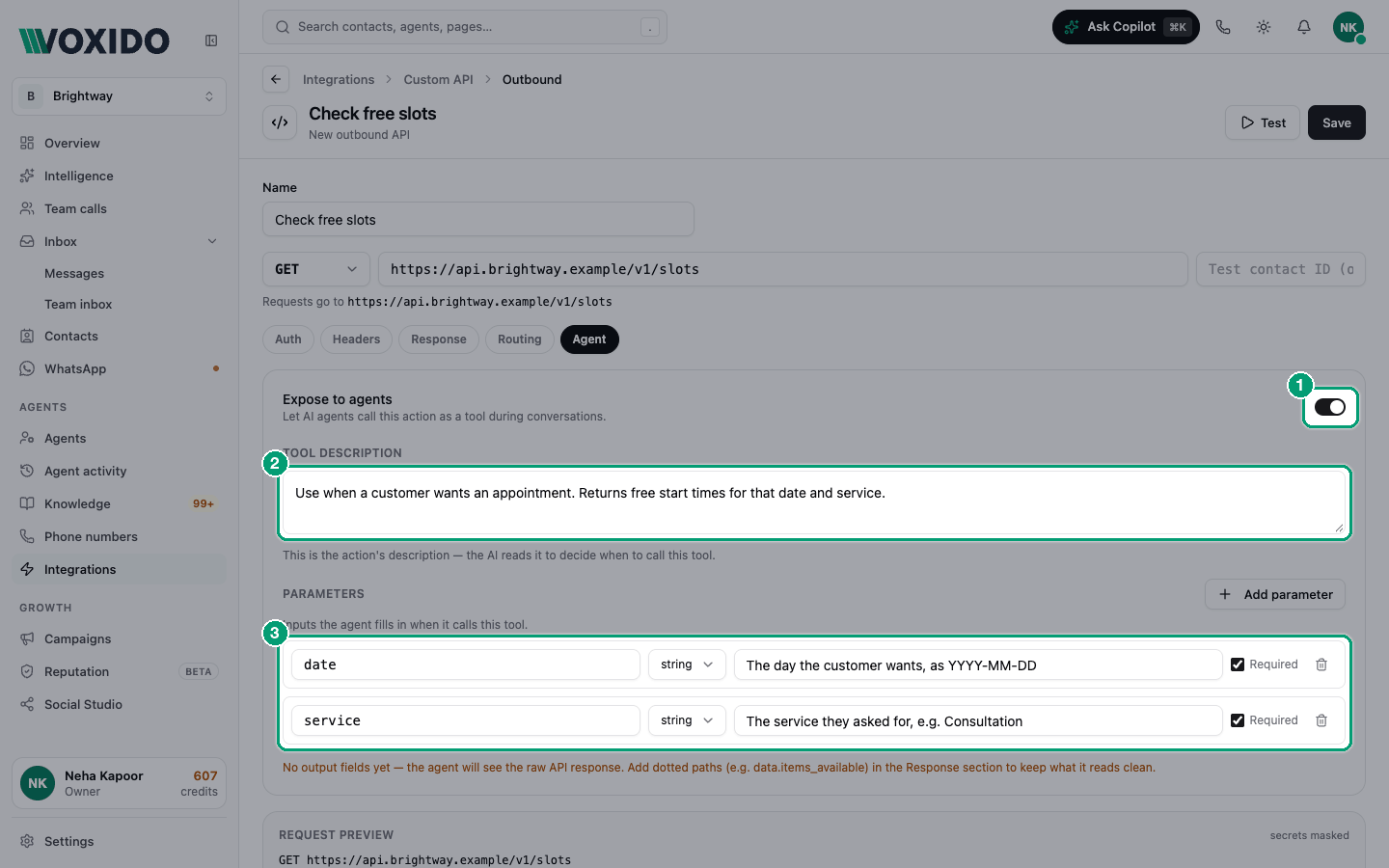
lead_id. - On Agent, switch on Expose to agents. Description: "Use once you know the customer's name, phone and the service they want. Saves the lead in our CRM and returns its ID." Add a parameter
summary(string, required): "One line on what the customer wants". - Click Test, then Save. Then open the agent → Skills → From your apps → System → Voxido, switch the API on, and Save.
Your CRM receives a normal JSON POST and should answer within 30 seconds. A minimal receiver:
app.post("/api/leads", express.json(), async (req, res) => {
  if (req.get("X-API-Key") !== process.env.CRM_KEY_FOR_VOXIDO) return res.sendStatus(401);
  const lead = await db.leads.upsert({ phone: req.body.phone }, req.body);
  res.json({ lead_id: lead.id, status: "saved" });
});@app.post("/api/leads")
def save_lead():
if request.headers.get("X-API-Key") != os.environ["CRM_KEY_FOR_VOXIDO"]:
return {"error": "unauthorized"}, 401
lead = upsert_lead(phone=request.json["phone"], data=request.json)
return {"lead_id": lead.id, "status": "saved"}Copilot can build this too. Click Set up with Copilot → Paste cURL or API docs…, paste your CRM's API docs or an example request, and click Send to Copilot. Check the result, then test it.
More options (routing rules, variables, limits): Custom API.
Common problems
The inbound request returns 401. Use a key from Generate key on the Inbound API, sent in X-API-Key. Keys from Settings → API keys don't work here.
The answer says "result": "skipped". The request had no email and no phone, so there was nothing to match. Map at least one of them.
The same person shows up twice. The phone came in two formats. Add the Phone → E.164 transform and set Match existing contact by to Phone.
422 "Missing required mapping fields". Your system didn't send a field you marked Required. The response lists which ones.
The webhook trigger returns 401.X-Voxido-Signature must be the HMAC of the exact body, not the secret itself.
The agent never saved the lead to our CRM. Check that Expose to agents is on, the API is switched on in the agent's Skills, and the conversation was a text chat. Voice calls don't use outbound APIs yet.