

Agent status: draft, active, paused, archived
Every agent has a status. The status decides whether the agent talks to real customers.
Find it: the status pill next to the agent's name, at the top of the agent editor. On the Agents list, the Live switch on each row.
The four statuses
| Status | What the app says | What it means |
|---|---|---|
| Draft | "Not live yet — safe to keep editing" | Doesn't answer customers. Triggers don't fire. You can still test it with Try it live. |
| Active | "Live — takes calls and messages" | Answers customers. Its triggers fire. Shown as Live on the Agents list. |
| Paused | "Stopped for now — resume anytime" | Stops answering and its triggers stop firing. Nothing is lost. |
| Archived | "Hidden from lists, kept for records" | Out of the way, but kept. |
Which status do I need?
| Your situation | Choose |
|---|---|
| "I'm still building or testing it." | Draft |
| "It's tested and ready for customers." | Active (click Publish) |
| "Something looks wrong. Stop it now while I check." | Paused |
| "We're closed for a holiday and don't want reminders going out." | Paused |
| "We don't use this agent any more, but I want to keep it." | Archived |
| "I never want to see this agent again." | Delete it (see below) |
What an agent needs before it can go live
A draft agent can go live only when three things are done. The header button N of 3 to launch shows how many are left. Click it to see the list.
| Checklist item | What it needs |
|---|---|
| Describe what it does | At least 50 characters in the Instructions (saved). |
| Add a trigger | At least one trigger in Triggers. |
| Turn on a messaging tool | At least one messaging skill in Skills, such as Send WhatsApp message, Send WhatsApp template or Send SMS. |
Phone-only agents need a messaging skill too
Even an agent that only takes calls needs one messaging skill switched on before it can go live. Send WhatsApp message is a useful choice, because the agent can then send a caller a link or a summary.
Put an agent live (Publish)
- Click Save so the checklist sees your latest changes.
- Click N of 3 to launch in the header. You'll see: "N steps before you can publish", with each item ticked or open. Open items have a Fix → link.
- Click Fix → next to each open item and finish it. Click Save again. You'll see: the button says Ready to launch and the ring is full.
- Click Publish. You'll see: "Agent activated" and the status pill says Active.
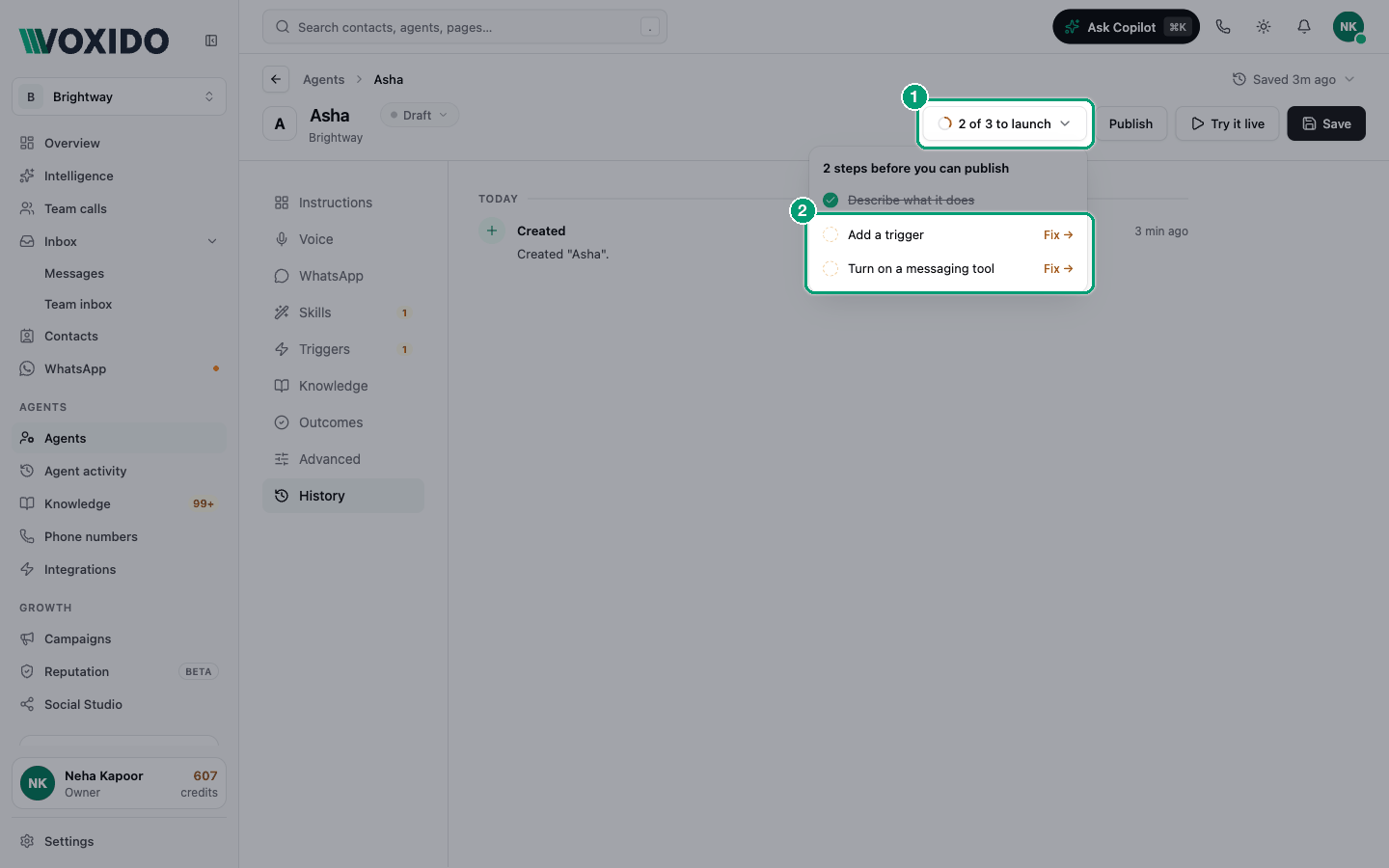
You can also click the status pill and choose Active under Change status. While the checklist isn't complete, that option says "Needs N fixes first".
Agents that start conversations on their own
Some triggers fire by themselves: On a recurring time, Before or after a contact date, When a contact's info matches and Place a call on a schedule. Once the agent is live, they start within about a minute and reach every matching contact, and each conversation uses credits. Before you publish, check the schedule and the contact filter on each of these triggers.
When you turn a paused agent with these triggers back on from the editor, Voxido asks Activate this agent? and lists the triggers. Click Yes, activate only if they are right.
Pause and resume
- In the editor: click the status pill, then Paused. To resume, choose Active.
- On the Agents list: turn the Live switch off or on, or use ⋯ → Pause / Resume.
You'll see: "Agent paused" (in the editor) or, for example, "Asha paused" (on the list). Pausing doesn't change any settings, so you can resume any time.
Archive
Click the status pill, then Archived. The agent moves to the Archived tab of the Agents list. That tab only appears when you have archived agents.
An archived agent can't be switched live from the Agents list. To use it again, open it, click the status pill and choose Draft or Active.
Delete
Deleting stops the agent taking new calls and messages. A conversation already in progress finishes first. Then the agent disappears from your list.
- On the Agents list: ⋯ → Delete → Delete agent. You then have about 8 seconds to click Undo in the message that appears.
- In the editor: Advanced → Delete this agent → Delete agent → Delete.
You can't bring a deleted agent back in the app
If you might need it again, pause or archive it instead.
When to test, and when to go live
| Before you publish, have you… | Why it matters |
|---|---|
| Had at least three test conversations with Try it live? | Catches wrong answers before customers do. |
| Asked a question the Knowledge doesn't answer? | Shows whether the agent admits it doesn't know. |
| Checked each trigger's number, schedule and contact filter? | Stops messages reaching the wrong people. |
| Told your team what the agent will send to them? | They'll know what to do with "Notify the team" messages. |
Common problems
I clicked Publish and got "Finish the agent before activating". The checklist isn't complete. Click N of 3 to launch and use the Fix → links. Remember to Save.
The checklist still shows an item I've done. The checklist reads the saved agent. Click Save.
The agent is Live but the Agents list says "never fired". Its triggers haven't matched anything yet. Check the trigger's phone number or WhatsApp number, and any contact filter. See How triggers work.
I can't turn the Live switch on for a draft. A draft must be published from its editor first. Open it and click Publish.