

Your status and leave: control when calls and jobs come to you
Your status tells Voxido whether it can send you work right now. Available means calls and new Team inbox jobs can come to you. Away means you're skipped. Leave goes further: no calls and no alerts while it runs.
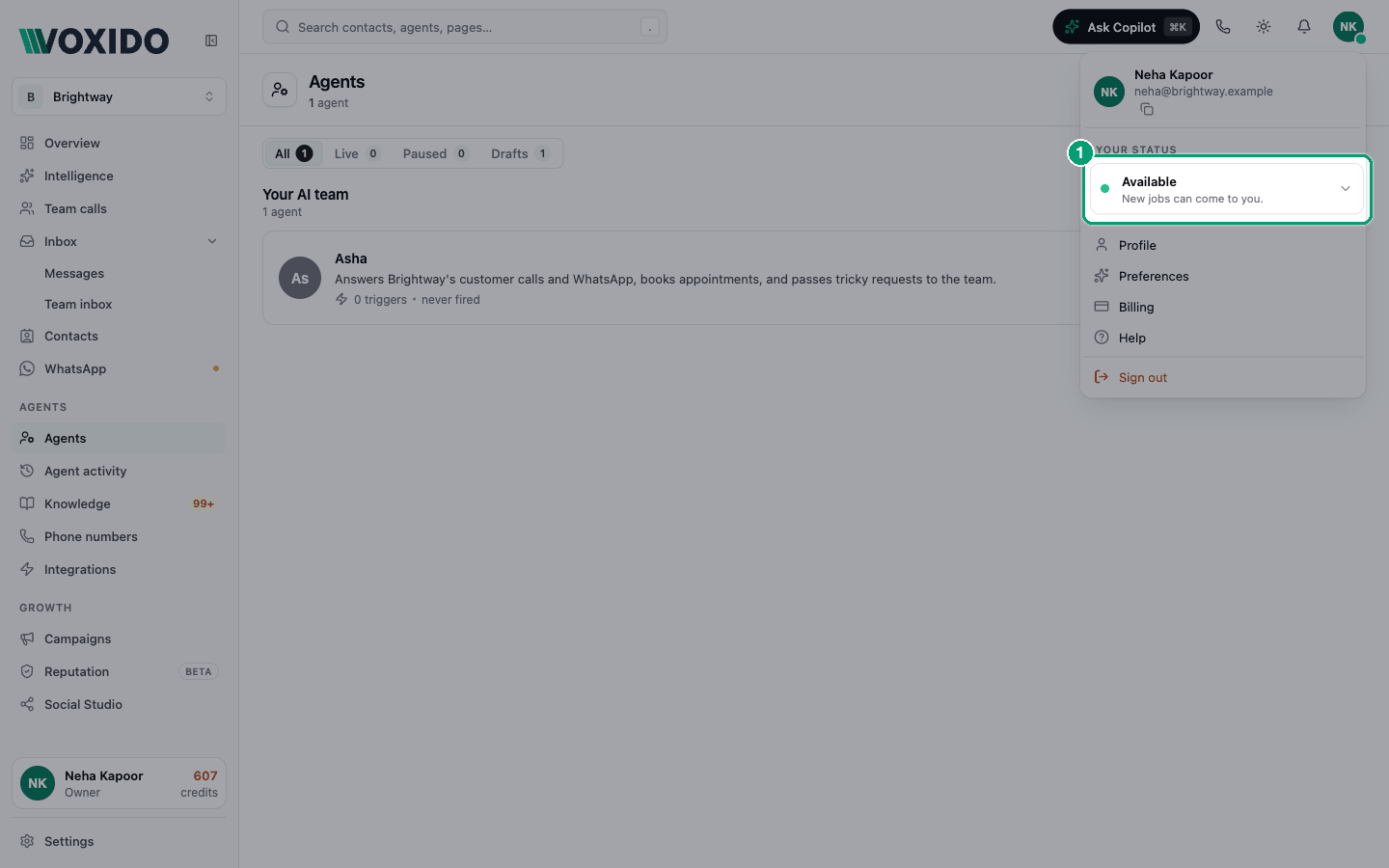
Find it: Top bar → your avatar (top right) → Your status
Your status shows only while call routing is On (see Call routing), and only if your login is linked to a person in People.
Which status should I pick?
| Your situation | Pick | Why |
|---|---|---|
| Ready to work | Available | Calls and new jobs can come to you. |
| Short break, lunch, a meeting | Away → 15 min, 30 min or 1 hour | You come back to Available on your own. |
| Busy for an unknown time | Away → Until I'm back | You stay skipped until you pick Available again. |
| A half day, a day off, a holiday | On leave | No calls and no alerts. It starts and ends on its own. |
| Your shift ended | Nothing | Voxido sets Off shift for you. |
Set your status
- Click your avatar. You'll see: under Your status, a button with your status now, for example Available, "Calls can come to you."
- Click that button. You'll see: the choices Available, Away with four lengths, and On leave.
- Pick one:
- Available: "Calls can come to you." If you don't take calls, it says "New jobs can come to you."
- Away, then 15 min, 30 min, 1 hour or Until I'm back: "You're skipped until you're back."
- On leave: "Half day, full day or several days." Opens Mark leave (see below). You'll see: the button shows your choice, for example Away, "Back in 15 min."
A small dot on your avatar shows your status without opening the menu.
Away works for everyone who is active, not only people who take calls. It also stops new Team inbox jobs being assigned to you. You may still get team alerts on WhatsApp, SMS or email while Away. Only leave and a "not available" daily check-in stop those.
Statuses Voxido sets for you
Some statuses aren't yours to pick. The menu shows them under Set for you.
- On a call: "Set for you while you're on a call." No other calls ring for you.
- Off shift: you're outside your working days or shift. It shows when your next shift starts, for example "Shift at 9:00 am."
- Not available today: "Set for you by today's check-in." You answered no, or didn't answer, the WhatsApp check-in.
- On leave: your booked leave is running. It shows when it ends.
- Offline: you answer calls on Computer, and Voxido isn't open on your computer.
What each status means
These statuses also show in Team calls.
| Status | What it means | Rung for calls? | Picked for new Team inbox jobs? |
|---|---|---|---|
| Available | Ready for work. | Yes | Yes |
| Away | You chose Away, or missed two calls in a row. Shows until when, for example "Away till 2:30 pm". | No | No |
| On a call | On a handed-over call, or being rung right now. | No | Yes |
| On leave | Booked leave is running, for example "On leave till Sat 26 Sep". | No | No, and no alerts |
| Off shift | Outside your working days or shift. | No | No |
| Not available today | Today's WhatsApp check-in said no, or got no reply. | No | No |
| Offline | Answers on Computer, and no Voxido tab checked in for about 90 seconds. | No | Yes |
| Doesn't take calls | Takes calls is off, or the person is inactive. | No | Depends on the rest |
If nobody in a team is free, a new job goes to whoever will be free soonest. A callback for a caller nobody could answer can still go to someone On a call or Offline, because it's done later, from the Team inbox.
Book leave
- Click your avatar, open the status button and choose On leave. You'll see: the menu turns into Mark leave.
- Pick a length: First half, Second half, Full day or Several days. You'll see: a hint, for example "Half days follow your shift, 9:00 am – 6:00 pm." Without a shift: "Half days split the day at noon."
- Check Dates, and the From and To times. Dates has quick picks: Today, Tomorrow, Next 3 days, Next 7 days, Custom.
- Click Save leave. You'll see: "Leave saved", and a Leave booked box in your menu, for example "Wed 24 Sep · 9:00 am – 1:30 pm".
The note in the form says what leave does: "No calls or alerts during this time. Your status turns to On leave when it starts and back to Available when it ends. Your lead sees it on the team board."
Rules:
- Leave must end after it starts, and can be at most 60 days.
- You can't book leave that has already ended, or that overlaps leave you booked.
- Leave needs no approval.
Change or remove leave
In your profile menu, the Leave booked box shows your next leave, and "+ 1 more" if you have others.
- Click Edit, change the dates or times, then Save leave.
- To cancel it, click Edit, then Remove this leave.
Your numbers today
If you take calls, the menu also shows calls today, talk time and rated Great. It also has Incoming call sound, to switch the ring chime on or off. See Team calls.
Set status or leave for someone else
Managers, Admins and Owners can set anyone's status and book their leave.
Find it: Settings → People → ⋯ on the person's row, or Team calls → Who takes calls → ⋯ on the row
- Click ⋯ on the person's row. You'll see: Available, Away for 15 min, Away for 30 min, Away for 1 hour, Away until back and Mark leave…. The status choices show while call routing is on.
- Pick a status, or Mark leave…. You'll see: for leave, a dialog Leave for (their name), with their Leave booked list (each with Remove) above the same leave form.
A Manager limited to some workspaces can only do this for people in those workspaces.
Missed calls and Away
Miss two handed-over calls in a row, and Voxido sets you to Away until you set yourself Available again. A manager can do it for you too. If your person has an Escalates to team, that team gets an alert: "(your name) was set to Away".
Pass to next doesn't count as a miss. A caller hanging up before you answer doesn't count either.
Common problems
I don't see Your status in my menu. Call routing must be On, and your login must be linked to you in Settings → People. An admin can link it with ⋯ → Link login.
I only see On leave. Your person is marked inactive. Leave still matters, because it stops alerts. Ask an admin to Mark active if that's wrong.
Why does it say Off shift? The time is outside your working days or shift, in your company time zone. An admin can change your shift in Settings → People → ⋯ → Edit → Working hours.