

Inviting a teammate
Invite a teammate so they can sign in to Voxido with their own login. You pick their role and which workspaces they can open. They get an email with a link to join.
Find it: Sidebar → Settings → PeopleWho can use it: Owners and Admins
Before you start
- Decide their role. Not sure? See Which role to give each person.
- Use the email they actually read. The invite link only works for that address.
Invite login or Add person?
People has two buttons. Pick the one that matches what the person will do.
| The person will… | Use | What happens |
|---|---|---|
| Only sign in: read chats, update contacts, see reports | Invite login | They get a login. They don't take calls or get alerts. |
| Take calls or get alerts, and also sign in | Add person, then turn on Give Voxido login | You add them to a team and invite them in one go. See People and teams. |
| Take calls or get alerts, but never sign in | Add person, with Give Voxido login off | Alerts only, no password. |
Send an invite
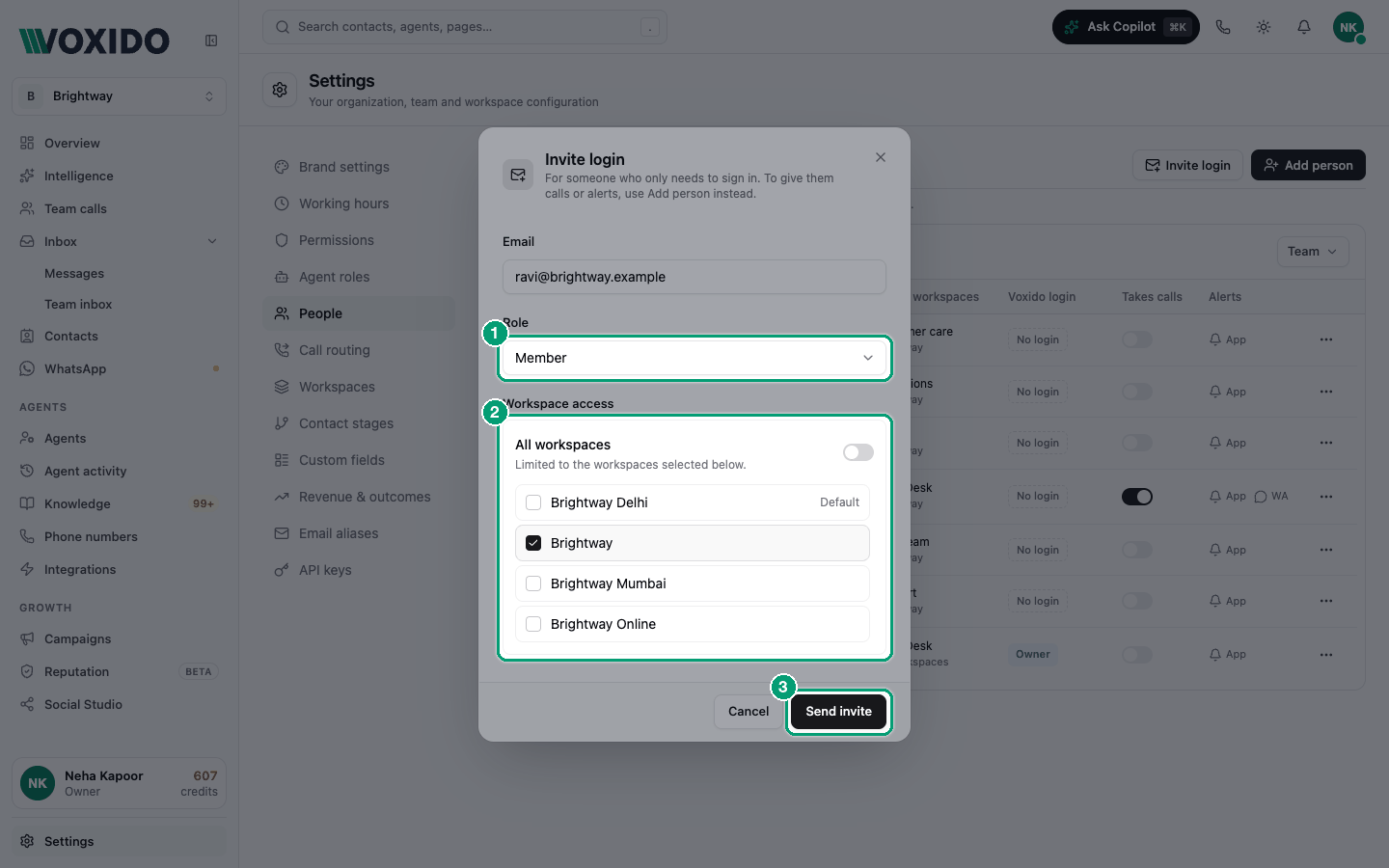
- Go to Settings → People and click Invite login. You'll see: the Invite login window: "For someone who only needs to sign in. To give them calls or alerts, use Add person instead."
- Type their Email, like
ravi@brightway.com. - Pick their Role: Member, Manager or (Owners only) Admin.
- For a Member or Manager, choose their Workspace access: keep All workspaces on, or turn it off and tick the workspaces they may open. You'll see: for Admins this choice doesn't show, because Admins always see every workspace.
- Click Send invite. You'll see: "Invite sent to ravi@brightway.com", and a new row in People with an Invited tag.
What your teammate receives
They get an email from Voxido:
- Subject: "You're invited to join Brightway on Voxido"
- Message: "You've been invited to join Brightway on Voxido as a Member…"
- Button: Accept Invitation
The link works for 7 days. After that, send it again (see below).
What your teammate sees
If they're new to Voxido:
- They click Accept Invitation in the email. They'll see: Join Brightway, "You've been invited as a member. Set up your account to get started."
- They type their name, create a password and type it again.
- They click Create account & join. They'll see: "Welcome aboard!" and they land inside your workspace.
If they already have a Voxido account with that email:
- They click Accept Invitation. They'll see: "You already have a Voxido account. Log in with their email to join Brightway."
- They click Log in to accept and sign in. They'll see: "Joining your workspace…", then "You're in!"
Resend or cancel an invite
On the Invited row in People, click ⋯:
- Resend invite: sends a fresh link, valid for another 7 days. You'll see "Invite resent".
- Cancel invite: the link stops working and the row leaves the list. You'll see "Invite cancelled".
Inviting the same email again while an invite is waiting doesn't make a second invite. It updates the waiting one (with the new role and workspaces) and sends it again.
Common problems
"This person is already a member of your company." They already have a login. Find them in the People list instead.
"This account already belongs to another organization." A Voxido login can belong to only one business at a time. Ask them to use a different email, or to leave the other business first.
"This invite is invalid or has expired. Ask your team to send a new one." The link is older than 7 days, or the invite was cancelled. Click Resend invite.
I can't pick Admin. Only the Owner can invite an Admin.
They signed in but see very little. That's their role at work. Members don't see Agents or Settings. Change their role in the People list if they need more.