

Import contacts from CSV or Excel
Have a list of customers, leads or students in a spreadsheet? Import it. Voxido reads your file, matches its columns to your fields, and shows you what will happen to every row. Nothing is saved until you click Import.
Find it: Sidebar → Contacts → Import
Before you start
- Create your stages and custom fields first. A column can only go into a field that exists. See Contact stages and Custom fields.
- Tidy the file. Five minutes here saves an hour later. See Prepare your contact file.
- Know your limits. CSV or Excel (
.xlsx), up to 1,000 contacts per file. Split bigger lists. - Check your running campaigns. New contacts that match a running campaign are contacted by it. The import tells you before you confirm.
Step 1: File
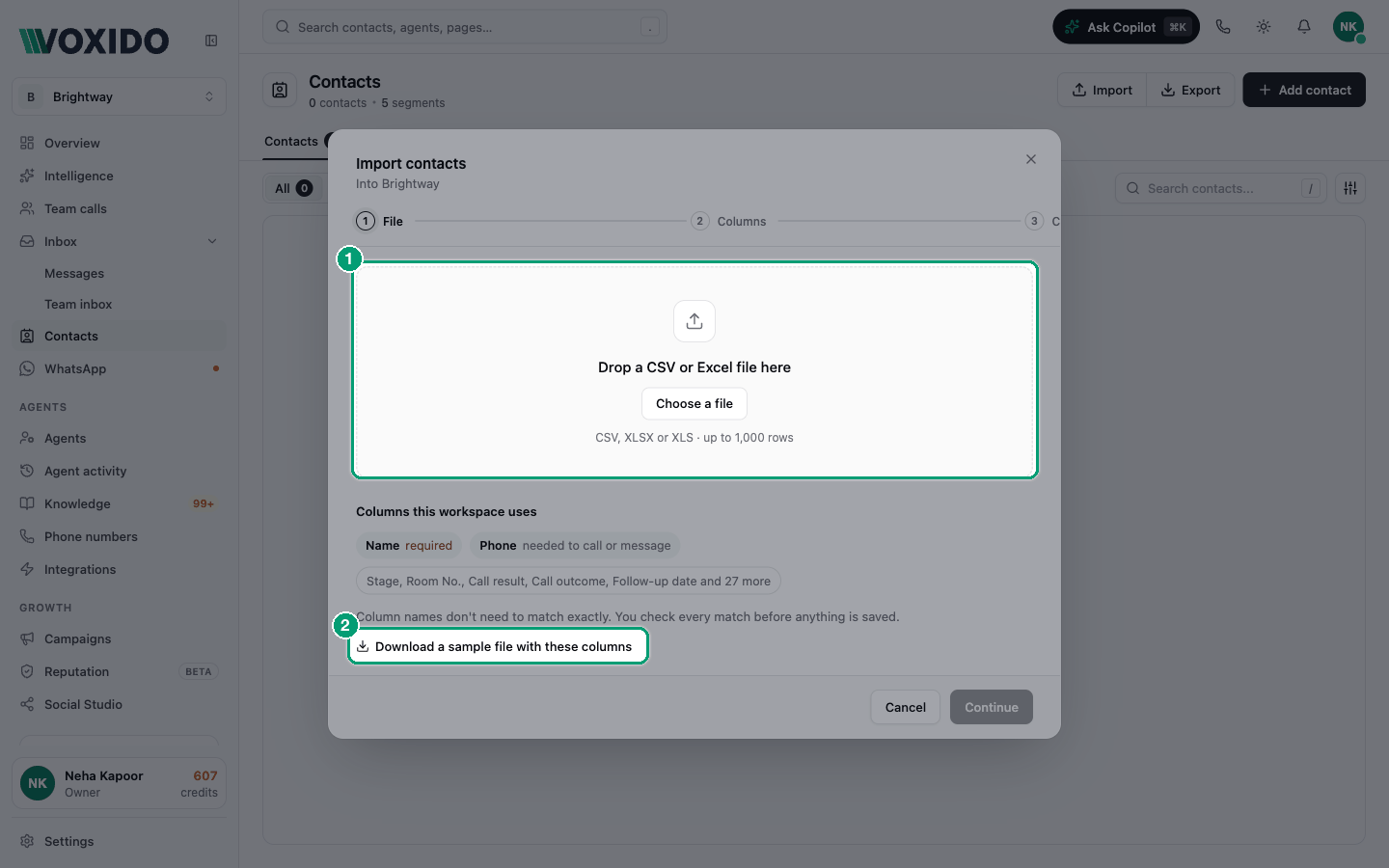
- On the Contacts page, click Import. You'll see: Import contacts, with "Into" and your workspace's name, and three steps: File, Columns, Check.
- Look at Columns this workspace uses. Name is required, and so is any field your team marked required. Phone is needed to call or message.
- Optional: click Download a sample file with these columns. It has your fields as columns and two example rows.
- Drop your file on the box, or click Choose a file. You'll see: "Reading…", then the Columns step.
Step 2: Columns
Voxido matches each column in your file to a field. Names don't have to be exact: "Mobile No", "WhatsApp" and "Phone" all go to Phone.
- Read the line at the top, such as "We matched 6 of your 8 columns. Check the 1 close match."
- Check each row of the table:
| Status | What it means | What to do |
|---|---|---|
| Matched | The column goes to the field in Import as. | Nothing, unless it's wrong. |
| Close match: check it | Voxido guessed from a similar name. The row is highlighted. | Open Import as and confirm or change the field. |
| No field with this name | Nothing fits, so it won't be imported. | Pick a field, or leave it. To keep it, add a custom field and choose the file again. |
| Not imported | You set it to Don't import. | Nothing. |
- If your file has dates, check Dates in this file are written: Day / month / year, Month / day / year or Year-month-day. The line beside it shows how a date will read, such as "05/11/2026 reads as 5 Nov 2026".
- If a required field has no column, choose for each one: Leave empty, or Same for every row and type the value.
- Leave Save these column matches for next time ticked if you'll import this kind of file again.
- Click Continue. You'll see: "Checking…", then the Check step.
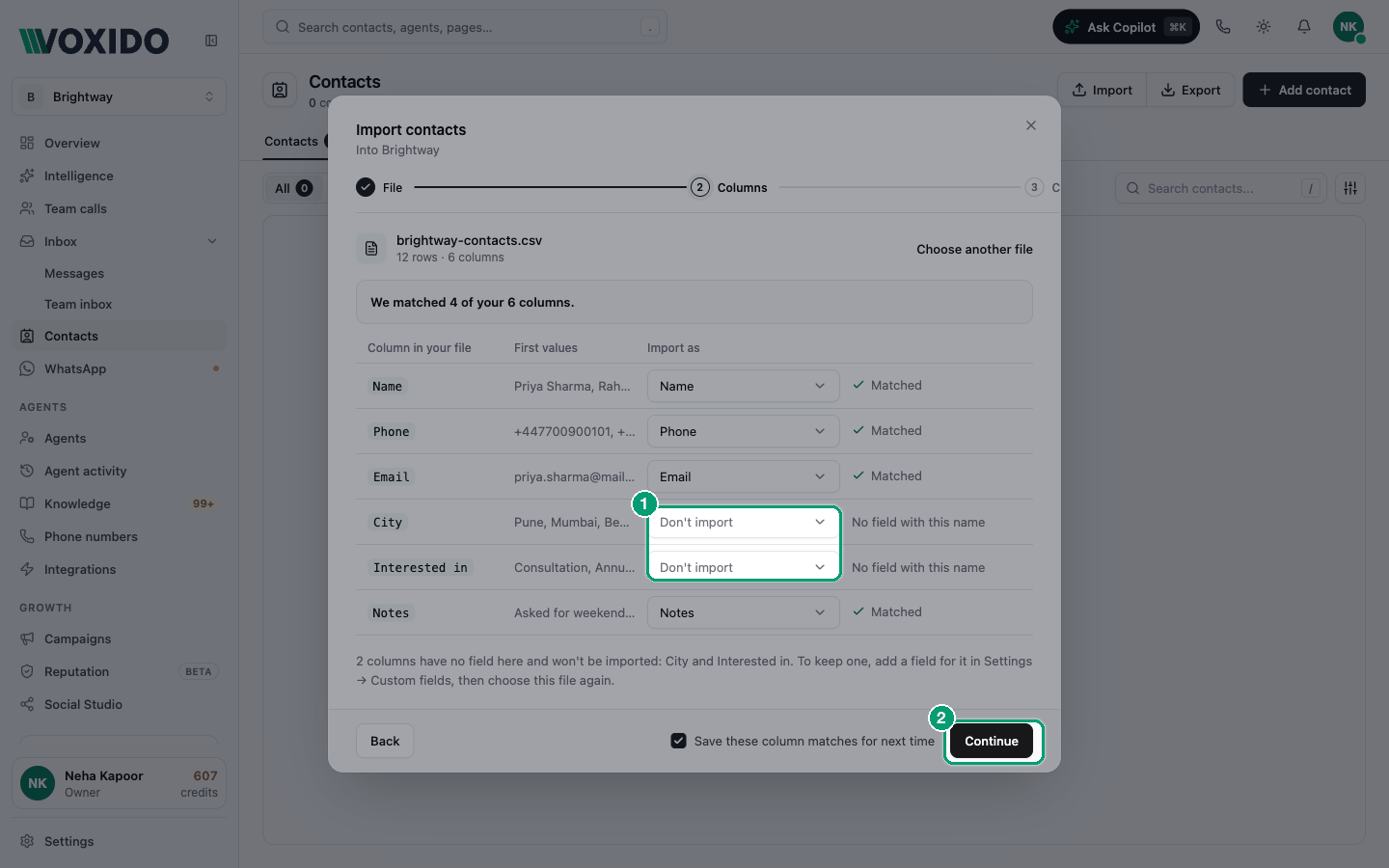
Each field can take only one column. Pick Don't import on the other one first. Continue stays greyed out until a column goes to Name or Phone.
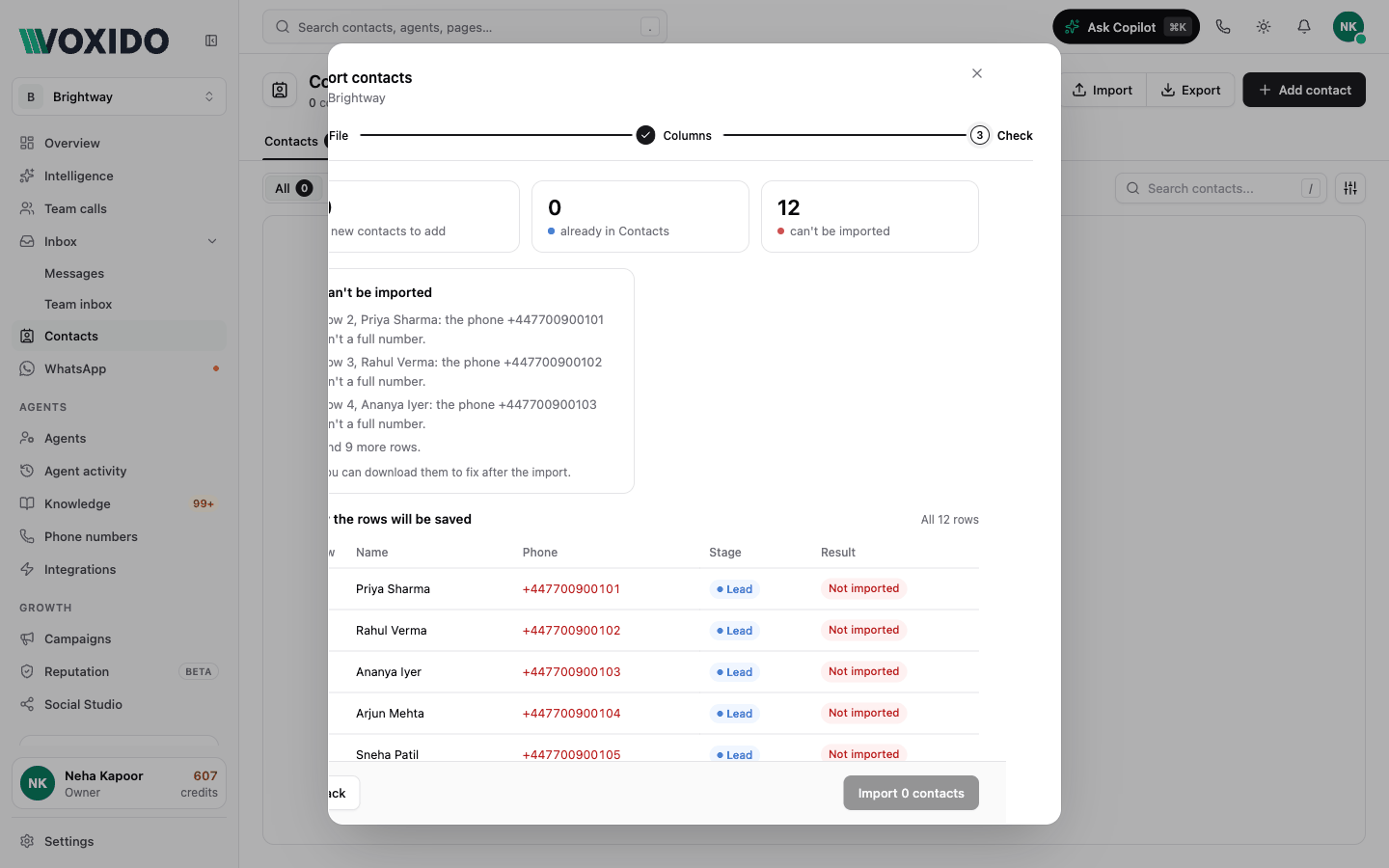
Step 3: Check
Now you see what will happen to every row, before anything is saved.
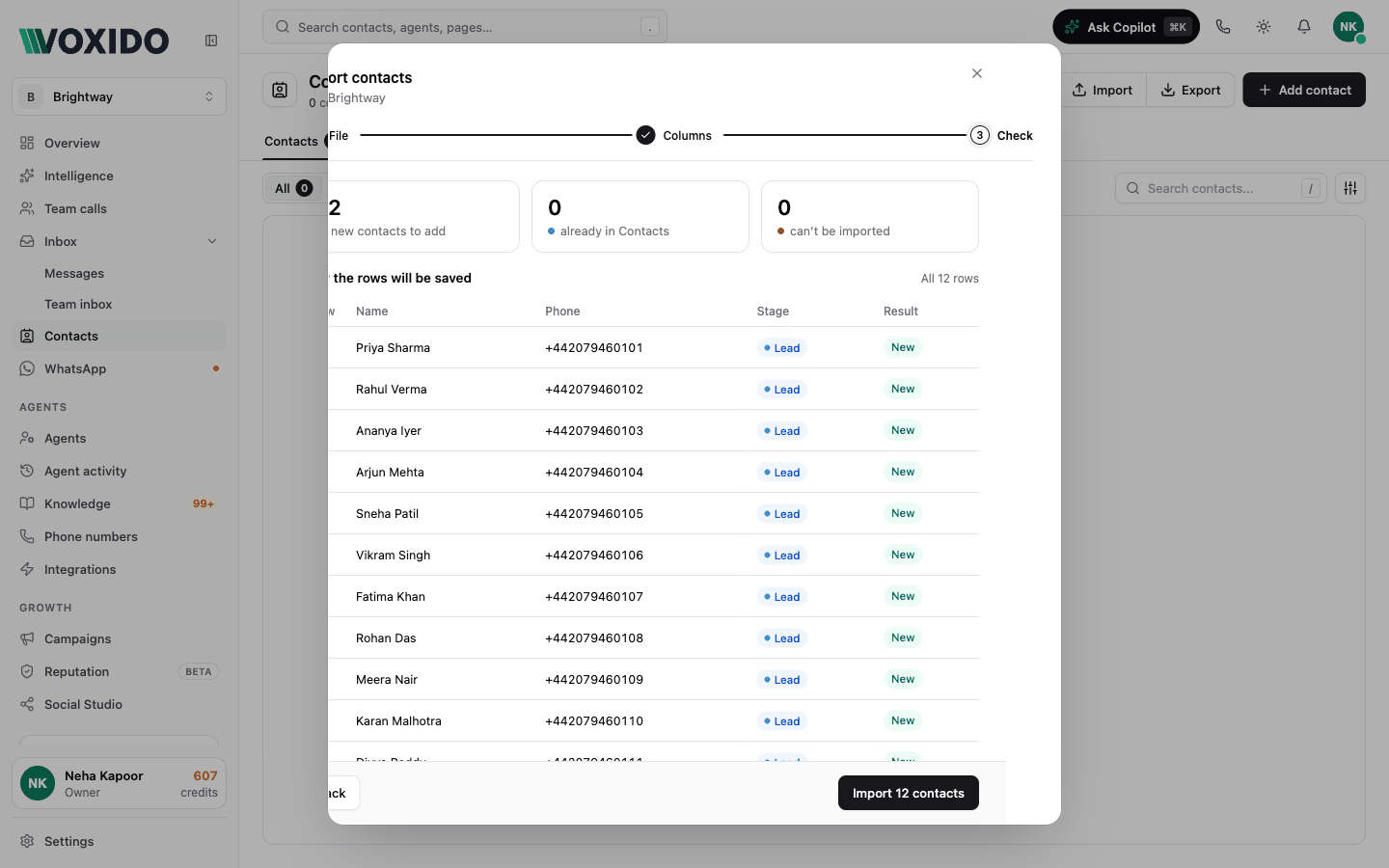
- Read the three counts: new contacts to add, already in Contacts, and can't be imported.
- If some rows are Already in Contacts (same phone number), choose what to do. See Duplicates.
- If you see Stage not found, pick the stage those rows should go to.
- Look through How the rows will be saved. It shows the first 100 rows with their stage and a Result: New, Skip, Fill empty fields, Update or Not imported.
- Click Import with the number of contacts, such as Import 214 contacts. You'll see: "214 contacts imported", with a line for each kind of result.
After the import
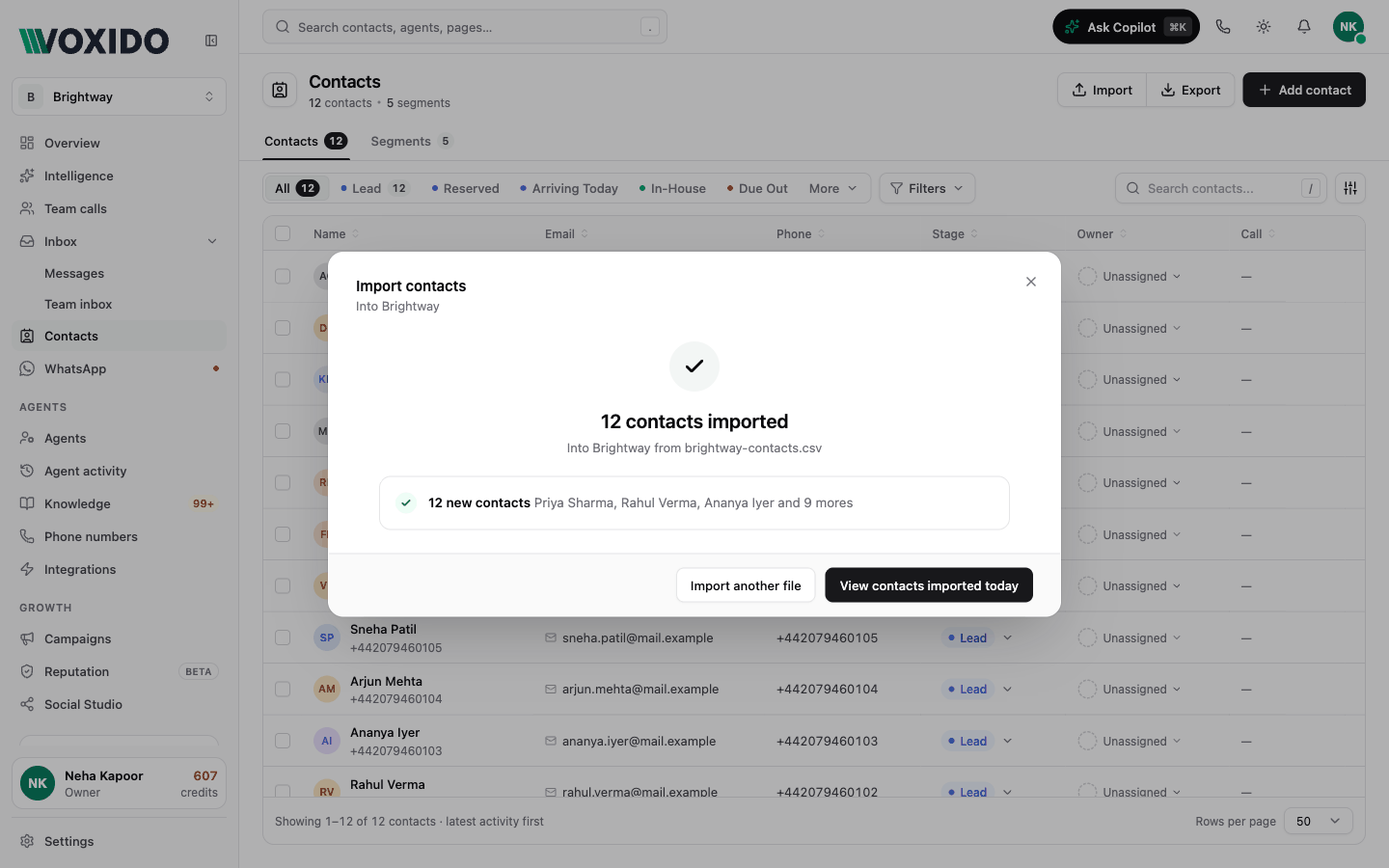
- Click View contacts imported today to see them. It filters the list by Source: Import and Created: today.
- If rows were left out, click Download the 3 rows that weren't imported (the number matches yours). You get a CSV with your columns, the row number and the reason. Fix it and import that file.
- Click Import another file to start again.
New contacts show Import as their source, and you as their Reporter.
Duplicates: what happens to people you already have
Voxido compares phone numbers with the contacts in this workspace. When a row's number is already there, you choose:
| Choice | What happens | Pick it when |
|---|---|---|
| Skip it and keep the contact as it is (the default) | Nothing changes. | Your Voxido data is newer than the file. |
| Fill in only its empty fields from the file | Fills blanks: email, notes and empty custom fields. Never changes the name, tags or stage. | The file adds details you don't have yet. |
| Update it with the file's values | Replaces values with the file's. An empty cell never clears anything. If the file names a stage, the contact moves there. | The file is the newer source, such as today's list from your booking system. |
If the same number appears twice in your file, the first row is used. The second can't be imported, and the reason says which row had it first.
Why a row can't be imported
| Reason you see | Fix |
|---|---|
| "the name is missing" | The row has neither a name nor a phone number. Add one of them. |
| "the phone … isn't a full number" | Add the country code, such as +44. Numbers without + are read as Indian numbers. |
| "row 12 has the same phone" | The number is already in an earlier row. Merge the two rows. |
A row with a phone but no name is still imported. It's saved as "Unknown" and the last 4 digits, such as "Unknown 3210", until the person gives a name.
A value that doesn't fit its field, such as "soon" in a date field, is left out. The rest of the row is still imported. The Check step lists these as "values can't be read and won't be saved".
Common problems
"Upload limit is 1000 records." Split the file into parts of 1,000 rows or fewer, and import each one.
"This is an old Excel file (.xls)." Open it in Excel or Google Sheets and save it as .xlsx or .csv. Then choose it again.
"Invalid file format. Please upload CSV or Excel file." Only .csv, .xlsx and .xls files can be imported.
Day and month came out swapped. Go back to Columns and change Dates in this file are written. If Excel had turned dates around, Voxido says so and puts them back.
A stage in my file was ignored. For new contacts, an unknown stage name goes to your default stage unless you pick one in Stage not found. Contacts you already had only change stage with Update it with the file's values. If your company requires fields before that stage, the contact keeps its stage and the summary says so.
I imported into the wrong workspace. The import goes into the workspace shown under Import contacts. In All workspaces that is your default workspace. Switch to the right workspace before you import. See Contacts across workspaces.