

Email aliases: choose who your emails come from
An email sender (Voxido calls it an alias) is the "From" name and address customers see on emails from your agent and on team alerts.
Find it: Sidebar → Settings → Email aliasesWho can use it: Owners and Admins
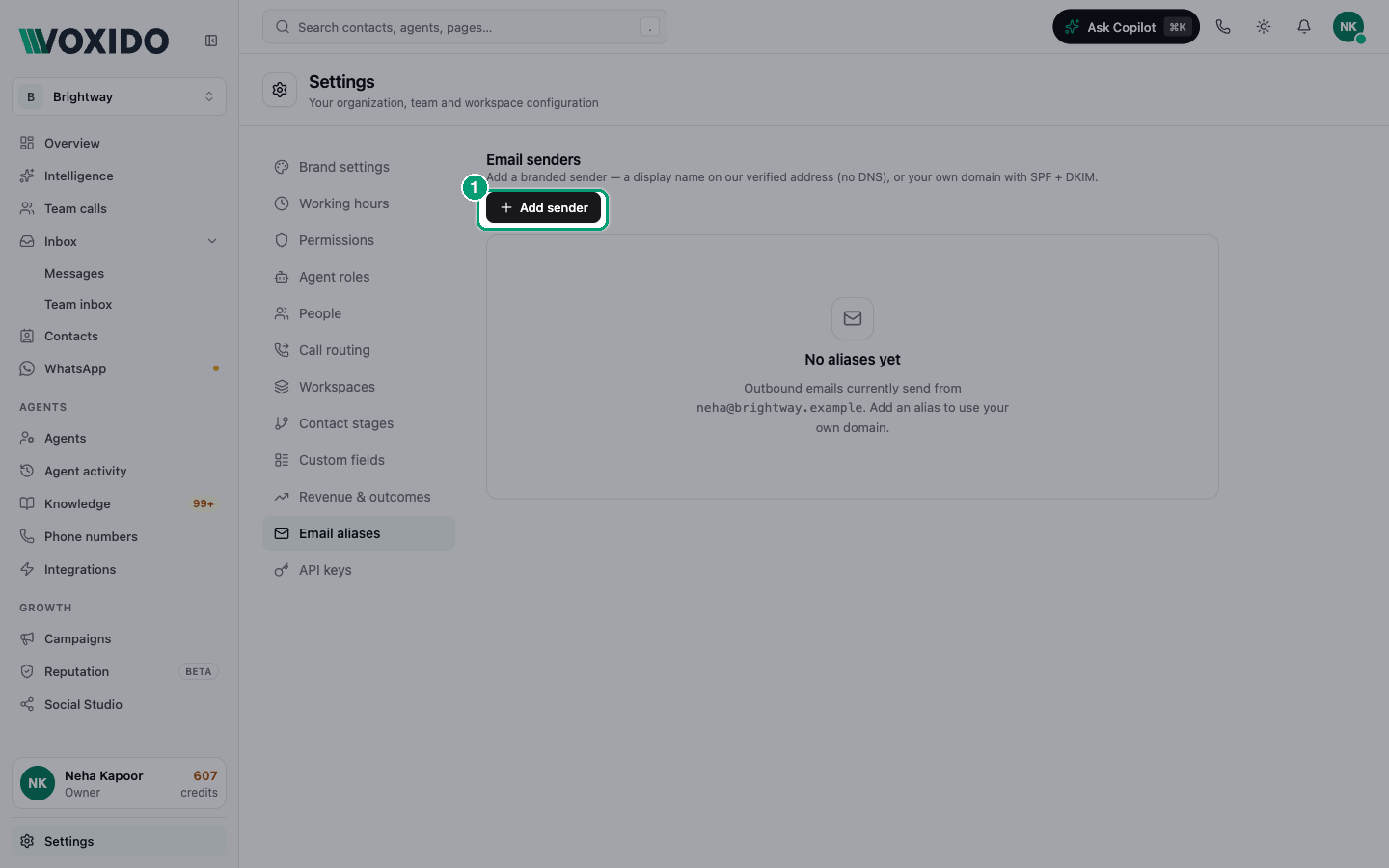
With no sender set, emails come from noreply@notifications.voxido.ai with the name "Voxido".
Pick your path: display name or your own domain?
The problem: "Customers see emails from 'Voxido'. I want them to see my business."
| If you want… | Choose | Setup | What customers see |
|---|---|---|---|
| Your business name, today, with no technical work | Display name only | None. Ready instantly. | Brightway <noreply@notifications.voxido.ai> |
Emails from your own address, like hello@brightway.in | Custom domain | Add 3 DNS records at your domain provider, then Verify. | Brightway <hello@brightway.in> |
DNS is the settings list for your domain (for example on GoDaddy, Hostinger or Cloudflare). If someone else manages your website, ask them to add the records.
Good, better, best
- Good: no sender. Emails work, but say "Voxido".
- Better: Display name only. Your name, no setup.
- Best: Custom domain. Your name and your address. Replies go to you, and customers trust it more.
Add a display-name sender
- Open Settings → Email aliases and click Add sender. You'll see: Add Email Sender with two choices.
- Choose Display name only ("No DNS. Ready instantly.").
- Type a Display name, for example "Brightway". You'll see: a preview like
Brightway <noreply@notifications.voxido.ai>. - Click Add sender. You'll see: "Sender added — Emails will now go out with your display name. No DNS required." The sender shows Verified and a No DNS tag.
Add a custom-domain sender
Click Add sender and choose Custom domain ("SPF + DKIM on your domain.").
Type the Alias email, for example
hello@brightway.in, and a Display name (optional).Click Add sender. You'll see: "Alias created — Paste the DNS records into your registrar, then hit Verify." The sender shows Pending and three records.
Copy each record into your domain's DNS settings. Use the copy buttons for the Host and Value.
Record What it does TXT — SPF Says Voxido may send email for your domain. TXT — DKIM Adds a signature that proves the email wasn't changed. CNAME — Return Path Handles bounced emails. Wait a few minutes, then click Verify. You'll see: "Alias verified — Outbound emails will use this alias." If some records aren't live yet, you'll see "Verification in progress". Try again in a few minutes.
Sender statuses
| Status | Meaning |
|---|---|
| Verified | SPF and DKIM check out. Emails send from this address. |
| DNS Partial | Some records are in place. Add the rest, then verify. |
| Pending | Waiting for the DNS records. Add them, then verify. |
| Failed | The last check failed. The reason shows under the records. |
Which sender is used
- If you have several verified senders, Voxido uses the one verified most recently.
- If a sender isn't verified yet, or fails, emails still go out, from
noreply@notifications.voxido.ai. A broken sender never stops your emails. - Team alert emails use your sender too.
To stop using a sender, click its bin icon (Delete sender) and confirm. Emails go back to the default address.
Common problems
Verify keeps saying "Verification in progress". DNS changes can take a while to spread. Check the records are exact (no extra spaces or quotes), wait, then click Verify again.
The status is "Failed". Read the reason under the records. Fix the record and click Verify.
Customers reply to my emails, but I don't get them. A Display name only sender sends from Voxido's no-reply address. Use a Custom domain sender so replies reach your own inbox.