

Call routing: pass live calls from your AI to your team
Sometimes a caller needs a real person. Call routing lets your AI agent pass the live call to someone on your team. It rings one person at a time, in each team's turn order: everyone in turn (round robin), or Level 1 first, then Level 2 (by level). If nobody picks up, the AI promises a callback and puts a job in the Team inbox.
Find it: Sidebar → Settings → Call routing. It has three tabs: Routing, How each team takes calls and Call feedback. Who can use it: Owners and Admins. Managers only see a link to Team calls.
New to this? Read How calls and requests reach your team first. For help choosing settings, see Choose a routing setup for your team.
Before you start
- Add the people who take calls. In People, put each person in a team and switch on Takes calls. Set their working days and shift.
- Choose how each person answers. Mobile rings their phone. Computer pops the call up in Voxido. Computer needs a Voxido login linked to the person.
- Let your voice agent pass calls. Open the agent, go to its skills and turn on Talk to a human. See Skills.
Switch it on
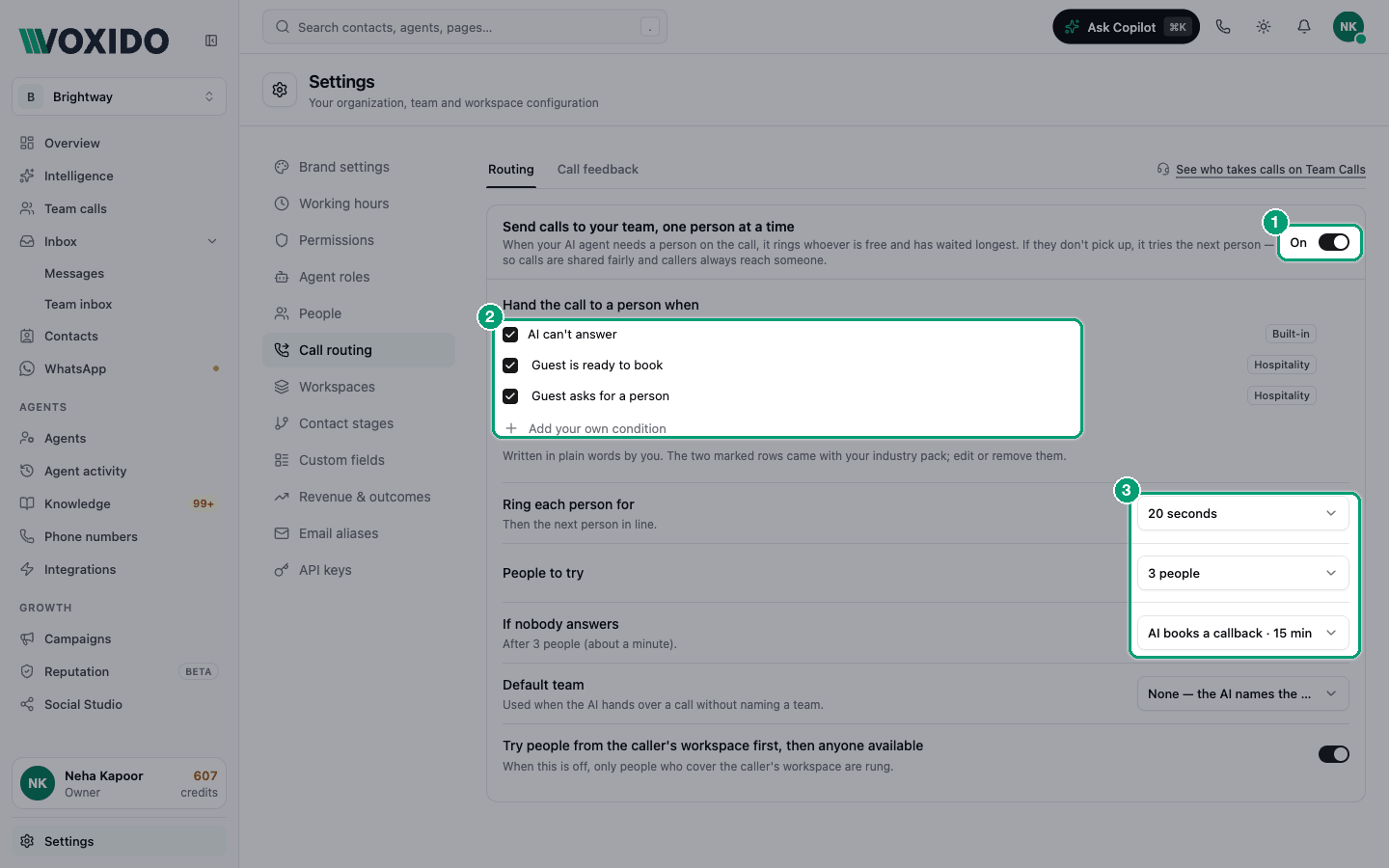
- Open Settings → Call routing. Stay on the Routing tab. You'll see: a card titled Send calls to your team, one person at a time, with an On/Off switch at its top right.
- Click the switch so it says On. You'll see: Saving…, then Saved, next to the switch. Team calls appears in the sidebar, and Your status appears in everyone's profile menu.
- Check the conditions and the settings below. Each change saves on its own. You'll see: Saved again after each change. There is no Save button.
If a change can't be saved, the header says Not saved. Fix the message shown under the field, or click Try again.
When the AI passes a call: the conditions
The list Hand the call to a person when holds the moments your AI agent passes a call over. Write them in plain words, the way you'd tell a new receptionist.
- AI can't answer comes with every account. It has a Built-in tag. You can untick it, but not remove it.
- Some industries start with extra rows, tagged with the industry name. For example, a hotel account starts with "Guest is ready to book" and "Guest asks for a person". Edit or remove them as you like.
- Add your own condition adds a new row. Type it, for example "The caller wants to talk about a refund". Keep it under 200 characters.
The AI only gets these conditions while call routing is On.
| Business | Good conditions to add |
|---|---|
| Brightway (service business) | "The customer wants a price for a custom job", "The customer is upset" |
| Clinic | "The patient describes chest pain or an emergency", "The patient asks for the doctor" |
| Real estate | "The buyer wants to book a site visit today" |
| Loan recovery | "The borrower wants to discuss a settlement" |
What each setting means
| Setting | What it does | Choices (start value) |
|---|---|---|
| Ring each person for | How long one person's phone or popup rings. "Then the next person in line." | 10, 15, 20, 25, 30, 45 or 60 seconds (20 seconds) |
| People to try | How many people are rung, one after another, before the AI gives up. | 1 to 5 people (3 people) |
| If nobody answers | The AI books a callback and promises it within this time. The hint adds up the wait, for example "After 3 people (about a minute)." | AI books a callback · 5 min up to · 4 hours (15 min) |
| Default team | The team to ring when the AI passes a call without naming one. | None — the AI names the team, or one of your teams |
| Try people from the caller's workspace first, then anyone available | On: people who cover the caller's workspace are rung first, then others. Off: "only people who cover the caller's workspace are rung." | On |
Keep the caller's wait short
The caller hears hold music while phones ring. Ring time × people to try is the longest wait: 20 seconds × 3 people is about a minute. The longer the wait, the more callers hang up. See ring time and people to try.
What happens on a call
- The AI decides the caller needs a person, using your ticked conditions.
- The caller hears "One moment please — I'm connecting you with a team member now. Please stay on the line." Then hold music.
- Voxido picks the next person and rings them for Ring each person for. Their mobile rings, or a popup appears in Voxido.
- They pick up. The AI says one sentence that both of them hear, for example "Hi Priya, I have a caller on the line: …". Then the AI leaves the call.
- If they don't pick up, or press Pass to next, the next person is rung. This goes on up to People to try.
- If nobody picks up, the AI says sorry, promises a callback within your If nobody answers time, and ends the call. A Call back a caller job goes to the Team inbox.
The hold line and the introduction are in English today, whatever language the rest of the call is in.
Who is rung first, who is skipped and how the callback is assigned are explained in How calls and requests reach your team.
When call routing is off
While the switch is Off, the card says: "Off: a handed-over call rings the first person in the team, as it does today. Everything below except the default team applies only when round robin is on."
In detail, with it off:
- The AI rings one person: the first person added to the team who has a phone number. It always rings their mobile.
- It rings for 35 seconds. Status, shift, leave and Takes calls are not checked.
- If they don't answer, the team gets an alert in the Team inbox, and the AI tells the caller someone will call back.
- Team calls and Your status are hidden.
How each team takes calls: round robin or by level
The How each team takes calls tab says, for each team, who gets the next call or request.
| Choice | Who goes next | Good for |
|---|---|---|
| Round robin (to start) | Everyone in the team takes turns. The person who has waited longest since their last turn goes next. | A team where anyone can help: a front desk, a reception |
| By level | Level 1 first, then Level 2, and so on up to Level 5. Inside a level, people still take turns. | A team with juniors and seniors: new agents first, then experienced ones, then the manager |
- Open Settings → Call routing → How each team takes calls. You'll see: every team, each with Round robin and By level. If round robin is off on the Routing tab, you see "Turn on round robin on the Routing tab to choose how each team takes calls." instead.
- Pick By level for a team. You'll see: "Level 1 first, then Level 2, and so on. Lower number goes first." under its name, and its active people, each on Level 1.
- Pick a level for each person. You'll see: the list re-order itself, Level 1 at the top. It saves on its own, like the Routing tab.
Owners still come first. If the caller's contact has an Owner or Backup owner who is free, they are rung before anyone, whatever their level. With Try people from the caller's workspace first, then anyone available on, people from the caller's workspace come first, by level, and then people from other workspaces, by level.
People to try has to reach the last level. With a team on levels, a call that nobody answers tries everyone on the earlier levels before it reaches the last one. If People to try is too small, the tab warns you under the team, for example "People to try is 3. With people on 2 levels, make sure it's enough to reach the last level." Raise People to try on the Routing tab, or put fewer people on the early levels.
Examples.
- A travel agency's sales team. Two new agents on Level 1, a senior agent on Level 2, the sales head on Level 3, and People to try set to 4 people. New enquiries go to the new agents first. The senior and the head are only rung when the new agents are busy or don't pick up.
- A clinic's front desk. Three receptionists stay on Round robin, so calls are shared evenly.
- A hotel's reservations team. Three reservations agents on Level 1 and the duty manager on Level 2, with People to try at 4 people. The duty manager is only rung when the agents are busy or don't pick up.
Feedback after the call
The Call feedback tab sends a short WhatsApp survey after a call. See Feedback after the call.
Who takes calls right now
The live list of who is available, who is next and who is on a call is on Team calls → Who takes calls. On the Routing tab, click See who takes calls on Team Calls. See Team calls.
Common problems
Someone never gets calls. What should I check? Check in this order:
- Takes calls is on for them in People, and they are active.
- They are in the team the AI asked for, or in the Default team.
- Their status is Available: not Away, On leave, Off shift, Not available today or Offline.
- The time is inside their working days and shift, in your company time zone.
- They cover the caller's workspace, or the workspace switch is on.
- If they answer on Computer, Voxido is open in their browser.
The same person gets most calls. Check How each team takes calls first: if their team is By level and they're alone on Level 1, they get every call while they're free. Otherwise that person is probably the only one Available. Look at Team calls → Who takes calls. Also check if they are the caller's Owner: owners are rung first for their own contacts.
Does this work on WhatsApp and chat? No. Call routing is for live voice calls. On WhatsApp and chat, Talk to a human sends a request to the Team inbox instead, and someone follows up.
Does time on hold cost anything? Yes. Your AI agent stays on the call while phones ring, so hold time counts as AI call time. See What actions cost credits.