

Feedback after the call: ask customers how it went on WhatsApp
After a call, Voxido can ask the customer on WhatsApp how it went. They tap one of three buttons and can add a comment. Answers are saved against the person who took the call, and show in Team calls.
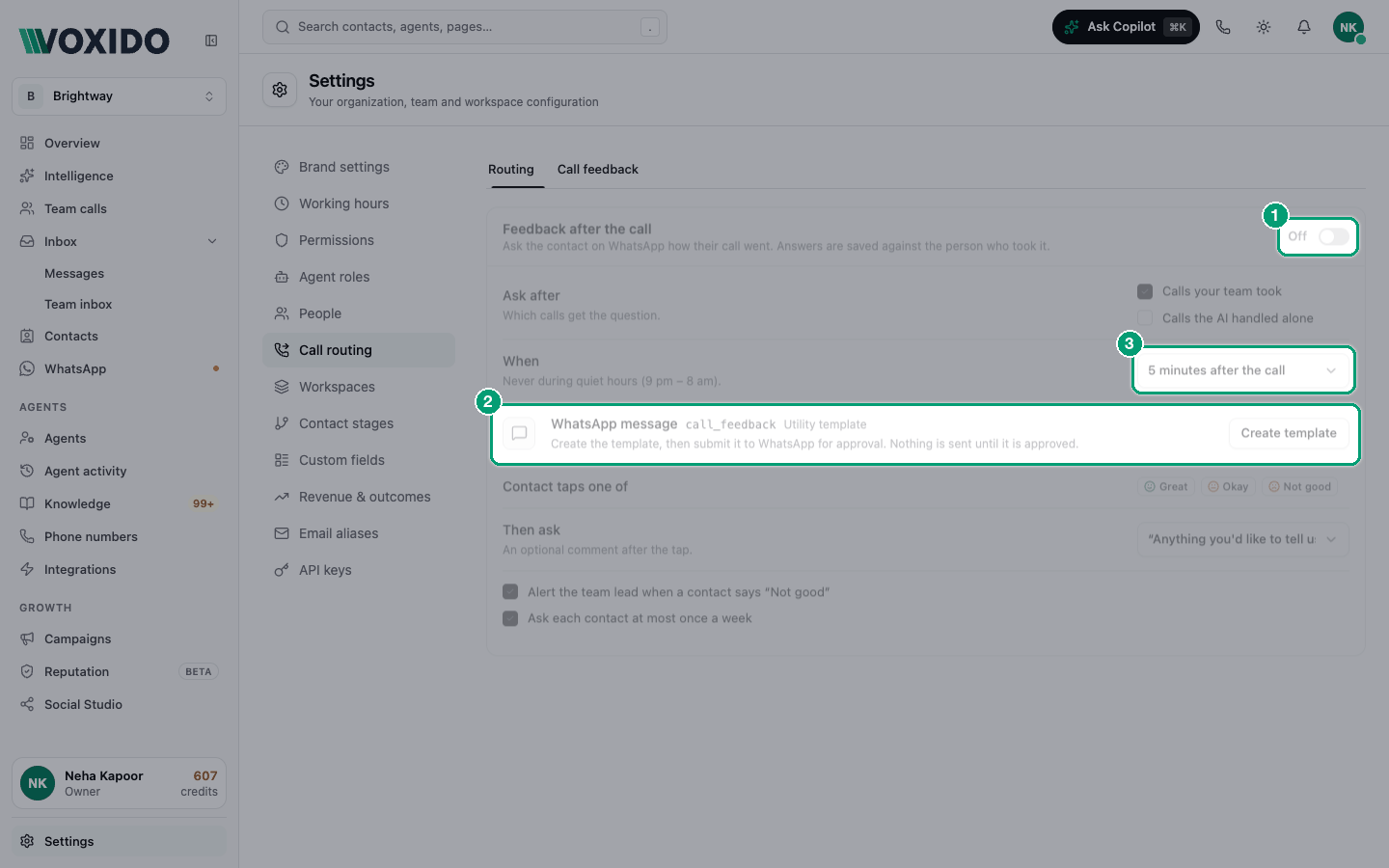
Find it: Sidebar → Settings → Call routing → Call feedback tab Who can use it: Owners and Admins
It is off until you switch it on.
Should I switch it on?
| If you want… | Then… |
|---|---|
| To know which team members customers like talking to | Switch it on with Calls your team took ticked. |
| To check your AI agent too | Also tick Calls the AI handled alone. |
| To fix bad experiences fast | Keep Alert the team lead when a contact says "Not good" ticked. |
| To keep WhatsApp costs low | Keep Ask each contact at most once a week ticked. |
Skip it if most of your customers don't use WhatsApp, or if you already survey them another way.
What the contact receives
A few minutes after the call, the contact gets this WhatsApp message:
Hi Priya, thank you for calling Brightway. You spoke with Rahul from our team. How was your call?
It has three buttons: Great, Okay and Not good. The message uses the contact's first name, the name of the workspace they called (or your company's name) and the first name of the person who took the call. After a call the AI handled alone, it names your AI agent instead.
When the contact taps a button:
- Voxido saves the rating.
- It sends one follow-up question, for example "Anything you'd like to tell us?". After Not good, it starts "Sorry to hear that, Priya."
- If the contact answers that question within 24 hours, their answer is saved as their comment.
With Then ask set to Nothing more, no follow-up goes out and no comment is collected.
Your AI agent doesn't reply to the comment. If a contact asks for something in it, someone on your team should follow up.
Before you switch it on
- A WhatsApp number. Your account needs a WhatsApp number connected. See Connecting WhatsApp to a number.
- An approved WhatsApp template. WhatsApp only lets a business start a conversation with a template that Meta has approved:
- On the card, click Create template. This makes a draft whose name starts with
call_feedback. - Submit the draft to WhatsApp for approval: Sidebar → WhatsApp → Templates. See Building a WhatsApp message template.
- Wait for Meta to approve it. This happens outside Voxido, usually within a day. The card shows where it stands.
- On the card, click Create template. This makes a draft whose name starts with
- Credits. Each survey is a paid WhatsApp template message. The follow-up question is a WhatsApp conversational message. Both use credits. See What actions cost credits.
Nothing is sent until Meta approves the template
You can switch the card on before the template is approved. No surveys go out until it is. If Meta counts the template as marketing rather than utility, only contacts who opted in to WhatsApp messages get it.
Set it up
- Open Settings → Call routing → Call feedback. You'll see: a card titled Feedback after the call, with an On/Off switch.
- On the WhatsApp message row, click Create template, then get it approved (see above). You'll see: "Template created", and a status such as Draft or Waiting for WhatsApp.
- Choose the settings below. You'll see: Saving…, then Saved, after each change.
- Switch the card On. You'll see: the header says On. Surveys start once the template is Approved.
The settings
| Setting | What it does | Choices |
|---|---|---|
| Ask after | Which calls get a survey. | Calls your team took (ticked to start with), Calls the AI handled alone |
| When | How long after the call the message goes. "Never during quiet hours (9 pm – 8 am)." | 5 minutes (to start with), 15 minutes, 30 minutes, 1 hour or 2 hours after the call |
| WhatsApp message | The template, whether WhatsApp counts it as a Utility template or a Marketing template, and its status. | Create template until you have one |
| Contact taps one of | The three buttons: Great, Okay, Not good. | Fixed |
| Then ask | The follow-up question after a tap. | "Anything you'd like to tell us?", "What could we have done better?", or Nothing more |
| Alert the team lead when a contact says "Not good" | Alerts the lead of the person's team. See below. | Ticked to start with |
| Ask each contact at most once a week | Skips contacts who got a survey in the last seven days. | Ticked to start with |
A survey that falls in quiet hours waits until 8 am. Quiet hours use the workspace's time zone, or your company's.
Template status
| Status | What it means |
|---|---|
| Approved | Surveys can go out. |
| Waiting for WhatsApp | Submitted. "WhatsApp usually approves it within a day. Nothing is sent until then." |
| Draft | Created, not submitted yet. Submit it from WhatsApp → Templates. |
| Rejected | WhatsApp said no, with its reason. Change it and submit it again. |
| Paused or Disabled | "WhatsApp has stopped this template, so no surveys are sent." |
Who gets a survey
A contact gets a survey after an incoming call when all of these are true:
- The call is the kind you ticked under Ask after.
- The contact has a mobile number that can get WhatsApp messages.
- They haven't opted out of messages, and aren't blocked.
- They didn't get a survey in the last week, if Ask each contact at most once a week is ticked.
- The survey can go within 24 hours of the call.
Calls your AI makes, test calls and calls with your own staff never get a survey. Each call gets at most one.
"Not good" alerts
With Alert the team lead when a contact says "Not good" ticked, a Not good tap alerts:
- The Managers of the person's team: people in the same team whose Voxido login has the Manager role. People on leave, or not available today, are skipped.
- If the team has no Manager, the person's Escalates to team.
- If there is neither, a job in the Team inbox.
The alert names both people, for example "Priya Sharma rated their call with Rahul Verma as Not good. Call them back to put it right." It arrives as a Team inbox job, and on the channels each lead has switched on. Nobody is alerted about their own call. For a call the AI handled alone, the alert goes to the Default team from Call routing.
The alert comes on the tap, so it doesn't include the comment. The comment shows later in Team calls.
Where the results show
- Team calls: Rated Great and Replies per person, the AI's row, and the latest comments, marked lead alerted when a lead was told.
- Every call download: the Rating and Comment of each call.
- The contact's WhatsApp conversation: the survey, their tap, the follow-up and their comment.
- The contact's Notes tab: a note for the rating, and one for the comment, with System as the author. See Notes and call outcomes.
Common problems
Does it work with call routing off? Yes. Feedback has its own switch. But Team calls, where the results show, needs call routing on.
Can I change the buttons? No. Voxido reads a tap by the button's label, so the buttons stay Great, Okay and Not good.
A customer tapped a button a day later. Does it count? No. Taps more than 24 hours after the survey go to the normal conversation, like any other message.
Is this the same as the call outcome? No. Feedback is the customer's own rating. The call outcome is what your team member logs after the call. See Notes and call outcomes.