

Campaign steps and timing: every option explained
A campaign is a list of steps. Each step is one WhatsApp message or one AI call. This page explains every setting inside a step.
Find it: Sidebar → Campaigns → open a campaign → click a step (or WhatsApp step / Call step)
Every step panel has the same parts:
- Channel & name — WhatsApp or AI call, and a name you'll recognise later.
- Timing — when it goes out.
- Conditions — optional extra rules for this step only.
- What to send (WhatsApp) or What the call should do (call).
Click Save step to keep your changes. Cancel (or pressing Esc) throws your changes away. Delete step removes the step.
A new step is added to the list as soon as you click WhatsApp step or Call step. If you then click Cancel, the step stays in the list — remove it with Delete step or the × on its card if you don't want it.
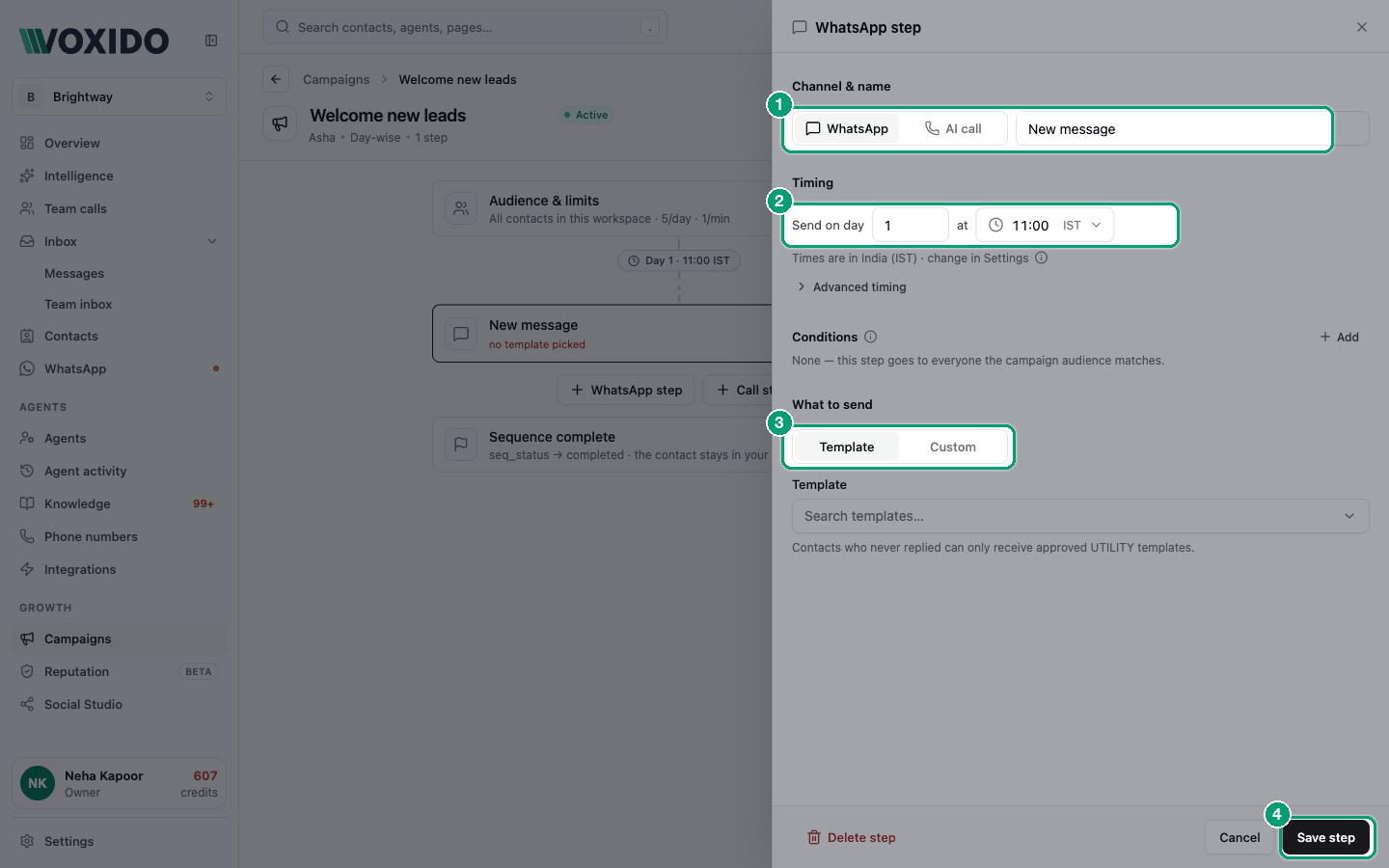
Switching a step between WhatsApp and call
Use the WhatsApp / AI call switch at the top. Voxido keeps what you wrote for both, so you can switch back without losing anything.
Timing
Day-wise campaigns
The row reads Send on day [0] at [11:00] (or Call from day for a call).
- Day 0 is the day a contact joins the campaign — the first time they match its audience.
- Day 1 is the next day, and so on.
- The time is in your workspace timezone. The panel says "Times are in … · change in Settings".
Date-field campaigns
The row reads like a sentence: [1] [day(s)] [before] [Appointment date] at [10:00].
| Part | Choices | Example |
|---|---|---|
| Number | 0 or more | 2 |
| Unit | day(s) or hour(s) | hours: "1 hour after Order placed at" |
| Direction | before or after | before a check-in, after a checkout |
| Date field | any date field on your contacts | Appointment date, EMI due date, Check-in date |
| Time | a time of day (only with days) | 18:00 |
The date field must exist under Settings → Custom fields with a date type. If you have none, the panel says "No date fields yet — add one under Contacts → Custom fields." See Custom fields.
Hours or days?
Use days + a time for reminders that should land at a friendly hour ("the evening before, at 18:00"). Use hours when the gap matters more than the clock ("1 hour after the order").
Use hours only with a date-and-time field. With a date-only field there's no time to count from. With days, only the date part of a field is used.
Which timezone?
Times are in your Settings timezone (Settings → Working hours → Timezone), or the company's if the workspace has none. The step panel shows it: "Times are in … · change in Settings".
Working hours always apply
Campaign calls and scheduled messages only go out inside your Working hours (Settings → Working hours). Until you change them, that's 09:00–21:00 every day. A holiday replaces that day's hours.
- A step that comes due outside working hours waits until you open.
- Contacts in another time zone also get them only between 09:00 and 21:00 their time.
See Rate caps and quiet hours.
Once per step, and late steps are skipped
- Each contact gets each step once for its date. If a contact's date changes (a moved appointment), the step can run again for the new date.
- After the campaign's last WhatsApp step, the contact has finished the campaign. Its WhatsApp steps won't reach them again, even for a new date. Call steps can still run.
- A step that can't go out within 24 working hours of its time is skipped. Nothing is sent late "to catch up". This also means a contact whose date is already long past when they join doesn't get that step.
Advanced timing: skip a step that's too late
Open Advanced timing under the time. Set Skip this step if it's more than [N] hours late.
- Use 1 to 24 hours. Leave it blank for the 24-hour default.
- It counts working hours only.
- Example: a restaurant's "Tonight's special" at 18:30 should not arrive the next morning. Set it to
3hours.
This option shows on WhatsApp steps and on call steps that dial automatically.
Conditions (this step only)
The campaign audience decides who joins. Conditions on a step add extra rules for that one step. They're checked against the contact's live record at send time. A contact who no longer matches is skipped.
- Click Add next to Conditions.
- Pick a field, an operator and a value.
- Add more rows if you need them. All must match.
Example for a hotel: a "Payment reminder" step with the condition Balance due · greater than · 0. Guests who already paid are skipped.
| Operator | Meaning |
|---|---|
| is / is not | Exact match, or not |
| is any of / is not any of | One of a list |
| contains | Text includes this (several values = any of them) |
| greater than / less than | Numbers |
| is empty / is not empty | The field has no value / has a value |
A condition marked Advanced came with a ready-made campaign. You can remove it but not edit it here.
What to send (WhatsApp steps)
Pick Template or Custom.
Template
- Choose a template under Template. Each one shows its category (utility or marketing) or its status.
- Check the preview.
- Under Variables, choose what fills each
{{1}},{{2}}. Pick a contact field, or Use custom text… for fixed words.
| Template type | Who it reaches |
|---|---|
| Meta-approved utility template | Everyone, even people who never messaged you |
| Meta-approved marketing template | Only people who messaged you first, and not people who opted out of marketing. The step shows how many matching contacts it can't reach. |
| Not yet approved | Sent as a normal message, only inside the 24-hour reply window. Others are skipped. |
An approved template is sent exactly as written, with its variables filled in — the AI doesn't change it. It goes out from the WhatsApp number the contact last wrote to, or your workspace's WhatsApp number.
Variables belong to the template
Changing a variable here changes it on the template itself. Every campaign that uses that template picks up the change.
Custom (AI-written)
Write a Message brief, for example "Ask how their visit went and offer a 10% rebooking code." The agent writes one short message from it.
- It only reaches people inside the 24-hour reply window (they messaged you in the last 24 hours). Others are skipped.
- You can add
{{1}},{{2}}and map them under Variables, or just describe what to include.
Custom messages rarely go out from a campaign
A campaign waits until a contact has been quiet for 48 hours. A Custom message needs them to have written in the last 24 hours. Both can't be true at once, so most Custom steps (and not-yet-approved templates) end up Not sent. For campaigns, use an approved template.
What the call should do (call steps)
| Setting | What it does | Tip |
|---|---|---|
| Call objective | What this call is for. Required. | One or two sentences: the reason and the goal. See the note below. |
| Call type | Requested — the contact asked for this call, or Promotional — offers, win-back, re-engagement. | Pick Requested for service calls (reminders, confirmations). Promotional calls skip people who opted out of marketing. |
| Dialing | Don't dial — queue for the team, or Dial automatically from (number). | Automatic dialing needs a number that can make calls, attached to the agent. |
Write the call's goal in the agent's instructions too
The call objective is saved with the step, but today the agent runs a campaign call from its own Instructions and the contact's record. Make sure the agent's instructions explain this kind of call — for example, "When you call a new lead, thank them for the enquiry and offer a slot." See Writing instructions.
Calls that aren't answered
Voxido doesn't redial on its own. After each call, the contact's Call result field is set to talked, picked_no_reply, busy, no_answer or not_connected. To try again, add a later call step with the condition Call result · is any of · no_answer, busy.
Dial automatically or queue for the team?
| If you want… | Choose | What happens |
|---|---|---|
| The AI to make every call by itself | Dial automatically from … | The agent calls at the step's time, paced by the campaign's limits. |
| Your team to decide who to call | Don't dial — queue for the team | Voxido keeps a saved segment called "Call queue — step name (campaign name)" in Contacts. Your team works through it. |
The step card says "daily call queue · one-click AI call" for a queued step, and "dials automatically · call queue also kept" for an automatic one. (Despite that wording, saving removes the call queue of a step that dials automatically.)
The call queue segment is simpler than the campaign: it lists contacts in the workspace's stages who got the WhatsApp step just before this call step (or, when there's none, who haven't had any campaign step yet) and have had fewer than 2 calls. The audience and step conditions aren't applied to it, so check the list before your team starts calling.
Common problems
My Custom message never went out. The contact hadn't messaged you in the last 24 hours — and a campaign waits 48 hours after their last message, so this is the usual case. Use an approved template.
The step says "no template picked". Open the step and pick an approved template.
A warning says a variable "has no value mapped". Open the step and set that variable, or the agent picks a value from the contact card.
"fires earlier than the step listed before it". In a date-field campaign, list steps in the order they happen. Otherwise the campaign may finish early.
A day-wise campaign skipped its first steps for some contacts. Contacts keep one "joined" date for day-wise campaigns. Someone who joined an earlier day-wise campaign may be counted from that earlier date, so steps whose time has long passed are skipped. Check a skipped contact in Tasks → Previous, or ask Copilot why.
A step went out for a contact's new date, but not the WhatsApp steps. They had already finished the campaign (its last WhatsApp step). Use a date-anchored trigger for dates that repeat.