

WhatsApp chat flows
A chat flow is a WhatsApp menu that runs by itself. The customer taps a button, and Voxido does exactly what you wired that button to do: send another message, let the AI answer, or call in your team.
Find it: Sidebar → WhatsApp → Chat flowsWho can use it: Owners and Admins
What a flow is, in plain words
Imagine a menu card on a table. "1. Book an appointment. 2. Opening hours. 3. Talk to our team." The customer points at one, and the right thing happens.
A flow is that menu card, built from:
- Templates — WhatsApp messages with Quick reply buttons (the menu).
- Wires — lines you draw from a button to what should happen next.
The wiring stays in Voxido and never goes to Meta. So you can change it any time, even after a template is approved, with no new review.
Pick your path: a flow, the AI, or both?
The problem: "Should customers get a menu, or should the AI just chat with them?"
You choose this per agent, in Agents → open an agent → WhatsApp → Mode.
| If you want… | Mode | Why | Good for |
|---|---|---|---|
| Natural chat for every message | AI only | The agent answers everything. Flows don't run. | A one-person business, a consultant, open questions |
| Strict menus only, never free text from the AI | Template only | Menu-driven and predictable. The AI never replies on WhatsApp. | Loan recovery reminders, simple order status lines, anything that must say exactly the approved words |
| Menus for common jobs, AI for everything else | Hybrid | Buttons do the common things instantly; the AI handles free text. | Most businesses: clinics, schools, salons, real estate, hotels |
| The older behaviour | Off (legacy) | WhatsApp works as it did before. Pick a mode to use flows. | — |
Start with Hybrid
Hybrid gives customers quick buttons for the top 2–3 jobs, and the AI still answers anything else. Read more in Agent WhatsApp settings.
How a flow starts: when a customer sends a menu word, the agent sends the flow's first template (its Entry). With no custom words set, menu words include "hi", "hello", "hey", "menu", "help", "start", "book", "booking", "enquiry", "inquiry", "namaste" and "namaskar". In Template only, any message gets the menu. You can change the words in Menu trigger keywords.
The cards you can put on the canvas
| Card | What it does | Where it comes from |
|---|---|---|
| Template | A WhatsApp message with buttons. Each Quick reply button has a dot on its right side that you drag to wire it. | Import template (templates you already made) |
| Message ("Instant · no Meta") | A free-form message sent the moment a customer taps. No Meta review. Works because the tap opens the 24-hour window. | The + button → Free-form message |
| AI reply | Hands the chat to your AI agent with your guidance for that button. | Drag AI reply from Reply |
| Action | Runs a special job (see below). | Drag Action from Reply |
| Team notification | Pages your team when a button is tapped. It sits on a wire, not as a card. It doesn't take over the chat. | Hover a wire and click + |
Actions
| Action | What it does |
|---|---|
| Connect to a team member | Hands the chat to a person and mutes the AI until they resolve it. Pick Which team. |
| Look up knowledge base | Searches your knowledge base and can reply with the answer. |
| Place a service order | Creates a request for staff (housekeeping, food & beverage or maintenance), with an item and quantity. |
| Book a late checkout | Adds extra hours to a hotel guest's reservation. |
| Send a fresh Wi-Fi QR | Sends the room's current Wi-Fi details. |
Some actions are made for hotels today. Other businesses mostly use Connect to a team member and Look up knowledge base.
Build a sample flow: Brightway's main menu
Goal: a customer says "hi" and gets: Book appointment, Opening hours, Talk to our team.
Before you start: create a Utility template called brightway_main_menu with the body "Hi {{1}}, welcome to Brightway! How can we help today?" and three Quick reply buttons with those labels. See WhatsApp message templates. You can wire it while it's still a draft, but customers only get it once Meta approves it.
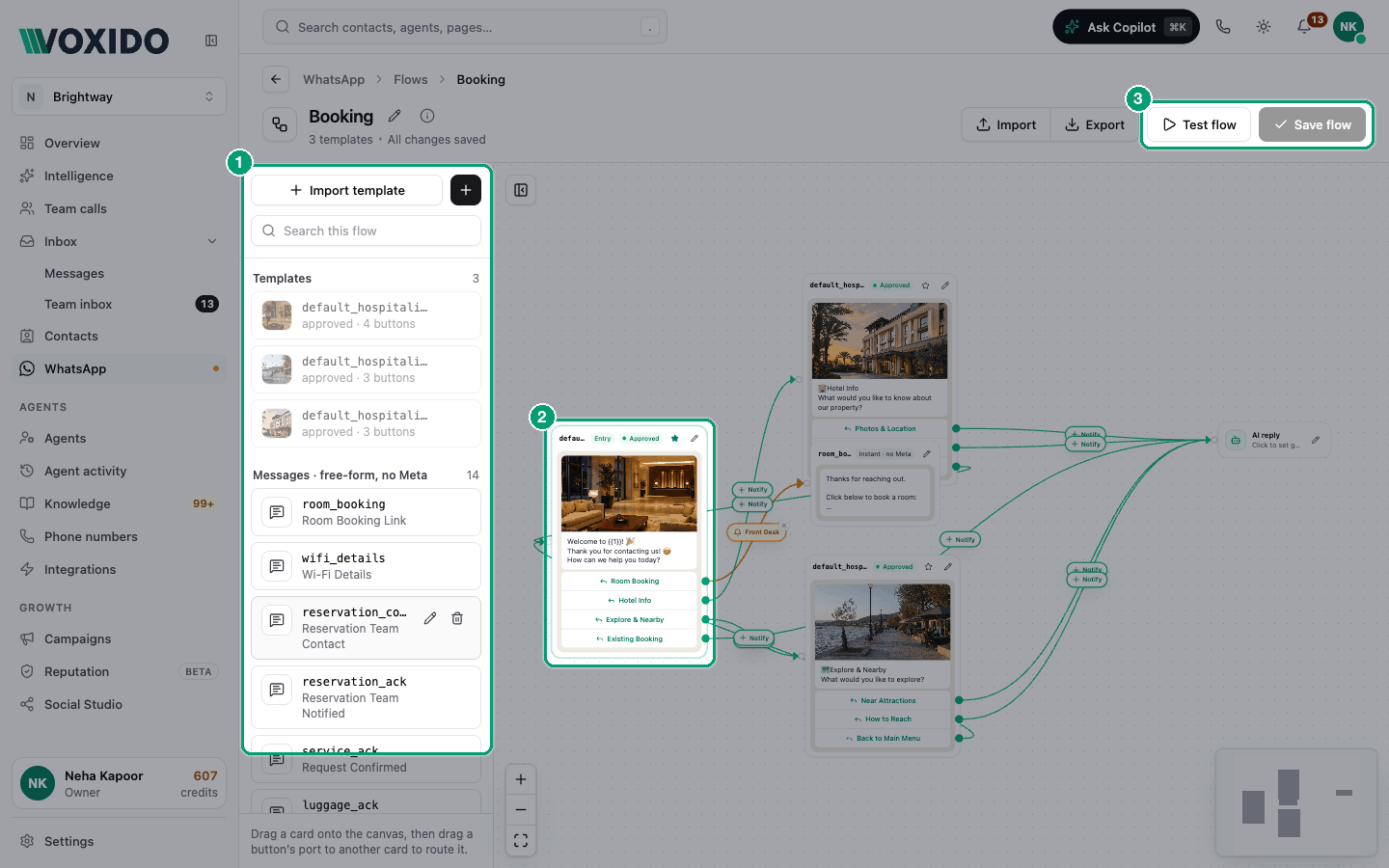
- Open WhatsApp → Chat flows and click New flow. Type "Main menu" and click Create & open. You'll see: the canvas with "Build a guest flow" in the middle and a panel on the left.
- Click Import template, tick
brightway_main_menu, and click Add 1 template. You'll see: the template under Templates in the left panel. - Drag the template onto the canvas. Click its star (Make it the flow's first template). You'll see: a green Entry pill on the card.
- Click the + next to Import template, choose Free-form message, and fill in Name "Opening hours" and Message text "We're open Monday to Saturday, 9 am to 7 pm." Click Create message, then drag it onto the canvas. You'll see: a dashed card marked Instant · no Meta.
- Drag AI reply and Action from Reply onto the canvas.
- Wire the buttons: drag the dot next to Book appointment to AI reply, Opening hours to the message card, and Talk to our team to the Action card. You'll see: green arrows. A wired button's dot turns solid.
- Click the pencil on AI reply. Under Book appointment, write the Guidance for the agent: "Ask which service and the preferred day and time, then book it." Click Save.
- Click the pencil on Action. Choose Connect to a team member, Which team "Front desk". Click Save.
- Optional: hover the Book appointment wire, click +, and add a Team notification (Team, Priority, Title, Body) such as "New booking request". Click Save. You'll see: the wire turns amber with a bell.
- Click Test flow and tap the buttons on the phone. You'll see: "Test mode · nothing is sent". Each tap shows what happens, like "🤖 AI takes over from here".
- Click Save flow. You'll see: "Flow saved — Routing + layout saved — no Meta re-review needed."
Switch it on
- Open Agents, open the agent that answers your WhatsApp number, and click WhatsApp.
- Choose Mode: Hybrid (or Template only).
- In Flow, pick "Main menu". Click Save WhatsApp settings.
- From your own phone, send "hi" to your WhatsApp number. You'll see: the main menu arrives once the template is approved.
You can also send a flow after a phone call ends, with On call end, send flow on the same screen.
Manage flows
- Rename or Delete a flow from its ⋯ menu on the Chat flows list. Deleting a flow keeps its templates.
- A flow with a first template shows Has entry in the list.
- Export downloads the flow as a file. Import loads one. Imported templates arrive as drafts — submit them to Meta before going live.
- Click the pencil on a template card to edit it. Drafts change in place. Templates Meta has seen open as a copy to submit again.
- To remove a card, select it and press Delete or Backspace.
Common problems
Customers get no reply at all. The agent is in Template only mode with no flow, or the flow has no Entry. You may have seen "Saved — but no flow is selected". Pick a flow and set its first template with the star.
The menu doesn't arrive. The entry template isn't Approved yet, the agent is in AI only, or the customer's message isn't a menu word (in Hybrid).
I can't drag a wire from a button. Only Quick reply buttons can be wired. URL and Phone buttons open a link or dial a number.
The test shows "⚠ dead end — fix this route". A button points to something that's no longer in the flow. Rewire it.
"This button already runs an action." A button that runs an action (like Connect to a team member) can't also have a team notification. Remove the action first.
"Couldn't load this flow." It may have been deleted, or the link is old. Go back to Chat flows.