

Try your agent live
Try it live opens a voice conversation with your agent, right inside the agent editor. You talk through your computer's microphone and the agent answers out loud, exactly as it would on a phone call. You can do this while the agent is still a draft.
Find it: Sidebar → Agents → open an agent → Try it live (top right)
Before you start
- Save first. The test uses the last saved version of the agent. Unsaved edits are not included.
- A microphone and speakers (or headphones) that work in your browser.
- Voice credits. A test conversation uses your workspace's voice credits, the same as a real call.
Have a test conversation
- Click Try it live. You'll see: a dark panel slides in from the right and says "Connecting to the voice studio…". Your browser may ask to use your microphone. Click Allow.
- Wait for the status to change to Connected · voice preview. You'll see: the agent speaks its greeting, and the line appears in the transcript.
- Talk normally, as a customer would. You don't need to press anything to speak. You'll see: the status changes between Listening…, Thinking… and Speaking…. Each turn appears in the transcript, labelled with the agent's name or You.
- Click Stop to mute your microphone for a moment. Click Talk to unmute.
- Click the red phone button (End session) when you are done. You'll see: "Session ended" and a Talk again button.
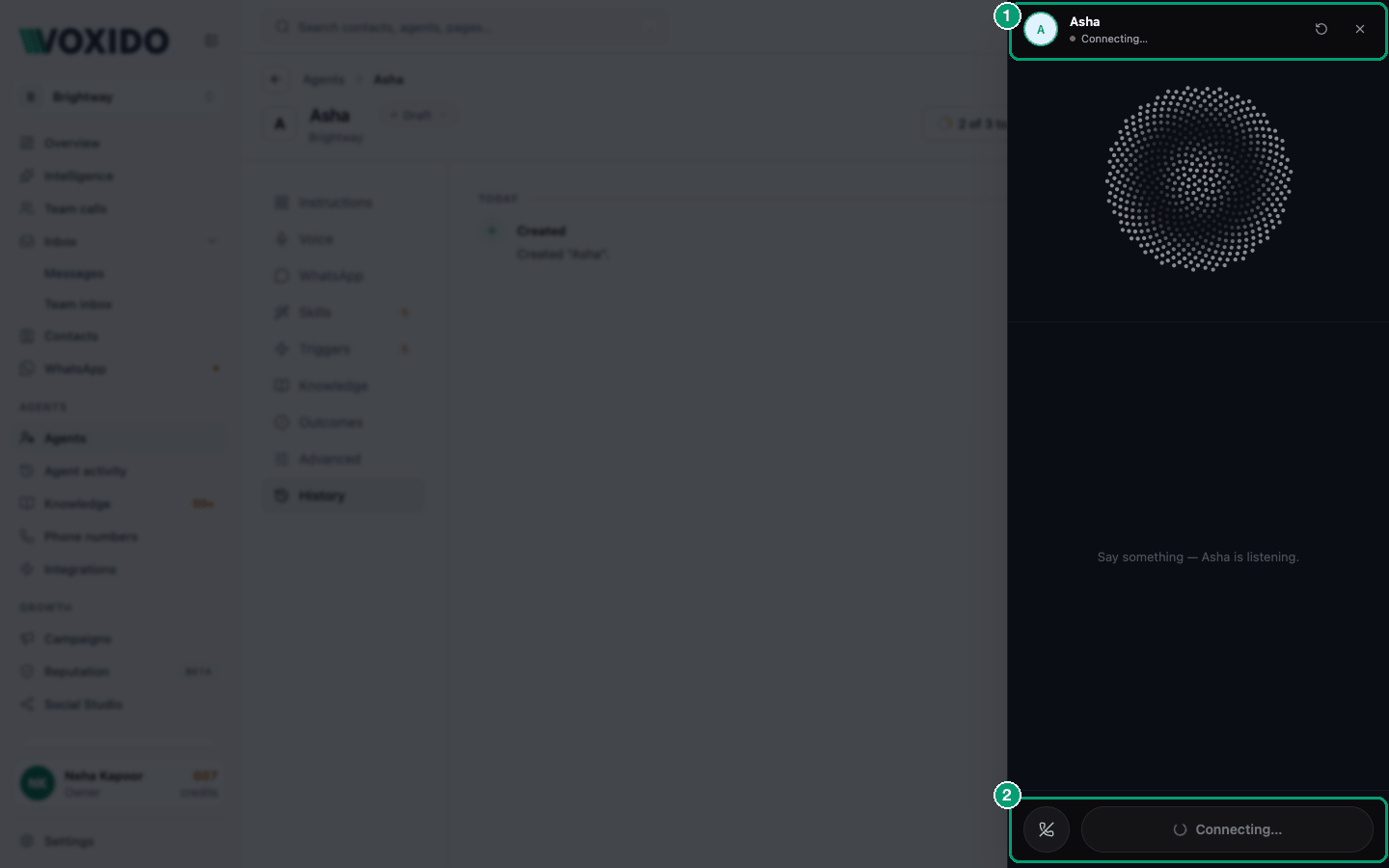
The circular arrow at the top (Restart session) starts a fresh conversation. The × closes the panel.
Test from the Agents list too
On the Agents list, click ⋯ on an agent's row and choose Test drive. It opens the same test as a full page.
What to test: a five-minute checklist
Play the customer. Try each of these out loud and read the transcript afterwards.
| Try this | A good agent… |
|---|---|
| A simple question your Knowledge answers ("What time do you open on Sunday?") | Answers correctly and briefly. |
| A question Knowledge doesn't answer | Says it doesn't know and offers to pass it on. It does not guess. |
| A full booking or enquiry | Asks one question at a time and doesn't ask for things you already said. |
| Interrupt it mid-sentence | Stops and listens (when Let guests interrupt is on in Voice). |
| Ask for a discount or a refund | Follows your rules and offers a person. |
| Say "I want to talk to a manager" | Notifies the team or hands over, as your instructions say. |
| Say "That's all, thanks" | Says goodbye and ends the call. |
If something is wrong, change one thing, click Save, click Restart session, and try again.
When to test and when to go live
| Situation | What to do |
|---|---|
| You just wrote or changed the Instructions | Save, then Try it live. |
| The agent answers calls | Try it live covers it. Then publish. |
| The agent only works on WhatsApp | Try it live checks the agent's thinking by voice, but not WhatsApp formatting or templates. Publish with a small audience first (see below). |
| The agent sends reminders or campaigns to many contacts | Test by voice, then check the trigger's schedule and contact filter carefully before you publish. |
| Every item in the checklist above passes | Click Publish. |
Soft launch on WhatsApp
A draft agent doesn't answer real WhatsApp messages. To try it on WhatsApp safely, add a Contact filter to its WhatsApp trigger so it only answers contacts in a test stage, put your own number in that stage, and publish. Message it from your phone. When you're happy, remove the filter. See How triggers work.
Common problems
"Out of voice credits". Your workspace has run out of voice credits. Click Add credits, then Try again.
"Voice runtime unavailable". Voice testing isn't set up where your account runs. Contact Voxido support.
"Agent not found". The agent was deleted or moved to another workspace. Go back to the Agents list.
The agent doesn't use my latest change. Click Save, then Restart session. A test, like a real call, keeps the settings it started with.
I can't hear the agent. Check your speaker or headphone volume and your browser's sound settings. Then click Restart session.