

Hand off to a person (Talk to a human)
Sometimes a customer needs a real person. Your agent can bring one in with the Talk to a human skill, or quietly tell your team with Notify the team. This page explains both, and what the customer sees.
Find it: Sidebar → Agents → open an agent → Skills → People
Pick your path
| You want… | Use | What the customer experiences |
|---|---|---|
| A person to take over now | Talk to a human | On a call: hold music, then a team member joins the call. On chat: the agent says a team member will follow up. |
| Your team to know, without interrupting | Notify the team | Nothing changes. The agent keeps talking. |
Why two skills? Talk to a human is for when the customer is waiting for a person. Notify the team is an FYI: "Priya asked to change her billing address." Using the FYI keeps the chat moving and saves staff time.
What "Talk to a human" does
The agent passes a short summary: who the customer is and what they need. What happens next depends on the channel.
On a live phone call
- The caller hears a short hold line, then hold music. Never silence.
- Voxido rings a team member who holds the right role, on their mobile or in their browser.
- If they answer, both people hear a one-line intro and the call is theirs. The agent leaves the call.
- With call routing set up, Voxido can ring people one after another. If nobody answers, Voxido books a callback or alerts the team, and the agent tells the caller someone will call back.
On WhatsApp or chat
There's no phone line to join, so the team is alerted with the summary (by in-app alert, SMS, email or WhatsApp, as each person prefers). The agent tells the customer a team member will follow up. It never pretends someone is already connected.
Who gets the call or alert
The agent targets a role, not a named person. It uses the role it picks, or the agent's When done, hand off to role. If nobody holds that role, Voxido tries your company's default role, then any active team member. See Team routing.
Set up Talk to a human
Before you start: at least one person on your team needs a role and a phone number. Set this in Sidebar → Settings → People. For calls, see Call routing.
- Open your agent and click Skills. You'll see: the skill groups.
- Click the People group. You'll see: Talk to a human, Send to another AI agent, Notify the team and others, each with a switch.
- Switch on Talk to a human. You'll see: the switch turns on and the counter goes up.
- Scroll down to When done, hand off to and pick the team role that should answer, for example "Front desk".
- Click Save at the top right. You'll see: "Saved".
- Add a rule to your instructions (see the examples below).
- Test it with Try it live: say "Can I talk to a person?" You'll see: the agent hands over, and the team member's phone or browser rings.
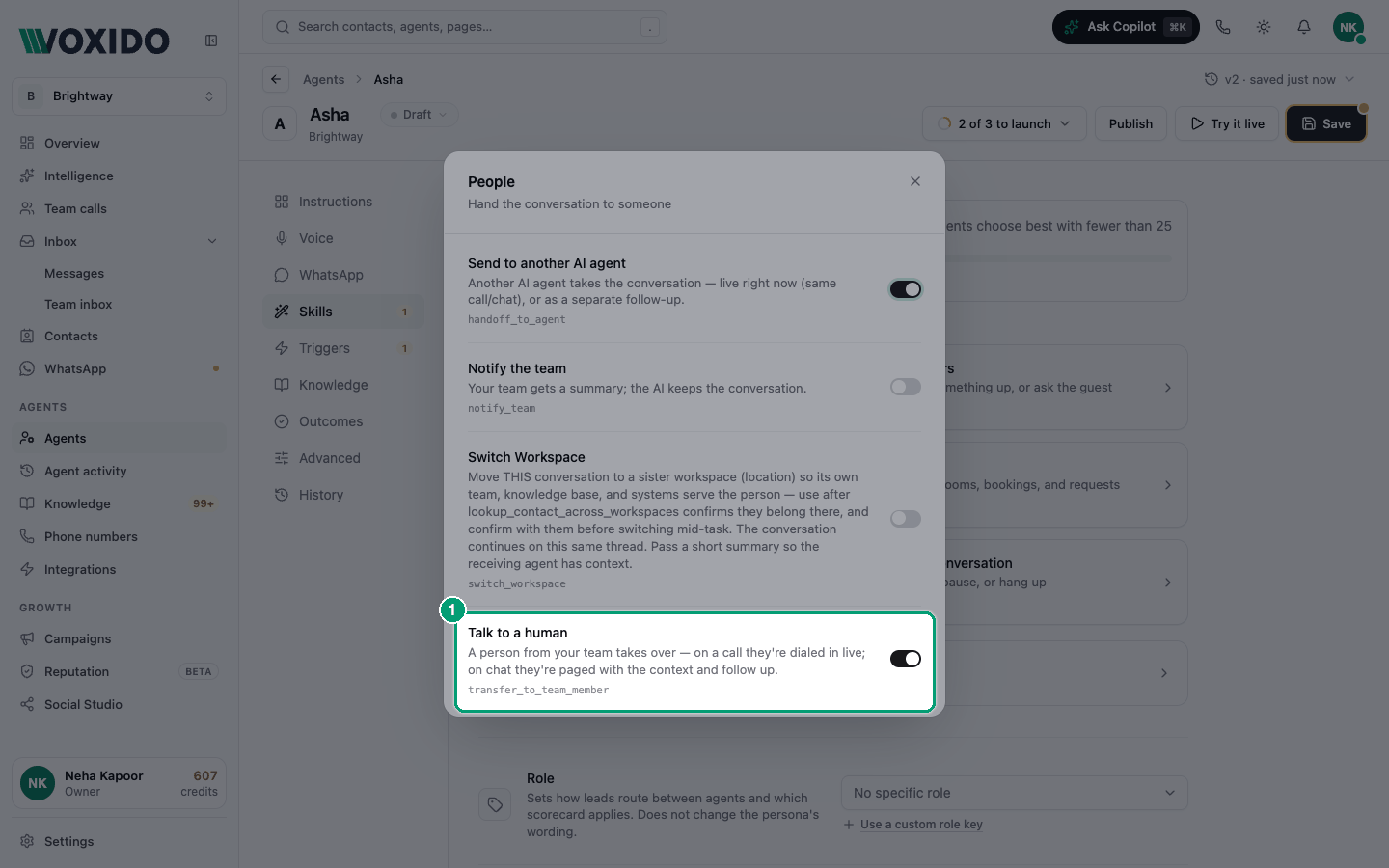
Set up Notify the team
- In Skills → People, switch on Notify the team, then click Save. You'll see: the switch on and "Saved".
- In your instructions, name the team role to notify and when. The role must match a team role in Settings → People exactly, for example "billing".
If the agent uses a role that doesn't exist, the alert fails and the agent is told the right role names to use. Test it once to be sure.
Examples for your instructions
Brightway (service business)
If the customer asks for a person, or is unhappy with a service,
use Talk to a human. Say: "I'm bringing in a team member now."
Clinic
If a patient mentions chest pain, breathing trouble or bleeding,
use Talk to a human with high urgency. Do not give medical advice.
Loan recovery
If the borrower says they already paid, thank them, then use
Notify the team with the role "finance" and the payment details they gave.
Keep the conversation going.
School
If a parent wants to discuss a fee waiver, use Talk to a human.
Fee waivers are decided by the office, never by you.
Common problems
The agent says it will connect someone, but nothing happens.Talk to a human is off. Switch it on in Skills → People and click Save.
The wrong person gets the call or alert. Check When done, hand off to, and check who holds that role in Settings → People.
Nobody answers on calls. Check that team members have a phone number and are available. With call routing on, the caller gets a callback promise instead of being stuck. See Call routing.
On WhatsApp, the customer expected a live chat right away. On chat, the team is alerted and follows up. Say this in your instructions so the agent sets the right expectation.