

Run an agent on a schedule (On a recurring time)
The On a recurring time trigger starts your agent on a clock: every day, every week, every month, or every few minutes or hours. Each time, it reaches out to every contact that matches your filter.
Find it: Sidebar → Agents → open an agent → Triggers → Add trigger → On a recurring time
When to use it
The problem: "Every Monday, someone has to message all our gym members about the week's classes." Or "Each morning, we want to nudge leads who haven't replied."
Why this trigger: the job happens on a calendar, the same for everyone in a group. You don't need a date on each contact.
| If you want… | Use instead |
|---|---|
| A message tied to each person's own date (appointment, EMI, check-in) | Before or after a contact date |
| Phone calls instead of messages | Place a call on a schedule |
| A multi-step sequence (day 1, day 3, day 7) | Campaigns |
Set it up
- Open your agent → Triggers → Add trigger → On a recurring time. You'll see: Enable automatic outreach? — "This lets the agent automatically reach out to all matching contacts and consume credits." Click Enable.
- The trigger opens with Schedule kind set to Daily / weekly / monthly, at 09:00. You'll see: Repeat, At time, a Timezone box, and Limit to contacts (optional).
- Choose the schedule (see the table below). You'll see: a line such as "Runs as cron
0 9 * * 1in the selected timezone." - Check Timezone. Company default uses the timezone in your settings.
- Under Limit to contacts (optional), click Add rule and say who should get it, for example Stage equals "Member".
- Click the trigger row to close it. You'll see: a summary such as "Weekly (Mon) at 9:00 AM", followed by your filter.
Set the filter before you publish
With no filter, the agent reaches every contact in its workspace, each time. That can use a lot of credits.
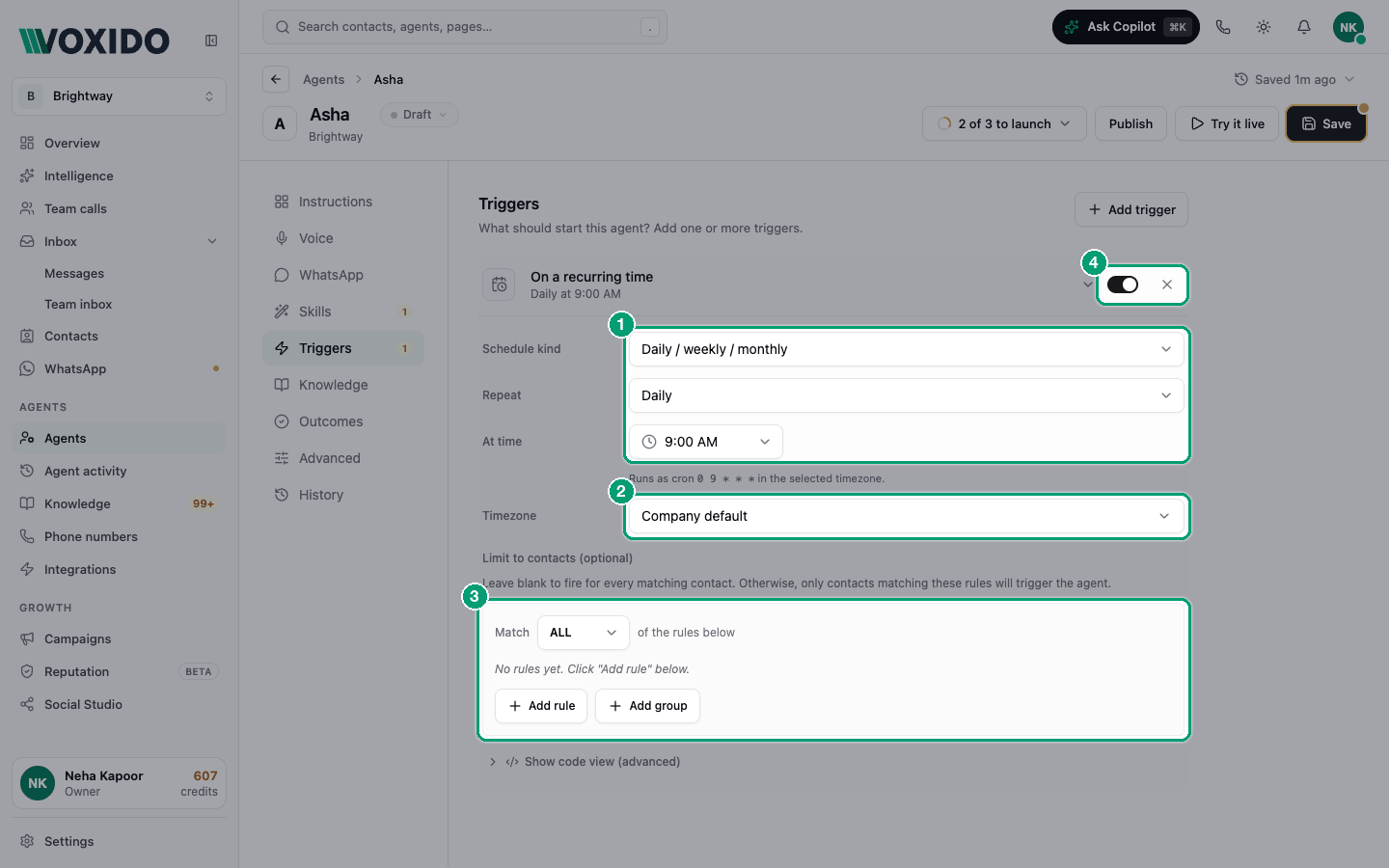
What each setting means
| Setting | What it does | Tip |
|---|---|---|
| Schedule kind | Daily / weekly / monthly (easy picker), Custom cron (advanced), or Every N minutes / hours / days. | Start with the easy picker. |
| Repeat | Daily, Weekly or Monthly. | — |
| At time | The time of day it runs. | Pick a time people are awake. |
| On days | For Weekly: the days it runs (Sun–Sat). | With no day picked, it runs every day. |
| Day of month | For Monthly: 1 to 31. | — |
| Cron | For Custom cron (advanced): five parts, minute hour day month weekday. Example 0 9 * * 1-5 = weekdays at 9 am. Examples are listed under the box. | Only if the picker can't do it. |
| Every | For Every N…: a number and minutes, hours or days. | Counts time passed; no timezone. |
| Timezone | The clock used for times. Company default uses your company setting. | Change it for customers in another region. |
| Limit to contacts (optional) | Who it reaches. Blank = everyone in the agent's workspace. | Always add at least one rule. |
How it fires
- Voxido checks schedules every minute.
- Each time slot fires once. If a check runs twice in the same minute, nobody gets two messages.
- A contact can be reached at most 4 times an hour by the same trigger. This stops a too-frequent schedule from spamming someone.
- Deleted, blocked, snoozed and opted-out contacts are skipped.
A new schedule can run straight away
When you add or change a daily, weekly or monthly schedule on an Active agent, it may run within a minute for the most recent time slot. For example, add "Daily at 09:00" at 3 pm and it can run right away for today's 9 am. Set up the trigger while the agent is a draft or paused, and check the filter first.
Examples
- Gym: Weekly, Mon, 07:00 — Stage equals "Member". "Here are this week's classes."
- Coaching centre: Daily, 18:00 — Tags contains "batch-a". "Tomorrow's class is at 7 am."
- Brightway lead nudge: Daily, 10:00 — Stage equals "New lead". Ask if they'd like a callback.
The agent writes its own first message from its instructions. For a first message outside WhatsApp's 24-hour window, it needs the Send WhatsApp template skill. See Skills reference.
Common problems
It ran at a strange hour. Check Timezone. "Company default" follows your company setting.
The summary says "Recurring schedule (not configured)". No schedule is saved. Open the trigger and pick one again.
Nobody got a message. The filter may match nobody, or the agent isn't Active. See Troubleshooting.