

Build your first campaign, step by step
This page walks you through one full campaign from an empty screen to a running campaign. We use Brightway, a service business that follows up new leads. Their customer Priya Sharma has just sent an enquiry.
The goal: Priya gets a WhatsApp message the day she becomes a lead, and an AI call the next day if she hasn't replied.
Find it: Sidebar → Growth → CampaignsWho can use it: Owners and Admins
Before you start
Tick these off first. Each one stops a campaign from sending if it's missing.
- [ ] An active agent. Campaigns only run for agents whose status is Active. A draft agent shows the campaign as Waiting.
- [ ] Contact stages. The workspace needs stages (Settings → Contact stages). Campaigns only reach contacts who are in one of the workspace's stages.
- [ ] An approved WhatsApp template for any message that goes to someone who hasn't messaged you first. See Build a WhatsApp template.
- [ ] A phone number on the agent, if you want replies to come back to this agent or want calls to dial by themselves.
- [ ] Working hours set under Settings → Working hours. Campaign calls and scheduled messages only go out inside these hours (09:00–21:00 every day until you change them).
- [ ] Credit in your wallet. Each message and call uses credits. See How credits work.
1. Create the campaign
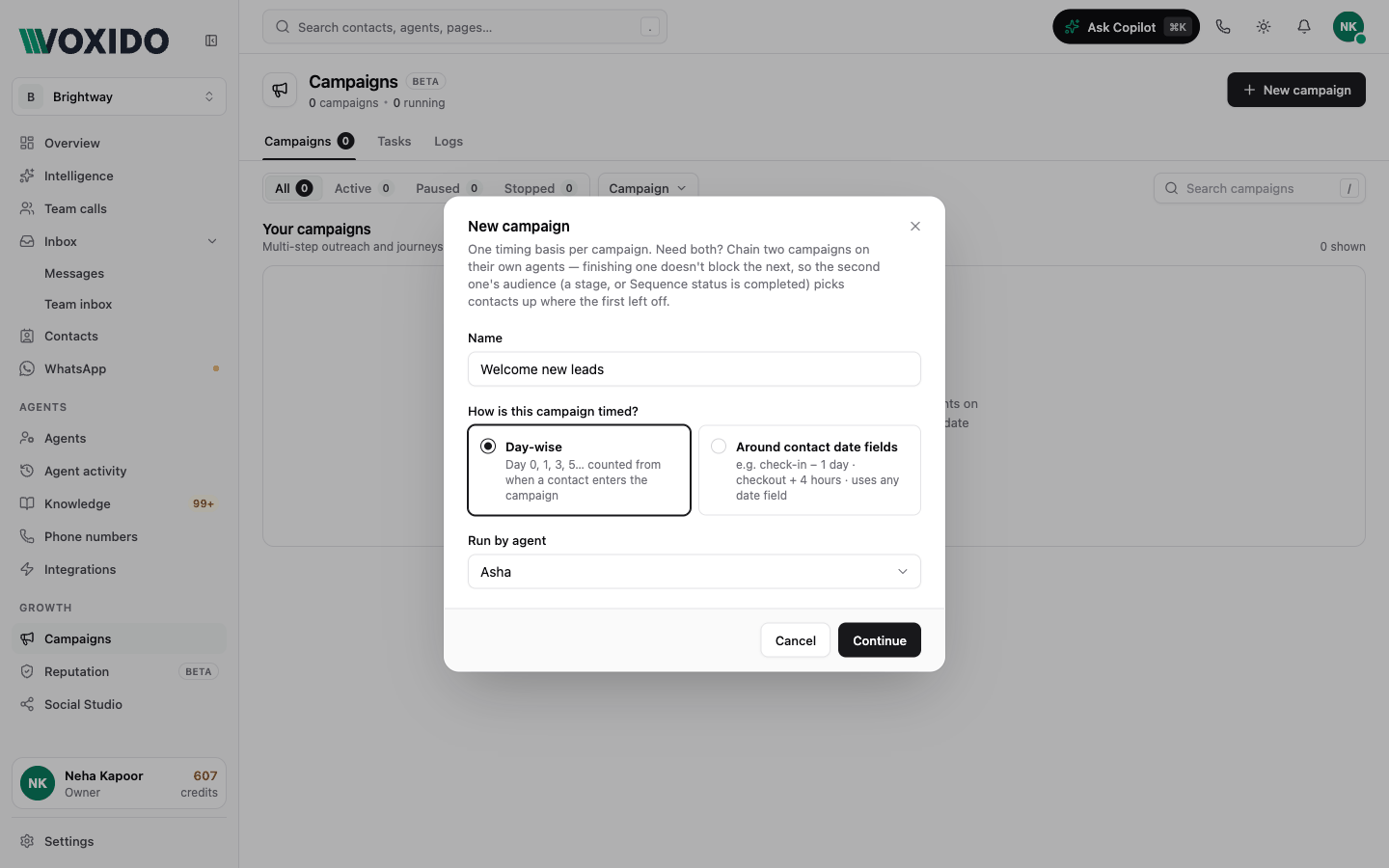
- Go to Sidebar → Campaigns, then click New campaign (top right). You'll see: a New campaign box with three questions.
- Type a Name, for example
New lead follow-up. - Under How is this campaign timed?, pick one:
- Day-wise — Day 0, 1, 3, 5… counted from when a contact enters the campaign.
- Around contact date fields — for example "1 day before the appointment date". Not sure? See Which campaign solves which problem.
- Under Run by agent, pick the agent that will send the messages and make the calls.
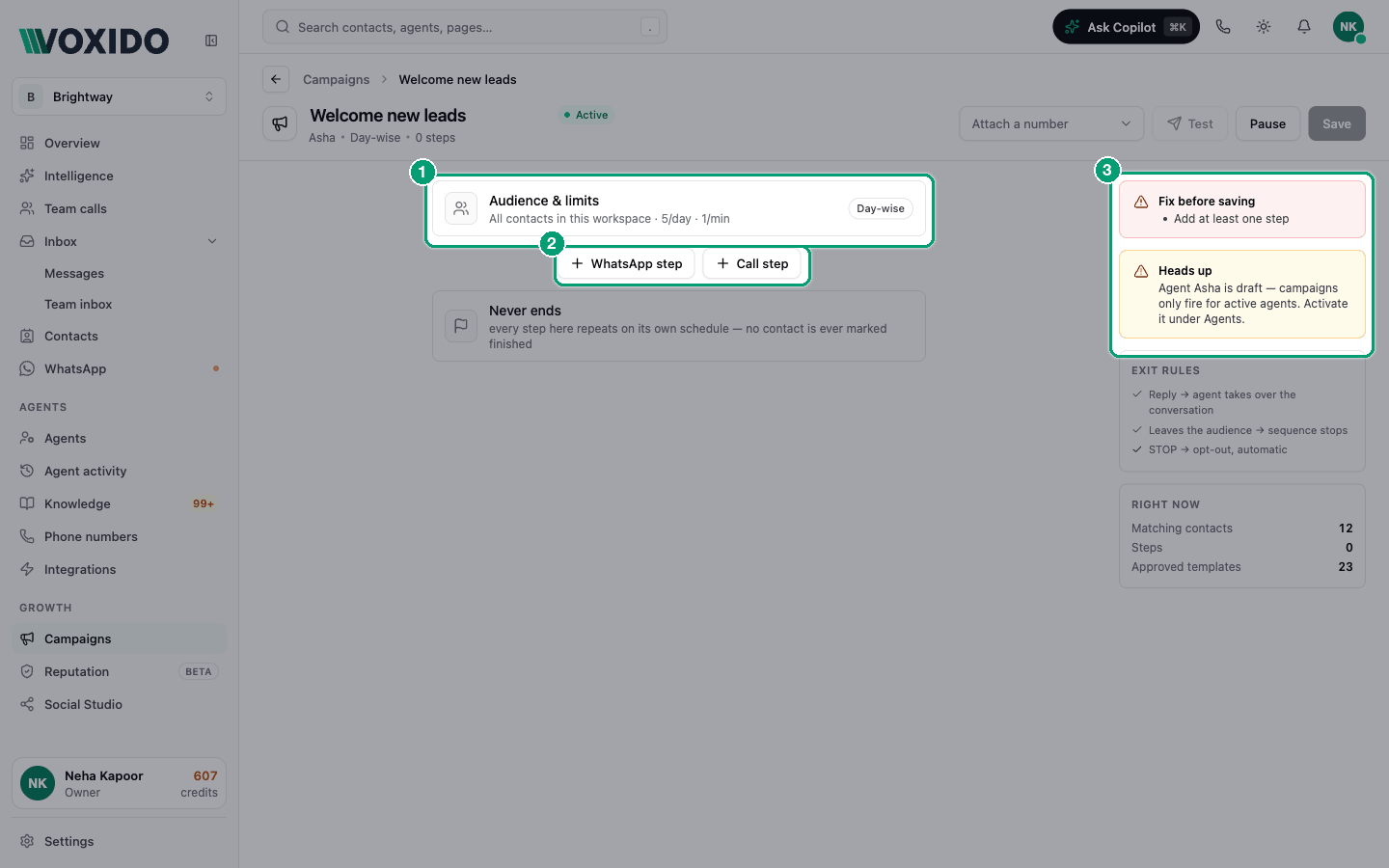
- Click Continue. You'll see: the campaign builder. A red Fix before saving box lists what's still missing, such as "Add at least one step".
You can only pick one timing type
Each campaign is either day-wise or date-field. You can't change it later. Need both? Make two campaigns.
2. Attach a phone number
The number you attach to the campaign's agent decides two things: which agent gets the replies, and which number automatic calls dial from. (WhatsApp messages go out from the number the contact last wrote to, or your workspace's WhatsApp number.)
- In the top bar, open Attach a number and pick a number. You'll see: a message "Number attached to this campaign's agent".
- If the number already belongs to another agent, Voxido asks Reassign this number? Click Reassign number only if that agent should stop getting its calls and replies.
3. Choose who gets the campaign
- Click the Audience & limits card at the top of the steps. You'll see: a side panel with Agent, Conditions and Limits.
- Under Conditions, click Add. Pick a field, an operator and a value. For Brightway: Stage · is · Lead. You'll see: the line "N contacts match now" update.
- Optional: click From segment… to copy the rules of a saved segment.
- Click Done.
No conditions means everyone in the workspace. Full details: Audience and limits.
4. Add a WhatsApp step
- Click the WhatsApp step button. You'll see: a WhatsApp step panel. The step is called "New message".
- Type a step name, such as
Welcome message. - Under Timing, set Send on day
0at11:00. - Under What to send, keep Template and pick an approved template. You'll see: a preview of the message and a Variables list, such as
{{1}}→ contact name. - Click Save step. You'll see: the step in the list with its template name and a timing chip such as "Day 0 · 11:00 IST".
Template or Custom?
Use an approved Template. Custom (the agent writes the message) only reaches people who messaged you in the last 24 hours, so in a campaign it rarely goes out. Read more in Steps and timing.
5. Add a call step
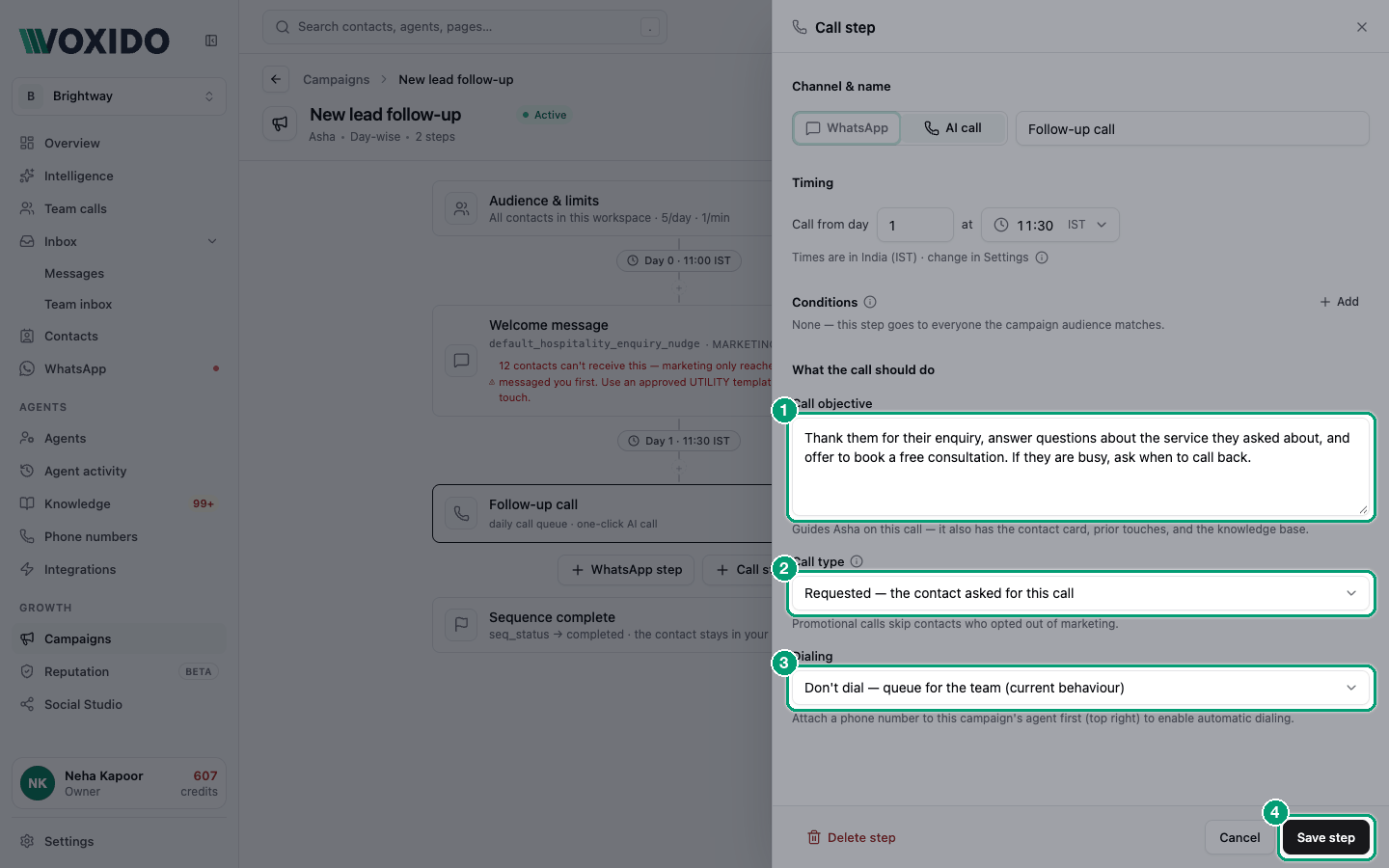
- Click the Call step button. You'll see: a Call step panel. The step is called "New call".
- Name it
Follow-up calland set Call from day1at11:30. - In Call objective, write what the call should do. Example: "Ask if Priya got our message, answer her questions and book a visit." Also make sure the agent's own Instructions cover this kind of call — the agent runs the call from its instructions.
- Pick a Call type: Requested (she asked for this) or Promotional (offers, win-back).
- Under Dialing, choose:
- Dial automatically from +91… — the agent calls at the scheduled time.
- Don't dial — queue for the team — the contact lands on a saved call list (a segment in Contacts) for your team instead.
- Click Save step.
6. Check the order and timing
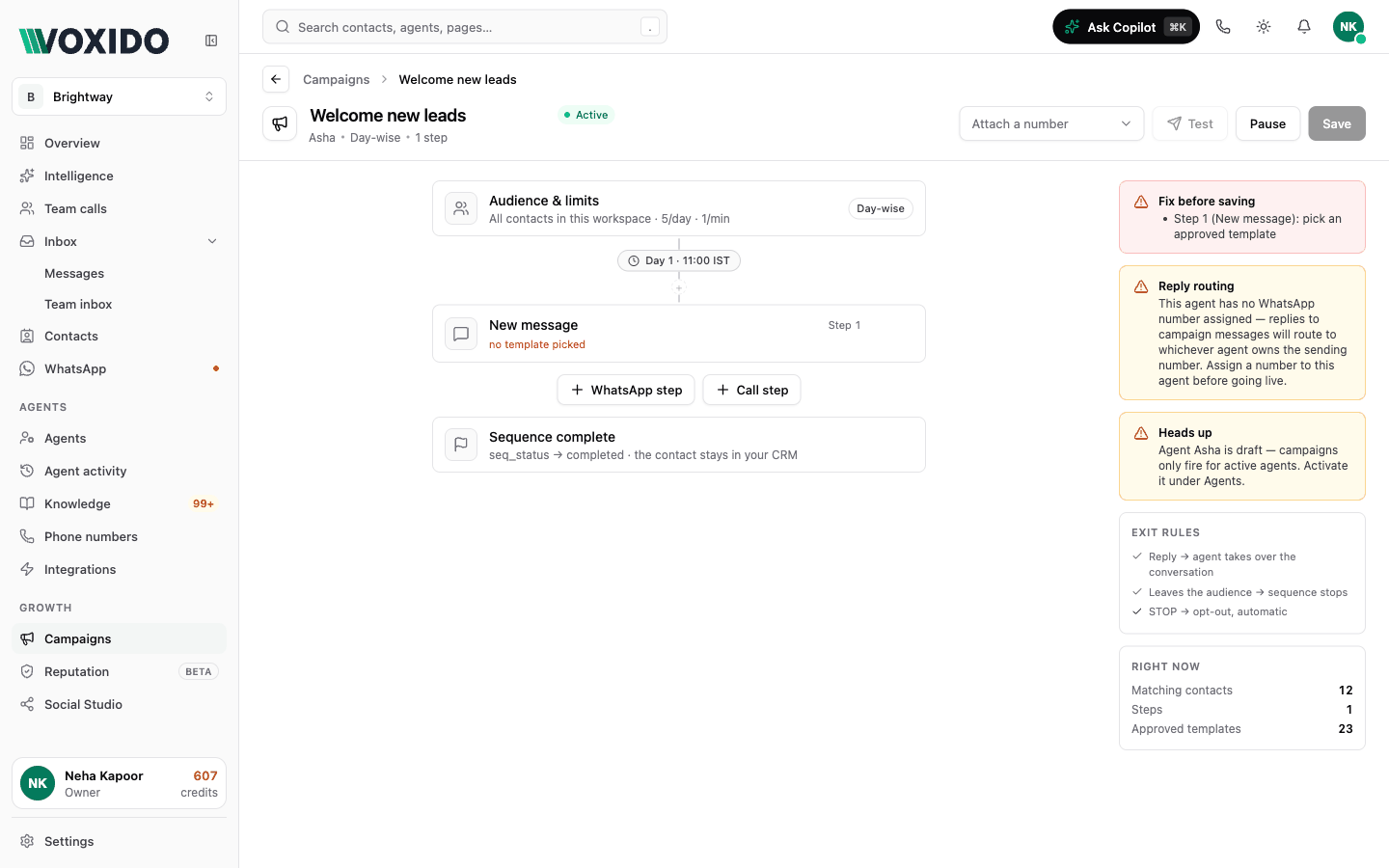
- Each step shows a small timing chip above it, like "Day 1 · 11:30 IST". Click the chip to open Timing — step name, change it and click Save timing.
- Hover a step to see Move up, Move down and Remove step.
- Click the small + between two steps to insert a new WhatsApp step there.
- The last card says Sequence complete (the contact finishes after the last WhatsApp step) or Never ends.
Check the right side of the page:
| Box | What it tells you |
|---|---|
| Fix before saving | Things you must fix. Save stays greyed out until it's empty. |
| Reply routing | The agent has no WhatsApp number, so replies would go to another agent. |
| Existing triggers | The agent has hand-made scheduled triggers too. The same person could get both. |
| Heads up | Warnings, such as steps listed out of order or template variables with no value. |
| Exit rules | What happens when a contact replies (the agent takes over), stops matching (no more steps), or sends STOP (opted out). |
| Right now | Matching contacts, number of steps, and how many approved templates you have. |
7. Save, then test on yourself
- Click Save. You'll see: "Campaign created" and "2 step(s) compiled onto (agent name)." You're back on the campaign list.
- Add yourself as a contact in this workspace (if you aren't already).
- Open the campaign again and click Test. You'll see: a Test a step box.
- Pick the step under Which step? and yourself under Pick a contact…, then click Run test. You'll see: "Test run started" for a WhatsApp step, or "Calling now" for a call step. Check your phone.
Test really sends
Run test sends a real message or places a real call right now, and it uses credits. Test on your own number only.
8. Switch it on and watch it
A new campaign starts as Active. It runs as soon as you save, inside your working hours.
- Use the switch on the campaign's row to pause or resume it.
- Open the Tasks tab to see who is due today and who is waiting.
- Open the Logs tab to see every message and call it made.
Common problems
The Save button is greyed out. Read the red Fix before saving box. Common ones: "pick an approved template", "write the call objective", or "This workspace has no stages yet".
The campaign says Waiting. Its agent isn't active. Open Sidebar → Agents, open the agent and make it Active.
I clicked Cancel but the new step is still there. New steps are added as soon as you click the button. Hover the step and click × (Remove step).
The Test button is greyed out. Save the campaign first. Test only works on a saved campaign.
"This number can't place calls." The agent's number is WhatsApp-only. Attach a number that can make calls, or set the step to Don't dial — queue for the team.