

People and teams: everyone who works with you, in one list
People is the list of everyone your AI agents can reach: staff with a Voxido login, and people who only get alerts, like a technician who never signs in. Each person belongs to a team. Your AI agents alert a team, and call routing rings the people in a team.
Find it: Sidebar → Settings → PeopleWho can use it: Owners and Admins change everything. Managers can open it to set status and book leave.
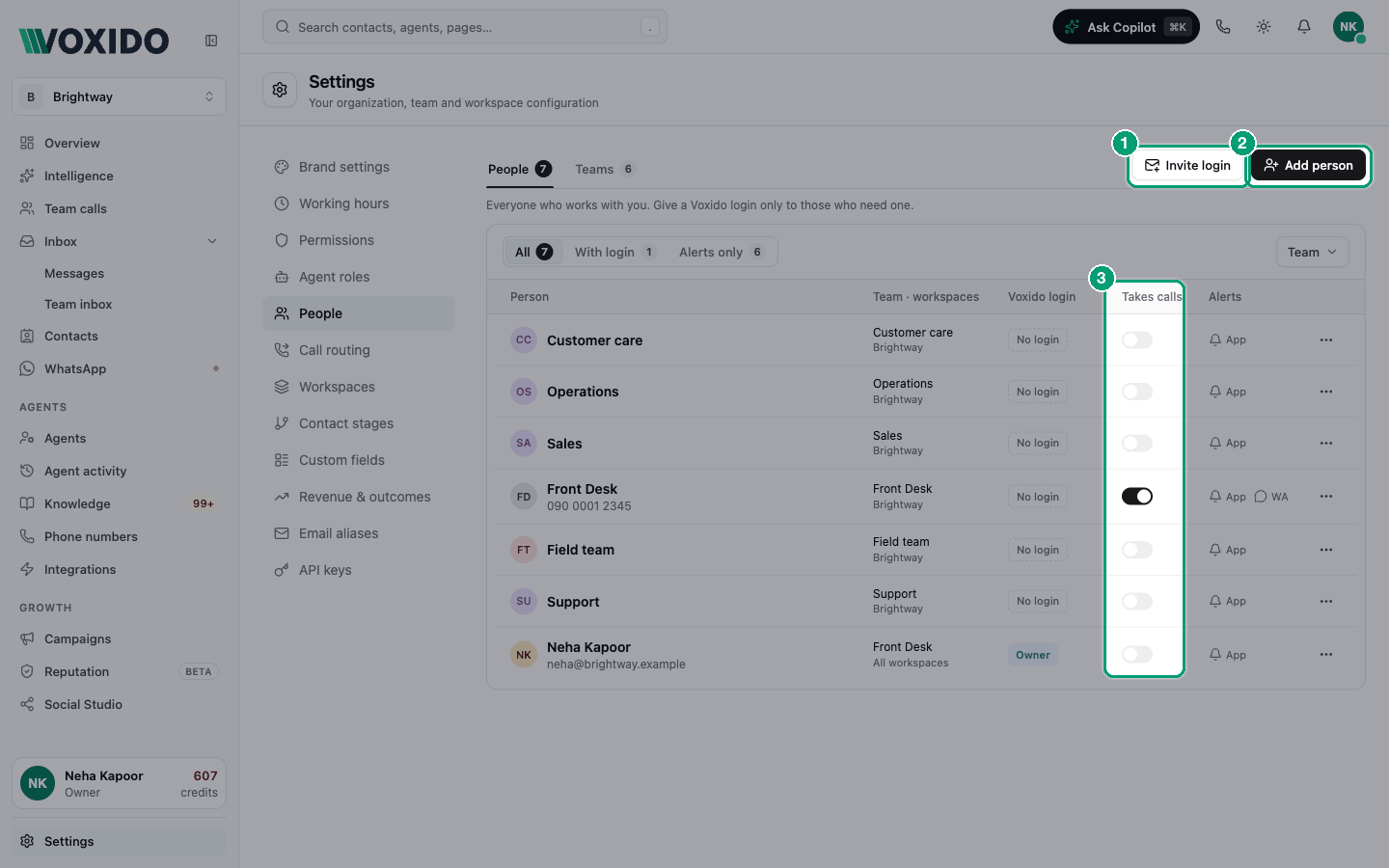
The page has two tabs: People and Teams.
Before you start: plan your teams
A team is what people do, not who they are. Good team names: Front desk, Sales, Support, Billing, Doctors, Field technicians.
| If your business… | Make these teams |
|---|---|
| Is just you | One team, for example Owner, with you in it |
| Has a reception and a back office | Front desk and Accounts |
| Sells and supports | Sales and Support |
| Runs a clinic | Reception and Doctors |
| Collects loan payments | Collections and Supervisors |
Make a team for each place a request should go. If two people can answer the same kind of request, put them in the same team.
Add a team
- Open the Teams tab, then click New team. You'll see: a small dialog that asks for the Team name.
- Type the name, for example "Support", and click Add team. You'll see: the team in the list with 0 people and a No one tag under Takes calls.
Each team row shows its Members and a Takes calls tag, for example "2 take calls". Click ⋯ to Rename or Delete a team. Only an empty team can be deleted. Otherwise it says "Move or remove the people in it first".
Add a person
- On the People tab, click Add person. You'll see: the Add person dialog: "Who they are, when they work, and how AI agents reach them."
- Fill in Name, Mobile (WhatsApp), Email, Team and Workspaces. You'll see: a note under Send alerts by, for example "Your AI agents can alert Priya about requests in every workspace."
- Under Calls and alerts, choose Takes calls, Answers on and Send alerts by (see the table below).
- Under Working hours, pick Working days, and set Shift starts and Shift ends if they work fixed hours.
- Optional: under Voxido login, switch on Give Voxido login.
- Click Add person. You'll see: a "Person added" message, and the new row in the list.
To change someone later, click ⋯ on their row → Edit. The button then says Save changes.
What each field means
| Field | What it does | Tip |
|---|---|---|
| Name | Their full name. | |
| Mobile (WhatsApp) | Their number with country code, for example +91 98765 43210. Used for mobile calls, WhatsApp and SMS alerts, and the daily check-in. | Needed for Takes calls: "Calls need a mobile number". |
| Used for email alerts and a login invite. | ||
| Team | What they do. Everyone needs one. | |
| Workspaces | All workspaces, or only the ones they cover. They are rung and alerted only for these. | |
| Takes calls | "Puts this person in the round robin when it's on. Set it up in Call Routing." | See Call routing. |
| Answers on | Computer: "The call pops up in Voxido on their computer." Mobile: "We ring their mobile number." | Computer needs a linked Voxido login. |
| Send alerts by | In-app, WhatsApp, SMS, Email. Tick any. In-app is ticked to start. | In-app alerts land in the Team inbox. For someone with no login, add WhatsApp or SMS. |
| More alert settings | Reply within (minutes): "Escalate if nobody acknowledges within this time." (10 to start, 1 to 1440). Escalates to: the next team, or (no escalation). | See SLA timers and escalation. |
| Working days | The days they work. At least one. | |
| Shift starts / Shift ends | In half-hour steps. "Leave both empty for all day. Times are in the company time zone. Outside them the person is skipped for calls." | A shift can run past midnight, for example 22:00 to 06:00. |
| Ask "Available today?" on WhatsApp | "Sent at shift start on working days. No reply means not available for the day." | Needs a shift, WhatsApp alerts and a mobile number. See Daily attendance check-ins. |
The company time zone is set in Settings → Working hours.
Computer stays greyed out until the person has a linked login. The dialog says "Give them a Voxido login to answer on computer." For a pending invite: "They can answer on computer once they accept their invite."
Give someone a Voxido login
In the person dialog, switch on Give Voxido login. "Off: alerts only, no password. On: invite them by email, or link a login they already have."
- Invite by email sends an invite to their Email. Pick a Role: Member or Manager, or Admin if you are the Owner.
- Link an existing login connects a login that isn't linked to anyone yet.
For someone who only needs to sign in (an accountant, for example), click Invite login instead. Enter their Email, pick a Role and the Workspace access, then click Send invite. See Inviting a teammate.
The People list
| Column | What it shows |
|---|---|
| Person | Name, with email or phone below. Inactive means no calls or alerts. |
| Team · workspaces | Their team, and the workspaces they cover. |
| Voxido login | No login, Invited, Suspended, or their role. |
| Takes calls | A switch for admins. Greyed out until they have a mobile number. |
| Alerts | App, WA, SMS, Email, or No alerts. |
Above the list, admins can filter All, With login or Alerts only, and pick a Team. The list shows 10 rows, then "+ N more people".
People doesn't show live status. For that, see Team calls → Who takes calls. See Team calls.
The row menu
Click ⋯ on a row. You only see what your role allows.
| Item | What it does |
|---|---|
| Available, Away for 15 min, Away for 30 min, Away for 1 hour, Away until back | Sets their status. Shows while call routing is on, for someone who takes calls. Managers and admins. |
| Edit | Opens the person dialog. Admins. |
| Mark leave… | Books leave for them. See Your status and leave. Managers and admins. |
| Mark inactive / Mark active | Stops, or restarts, all their calls and alerts. History, team and login stay. |
| Add to a team | Turns a login that isn't in People into a person in a team. |
| Link login / Unlink login | Connects, or separates, a login and a person. |
| Resend invite / Cancel invite | For an invite not yet accepted. |
| Workspace access | Which workspaces a Member's or Manager's login can open. |
| Suspend login / Restore login | Stops, or restores, their sign-in. Alerts continue. |
| Remove login | Removes their sign-in. You can invite them again. |
| Delete person | Removes them from People. Their login, if any, stays. |
Staff numbers stay out of your customer inbox
A WhatsApp chat from a team member's number is treated as staff, not as a customer. When you mark them inactive, delete them or change their number, that chat shows in your inbox and contacts again (unless another active person has the same number).
Request routing: which team gets each kind of request
Find it: Settings → People → Teams tab → Request routing
This dialog says "Which team the AI alerts for each kind of guest request."
- Hotel accounts see one row per kind of request: Housekeeping, Maintenance, Food & drink, Concierge, Room bookings, any kinds you added, and Anything else. Pick a team for each.
- Every account sees Backup team: "When the chosen team has nobody in it, alerts go here instead. Covers every team alert, including the ones the AI sends."
- Click Request routing. You'll see: the rows, each with a team picker.
- Pick a team for each row, and a Backup team (or No backup). You'll see: a warning on a row whose team is empty, for example "Nobody in Housekeeping yet, so these go to Front desk."
- Click Save routing. You'll see: "Request routing saved".
Roles in short
| Role | In short |
|---|---|
| Owner | Everything, including billing. |
| Admin | Everything except owner-only actions. Only the Owner can make someone an Admin. |
| Manager | Runs the team day to day: sets anyone's status, books leave, sees everyone in Team calls. In Settings they see People only. |
| Member | Day-to-day work. Sets their own status and leave. |
See Understanding roles.
Common problems
Why can't I switch on Takes calls? The person needs a mobile number first. Add it with ⋯ → Edit.
What's the difference between Mark inactive, Suspend login and Delete person?Mark inactive stops calls and alerts and keeps everything else. Suspend login stops sign-in, but alerts continue. Delete person removes them from People.
The same person shows twice. One row has their login and no team; the other has the team and No login. On the login row, choose ⋯ → Add to a team. Voxido links the login to the person with the same email.