

Outcomes and revenue
An outcome is where a contact ends up when your agent finishes with them — for example "Booked" when it worked, or "Archived" when the agent gave up. When a contact reaches a won stage, it counts as business on your Overview dashboard, with its amount as revenue.
Find it: Sidebar → Agents → open an agent → Outcomes
How a win turns into revenue
Four pieces work together:
- Stages — every contact sits in a stage, like Enquiry, Booked or Archived (Contact stages).
- Won stages — in Settings → Revenue & outcomes → What counts as won, you mark which stages mean "we got the business".
- The amount — a money field on the contact, like "Booking amount" (Custom fields). Settings → Revenue & outcomes → Revenue amount from says which field to read.
- The move — someone (or the agent) moves the contact into a won stage. That's the moment it counts.
On Overview, Revenue won adds up the amounts of contacts that reached a won stage in the period. When the agent made the move, the team view credits it to "AI agent". More in Settings → Revenue & outcomes and the Overview dashboard.
Which outcome should each agent have?
| Agent's job | On success, move to | On give-up, move to | Counts as |
|---|---|---|---|
| Brightway booking line | Appointment booked (won) | Archived (lost) | Revenue won |
| Hotel front desk | Booked (won) | Archived (lost) | Revenue won |
| Lead follow-up (sales, real estate, admissions) | Qualified (a qualifying stage) | Not interested / Archived | Qualified leads |
| Payment reminders | Paid (won) | Escalated (or No stage change) | Revenue won |
| Customer support | No stage change | No stage change | Nothing — support isn't sales |
Stage names are examples. Use your own, and mark the right ones as won in Settings → Revenue & outcomes.
What each setting means
| Setting | What it does |
|---|---|
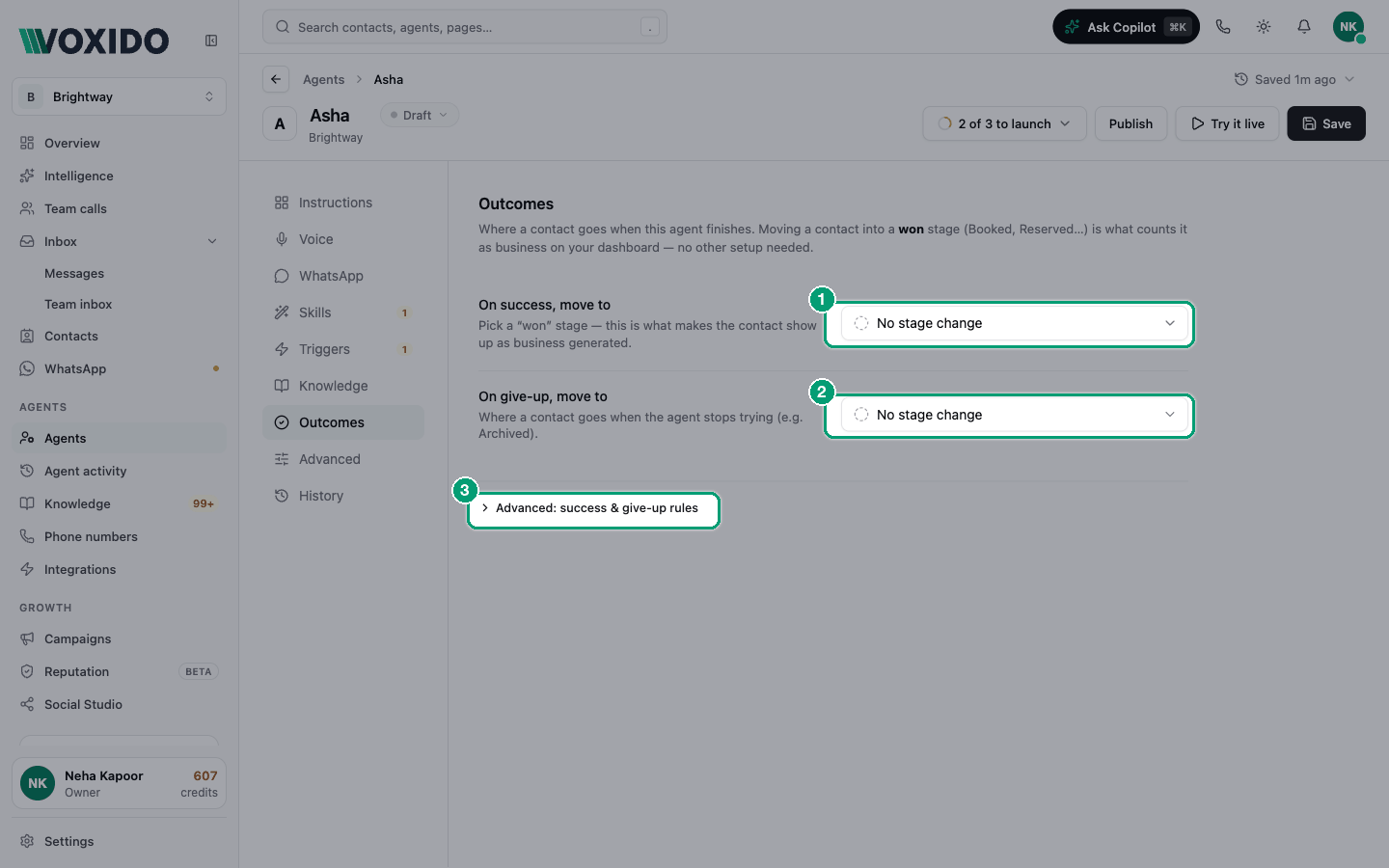
| On success, move to | The stage a contact moves to when the agent's goal succeeds. Pick a won stage to count it as business. Default: No stage change. |
| On give-up, move to | Where a contact goes when the agent stops trying, e.g. Archived. Default: No stage change. |
| Advanced: success & give-up rules | Exact conditions that decide success or give-up. The number in brackets shows how many rules you have. |
Success and give-up rules
Click Advanced: success & give-up rules to open two rule builders:
- Mark successful when — "The agent is marked successful when this rule matches the contact."
- Give up when — "The agent gives up when this rule matches (e.g. contact opts out)."
Each rule is a field, a check and a value, for example Booking amount · is not empty, or Stage · equals · Booked. Fields include Name, Phone number, Email, Stage, Tags and your custom fields. Click Add rule for more, or Add group to mix ALL and ANY.
When a rule matches during a chat (WhatsApp or web chat), Voxido closes the agent's goal and makes the stage move you picked above.
Phone calls: let the agent move the contact itself
During phone calls, these rules and the automatic move don't run. For call bookings to count, give the agent the Move contact to a stage skill and tell it when to use it. This also works in chats, so it's the safest setup everywhere.
Example: count hotel bookings in ₹
Sunrise Hotel wants every room booked by its agent to show on Overview with the booking value.
- Go to Settings → Custom fields and add a Currency field called Booking amount. You'll see: the new field in the list.
- Go to Settings → Revenue & outcomes. Under What counts as won, switch on Booked. Under Revenue amount from, pick Booking amount. Click Save changes. You'll see: "Changes saved".
- Open the agent → Skills. Turn on Update contact information and Move contact to a stage (in Contacts). You'll see: both switches on.
- In Instructions, add: "When the guest confirms a booking, save the total in Booking amount, then move the contact to Booked."
- In Outcomes, set On success, move to → Booked and On give-up, move to → Archived. Open Advanced: success & give-up rules and add Mark successful when: Booking amount · is not empty.
- Click Save, then test with Try it live. You'll see: after a test booking, the contact shows the amount and the Booked stage.
Now when guest Priya Sharma books two nights for ₹9,000, her contact gets Booking amount ₹9,000 and moves to Booked. Overview's Revenue won goes up by ₹9,000.
The amount is saved with the win, so editing the field later doesn't change past revenue. If two rooms have different prices, each booking carries its own amount.
The same idea for other businesses
| Business | Money field | Won stage |
|---|---|---|
| Brightway (appointments) | Service fee | Appointment booked |
| Clinic | Consultation fee | Appointment confirmed |
| Coaching centre | Course fee | Enrolled |
| Loan recovery | Amount collected | Paid |
| Real estate | Token amount | Site visit booked |
Common problems
Revenue won shows 0 but bookings went up. No amount was saved, or Revenue amount from points at another field. With Auto: the largest amount on the contact, Voxido reads the largest money or number field — pick the exact field instead.
The contact never moves to Booked after a call. On calls, the agent must move it itself. Turn on Move contact to a stage and say when in the instructions.
The stage I want isn't in the picker. Add it in Settings → Contact stages first.
My "won" stage doesn't count. Switch it on under What counts as won in Settings → Revenue & outcomes.