

Using Copilot: the panel, approvals and safety
This page shows how to work with Copilot day to day: asking, approving, undoing and finding old chats. To see what Copilot can do, start with What Copilot can do.
Find it: header → Ask Copilot, or ⌘K / Ctrl+K
Open and close Copilot
| To… | Do this |
|---|---|
| Open it | Click Ask Copilot in the header, or press ⌘K (Mac) / Ctrl+K (Windows). |
| Ask from search | Press . to open search, type your question, then pick Ask AI. |
| Close it | Press Esc, press ⌘K / Ctrl+K again, or click Copilot in the header. |
When Copilot is open, its header button grows two more buttons: Conversation history (a clock) and New conversation (a plus).
Ask a question
- Type in Send a message… and press Enter. You'll see: Copilot shows what it's checking, then answers.
- Or click one of the starter ideas, like Morning catch-up, Audit my agents or What's broken?. Click More ideas for more. You'll see: the idea is sent as your message.
Tips for good answers
| Instead of… | Ask… | Why |
|---|---|---|
| "Fix the agent" | "Make Asha ask for the customer's name before booking" | Name the agent and the exact change. |
| "Show contacts" | "Show contacts in the Inquiry stage added this week" | Say the filter you mean. |
| "Do everything for my new branch" | "Plan a new branch: one reception agent, a knowledge base, two stages" | Copilot turns a clear list into a clear plan. |
| One long message with five jobs | One job per message | Each change gets its own card to check. |
Always name the agent, contact or campaign you mean. Copilot knows which workspace you're in, so say the name even if it's open on your screen.
Add files, pictures or your voice
- Files and pictures: click Add photos & files. You can add pictures (JPG, PNG, WebP, GIF, up to 10 MB) and documents (PDF, Word, Markdown, text, up to 50 MB), up to 5 per message. You can also paste them, or drag a document onto the panel ("Drop your document").
- Voice: click the microphone (Start voice input) and talk. The box shows "Listening…". It stops after a few seconds of silence. Voice input works in Chrome, Edge and Safari.
Good uses: "Here's our price list. Add it to the Services knowledge base." Or: "Turn this brief into a setup plan."
Approve a change
Copilot never changes anything on its own. When you ask for a change, it shows a card first.
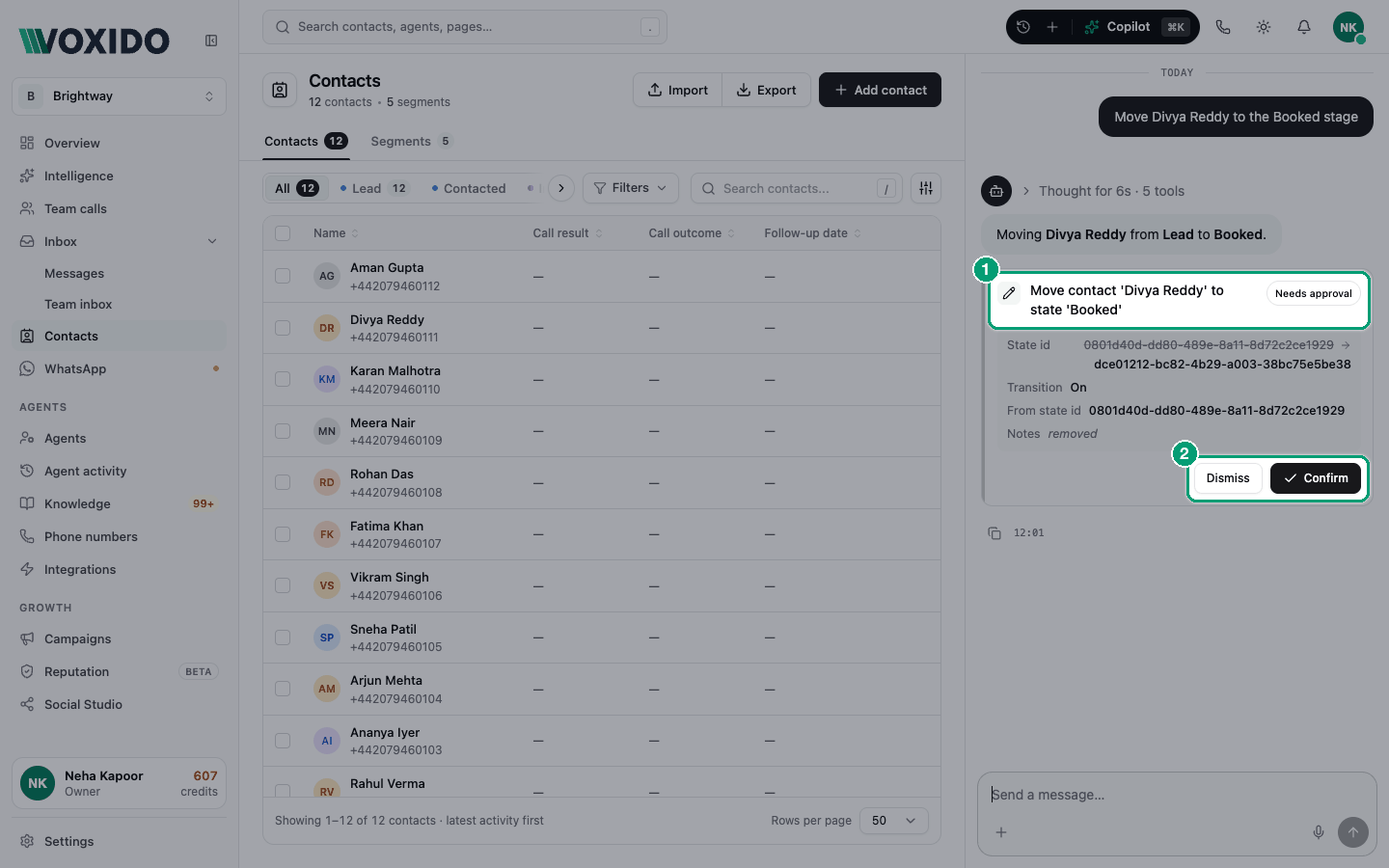
- Read the card. It's marked Needs approval and says exactly what will change.
- Click Confirm to do it, or Dismiss to drop it. You'll see: Applied after Confirm, or "Dismissed — nothing changed" after Dismiss.
- Changed your mind after Confirm? Click Undo. You'll see: the change rolled back.
Extra care for risky changes
- Deletes and instruction edits that remove text need two clicks. The first Confirm only gets the card ready. While it's ready, Dismiss becomes Keep them.
- For instruction edits, removed lines show in red. The button may say Review N more first until you've seen every removal, then Drop N items.
- Only the person who asked can confirm or undo a change.
What Undo can and can't do
| Change | Undo |
|---|---|
| Something edited | Puts the old values back. |
| Something created | Deletes the new item. |
| Something deleted | Can't be undone. Think twice before confirming a delete. |
Approve a plan
For a bigger job, Copilot writes a plan: a list of steps, like "Create custom field", "Create stage", "Create agent".
- Read the steps.
- Click Approve & run to start, or Discard to drop it. You'll see: each step ticks off as it runs. Click Stop to halt it.
- If a step needs your OK, the plan shows "Paused — confirm to continue". Click Confirm & continue or Abort.
- If a step fails, pick Retry this task, Skip and continue or Abort plan.
Plans can only create things, like fields, stages, segments, knowledge, templates, team members, agents and triggers. They never delete or send messages.
Answer Copilot's questions
Sometimes Copilot needs details before it can help. It shows question cards. Pick an answer and click Next, then Submit. Click Skip to leave one out, or type your own answer in Something else….
Find an old conversation
- Click Conversation history (the clock) in the header pill. You'll see: your chats grouped by Today, Yesterday and Previous 7 days.
- Type in Search conversations to find one, then click it.
Each person sees only their own chats. To start fresh, click New conversation (the plus). If you reload the page, your open chat comes back.
Ask about part of an agent's instructions
In the agent editor, select some text in the instructions. A small bar appears. Click Ask copilot to send that passage to Copilot, then ask your question about it.
How Copilot keeps you safe
- It acts as you. Copilot can only do what your role allows. If you ask for more, it says your role doesn't allow it and that an admin can. See Roles and permissions.
- It stays in your workspace. It works in the workspace you have open. In All workspaces, it asks which one you mean. If you're limited to some workspaces, it can't reach others.
- Changes wait for you. Every change shows a card first (see above).
- No passwords in chat. Never paste passwords or API keys. When an app needs a key, Copilot asks you to "Enter it in the form, not in this chat."
A few actions run without an approval card. Know them:
| Action | Why it runs at once |
|---|---|
| Testing a custom API | The test makes a real web request to your system. |
| Tools from connected apps your admin set to run automatically | Your admin chose that in Integrations. |
| Steps of a plan you already approved | You approved the plan as a whole. |
Messages reach real customers
Sending an SMS or WhatsApp with Copilot sends a real message after you confirm. Closing a customer's issue also sends them a WhatsApp confirmation, unless you ask Copilot not to.
Common problems
Clicking Ask Copilot opens an upgrade window. Copilot isn't turned on for your account. Ask Voxido support to turn it on.
"Your role does not allow…" Your role can't make that change. Ask an Owner or Admin.
Copilot can't find my agent. Check you're in the right workspace, and use the agent's exact name.
Voice input doesn't work. Use Chrome, Edge or Safari, and allow the microphone.