

The Overview dashboard
Overview is your home page. It shows how much you won, how many leads came in, how your AI agents handled conversations, and how your team handled the calls passed to them.
Every card follows one set of filters, and every headline compares with the period just before.
Find it: Sidebar → Overview
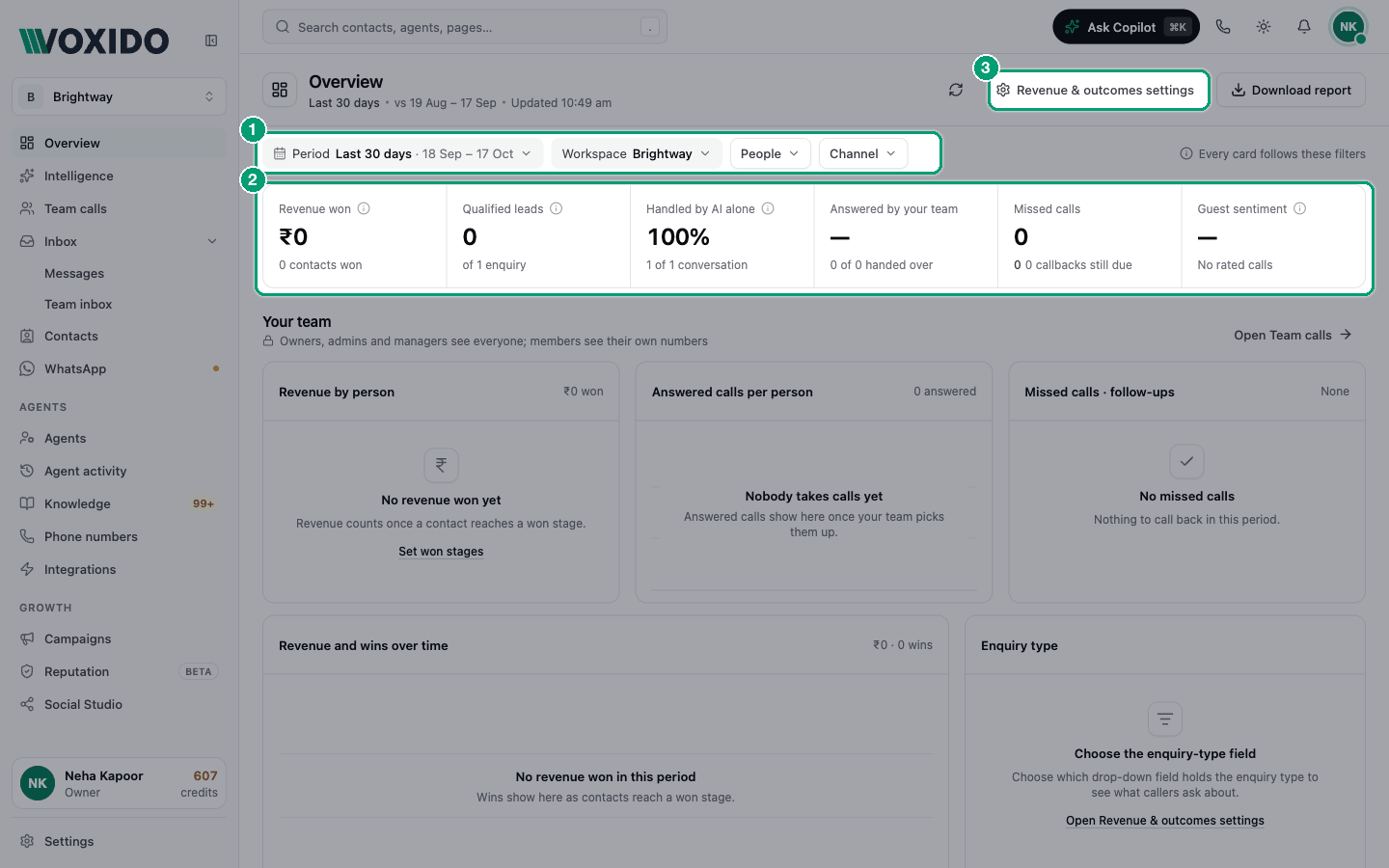
Read it in 2 minutes
Do this every morning, or every Monday for the week.
- Check the Period chip. Pick Last 7 days for a weekly check. You'll see: the header shows Last 7 days and, after "vs", the dates it's compared with.
- Read the six headline cards left to right. Look at the small arrows. You'll see: green arrows went the good way, red went the bad way, grey stayed flat.
- Look at Missed calls. If "callbacks still due" is above 0, open Missed calls · follow-ups below. You'll see: who missed calls and who still has to call back.
- Scroll to Your AI agents and read From enquiry to payment. You'll see: where people drop out: before qualifying, before buying, or before paying.
- Read Agent performance to see which agent talks most and converts best. You'll see: one row per agent with conversations, revenue and conversion.
- Click Download report if you want to share the numbers. You'll see: an Excel file with one sheet per card.
For real questions like "why are bookings down?", see Answer business questions with your numbers.
The filters
The filter row sits under the header. "Every card follows these filters."
| Filter | What it does | Default |
|---|---|---|
| Period | The days you look at. Pick Today, Yesterday, Last 2 days, Last 3 days, Last 7 days, Last 30 days, This month, Last month or Custom (up to a year). | Last 30 days |
| Workspace | Pick one or more workspaces. Shown only when you have more than one. | Follows the workspace switcher |
| People | Pick team members to see only their numbers. Shown to Owners, Admins and Managers. | Everyone |
| Channel | Voice or WhatsApp. Revenue and qualified leads don't change with it. | Both |
Each headline compares with the same number of days just before. This month compares with the same days of last month.
The filters stay in the page address, so a shared link opens with the same view.
The header buttons
| Button | What it does |
|---|---|
| Refresh (circle arrow) | Reloads every card. The header shows "Updated" with the time. |
| Revenue & outcomes settings | Opens Settings → Revenue & outcomes. Shown to Owners, Admins and Managers. |
| Download report | Saves the same report as an Excel file (.xlsx), one sheet per card. |
The six headline cards
| Card | What the number means | What's under it |
|---|---|---|
| Revenue won | The amounts of contacts that reached a won stage in the period. | How many contacts were won |
| Qualified leads | Contacts that reached a qualifying or won stage in the period. | "of N enquiries": everyone who got in touch, each person once |
| Handled by AI alone | The share of conversations the AI finished without handing them to a person. | "X of Y conversations" |
| Answered by your team | The share of calls passed to your team that a person picked up. | How many were answered, and the typical pick-up time |
| Missed calls | Calls your team was offered but didn't answer. Lower is better. | Callbacks still due |
| Guest sentiment | A 0–100 score from call sentiment. Positive counts 1, neutral ½, negative 0. | The share of positive calls |
Hover the ⓘ next to a card name to read how it's counted.
Revenue shows 0?
Revenue needs setup: a won stage, a money field and a stage move. Follow Revenue & outcomes.
Your team
Owners, Admins and Managers see everyone. Members see only their own numbers. Click Open Team calls for the full Team calls report.
| Card | What it shows |
|---|---|
| Revenue by person | Who won the revenue: every person who won, then AI agent for wins the AI or an automation made. |
| Answered calls per person | How many passed-on calls each person picked up. |
| Missed calls · follow-ups | Each person's missed calls, callbacks due and callbacks done. "Done" means everyone was called back. |
| Revenue and wins over time | Revenue won per day. Hover a bar to see the number of wins. |
| Enquiry type | What people asked about, from the drop-down field picked in Revenue & outcomes. Until you pick one, the card says "Choose the enquiry-type field". |
| Enquiries and revenue per workspace | Enquiries, share and revenue for each workspace. |
The first three cards are the same height. Each shows as many rows as fit; click Show 4 more (the number is how many are hidden) to see the rest, and Show fewer to fold them again.
The team cards count calls your AI passes to people. To turn that on, see Call routing.
Your AI agents
"Voice and WhatsApp conversations the AI handled." Click Agent activity to open every conversation.
| Card | What it shows |
|---|---|
| Conversations by day | Each day's conversations, split into AI alone and Handed to your team. |
| Busiest hours | When people get in touch: 8–11 am, 11 am–2 pm, 2–5 pm, 5–8 pm, 8–11 pm, and night (only if someone wrote or called then). |
| From enquiry to payment | A funnel: Enquiries → qualified leads → wins → payments. The step names follow your business's outcomes. |
| Cost and return | Conversations, Total cost, Cost per conversation, Revenue per conversation and Return on spend (revenue won ÷ cost). |
| Agent performance | Each agent's Convos (calls and website chats; WhatsApp chats aren't counted here), Revenue and Conv. (conversion rate). |
Two kinds of revenue
Revenue won counts stage moves. Agent performance → Revenue counts only money an agent recorded itself, such as a booking made in a connected hotel system. So the two can differ. To see the AI's share of Revenue won, read AI agent in Revenue by person.
The Paid step counts payment outcomes, like Payments Collected logged on the "How did the call go?" form. See Notes and call outcomes.
Common problems
A card shows "—". There was nothing to measure. For example, Answered by your team shows "—" when no calls were passed to people.
Guest sentiment says "No rated calls". Sentiment comes from calls. With Channel set to WhatsApp, or with no finished calls, there's nothing to score.
The People filter is missing. Only Owners, Admins and Managers see it. Members always see their own numbers.
"Couldn't load the overview." Click Try again. If it keeps failing, check your filters, then refresh the page.