

Add, edit and delete contacts
Most contacts arrive on their own when people call or message you. This page is for the rest: adding someone by hand, fixing a detail, changing many contacts at once, and deleting.
Find it: Sidebar → Contacts
Add a contact
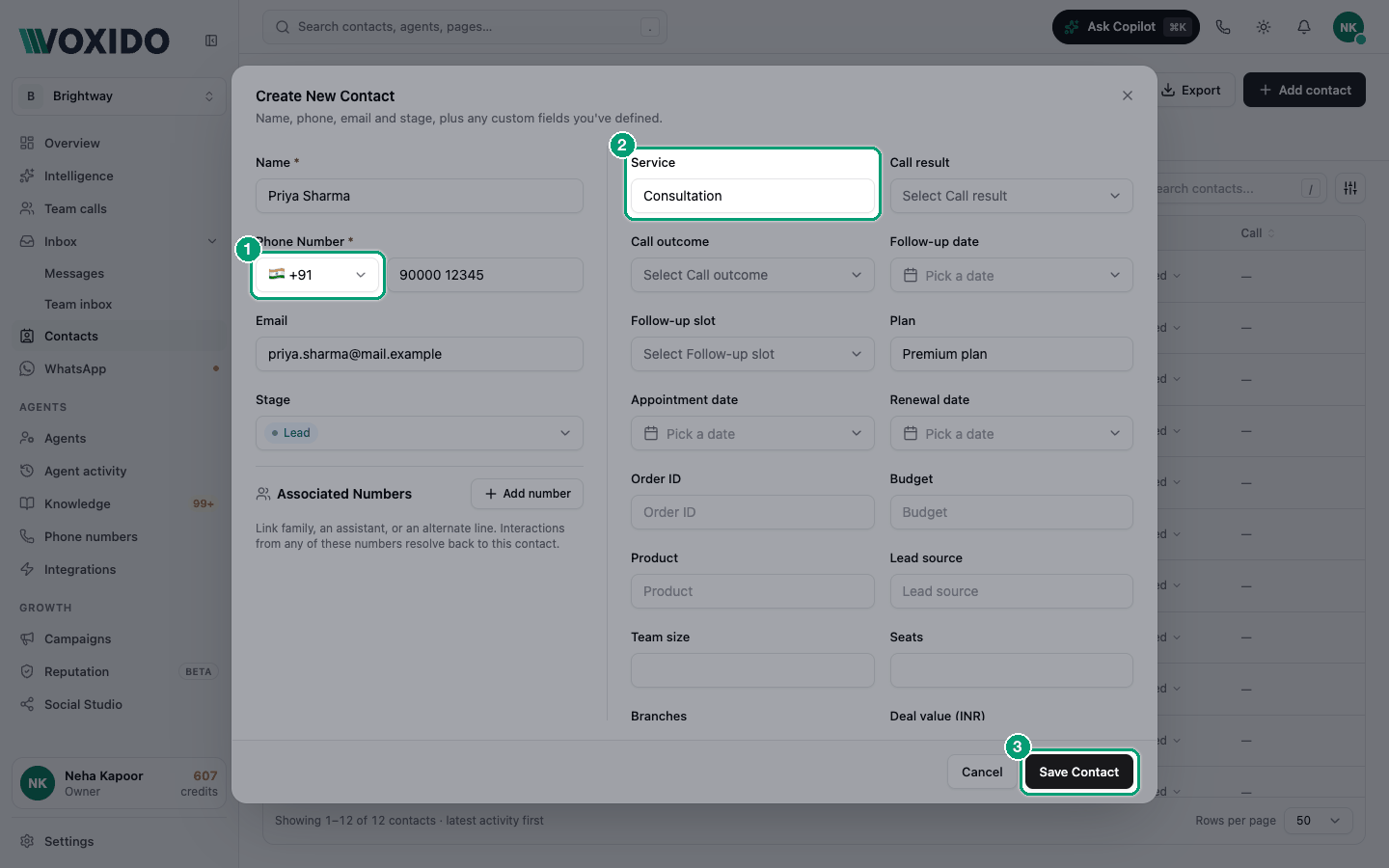
- Click Add contact (top right). You'll see: the Create New Contact form. The left side, Contact, has Name, Phone Number, Email, Stage and Associated Numbers. The right side, Details, has your custom fields: your Key fields first, then Other fields.
- Type the Name.
- Pick the country code, then type the Phone Number. The list offers United States (+1), United Kingdom (+44), India (+91) and UAE (+971). India is picked to start with. For any other country, type the whole number starting with
+and the country code. - Optional: add an Email, pick a Stage, and fill in the custom fields you need. You'll see: a red asterisk on any custom field your team marked Required.
- Click Save Contact. You'll see: "Contact created", and the new contact in the list.
| Field | Rules |
|---|---|
| Name | Required. |
| Phone Number | Required here. Voxido checks that it is a real number and saves it in international format, such as +919876543210. |
| Optional. Must look like an email address. | |
| Stage | Shows once you have stages. Leave it on No stage and the contact starts on your default stage. |
| Custom fields | A red asterisk means Required. In this form it is a reminder: you can still save without it. |
Key fields are the fields pinned to the contact's Summary, in the same order, so you fill a contact in the order your team reads it. With nothing pinned, you see one list. See Customize Summary.
If another contact in this workspace has the same number, you see "A contact with phone number +919876543210 already exists". Search for that number and open the contact you already have.
Associated Numbers
Some people call from more than one phone. Under Associated Numbers, click Add number and fill in a name, a relationship (for example "Wife" or "Office") and the number. A call or message from any of these numbers is matched to this same contact.
Edit a contact
Pick the way that suits the job.
| If you want to… | Use |
|---|---|
| Change one or two details quickly | The contact panel |
| Change many details and leave a note in one go | The Edit Contact form |
| Set the same value on many contacts | Bulk actions (below) |
In the contact panel
- Click the contact's row. You'll see: the panel opens on Summary.
- Open Details (or stay on Summary for your Key fields), then point at the value you want to change. You'll see: a grey box around it. An empty field says Add….
- Click the value. You'll see: the right editor, in the same box: a text box, a dropdown or a date picker (see the table below).
- Type or pick the new value. For typed values, press Enter or click away to save, or Esc to cancel. A pick from a dropdown or a date picker saves at once. You'll see: the new value, and a new line on the Activity tab.
| The field is… | Clicking it opens |
|---|---|
| Text or a number | A text box in the same place |
| Long text | A bigger text box in the same place |
| A picklist, or Yes/No | A dropdown. Pick a value. |
| A multi-pick list | A dropdown with ticks. Tick as many as you need; it saves when the dropdown closes. |
| A date, date and time, or time | A date picker (with a time when the field has one) |
| Owner, Backup owner or Reporter | A list of people |
| Stage | Your stages |
| Workspace | Move to workspace. See Move a contact to another workspace. |
| Call back on | Quick picks and a date and time. See Call back on. |
A value with no grey box on hover can't be changed by you, for example a field filled by a connected system you can't edit, or when your role can only view. Associated Numbers still has its own Save and Cancel.
The same boxes work on the Summary tab's Key fields and in a Team inbox request's Details.
In Details, each group of fields opens and closes when you click its name. Type in Search fields… at the top to find a field fast. To rename the contact, click the name at the top of the panel.
A field that comes from a connected system shows synced. You can still edit it. The change shows in Activity, and the next sync may set it back.
In the Edit Contact form
- Hover over the contact's row and click the pencil (Edit). You'll see: the Edit Contact form, already filled in. It looks just like Create New Contact: Contact on the left (the phone split into country code and number), Details on the right with your Key fields first, then Other fields.
- Change what you need.
- Optional: write in Add a note on the left, under Associated Numbers, for example "Wants a call after 6 pm".
- Click Save Changes. You'll see: "Contact updated", or "Note added" if you only wrote a note.
Voxido saves only the fields you changed, then the note. If the AI updated another field while the form was open, that value stays. The note lands on the contact's Notes tab. If the contact saves but the note doesn't, you see "Contact saved, but the note didn't save", and the form stays open with your text.
Change many contacts at once
- Tick the box at the start of each row. Shift-click a second box to tick every row in between. You'll see: a bar with the number of contacts picked.
- Pick an action:
| Action | What it does | Who sees it |
|---|---|---|
| Change stage | Moves every picked contact to one stage. | Everyone, once you have stages |
| Set owner | Gives every picked contact the same Owner, or Unassigned. | Managers, Admins and Owners |
| Set backup owner | The same, for the Backup owner, or None. | Managers, Admins and Owners |
| Edit field | Pick a custom field, enter a value, then click Apply to the contacts. | People who can edit contacts |
| Move to workspace | Moves the picked contacts to another workspace, with their history. See Move a contact to another workspace. | Everyone |
| Delete | Deletes the picked contacts, after you confirm. | Everyone |
You'll see: a message such as "Moved to Booked for 12 contacts". If some fail, the message says how many and why, with a Retry button for those.
Delete a contact
- Hover over the row and click the trash icon. Or, in the panel, open ⋯ → Delete contact. You'll see: Delete Contact, asking you to confirm.
- Click Delete. You'll see: the row leaves the list, and a message with Undo.
- Changed your mind? Click Undo within 10 seconds. You'll see: the contact back in the list. Nothing was deleted.
To delete many, tick their boxes and click Delete in the bar. The dialog asks "Delete 12 contacts?" before anything happens.
What happens after the 10 seconds:
- The contact leaves the list, search and exports.
- Their WhatsApp conversation is closed and leaves your inbox.
- Notes and what the AI remembers are kept with the hidden record.
- If the person calls or messages again, Voxido brings the same record back with a fresh conversation. Their custom field values start empty.
Need a deleted contact back?
Deleted contacts are hidden, not erased. Write to Voxido support if you need one restored.
Common problems
Save Contact says the phone number is not valid. Check the country code. A number without + is read with the country you picked. A UK number typed with India picked won't pass.
I can't change the Owner. Only Managers, Admins and Owners can give a contact to someone else. Everyone can take a contact that has no Owner with Assign to me. See Owner, Backup owner and Reporter.
Moving to a stage says "Fill in … before moving this to …". Your company requires some fields before that stage. Fill them in, then move the contact again.