

Your account and preferences
Your own name, photo and password live on your Profile page. These are about you, not your business. Changing them doesn't change anything for your teammates.
Find it: header → your photo → Profile (or Preferences)
The page has three sections on the left: Profile, Security and Preferences.
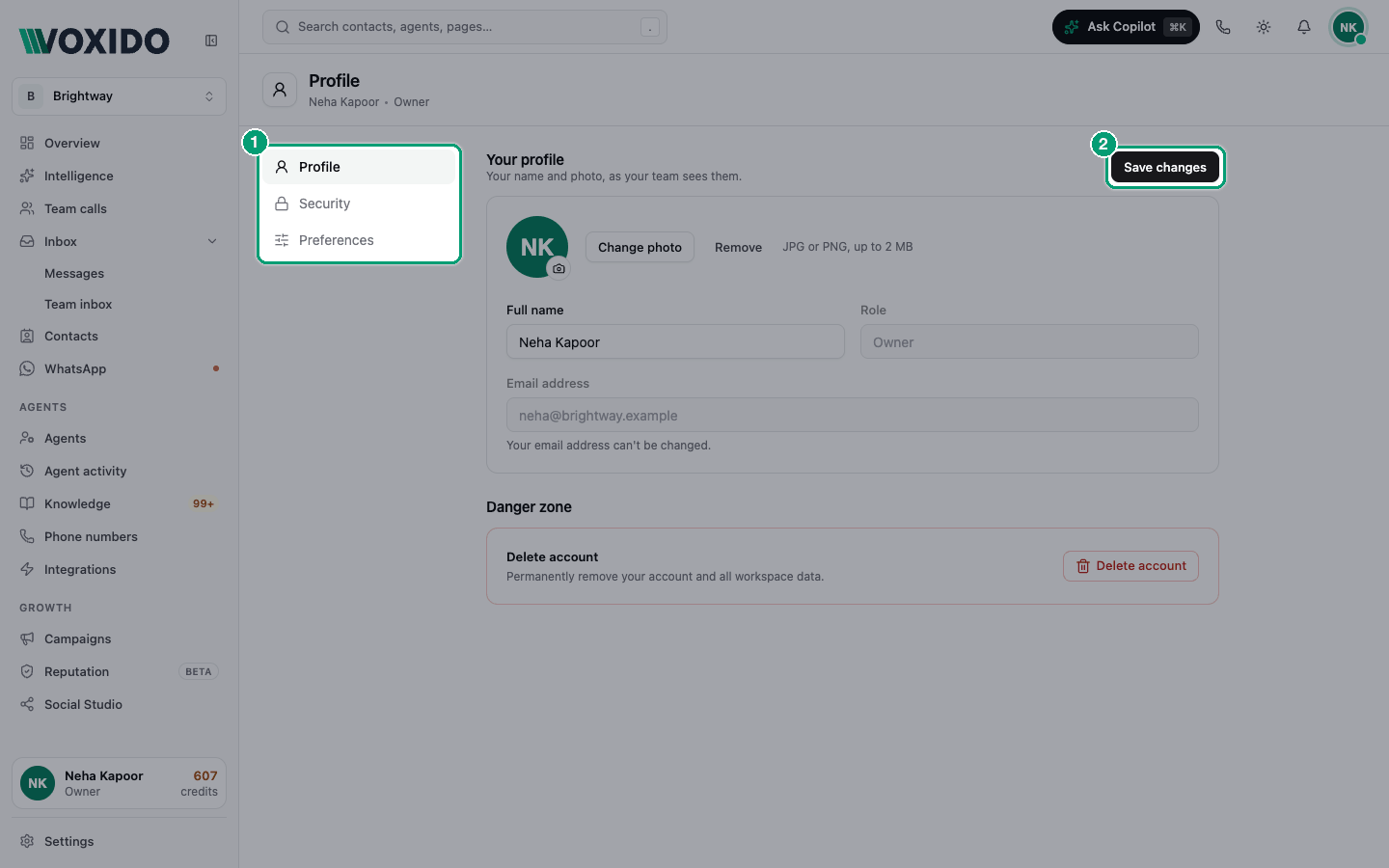
Change your name or photo
- Open Profile. You'll see: Your profile, "Your name and photo, as your team sees them."
- Click the photo area and pick a picture (JPG or PNG, up to 2 MB). You'll see: the new photo in the circle.
- Change Full name if you want.
- Click Save changes. You'll see: "Profile updated successfully."
Your Role shows here too, but you can't change it yourself. An Owner or Admin sets it. Your Email address can't be changed.
Change your password
- Open Security. You'll see: Password, "Use at least 8 characters, with one uppercase letter and one number."
- Type the new password in New password and again in Confirm password.
- Click Update password. You'll see: "Password updated."
If something is wrong, a message tells you what to fix, like "Add a number" or "Passwords don't match".
Signed in with Google?
You don't need a Voxido password. Google signs you in.
Replay the product tours
Voxido shows a short tour the first time you open the app and each main page. To see them again:
- Open Preferences. You'll see: Onboarding and tour, with a Product tour card and a list of page tours.
- Click Start tour (or Replay all tours if you've seen it). You'll see: the tour of the sidebar and header starts. Every page's own tour shows again the next time you open that page.
- To replay one page's tour, click Replay next to it. You'll see: Voxido opens that page and starts its tour. A New tag marks tours you haven't seen yet.
You only see tours for pages your role can open.
Light or dark mode
Click the theme button in the header (a sun, moon or screen icon), then pick Light, Dark or System (matches your device). Only your screen changes.
The accent colour (buttons and links) is different: it's set for the whole business in Brand settings.
Leave or delete your account
Find it: Profile → Danger zone
What happens depends on your role.
| You are… | The button says | What happens |
|---|---|---|
| The Owner | Delete account | Your account, your workspaces and all their data are deleted: agents, workflows and knowledge. |
| Admin, Manager or Member | Leave workspace | Only your account is deleted. The business and its data stay for everyone else. |
- Click Delete account or Leave workspace. You'll see: a warning, "This action cannot be undone."
- Type
delete(Owner) orleave(everyone else) in the box. - Click Delete my account or Leave workspace.
DANGER
This can't be undone. If you're the Owner, export anything you need first.