

Viewing your usage history
The Billing page shows where every credit went: which calls, messages and numbers, on which day, for which contact and agent. Use it to check a charge, find out why a day cost more, or export records for your accountant.
Find it: header → your photo → Billing → Usage and ActivityWho can use it: Owners and Admins
See your spending for a period
- Open Billing and scroll to Usage.
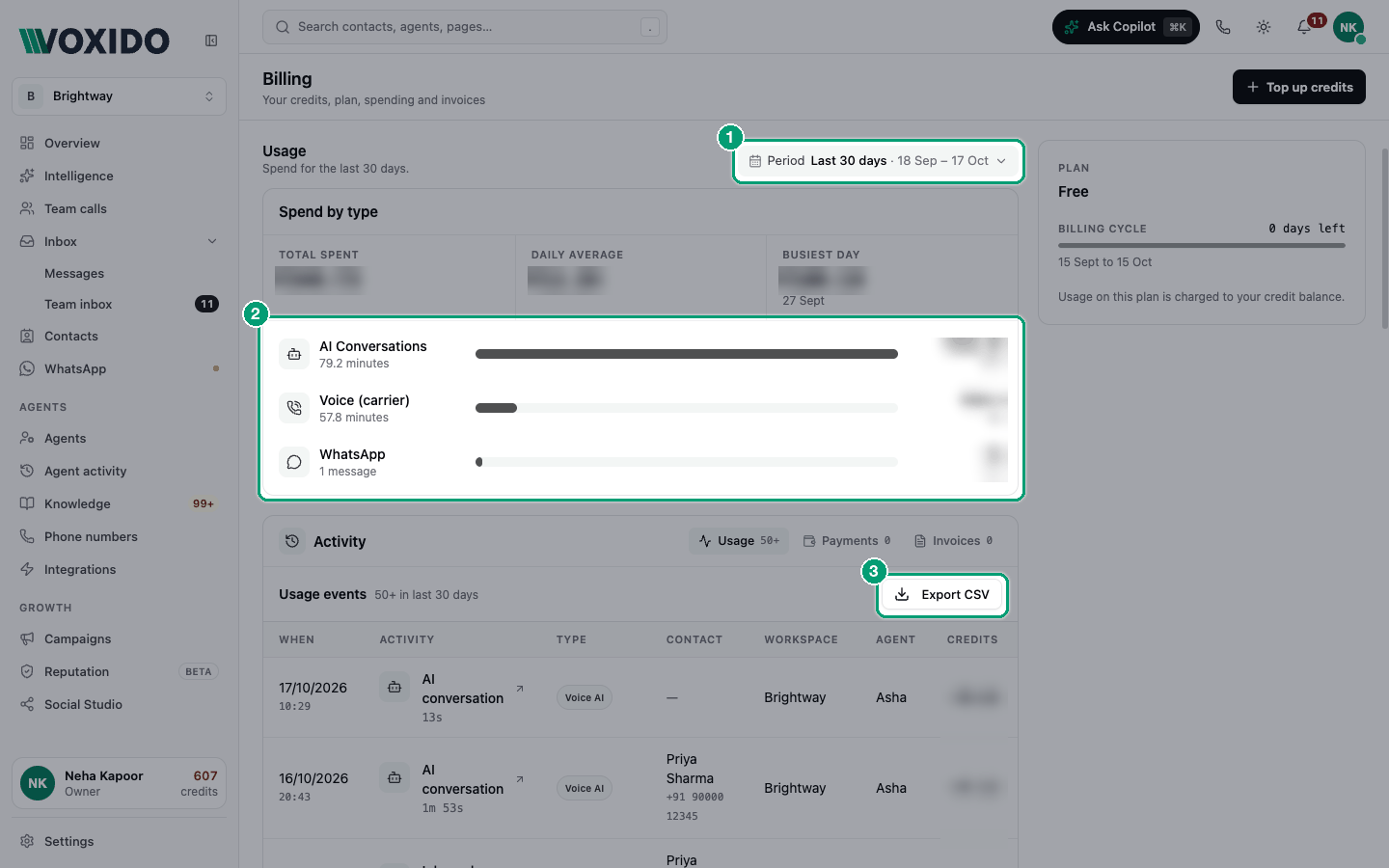
- Click the period box and pick one: Today, Yesterday, Last 7 days, Last 30 days (the default), This month, Last month, or Custom for your own dates. You'll see: Spend by type, with Total spent, Daily average and Busiest day, and one bar for each kind of spend.
Find what made a day expensive
The problem: "We spent twice as much last Tuesday. Why?"
- Look at Busiest day in Spend by type.
- Click the bar for the biggest kind of spend, like WhatsApp. You'll see: the table below shows only that kind. Click Clear filter to see everything again.
- Set the period to that day with Custom.
- Read the Usage table. Look for one agent or one contact with many rows.
Common causes: a campaign that sent many template messages, an agent on long calls, or a new number's monthly rent.
Read the Usage table
Under Activity, the Usage tab lists every charge, newest first.
| Column | What it shows |
|---|---|
| When | Date and time. |
| Activity | What happened, like a call and its length. |
| Type | A tag such as Voice AI, Voice carrier, WhatsApp, SMS or Phone rental. |
| Contact | Who it was with, if known. |
| Workspace | Which workspace used the credits. |
| Agent | Which agent did it. |
| Credits | How many credits it cost. |
Some rows can be opened. A call opens its details, with the recording and transcript. A WhatsApp row opens the chat with that contact.
The table shows 25 rows at a time. Use Previous and Next to move through pages.
Export your usage
- Pick the period you need.
- Click Export CSV. You'll see: "Exporting…", then a file downloads. It opens in Excel or Google Sheets.
The export holds up to 10,000 rows. For more, export a shorter period at a time.
Payments and invoices
The other two Activity tabs:
| Tab | What's in it |
|---|---|
| Payments | Each time credits were added: Date, Description and Credits added. Click Load more for older ones. |
| Invoices | Your tax invoices: Date, Invoice and Amount, with a PDF download on each row. Tick several and click Download N selected to get them together. |
Common problems
I don't see a charge I expected. Check the period and any type filter (click Clear filter). Charges show once the call or message has finished.
One call shows two rows. That's normal. A call is charged for AI time (Voice AI) and phone line time (Voice carrier). See What actions cost credits.
"Couldn't export usage." Try again, or pick a shorter period.