

Recipe: follow up every new lead with WhatsApp and an AI call
The problem
"Leads come in from our ads and website at all hours. By the time someone calls back, the lead has gone cold or booked with someone else."
Why this campaign fits
| You need… | This campaign gives you… |
|---|---|
| A reply the same day, every time | A Day 0 WhatsApp message that goes out the day the lead arrives |
| Someone to actually call | A call step the AI dials by itself (or a call list for your team) |
| Follow-ups that stop when the lead moves on | A reply hands the chat to the agent and holds the next step. A lead who leaves the Lead stage gets no more steps. |
| No spam | A 48-hour pause after any reply, working hours, and call limits |
Use Day-wise timing, because the clock should start when the lead arrives — not on a date in their record.
Recipe card
| Step | Timing | Channel | Content |
|---|---|---|---|
| 1. Welcome | Day 0 at 11:00 | Approved utility template: "Hi {{1}}, thanks for your enquiry…" | |
| 2. First call | Day 1 at 11:30 | Call, Dial automatically | Objective: answer questions and book an appointment |
| 3. Nudge | Day 3 at 11:00 | Approved template with a link to book | |
| 4. Last call | Day 5 at 16:00 | Call, Dial automatically | Only if the first call wasn't answered: condition Call result · is any of · no_answer, busy |
Audience: Stage · is · Lead.
Build it (Brightway example)
Brightway's new leads land in the Lead stage, from a website form or a CSV import.
- Go to Sidebar → Campaigns → New campaign. Name it
New lead follow-up, pick Day-wise, pick your sales agent, and click Continue. You'll see: the empty campaign builder. - In the top bar, Attach a number that can make calls and send WhatsApp. You'll see: "Number attached to this campaign's agent".
- Click Audience & limits. Click Add and set Stage · is · Lead. Set Daily call limit to what your team can handle, for example
40. Click Done. You'll see: "N contacts match now", and the card summary "Stage is Lead · 40/day · 1/min". - Click the WhatsApp step button. Name it
Welcome, set Send on day0at11:00, pick your approved utility template and map{{1}}to the contact's name. Click Save step. - Click the Call step button. Name it
First call, set Call from day1at11:30. Write the Call objective: "Thank them for the enquiry, answer their questions, and book a slot." Keep Call type on Requested. Under Dialing, pick Dial automatically from (your number). Click Save step. - Add step 3 (WhatsApp, day 3) the same way.
- Add step 4 (call, day 5). Under its Conditions, click Add and set Call result · is any of ·
no_answer, busy, so only people who missed the first call get a second one. - Click Save. You'll see: "Campaign created — 4 step(s) compiled onto (agent)."
- Click Test and run step 1 on your own contact to check the message.
- Open the agent's Instructions and add a line about these calls, for example: "When you call a new lead, thank them for the enquiry, answer questions and offer the next free slot." The agent runs campaign calls from its instructions.
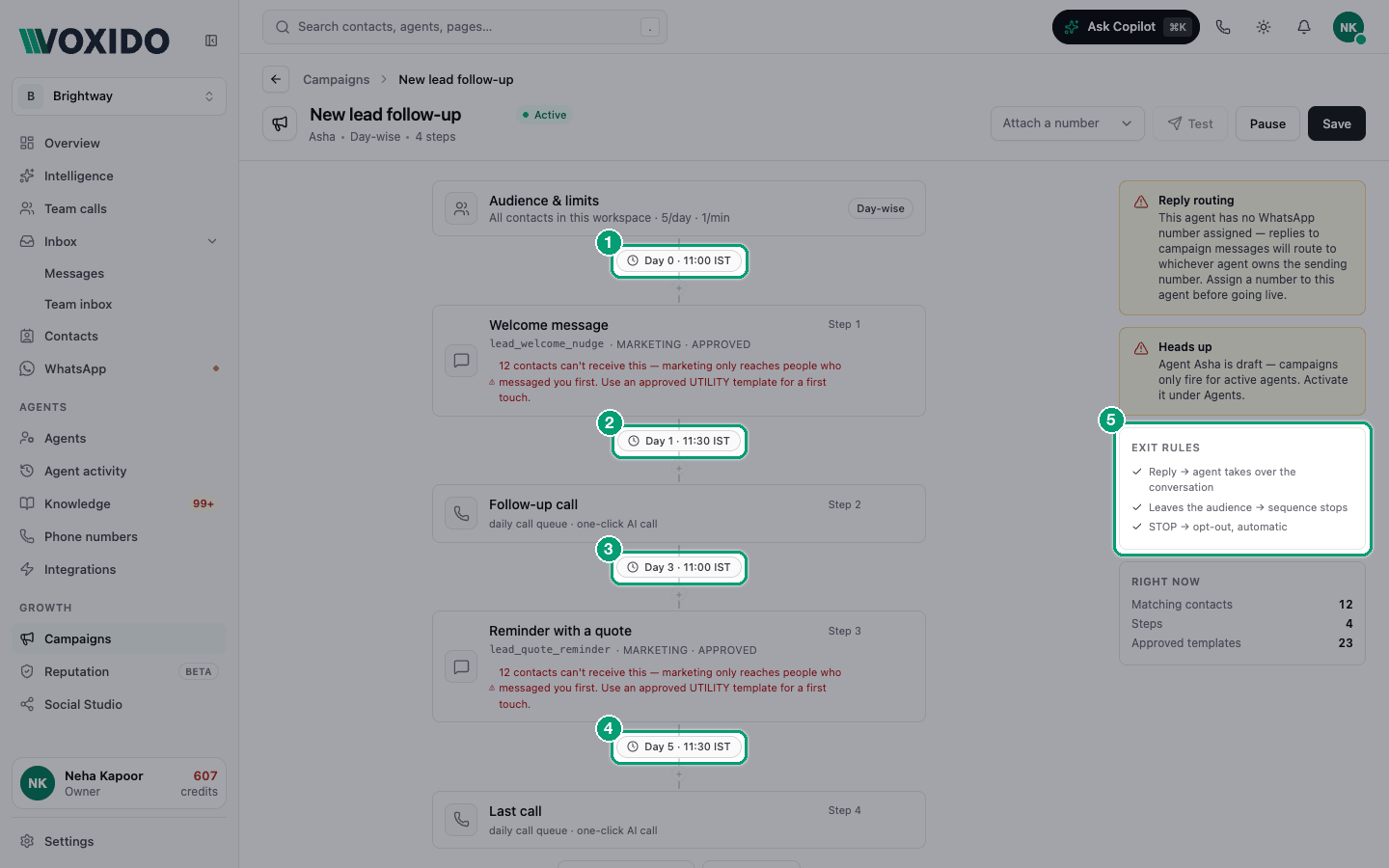
Day 0 is "the day they join"
A lead who arrives at 9 pm joins that day. Their Day 0 message waits for working hours and goes out the next morning. Leads already in the Lead stage when you save the campaign join that day too.
What Priya experiences
- Priya Sharma fills in Brightway's form on Monday evening. She's added as a contact in the Lead stage.
- Tuesday morning, she gets the welcome WhatsApp.
- She doesn't reply. Wednesday at 11:30, the AI agent calls her, answers her questions and books a slot.
- Her stage moves to Booked, so she no longer matches the audience. Steps 3 and 4 never go out.
If Priya had replied on WhatsApp instead, the agent would have answered her, and the campaign would wait 48 hours of silence before any further step.
Make it fit your business
| Business | Audience | What changes |
|---|---|---|
| Real estate | Stage is Lead, Tags contains site-visit | Call objective: "Confirm budget and preferred area, offer a site visit this weekend." Promotional call type for project launches. |
| School or coaching centre | Stage is Enquiry | Day 0 WhatsApp with the brochure link, Day 1 call to book a counselling session, Day 4 WhatsApp with admission deadlines. |
| Clinic | Stage is New patient enquiry | Day 0 WhatsApp with timings, Day 0 call at 17:00 to book the first appointment. |
| Small team, no auto-calls | Any | Set call steps to Don't dial — queue for the team. Your team works from the saved segment "Call queue — (step) (campaign)" in Contacts. |
Costs
You pay per action from your credit wallet:
- Each WhatsApp template message is one WhatsApp template message charge.
- Each call costs AI conversation minutes plus carrier voice minutes for its length.
How to estimate: 100 leads × (2 template messages + 1–2 calls of about 2 minutes each). Multiply by the rates on your Pricing page. Not everyone gets every step — people who book, reply or answer the first call drop out, and skipped steps cost nothing. See What actions cost credits.
Keep enough credit in your wallet: each automatic call only starts if you have credit for about 10 minutes of calling.
Quiet hours and limits
- Messages and calls only go out in your Settings → Working hours.
- A lead who writes to you is held for 48 hours before the next step.
- Automatic calls follow the campaign's Limits: new campaigns start at 5 calls a day and 1 per minute.
See Rate caps and quiet hours.
Common problems
Some leads skipped the first steps. Contacts keep one "joined" date for day-wise campaigns. A lead who already went through another day-wise campaign may be counted from that earlier date, so steps whose time has long passed are skipped. Open Tasks → Previous and click the contact to see why.
A lead replied but still got the next step. A reply only holds the campaign for 48 hours. To stop it for good, move the lead out of the audience — for example, change their stage from Lead to Contacted.
The call step shows "daily call queue · one-click AI call". It's set to Don't dial. Open the step and choose Dial automatically from … under Dialing.