

Create, rename and delete a library
A library is one knowledge base: a named folder of documents, websites and FAQs. You need at least one before you can add content.
Find it: Sidebar → Knowledge → Connect source → New library…
How many libraries do I need?
| Your situation | Suggestion | Why |
|---|---|---|
| One business, one agent | One library, for example "Brightway FAQs" | Simple to keep up to date. |
| Different agents need different facts (sales vs support) | One library per topic, for example "Prices" and "Support policies" | Switch on only what each agent needs. |
| Several branches with different prices or timings | One library per branch | Each branch's agent quotes its own facts. |
| Content that comes from a Google Sheet | Its own library (created when you connect the sheet) | Sheet libraries are read-only and sync from the sheet. |
A library helps only when it's switched on for an agent. One library can be shared by many agents.
Create a library
- Go to Sidebar → Knowledge. You'll see: the Knowledge page. If you have no libraries yet, it says "No libraries yet" with a Create a library button.
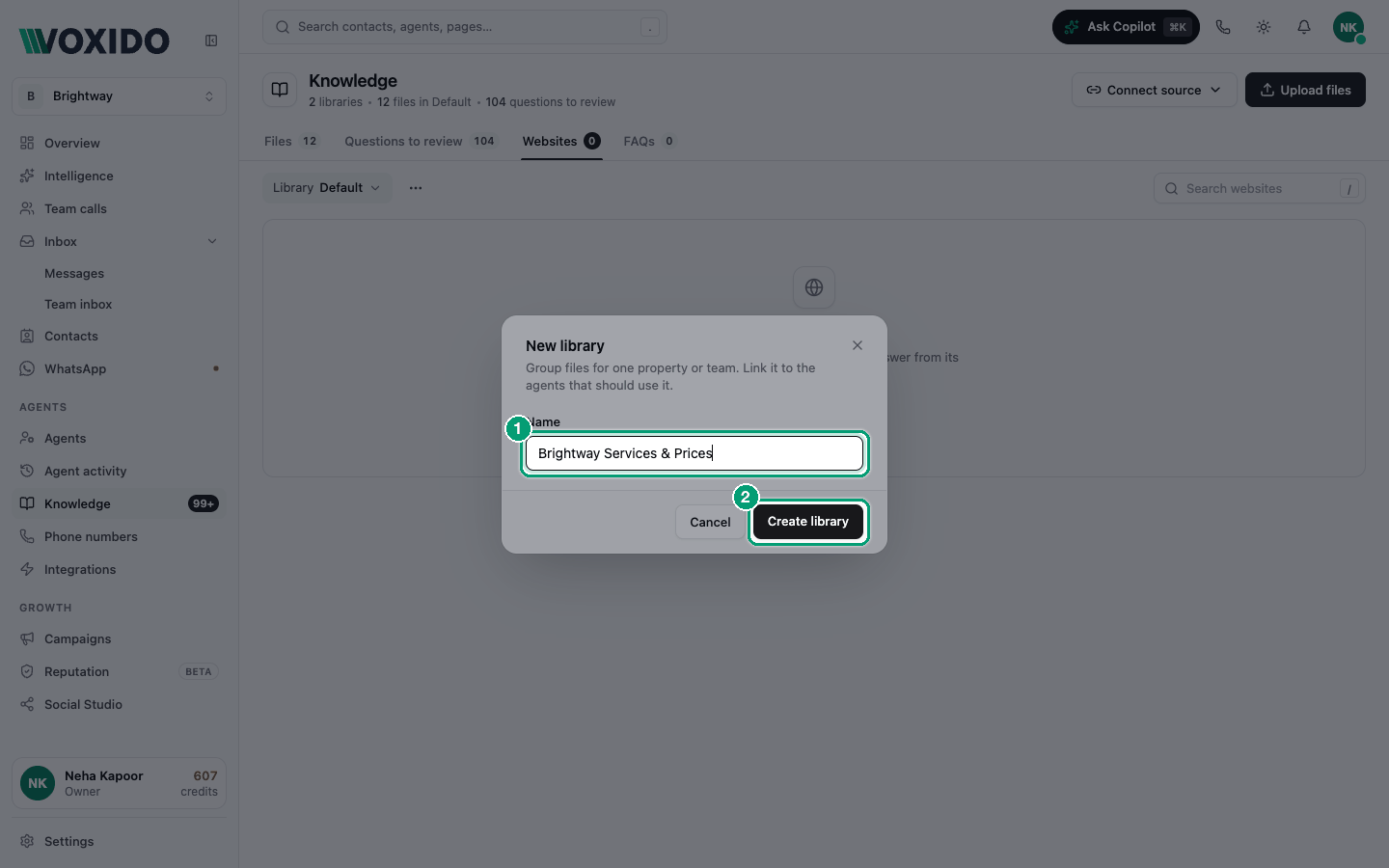
- Click Connect source, then New library… (or Create a library). You'll see: a New library window: "Group files for one property or team. Link it to the agents that should use it."
- Type a Name (up to 60 characters), for example "Brightway Services & Prices".
- Click Create library. You'll see: the new library is selected in the Library picker, and it's empty.
You can also create one from inside an agent: Knowledge → New knowledge base. See Agent Knowledge.
Switch between libraries
Click the Library chip below the tabs and pick a library. Each shows how many documents it has. A lock icon means it's read-only.
Rename a library
- Pick the library in the Library picker.
- Click ⋯ (Library actions) next to it, then Rename library. You'll see: a Rename library window.
- Type the new name and click Save. You'll see: "Library name updated".
Delete a library
Deleting is permanent. It removes every document, website and FAQ in the library. Any agent using it loses those facts straight away.
- Pick the library, click ⋯, then Delete library…. You'll see: a Delete library window with a warning list.
- Type
deletein the box. - Click Delete library. You'll see: "Library and all its contents have been removed".
Your default library can't be deleted. Its menu shows "Default library can't be deleted".
What's next
Add content to your new library:
Then switch it on for an agent in the agent's Knowledge section.
Common problems
New library… opens an upgrade window. Knowledge is locked on your plan. Upgrade to unlock it.
I can't find my new library in an agent. Reload the agent editor. Then switch the library on and click Save.