

Contacts: your shared customer list
A contact is one person your business talks to: a customer, a lead, a patient, a parent or a guest. Voxido keeps one record per person, whether they call, send a WhatsApp message or chat on your website. If Priya Sharma calls Brightway today and messages on WhatsApp tomorrow, both land on the same contact.
Find it: Sidebar → Contacts
What a contact holds
| Part | What it is | Who fills it in |
|---|---|---|
| Name, Phone, Email | The basics. A phone number can belong to only one contact in a workspace. | You, a file import, or the AI |
| Stage | Where the person is in your process, such as New, Booked or Paid. See Contact stages. | You, the AI, or a rule |
| Custom fields | Your own details, such as Appointment date, Budget or Course. See Custom fields. | You, an import, the AI, or a connected system |
| Owner and Backup owner | The people on your team who look after this contact. See Owner, Backup owner and Reporter. | You, or Voxido when someone takes a call |
| Reporter | Who created the contact: a person, an AI agent or an integration. | Voxido |
| Call back on | When someone should call the contact back. | You |
| Notes | What your team wants to remember. See Notes and call outcomes. | Your team |
| What the AI remembers | Facts and summaries from past conversations. | The AI (you can add and delete) |
| Associated Numbers | Other numbers that belong to the same person, such as a spouse or an assistant. A call from any of them reaches this contact. | You |
| Tags | Short labels, such as vip, that come in with an import. | A file import |
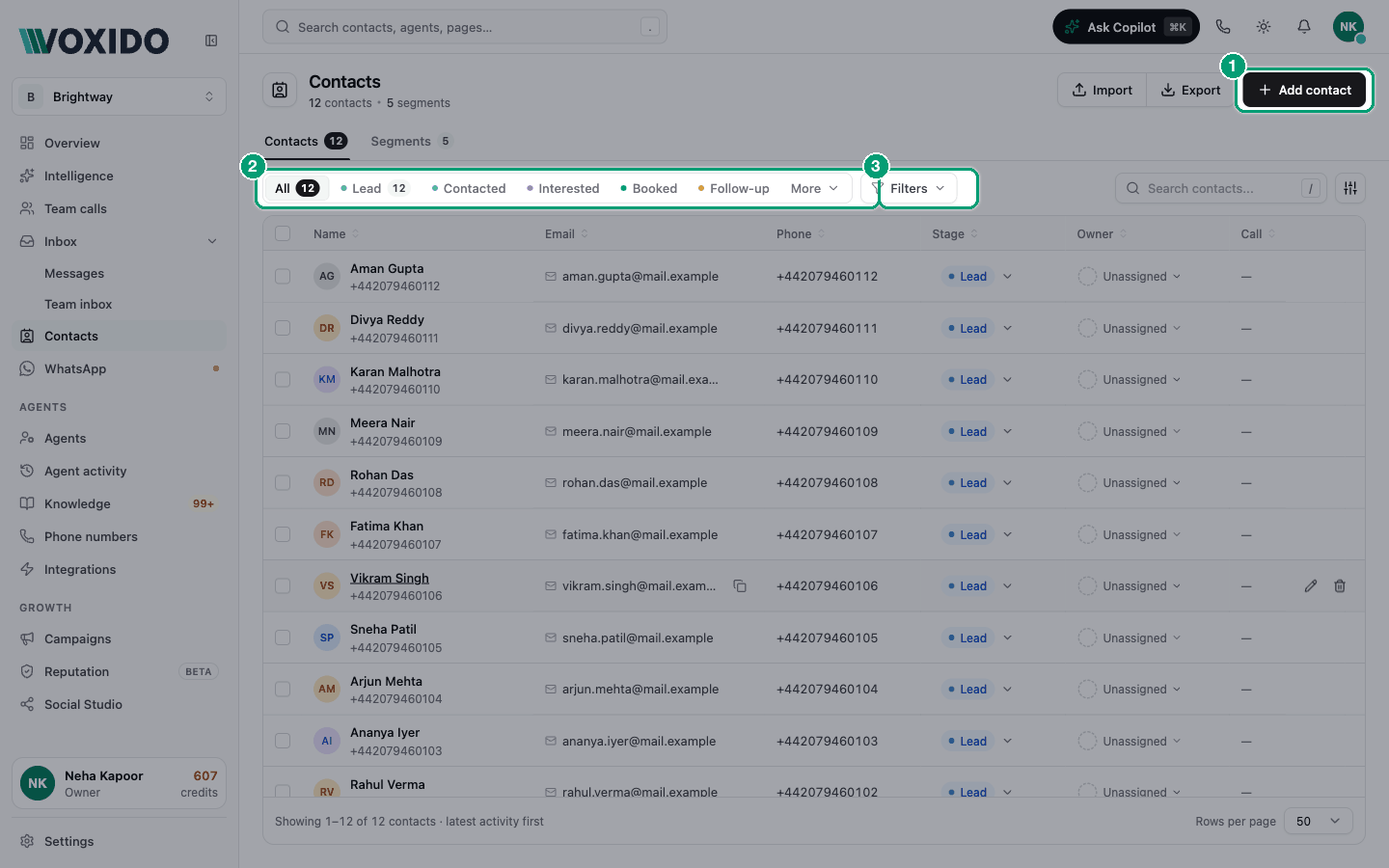
The Contacts page at a glance
| Area | What it does |
|---|---|
| Page header | Shows how many contacts you have, with Import, Export and Add contact on the right. |
| Contacts and Segments tabs | Contacts is the list. Segments holds your saved filters. See Segments and filters. |
| Stage tabs | All, then one tab per stage with its count. With more than six stages, you see five and the rest sit under More. With no stages yet, you see All Statuses, Active, Inactive, Positive and Negative. |
| Filters | Narrow the list by Source, Workspace, Owner, Created, Updated or Segment. Advanced builds your own rules. |
| Search contacts... | Finds contacts as you type. Press / to jump to it. |
| Table settings (the sliders button) | Row height (Comfortable, Standard, Compact) and Stages. |
| Column headers | Drag a header to move a column, click + between two headers to add one, and use a header's ⋯ menu to sort, move or remove it. See Customize your Contacts table. |
| The table | One row per contact. Click a row to open its panel. Tick boxes to change many contacts at once. |
| Footer | "Showing 1–50 of 312 contacts", and Rows per page (50, 100, 250 or 500). |
When no column is sorted, the contacts with the latest activity come first: the latest edit, call or message. The list refreshes by itself every 15 seconds while you have it open.
Keyboard shortcuts
Press / to search. Use the up and down arrow keys to move through the rows, and Enter to open one. With a contact open, the arrow keys step to the previous or next contact.
The contact panel
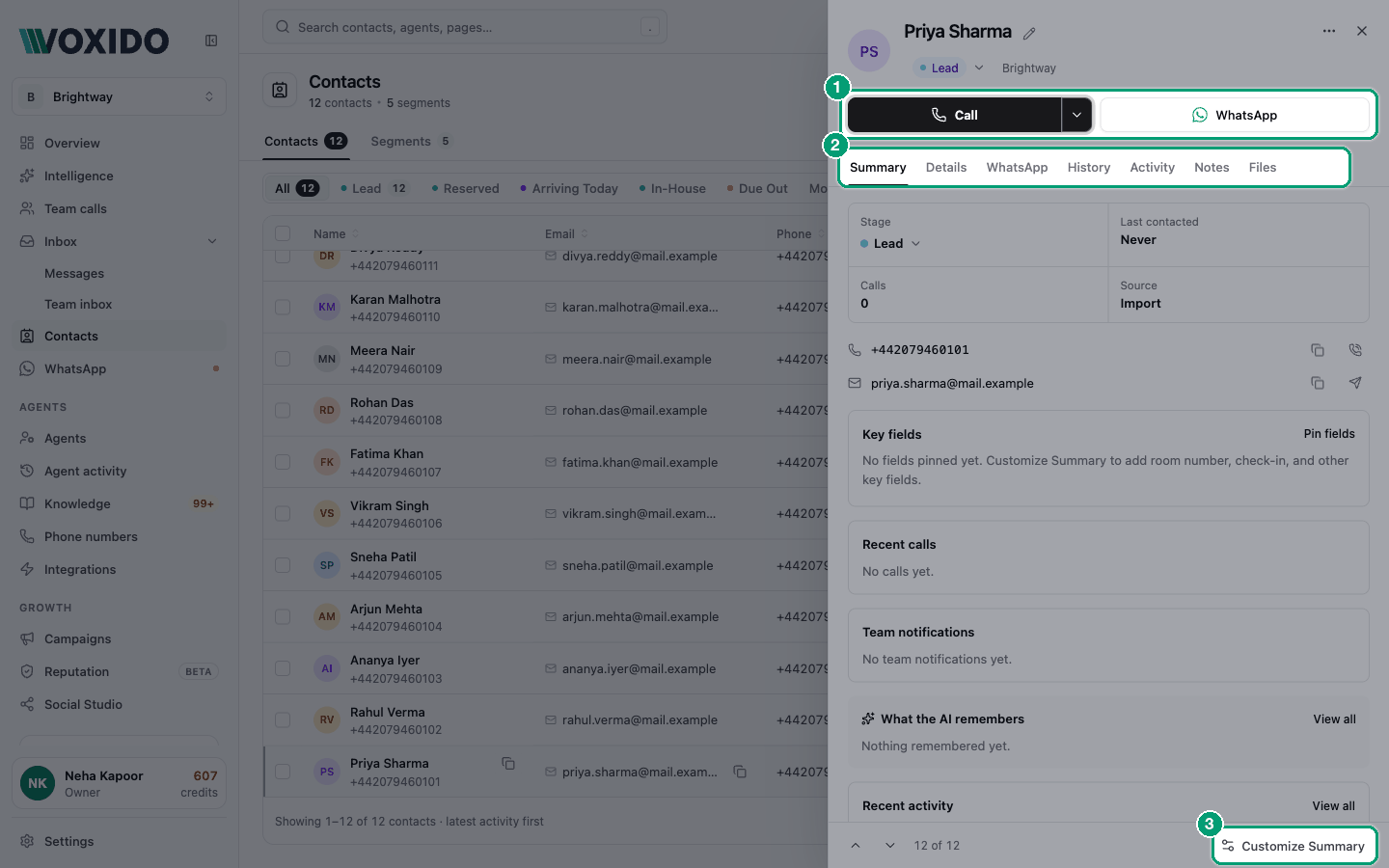
Click a contact to open its panel on the right. At the top you see the name, the stage, the workspace, a Call button and a WhatsApp button. Click the workspace name to move the contact to another workspace. See Move a contact to another workspace. The ⋯ menu has AI conversation trace (every turn the AI took with this person) and Delete contact.
| Tab | What you find there |
|---|---|
| Summary | The view that opens first: stage, last contacted, calls and source, phone and email, your Key fields, recent calls, team notifications, what the AI remembers, recent activity and notes. You choose what shows. See Customize Summary. |
| Details | Every field, with a search box: Contact Info (Phone, Email, Workspace, Owner, Backup owner, Reporter, Call back on, Created), Stage, Call History (Last contacted, Total calls, and Last called with the date and the result on one line), your custom fields by group, and Associated Numbers. Each group opens and closes. Point at a value to see its grey box, then click to change it. See Edit a contact. |
| The WhatsApp conversation, with a reply box. | |
| History | Records synced from a connected system, such as past bookings. |
| Activity | One timeline, newest first: every change to the contact (field edits, stage moves, owner changes, Call back on times) and its Team inbox requests. See The Activity tab. |
| Notes | Your team's notes, and what the AI remembers. |
| Files | Photos, documents, audio and video the contact sent you. |
The bar at the bottom has up and down buttons to step through the list, with "3 of 312" beside them.
The Activity tab
Activity answers "what happened with this person, and who did it?" It shows two things on one timeline, newest first:
- Changes to the contact: field edits, stage moves, owner changes and Call back on times.
- Their Team inbox requests: a new request, notes, taken, escalated and completed. See Team inbox.
The timeline is split by day: Today, Yesterday, then the date.
Whose entry is it?
Under each entry's time, a small marker says what the entry belongs to.
| Marker | What it means |
|---|---|
| R1, R2, R3… | One of this person's Team inbox requests. Requests are numbered in the order they were created, so R1 is the first one. Point at the marker to see the request's title. |
| R2 with a dashed border | That request is closed: completed or dismissed. |
| Contact | A change to the contact itself, not to a request. |
What the entries say
| Entry | Example |
|---|---|
| One field changed | "Rahul changed Budget", with the old value crossed out, an arrow, and the new value. |
| Several fields at once | "Rahul updated 2 fields", with a box that lists each field, old → new. One person's edits within a minute show as one entry. With more than three fields, the rest hide behind a button such as Show 2 more. |
| Stage moved | "Meera moved the stage", with New → Booked. |
| Owner changed | "Meera made Arjun the owner", with the old owner → the new one. |
| Call back on set | "Meera set Call back on to Fri, Oct 3, 9:00 AM". |
| New request | "New request from a missed call", with the request's title. Click the title to open that request in Team inbox. |
| Note on a request | "Rahul left a note", with the note. |
| Request taken | "Arjun took the request and became the owner". When taking a request also makes someone the Owner, you see one entry, not two. |
| Request escalated or closed | "Escalated to Supervisors", "Completed by Rahul". |
A change no person typed carries a small line under it: AI agent, Synced from your CRM or From a file import.
Narrow the list
- Click a chip at the top: All, Stage, Owner or Fields. You'll see: only that kind of change. Each chip shows how many there are. A chip with nothing to count is hidden.
- To see who made the changes, open the Changed by menu on the right (it says Anyone at first). Pick Team, AI agent, Sync, Import or System. You'll see: only the changes that one made. The menu only shows when more than one of them has changed this contact.
- To look at the contact or one request on its own, open All activity on the first day's line. Pick Contact only, All requests, or one request by its title. You'll see: the menu now names your choice, for example "R2 · Late check-out". In the menu, each request shows its status, or Closed.
If nothing fits your choices, you see "No changes match."
Requests only show to people whose role can open Team inbox, and only for workspaces they can see.
Examples
- A clinic. A patient's Appointment date changed twice this week. Click Fields, then pick Team under Changed by, to see who at the front desk changed it and when.
- A hotel. A guest has three requests: R1 Airport pickup (closed), R2 Late check-out and R3 Extra towels. Pick R2 in All activity to read only the late check-out story.
- A school. A parent moved from Enquiry to Admitted. Click Stage to see whether a counsellor or the AI agent moved them.
What Voxido fills in for you
You don't have to type everything. Here is what happens on its own:
- New contacts. When a new number calls or messages you, Voxido creates the contact. The Reporter shows the AI agent or the channel.
- Names. A WhatsApp profile name can fill in the name. Names in other scripts are written in English letters, so "प्रिया शर्मा" becomes "Priya Sharma".
- Fields during the chat. With the Update contact information skill on, the AI saves what the person tells it, such as a date or a budget.
- Fields after the chat. After every call or chat, Voxido reads the conversation again. It fills in empty custom fields with things the person said. It never replaces a value that is already there.
- Stage. A new contact starts on your default stage. If a call or chat shows the person wants to buy or book, Voxido moves them to the next stage in your list. See How stages move on their own.
- Memory. The AI keeps short facts and summaries, and uses them next time.
- Activity numbers. Last contacted updates after every call or message. Call count, last call status and the line used update after every call.
- Owner. When someone on your team answers a handed-over call for a contact with no Owner, the contact becomes theirs.
The AI won't quietly change your team's data
If a person on your team typed a value, a file import set it, or a connected system synced it, the AI doesn't overwrite it silently. It first checks with the contact ("I have the 14th on file. Should I change it to the 15th?").
Sample contacts
Some workspaces start with example contacts so you can try things out. They carry an amber Sample tag next to the name. Delete them when you're ready to work with real people.
Pick your path
| I want to… | Go to |
|---|---|
| Add one person, or fix a detail | Add, edit and delete contacts |
| Bring in a list from a spreadsheet | Import contacts |
| Get contacts from my website form, CRM or booking system automatically, or let agents save details back to them | Connect Contacts to your own systems |
| Track where each person is in my process | Contact stages |
| Save my own details on every contact | Custom fields |
| Decide between a stage, a field or a segment | Stage, custom field or segment? |
| See the most important details first | Customize Summary |
| Find a group of people again and again | Segments and filters |
| Say who on my team looks after whom | Owner, Backup owner and Reporter |
Common problems
I see an upgrade card on the Segments tab. Segments, contact stages and custom fields are on paid plans. The card has an Upgrade Plan button.
A contact is missing from the list. Check the stage tab, the search box and the chips under the toolbar. Click Clear all to remove every filter. In one workspace you only see that workspace's contacts. See Contacts across workspaces.
Activity shows R1 and R3, but no R2. R2 belongs to a workspace you can't open. Numbers count every request the person ever had, so they never change. Ask someone who can see that workspace, or an admin.
I don't see any requests in Activity. Either the contact has no Team inbox requests yet, or your role can't open Team inbox. An admin can change your role. See Roles.
One entry lists several fields. One person changed them within a minute, so they show as one entry, for example "Rahul updated 3 fields". The box inside lists each field, old → new.
I can't find the Changed by menu. It only shows when changes came from more than one place, such as your team and the AI agent. With one source, there is nothing to choose.