

WhatsApp message templates
A template is a message Meta approves in advance. You need one whenever you message a customer first, for example a reminder, a confirmation or an offer.
Find it: Sidebar → WhatsApp → TemplatesWho can use it: Owners and Admins
Why templates exist: the 24-hour window
WhatsApp has one big rule (Meta's, not Voxido's):
- After a customer messages you, you have 24 hours to reply freely. This is the 24-hour window.
- Outside that window, you can only reach them with an approved template. Free text is blocked until they write again.
So anything you start — a reminder tomorrow, an offer next week, a follow-up after a call — must be a template.
Pick your path: which category?
The problem: "Meta asks me to pick a category. Which one?"
| You want to send… | Choose | Examples | Why |
|---|---|---|---|
| Something the customer expects about their booking, order or request | Utility | Appointment confirmation, "your order shipped", payment receipt, fee reminder, "please fill this form" | Meant for service messages. It can go to people who haven't agreed to offers. |
| An offer, a promotion, news or a "we miss you" message | Marketing | Festive discount, new course launch, open house invite, "book again and get 10% off" | Required for promotions. Only goes to people who agreed to offers. Meta usually charges more and limits how many marketing messages a person gets. |
| A one-time login code | Authentication | OTP codes | Shown as Coming soon. You can't create it yet. |
Examples by business:
- Clinic: "Hi
{{1}}, your appointment is on{{2}}." → Utility. - School or coaching centre: "Fees of
{{1}}are due on{{2}}." → Utility. "Admissions open for the new batch!" → Marketing. - Retail shop: "Your order
{{1}}is out for delivery today." → Utility. "Weekend sale: 30% off" → Marketing. - Brightway: "Hi
{{1}}, see you tomorrow at{{2}}. Reply if you need to change it." → Utility.
Meta has the final say on category
The category you pick is a request. If a Utility template reads like a promotion (offers, prices, lots of emojis, buttons to photos or "amenities"), Meta may approve it as Marketing instead. Voxido then shows Recategorized by Meta. Meta won't change it back. Create a new Utility template with a new name and keep promotional words out.
Standard or carousel?
| Type | What it looks like | When to use |
|---|---|---|
| Standard | One message bubble | Almost always. |
| Carousel | 2 to 10 swipeable cards, each with an image, short text and buttons | To show several products or packages. Marketing only, and needs a connected catalog ("Connect a catalog first"). |
Create a template
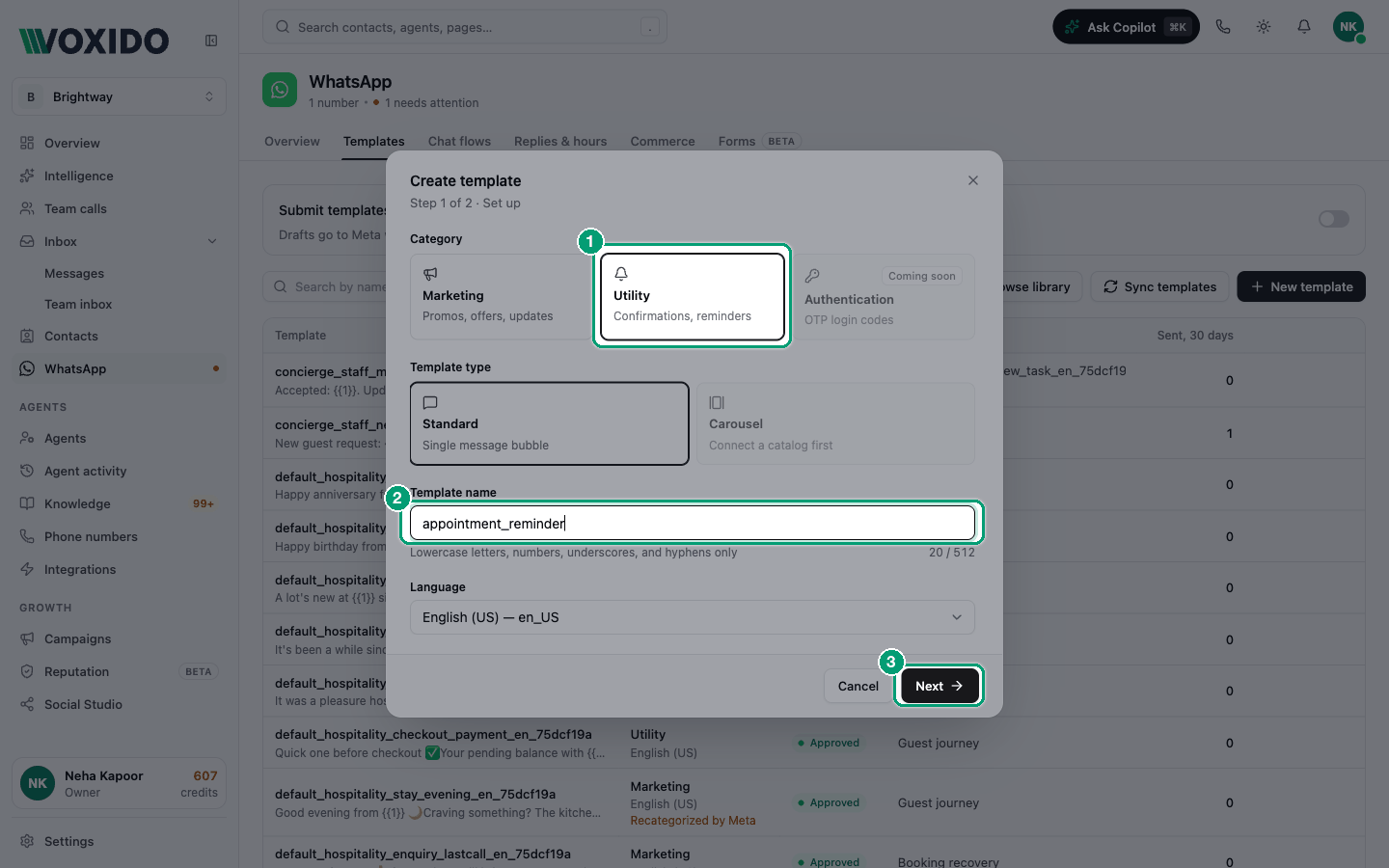
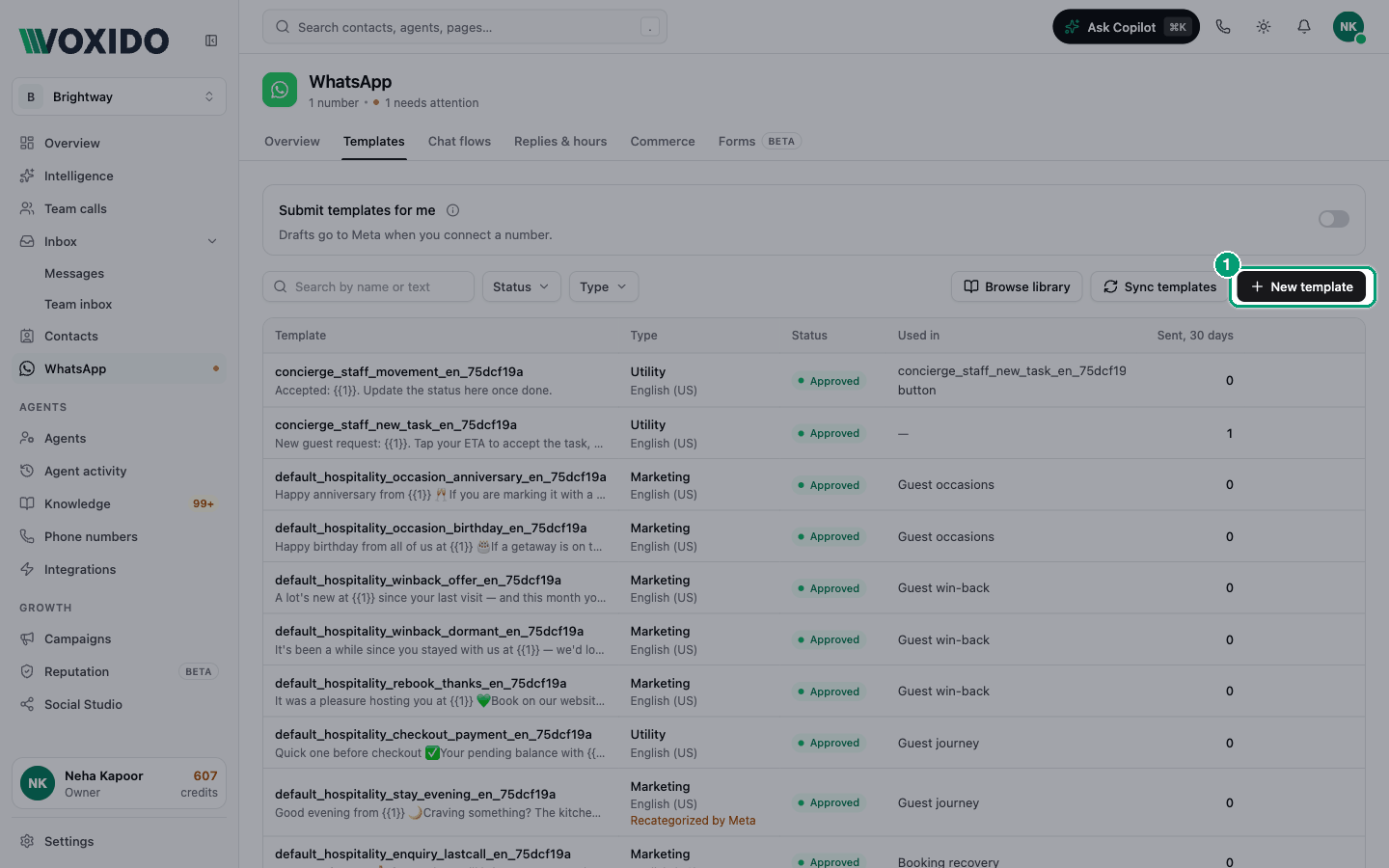
- Open WhatsApp → Templates and click New template. You'll see: Create template — "Step 1 of 2 · Set up".
- Pick a Category, then a Template type.
- Type a Template name, for example
appointment_reminder_v1. Use lowercase letters, numbers, underscores and hyphens only. - Pick a Language: English (US), English (UK), Hindi, Spanish, Portuguese (Brazil), French, German or Arabic. Click Next. You'll see: the editor on the left and a live phone preview on the right.
- Fill in the message parts (see the table below).
- Click Save as draft to keep working later, or Submit for review to send it to Meta now. You'll see: "Draft saved", or "Submitted for review" and the status With Meta.
Category, name and language can't change after Meta gets the template.
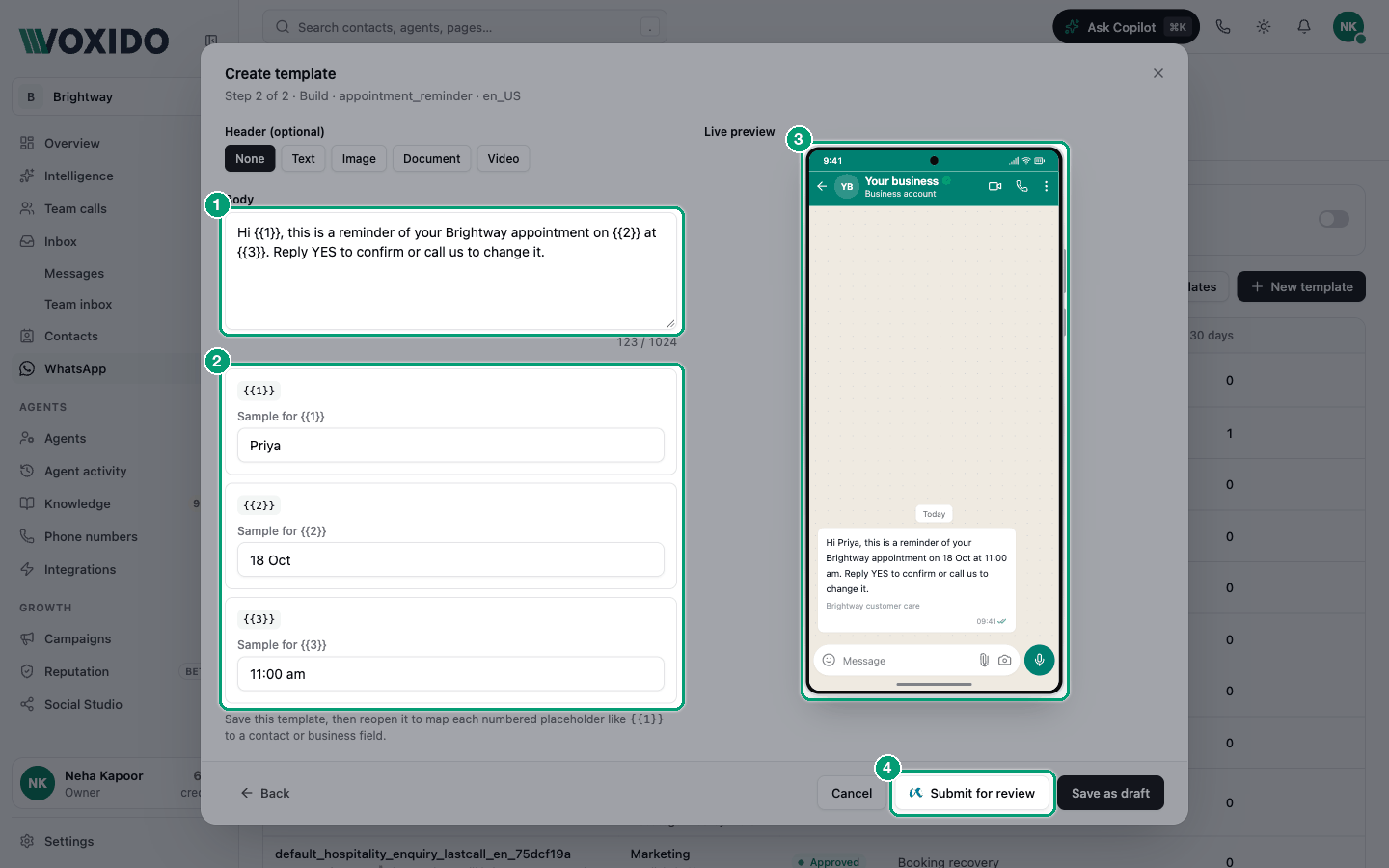
The parts of a message
| Part | Rules | Tip |
|---|---|---|
| Header (optional) | None, Text (up to 60 characters, no variables), Image (JPEG or PNG, up to 5 MB, 400×400 to 5000×5000), Document (PDF, up to 100 MB) or Video (MP4, up to 16 MB). Upload a file or choose Use external URL (must start with https://). | A clear image helps for offers. |
| Body | Up to 1024 characters. Use {{1}}, {{2}}… for parts that change per person. | Keep it short and specific. |
| Footer (optional) | Up to 60 characters. Plain text only, no variables. | Your business name works well. |
| Buttons (optional, up to 10) | Quick reply (up to 10), URL (up to 2), Phone (up to 1). Button text up to 25 characters. | Quick replies can lead into a chat flow. |
Variables: the numbered blanks
Variables are blanks filled in for each customer, like their name or appointment time.
- Start at
{{1}}and count up with no gaps. - Don't start the body with a variable. Write "Hi
{{1}}", not just "{{1}}". - Don't end the body right after a variable. End with a word: "Order
{{1}}placed." not "Order{{1}}." - Use numbers only. A named blank like
{{name}}is sent to the customer as-is. - Fill in Sample for
{{1}}with a realistic example ("Priya", "Sat 10:30 am"). Meta reviews using these samples.
Map each variable to a field. After you save the template, open it again. Next to each variable, choose a Source (for example the contact's name). Click Save field mappings. Mappings save instantly and don't need Meta's approval again. On approved templates, use Map fields from the row's actions.
Button rules
- Button text: one line, no emojis, no variables, and no
*,_,~or`. - URL buttons need a fixed
https://link. Links with variables aren't supported yet. - Phone buttons need the full international number, for example
+919876543210. - Catalog, Multi-product and Single product buttons appear once a catalog is connected, but can't be submitted yet. Remove them before you submit.
Faster ways to get templates
- Browse library shows ready-made templates for your industry. Click Add and it becomes a draft.
- Submit drafts (n) sends every draft to Meta at once.
- Submit templates for me (switch at the top): when on, your drafts go to Meta as soon as you connect a number. It's off by default.
- Sync templates refreshes approval status from Meta.
Template statuses
| Status | What it means | What you can do |
|---|---|---|
| Draft | Saved in Voxido. Meta hasn't seen it. | Edit, Submit to Meta, delete. |
| With Meta | Meta is reviewing it. Meta usually replies within a day. | Wait. |
| Approved | Ready to send. Shows High, Medium or Low quality under the pill. | Send it. Map fields. Duplicate. |
| Rejected | Meta said no. The reason shows under the status. | Duplicate it, fix it, submit the copy. |
| Paused by Meta | Too many people blocked or reported it. | Rewrite it, or send it less often. |
| Turned off by Meta | Meta stopped it. | Create a new version. |
Use the Status filter (Drafts, With Meta, Approved, Needs a fix), plus Type and Language, to find templates. The Used in column shows which flows, campaigns and agents use each one. Sent, 30 days shows how often it went out.
Fix a rejected template
Once Meta has seen a template, its words are locked. To fix it:
- In the template's row, open the actions menu (⋯) and click Duplicate to a new template. You'll see: the editor with everything copied, except the name.
- Give it a new name (for example
appointment_reminder_v2), fix the problem, and click Submit for review.
If Edit & resubmit shows "This template has already been submitted…", use Duplicate to a new template instead.
Why templates get rejected
| Reason | Fix |
|---|---|
| A variable at the start or end of the body | Add a word before the first and after the last variable. |
Gaps in the numbers ({{1}} then {{3}}) | Renumber them {{1}}, {{2}}. |
| Missing or unclear sample values | Use real-looking samples. |
| Promotional words in a Utility template | Remove them, or choose Marketing. |
| Emojis or formatting in button text | Use plain words. |
| A variable in the header or footer | Use fixed text there. |
Delete a template
Click Delete in the row's actions. Deleting an approved template also removes it from Meta. If a flow, button or agent still uses the template, Voxido refuses with "Failed to delete template". Remove it from those places first.
Common problems
"Enable WhatsApp on your number first." Connect WhatsApp before you submit. See Connect WhatsApp to a number. You can still build drafts before that.
"Fix N issues before submitting" Voxido checks Meta's rules first. Fix each item in the list.
"We're being rate-limited — try again in a minute." Meta is busy. Wait a minute and try again.
My Utility template became Marketing. See the warning above. Create a new Utility template with a new name.