

Customer-facing vs internal agents
Every agent is either customer-facing or internal. This one choice decides whether the agent can ever read your private business data — your email, calendar or Google Sheets.
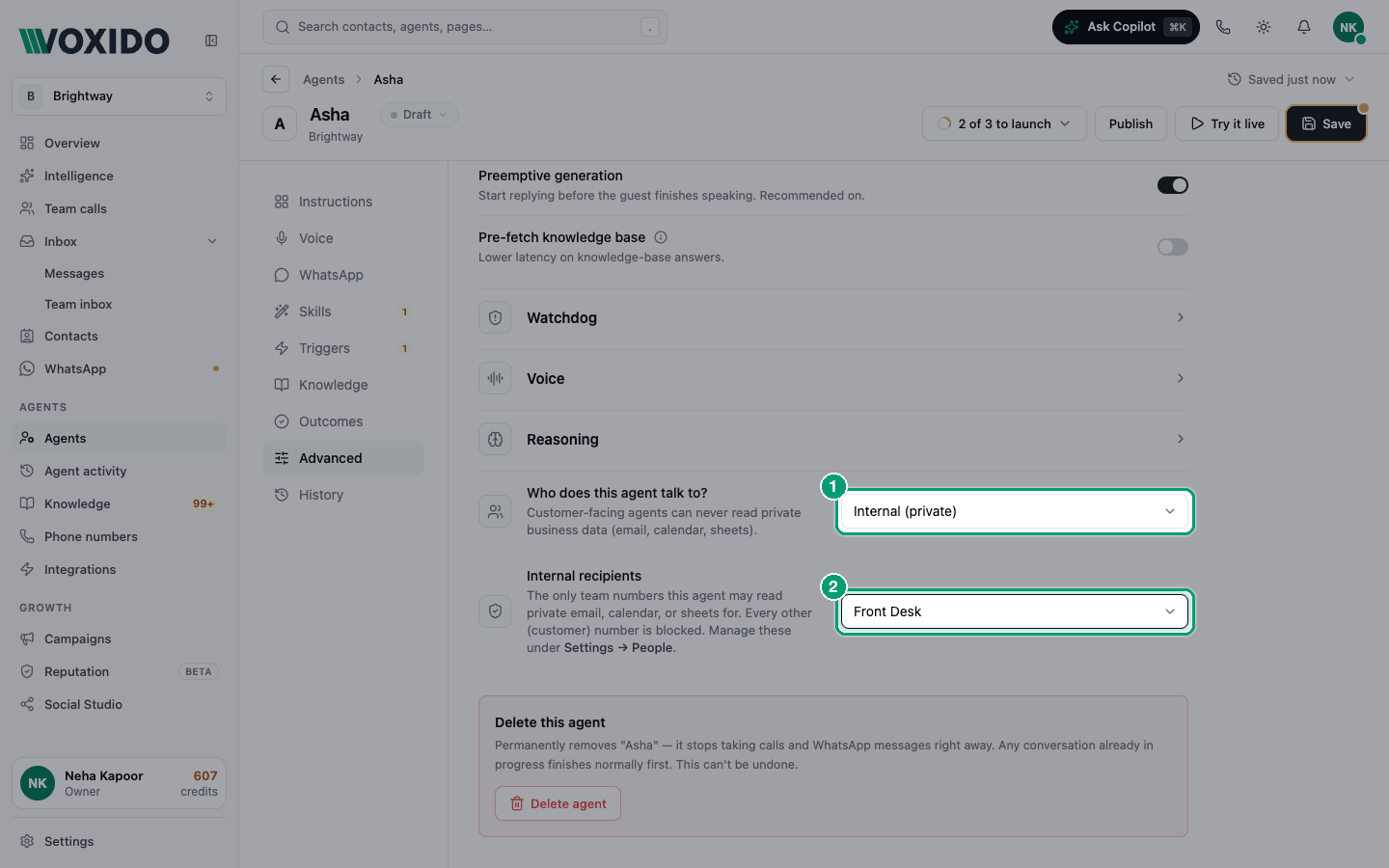
Find it: Sidebar → Agents → open an agent → Advanced → Who does this agent talk to?
The problem this solves
Imagine Brightway's receptionist agent could search the owner's inbox. A clever caller asks, "Read me the last email from your accountant." If the agent can read email and talks to the public, it might answer. Visibility stops that from ever being possible.
Which one to pick
| If the agent… | Choose | What it can do |
|---|---|---|
| Talks to customers, leads, patients, students or the public | Customer-facing (public) (default) | Everything except read email, calendar or sheets |
| Helps your own team (e.g. "What's on my calendar today?" over WhatsApp) | Internal (private) | May read email, calendar or sheets, but only for the people you list |
Examples:
- Brightway front desk, a clinic's booking line, a shop's order-status bot → Customer-facing.
- A manager's assistant that reads today's bookings from a Google Sheet and sends a summary on WhatsApp → Internal.
- A hotel's night-shift helper where the duty manager asks on WhatsApp, "Any meetings on the calendar tomorrow?" → Internal, with only the duty managers listed.
Make an agent internal
- Open the agent and click Advanced. You'll see: Who does this agent talk to? near the bottom.
- Change it to Internal (private). You'll see: a new row, Internal recipients.
- Click Add team members and pick the people this agent may read private data for. You'll see: their names in the box. Each person shows a short version of their phone number.
- Click Save.
Only team members with a phone number on file appear. Add numbers under Settings → People (People and teams). The agent checks the number of the person it's talking to. Every other number, including every customer, is blocked from private data, even if the agent has the skill.
Private data works on WhatsApp, not on phone calls
On phone calls, a caller's number can be faked. So Voxido never lets an agent read private data during a call, even for listed team members. Use an internal agent over WhatsApp for this.
Private-data skills
Some skills read private data from a connected account: searching email, listing calendar events, or reading a Google Sheet. In Skills, these show a Reads private data badge.
- On a customer-facing agent, these skills are switched off and labelled Internal agents only. You can't turn them on. The screen says: "Email, calendar, and sheet read tools are hidden for customer-facing agents. Switch to Internal to enable them for specific team numbers."
- On an internal agent, turning one on opens a check: Enable "…"? Click I understand — enable to add it, or Cancel to leave it off. You'll see this check each time you switch one of these skills on.
If you switch an internal agent back to Customer-facing (public), Voxido removes these skills from it and shows "Private-data tools removed".
The check is a reminder, not the lock
The "Enable" check only explains the risk. The real protection is the Who does this agent talk to? setting and the Internal recipients list.
Common problems
I can't turn on the email or calendar skill. The agent is customer-facing. Switch it to Internal (private) first — only if it really talks to your team, not customers.
Internal recipients says "No team members with a phone number yet". Add a phone number to the person under Settings → People.
My skills disappeared when I changed the setting. You switched to Customer-facing (public), so the private-data skills were removed. That's expected.