

Agent activity
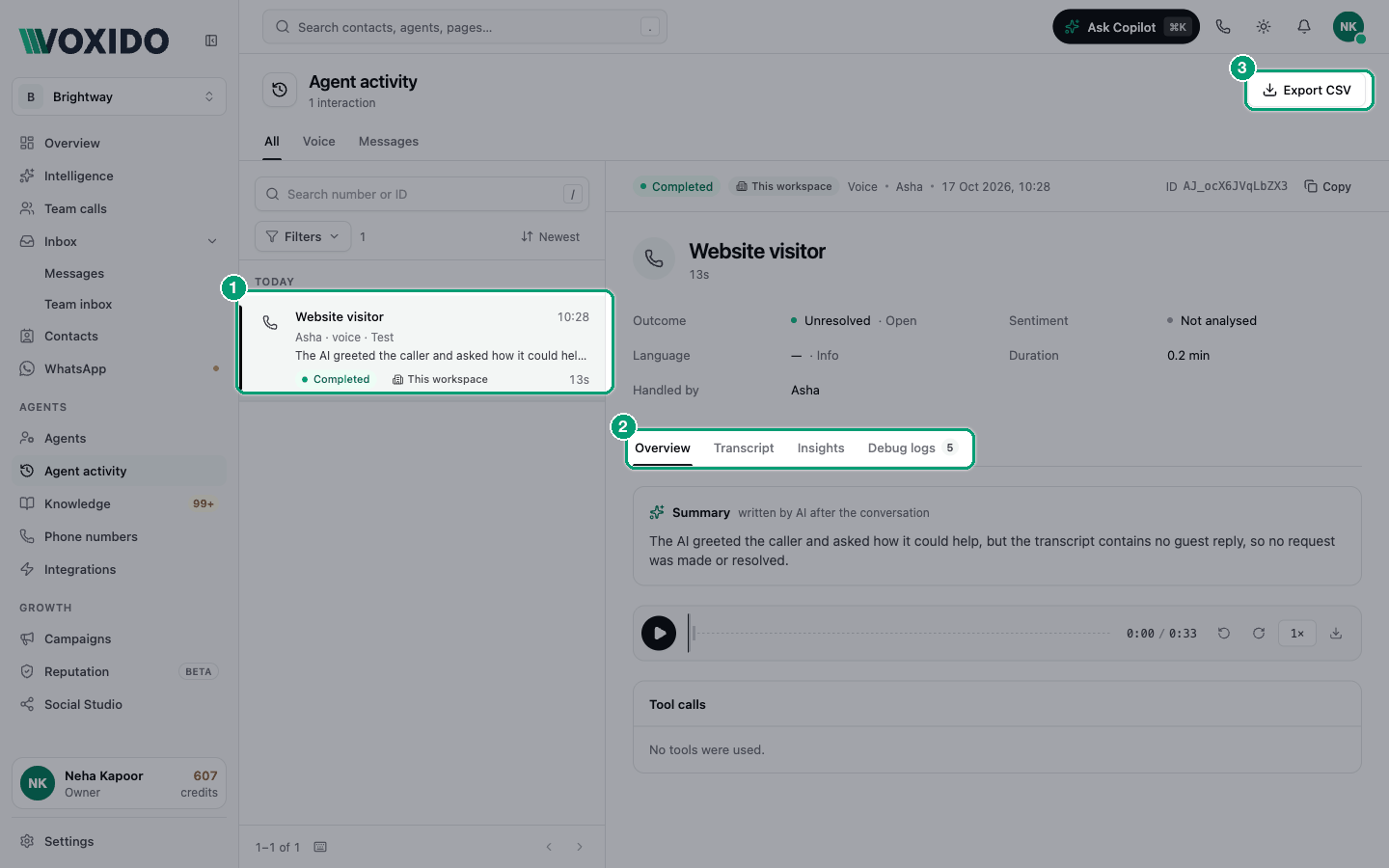
Agent activity is the log of every conversation your AI agents handled: phone calls, WhatsApp chats and website chats. Use it to find one conversation fast, hear the recording, read the transcript, or check what went wrong.
Find it: Sidebar → Agents section → Agent activity. You can also click Agent activity on Overview.
Which screen should I use?
| You want to know… | Use |
|---|---|
| What was said on a call or chat | Agent activity (this page) |
| Why the agent said it: which knowledge it read, which skills it used | Conversation trace |
| How your team handled calls the AI passed to them | Team calls |
| Patterns across hundreds of conversations | Intelligence |
Find a conversation
- Pick a tab: All, Voice or Messages. You'll see: the header shows how many interactions match.
- Type a phone number or an ID in Search number or ID. You'll see: the list narrows as you type.
- Click Filters to narrow more (see the table below). You'll see: the Filters button shows how many filters are on. Click Clear filters to remove them.
- Click a row. You'll see: on a wide screen, the details open on the right. On a smaller screen, they open in a panel.
New conversations appear on their own every 20 seconds while you're on the first page.
| Filter | Options |
|---|---|
| Agent | Any of your agents |
| Status | Completed, In progress, Failed, Busy, No answer |
| Period | All time (default), Last 7 days, Last 30 days, Last 90 days and more |
| Workspace | Shown when you're viewing all workspaces |
Read a row
Each row shows the other person's number (or "Website visitor"), the time, the agent and how it came in, like "Asha · inbound voice". Then the first line of the AI summary, the status, the workspace and the sentiment.
- · Test means it was a test conversation, not a real customer.
- Human outbound · Ravi means a person on your team placed the call from the browser.
Inside a call or chat
The top shows Outcome (with Resolved or Unresolved), Sentiment, Language and Duration. Handled by shows the agent.
| Button | What it does |
|---|---|
| Open contact | Opens the contact's panel, the same one you see in Contacts. |
| Update status | Shown on calls that haven't finished. Lets you set the final status yourself. |
| Copy (next to the ID) | Copies the call ID, useful when you contact support. |
A call has four tabs:
| Tab | What you'll find |
|---|---|
| Overview | The Summary ("written by AI after the conversation"), the recording player for calls, and Tool calls: which skills the agent used and whether each succeeded. |
| Transcript | The full conversation, turn by turn. |
| Insights | What Intelligence found in this conversation: topics, intents, signals, commitments and how the agent handled it. |
| Debug logs | The system events behind the call, with a count. Useful for support. |
A WhatsApp chat opens as the message thread instead.
Play a recording
The player is on the Overview tab of a call.
| Control | What it does |
|---|---|
| Play / Pause | Starts or stops the audio. Click the waveform to jump. |
| Back 10 seconds / Forward 10 seconds | Skips back or ahead. |
| Speed (1×) | Switches between 0.5×, 1×, 1.5× and 2×. |
| Download recording | Saves the audio file. |
"The recording is being prepared" means it's still processing. Try again in a few seconds. Recordings are only kept for completed calls.
Fix a stuck call
Sometimes the phone company never sends the final status, so a call stays "in progress".
- Open the call. You'll see: a warning like 'This call looks stuck in "In progress"'.
- Click Update status. You'll see: the Update call status window.
- Pick a New status: Completed, Failed, No answer, Cancelled or Busy. Add a reason if you like.
- Click Update status. You'll see: the row's status changes.
Export to a spreadsheet
- Click Export CSV at the top. You'll see: the Export agent activity window.
- Pick a Start date and End date, or click This month, Last month, Last 7 days, Last 30 days or Last 3 months.
- Click Export CSV. You'll see: "Export Complete" and a downloaded file.
The range can be up to 3 months (92 days). The file includes Call SID, Status, Direction, From, To, Duration, Cost, Date, Sentiment, Resolution, AI Summary, Tokens Used, Credits Used, Agent Name and Workflow Name. Managers and Admins also get who each call was handed to, who answered and who missed it.
Examples
- Clinic: a patient says the agent gave the wrong timing. Search their number, open the call, and listen at 2× speed.
- Loan recovery: filter Status → No answer and Period → Last 7 days to see who never picked up.
- Retail shop: open Messages to read yesterday's WhatsApp order questions.
Common problems
"No activity found". Your filters hide everything. Click Clear filters.
"No recording for this call". The call didn't complete, or recording wasn't available for it.
"The summary is still being generated." The summary appears a short while after the call ends.