

Recipe: send one WhatsApp offer to a group of customers
The problem
"We have a weekend offer. We want our regular customers to hear about it on WhatsApp — once, at lunchtime, without anyone copying and pasting."
Why this campaign fits
A campaign with one WhatsApp step on Day 0 sends one message to everyone in the audience on the day they join — which, for people who already match, is the day you save it.
| You need… | Use |
|---|---|
| The same message to many people | An approved WhatsApp template |
| Only some customers | Audience conditions, or From segment… |
| Lunchtime, not 9 am tomorrow | Day 0 at 12:00, plus Skip this step if it's more than 3 hours late |
| No surprises later | Stop the campaign when the offer ends |
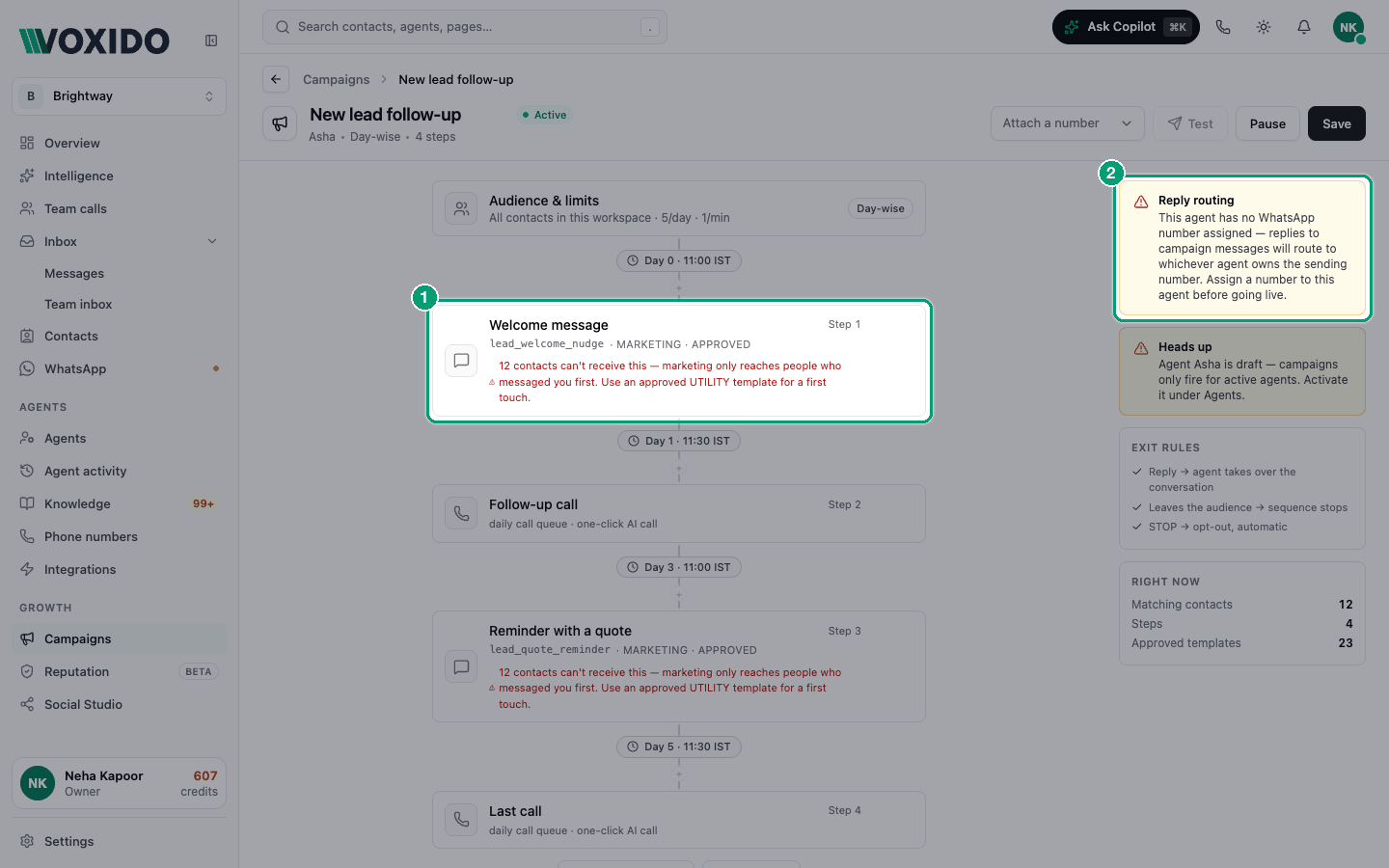
Marketing messages only reach people who messaged you first
WhatsApp offers need a marketing template. A Meta-approved marketing template only reaches contacts who have messaged your business before. Everyone else is skipped. The step card tells you how many matching contacts can't receive it.
Recipe card
| Setting | Value |
|---|---|
| Timing | Day-wise |
| Audience | Tags · contains · regular (or a stage such as Customer) |
| Step 1 | WhatsApp · Day 0 at 12:00 · approved marketing template |
| Advanced timing | Skip if more than 3 hours late |
| After the offer | Stop the campaign |
Build it (restaurant example)
The Green Leaf Café tags its regulars with regular when they visit.
- Make sure your offer template is approved. See Build a WhatsApp template.
- Go to Sidebar → Campaigns → New campaign. Name it
Weekend thali offer, pick Day-wise, pick your agent, and click Continue. - Attach a number — the WhatsApp number your customers know. Replies come back to this campaign's agent.
- Click Audience & limits → Add → Tags · contains ·
regular. Click Done. You'll see: "N contacts match now". - Click the WhatsApp step button. Name it
Weekend offer. Set Send on day0at12:00. - Under What to send, pick the marketing template. Map
{{1}}to the contact's name. You'll see: a warning on the step if some matching contacts never messaged you. - Open Advanced timing and type
3in Skip this step if it's more than … hours late. - Click Save step, then Test the step on yourself after saving.
- Click Save on the morning of the offer, before 12:00. You'll see: "Campaign created". At 12:00 the messages start going out.
- When the offer is over, open the row's ⋯ menu → Stop → Stop campaign.
Why stop it afterwards?
A campaign keeps welcoming new people who start to match. Without Stop, someone you tag regular next month would get last month's offer.
Make it fit your business
| Business | Audience | Message |
|---|---|---|
| Restaurant | Tags contains regular | "This weekend only: thali for two at ₹499" |
| Salon | Stage is Customer | "Festive glow package — book this week" |
| D2C shop | Tags contains bought-before | "Sale starts at noon — your code inside" |
| NGO | Tags contains donor | "Join our tree-planting day this Sunday" |
| Brightway | Stage is Customer | "New: Saturday appointments are open" |
Costs
Each message sent is one WhatsApp template message charge. Skipped contacts cost nothing. If 300 people match and 220 can receive it, you pay for about 220 messages. Replies the agent sends later are WhatsApp conversational messages. See What actions cost credits.
Quiet hours and limits
- Messages wait for your Settings → Working hours. With the 3-hour skip, a message that can't go out by 15:00 is dropped instead of arriving tomorrow.
- Contacts who opted out of marketing, or who are snoozed, are skipped at send time.
- A contact who wrote to you in the last 48 hours is held, so a live chat isn't interrupted.
See Rate caps and quiet hours and Opt-out and unsubscribe.
Common problems
Most contacts show Skipped. They never messaged you, so a marketing template can't reach them. Grow your list with click-to-WhatsApp ads or a QR code at the counter.
Nobody got the message at 12:00. Check the campaign isn't Waiting (its agent must be active) and that your working hours include 12:00 on that day.