

WhatsApp forms (beta)
A WhatsApp form lets a customer fill in a few details without leaving the chat. They tap a button on your message, a small form opens, and their answers come back to Voxido.
Find it: Sidebar → WhatsApp → FormsWho can use it: Owners and Admins
Beta
Forms are new. Today the form page lets you publish a form, get its message approved and send test messages. Answers show on the form's page.
Pick your path: form, flow or AI?
The problem: "I need a few details from a customer. How should I ask?"
| If you need… | Use | Why |
|---|---|---|
| 2 to 8 fixed details, in the same shape every time (a date, a choice, a short answer) | A form | One tidy screen. Answers land in neat columns. |
| The customer to pick one path from a menu | A chat flow | Buttons lead to different next steps. See WhatsApp chat flows. |
| An open conversation, or details that change case by case | The AI agent | It asks follow-up questions naturally. |
Examples:
- Clinic: pre-visit form — "Preferred date" (Date), "Reason for visit" (Short text), "First visit?" (Choice: Yes / No).
- Coaching centre: demo-class form — "Student name", "Class" (Choice), "Preferred day" (Date).
- Brightway: booking details — "Service" (Choice), "Preferred date" (Date), "Anything we should know?" (Short text).
- Hotel: pre-arrival form — "Arrival time" and "Bed type".
Build a form
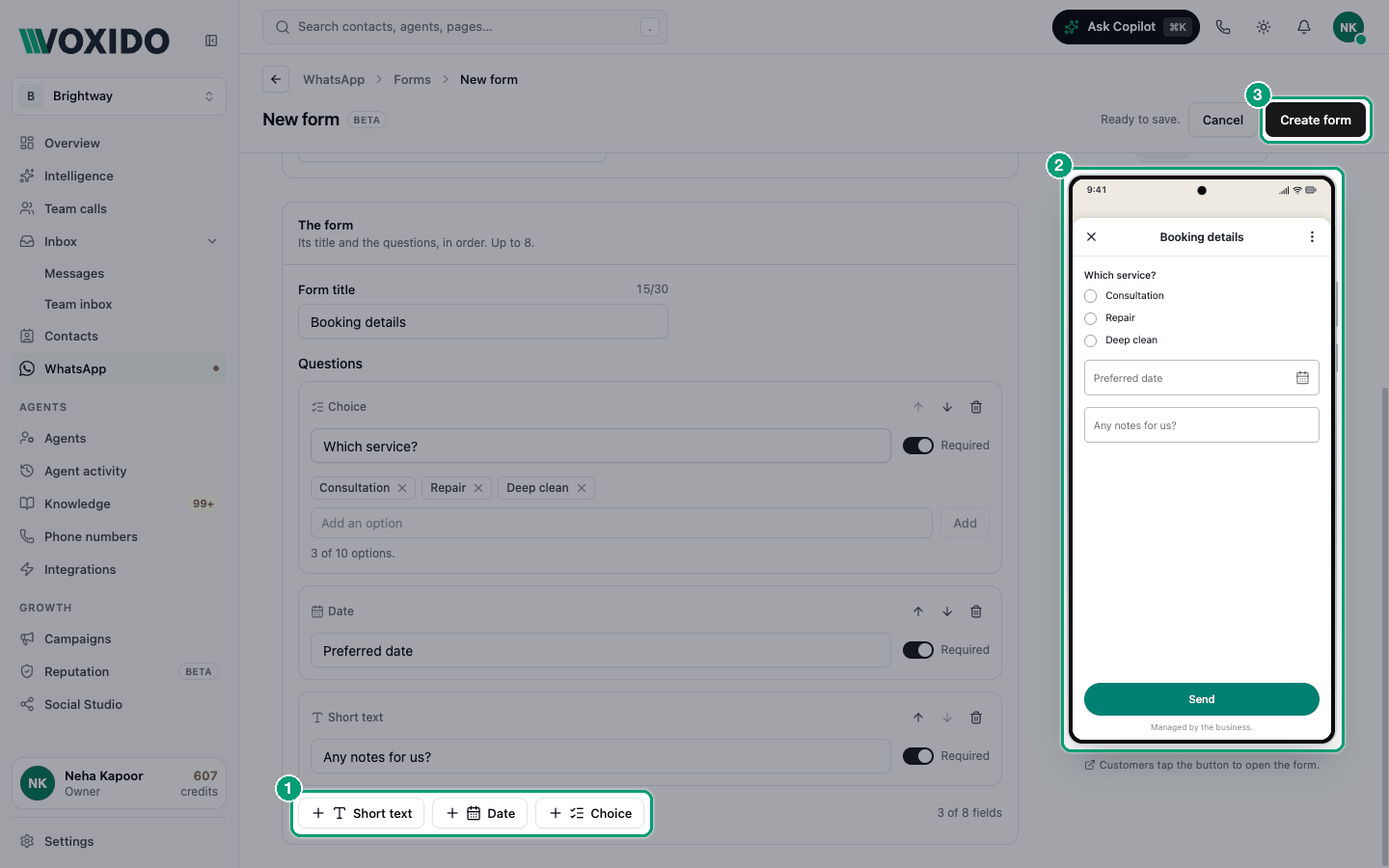
- Open WhatsApp → Forms and click New form. You'll see: the New form page with three sections and a phone preview on the right.
- Under Basics, pick the WhatsApp number that sends it, and type a Name (only your team sees it), for example "Booking details".
- Under The message, write the Message text customers get, and the Button text (it starts as "Open form"). You'll see: "Sent as a template, so Meta reviews it."
- Under The form, type a Form title, then add questions with Short text, Date or Choice. Type a label for each. Untick Required for optional ones. You'll see: each question on the phone preview as you type.
- When the top bar says "Ready to save.", click Create form. You'll see: "Form saved — Next, publish it on Meta." and the form's own page.
Form limits
| Part | Limit |
|---|---|
| Name | 60 characters |
| Form title | 30 characters |
| Message text | 500 characters |
| Button text | 20 characters |
| Question label | 20 characters |
| Questions | 1 to 8 |
| Choice options | 2 to 10, each up to 30 characters |
Two questions can't have the same label.
Publish, approve and test
The form's page walks you through four steps.
- Publish on Meta. Click Publish. This creates the form on Meta. It's free and sends nothing. You'll see: "Published. Free, no messages sent." and an Open Meta preview link.
- Create the template. Choose the Category (Utility or Marketing) and click Create template. This is the message with your button. You'll see: the template name and the next step.
- Approval. Wait for Meta. Click Check again to refresh. You'll see: Waiting for Meta, then Approved. "Meta usually decides within minutes, sometimes a day."
- Send a test. Type a phone number with country code (for example
+91 98765 43210) and click Send test, then Send. You'll see: "Test sent — Open WhatsApp on that phone and fill in the form."
Which category? A form that asks about something the customer already booked or requested is Utility. A form that promotes something is Marketing. See which category to choose.
Each test is a real message. Meta bills it like any template message.
Read the answers
Answers appear on the form's page, in a table with Received, From (only the last four digits of the phone show), one column per question, and Via.
Form statuses
| Status | Meaning |
|---|---|
| Draft | Saved in Voxido, not published. |
| Published | On Meta. The template isn't made yet. |
| Template refused | The template couldn't be created. Read the error and try again. |
| Template pending | Meta is reviewing the message. |
| Ready to send | Approved. You can send it. |
| Rejected | Meta rejected the message. You can create the template again. |
| Template paused / Template turned off | Meta stopped the message. |
| Error | Something failed on Meta. Read the error on the form's page. |
Common problems
My number shows a warning, or the list says "No number can send forms yet". Forms need a number connected through Meta. The note next to the number says what to do, for example "Reconnect WhatsApp." See Connect WhatsApp to a number.
The Create form button stays greyed out. The top bar lists what's missing, like "Pick a WhatsApp number." or "Every field needs a label."
"Publish the form on Meta first." Do step 1 before creating the template.
"Wait for Meta to approve the template." You can only send once the template is Approved.