

A tour of the agent editor
The agent editor is where you build and change one agent. A header runs across the top. A rail on the left lists the sections. The section you pick opens on the right.
Find it: Sidebar → Agents → click an agent's row Who can use it: People whose role can edit agents (Owners and Admins by default).
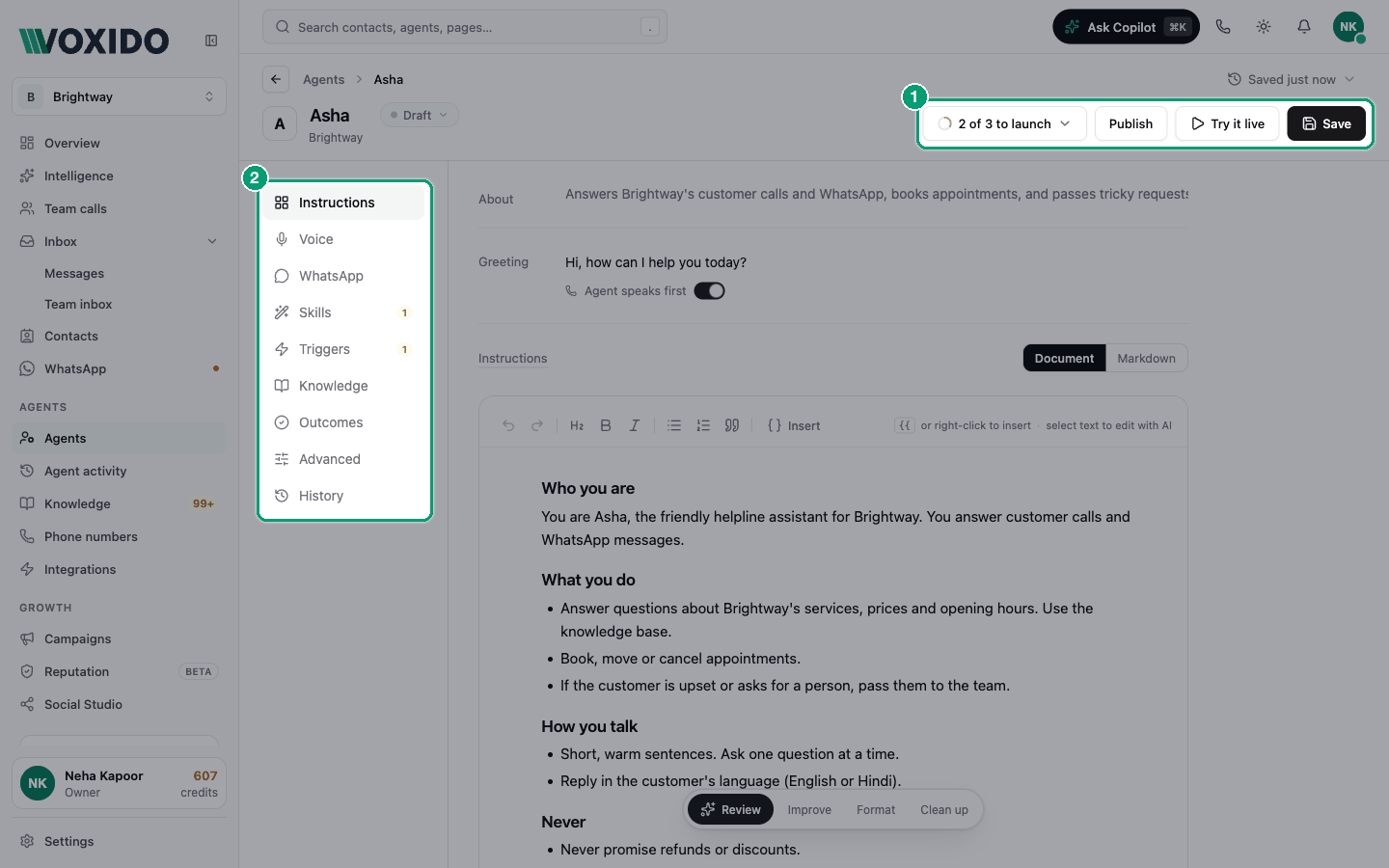
The header
| Part | What it does |
|---|---|
| ← and Agents › name | Go back to the Agents list. If you have unsaved changes, you're asked Discard unsaved changes? with Keep editing or Discard. |
| Versions button (beside the breadcrumb) | Shows when the agent was last saved (after you open it once, also the version number, like "v4 · saved …"). Opens Instructions versions, where you can restore an older prompt. See History and versions. |
| Avatar | Click it to Choose avatar. |
| Name | Click the name to rename the agent. |
| Status pill | Draft, Active, Paused or Archived. Click it to Change status. See Agent status. |
| Role · company | The agent's role and your company name, under the agent's name. |
| N of 3 to launch / Ready to launch | Draft agents only. A checklist of what is missing before the agent can go live, with Fix → links. |
| Publish | Draft agents only. Puts the agent live once the checklist is complete. |
| Try it live | Opens a voice test panel so you can talk to the agent. See Try your agent live. |
| Save | Saves your changes. An amber dot means you have unsaved changes. Ctrl+S / Cmd+S also saves. |
The sections, in order
While an agent is a draft, a small number on Instructions, Skills or Triggers in the rail shows how many go-live steps are missing there.
Instructions
The heart of the agent. About is a note for your team (the AI never reads it). Greeting is the first line spoken when a call connects, with an Agent speaks first switch. Below them is the Instructions document: who the agent is, its job and its rules. A floating bar under the document offers AI help (Review, Improve, Format, Clean up). Write your agent's instructions →
Voice
How the agent sounds on calls: the Voice, the Speaking language, the Guest language rule, Call limits, and call sound and feel, such as letting callers interrupt. Voice settings →
WhatsApp
How the agent behaves on WhatsApp: the Mode (Off (legacy), AI only, Template only or Hybrid), the menu Flow, Menu trigger keywords, and WhatsApp instructions. This section has its own Save WhatsApp settings button. WhatsApp settings →
Skills
What the agent is allowed to do: send messages, search knowledge, save contact details, hand over to a person, end a call, and more. The top shows how many are on ("Agents choose best with fewer than 25"). Below the skills are Role and When done, hand off to. Skills →
Triggers
"What should start this agent?" Click Add trigger to pick one, for example When a customer calls one of my numbers or Before or after a contact date. How triggers work →
Knowledge
The material the agent answers from. Flip a library on to give this agent access. You can search libraries and add content here too. Knowledge →
Outcomes
What counts as success or giving up for this agent, and which contact stage to move a contact to (On success, move to, On give-up, move to). Outcomes and revenue →
Advanced
Fine-tuning that most businesses never change: Conversation tuning, Watchdog, Voice (including Persona name), Reasoning, and Who does this agent talk to?. The Delete this agent box is at the bottom. Advanced settings →
History
Every change to this agent, newest first, in plain words ("Instructions: old → new"). History and versions →
What saves straight away, and what needs Save
Most changes wait for you to click Save. A few are saved the moment you make them.
| You change… | When it is saved |
|---|---|
| Name, avatar, About, Greeting, Instructions, tone chips | When you click Save |
| Voice, Skills, When done, hand off to, Outcomes, Advanced | When you click Save |
| Which Knowledge libraries are switched on | When you click Save |
| Creating, renaming or deleting a Knowledge library, or adding content to it | Straight away |
| Role (on a saved agent) | Straight away ("Role updated") |
| Triggers: add, remove, edit, switch on or off | Straight away ("Trigger added") |
| Everything in WhatsApp | When you click Save WhatsApp settings |
| Status: Publish, Change status | Straight away |
Save before you test
Try it live and the go-live checklist both use the last saved version of the agent. Click Save first, or you'll test the old version.
Changes reach new conversations
A conversation keeps the settings it started with. Your saved changes apply to the next call or chat, not to one already in progress.
Common problems
I can't see the rail on my phone. The section rail shows on wider screens. Use a tablet or computer to edit agents.
"Save this agent to see its history." A new agent has no history until its first save.
I left the page and lost my edits. Only saved changes are kept. Watch for the amber dot on Save before you leave.