

Custom fields: save your own details on every contact
Name, phone and email are the same for every business. Custom fields hold the details only your business needs: an appointment date, a budget, a course, a loan amount. You create a field once, and every contact gets it.
Find it: Sidebar → Settings → Custom fieldsWho can use it: Owners and Admins
The problem custom fields solve
Priya Sharma told your AI agent she wants a deep-clean on the 14th and her budget is ₹3,000. Without fields, that sits in a call summary nobody reads. With a Service, an Appointment date and a Budget field, the AI saves each one, your team sees them on the contact, and you can filter and remind on them.
Pick the right field type
You choose the type once. It can't be changed later, so pick with care.
| If you want to save… | Choose | Example |
|---|---|---|
| A short piece of text | Single-line text | Company name, Car model |
| A longer description | Multi-line text | Special requests, Symptoms |
| A count or amount you'll compare | Number | Party size, Years of experience |
| Money | Currency | Budget, Amount due, Order value |
| One choice from a fixed list | Single-select picklist | Service, Course, Loan type |
| Several choices from a fixed list | Multi Picklist | Interests, Allergies |
| A day | Date | Appointment date, Due date, Check-in date |
| A day and a time | Date/time | Site visit at, Demo slot |
| A time of day | Time | Best time to call |
| Yes or no | Checkbox | VIP, Has insurance |
| Another phone number | Phone | Office number |
| A web link | URL | Website, Listing link |
Tips for choosing
- Use a picklist whenever you can. "Deep clean" typed three different ways breaks your filters. A picklist keeps one spelling, and the AI picks from your list.
- Use Date, not text, for dates. Only real dates work with "within next 7d" filters and date-based reminders.
- Use Number or Currency for amounts. Then "greater than 5000" works.
- Is it a step in your process? Use a stage instead. See Stage, custom field or segment?
Create a field
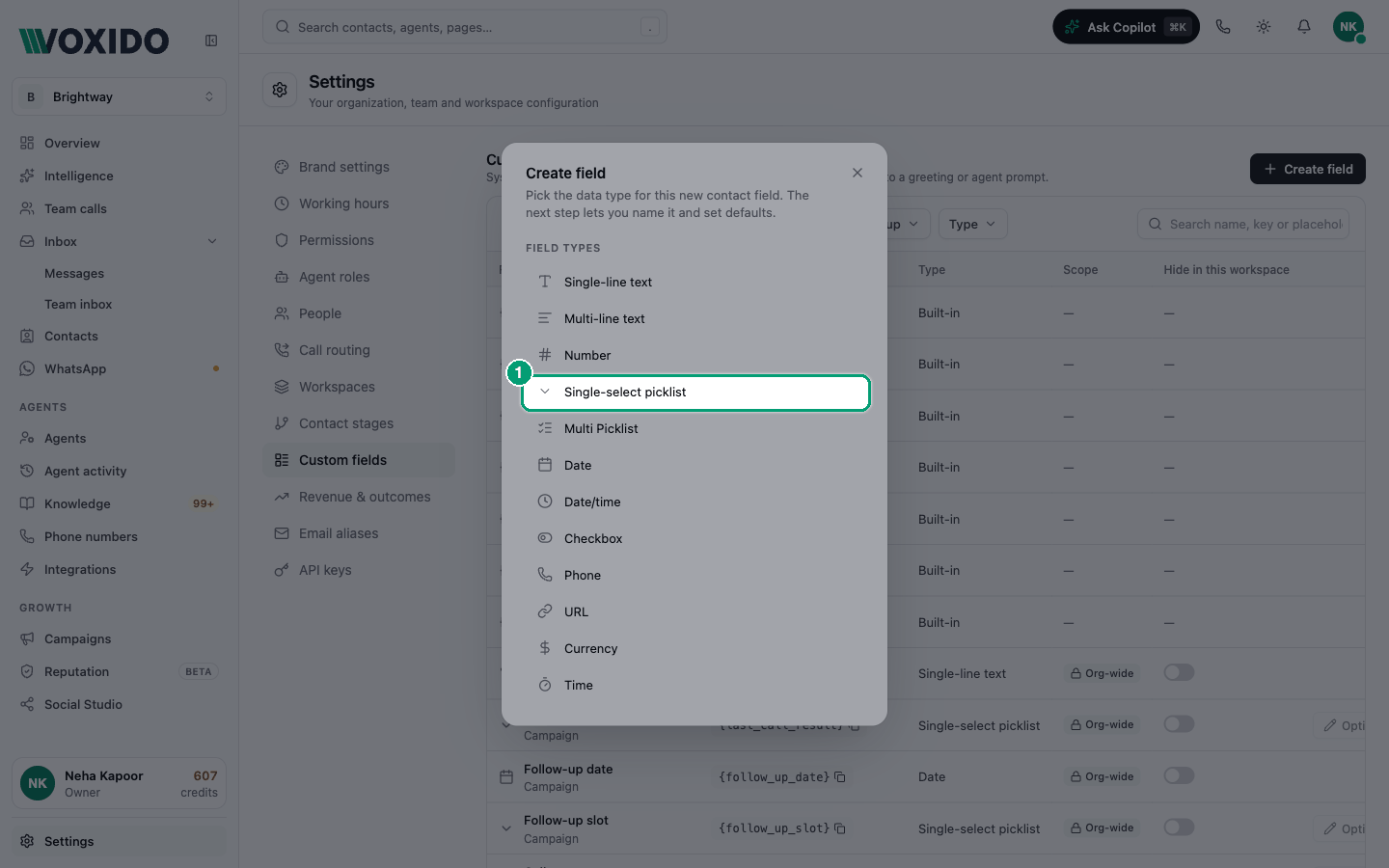
- Go to Settings → Custom fields and click Create field. You'll see: a list of field types.
- Click a type, such as Date. You'll see: the Create field form, with the type shown and locked.
- Fill in the form:
| Setting | What it does | Tip |
|---|---|---|
| Field name | The label your team sees, such as "Appointment date". | Voxido makes the field's key from it: appointment_date. The key never changes, even if you rename the field. |
| Field group | The section the field sits in on the contact's Details tab. Starts as "Basic information". | Pick a group, or type a new name and click Create group. |
| Custom picklist value set | Picklists only: the choices. Click Add option for more. | Fill in at least one option. Empty rows are dropped. |
| Placeholder | Grey hint text inside the empty box in forms, such as "DD/MM/YYYY". | Not the same as the prompt placeholder below. |
| Description | Help text for this field. | |
| Required | Shows a red asterisk on forms, and asks for a value on import. | See Required fields. |
| Enable similarity search | Text and picklist fields only. The agent uses this field when a caller asks to find contacts that match a description or are similar to someone. | Contacts are indexed in the background after you switch it on. |
- Click Create. You'll see: "Field created", and the field in the list with its placeholder, such as
{appointment_date}.
The fields list
The list has four tabs: All, Built-in, System and Custom. Use the Group and Type chips, or Search name, key or placeholder, to find a field.
| Kind | What it is | What you can change |
|---|---|---|
| Built-in | Placeholders every contact has: {first_name}, {last_name}, {full_name}, {phone}, {email}, {state} (the stage) and {persona_name} (the agent's name). | Nothing. They're always there. |
| System | Fields that came with your workspace or a connected system. Workflows and agent tools rely on their exact name and type. | Picklist options only, with the Options button. Others show a lock. |
| Custom | Fields you created. | Everything except the type, from the ⋯ menu. |
Click any placeholder to copy it. Paste it into an agent's greeting or instructions, and it fills in from the contact on the call: "Hi {first_name}, I'm calling about your {service} on {appointment_date}."
Edit or delete a field
- Click ⋯ on the field's row, then Edit. You'll see: the Edit field form.
- Change the name, group, options or other settings, then click Update. You'll see: "Field updated".
To delete, click ⋯ → Delete, then Delete again. The field leaves forms, the table, filters and exports. The values already saved on contacts are kept, just hidden.
Removing a picklist option
Values already saved stay on contacts, even after you remove that option. But filters only offer the options you have now, so you can no longer filter by the old one. Move those contacts to a new option first (tick them, then Edit field).
Hide a field without deleting it
Settings → Custom fields has a hide switch on every field. What it hides depends on where you are:
| Where you are | The column says | What it does |
|---|---|---|
| All workspaces, or an account with one workspace | Hide for everyone | The field leaves every form, filter, table column and contact panel. |
| Inside one workspace | Hide in this workspace | A shared (Org-wide) field is hidden in this workspace only. A field that belongs to this workspace is hidden, since it only lives here. |
- Open Settings → Custom fields.
- Switch on the hide switch next to the field. You'll see: a message that the field is hidden for everyone (or in this workspace), and its row dimmed.
- To bring it back, switch it off. You'll see: the field back on forms and in the table, with every value it had.
Values already saved on contacts are kept while a field is hidden. Built-in fields such as Name, Phone Number, Email and Stage can't be hidden.
Only want it out of your own table? Open the column's ⋯ menu on the Contacts page → Remove column. That changes nothing for anyone else. See Customize your Contacts table.
Hide or delete?
Not using a field right now, but the old values matter? Hide it. Never going to use it again? Delete it.
How your AI agents use custom fields
Reading. Before every conversation, the agent gets the contact's filled-in fields. Placeholders in greetings and instructions fill in too.
Writing during a conversation. Turn on the Update contact information skill (agent → Skills → Contacts; see Skills). The agent saves what the person says into your fields. It can only use fields that exist, and for a picklist it picks one of your options.
Writing after a conversation. After every call or chat, Voxido reads it again and fills empty fields with anything the person said. It never replaces a value that's already there.
Protected values. If your team typed a value, an import set it, or a connected system synced it, the agent won't silently replace it. It asks the person to confirm first. Every change shows in the contact's Activity, with who made it: a person, an AI agent, an import or a sync.
Make fields easy for the AI
Give fields plain names ("Appointment date", not "appt_dt2"). Add picklist options in the words customers use. The AI matches what people say to your options.
Required fields
Required is a strong hint, not a lock:
- Forms show a red asterisk. You can still save without it.
- Import asks what to do when your file has no column for it: one value for every row, or leave it empty.
- Stage moves can be blocked. If your company requires some fields before a stage, moving a contact there says "Fill in … before moving this to …".
Fields with more than one workspace
A field created inside a workspace belongs to that workspace. A field created in All workspaces is shared, and its Scope says Shared. Inside a workspace, a shared field shows Org-wide and is read-only. You can still switch on Hide in this workspace. See Contacts across workspaces.
Common problems
I can't change a field's type. Types are fixed. Create a new field with the right type, copy the values over (an export and re-import works), then delete the old one.
I renamed a field and my prompt still works. That's expected. The placeholder uses the key, which never changes.
The Multi Picklist only lets me pick one value in the Edit Contact form. In that form it works like a single choice. To pick several, edit the field on the contact's Details tab.