

Team inbox: pick up, answer and finish requests
When your AI agent needs a person, it creates a request (also called a job) in the Team inbox. A missed call, a refund question on WhatsApp, a booking to confirm: they all land here. Your team takes each request, contacts the customer, and marks it complete.
Find it: Sidebar → Inbox → Team inbox
How a request arrives
A request is created when:
- Your AI agent uses Notify the team or Talk to a human in a chat. On a hotel account, it can also log a service request or a booking.
- A caller was passed to your team on a call, and nobody answered. The AI books a Call back a caller request.
- A request wasn't picked up in time and moves up to the next team (an escalation).
- After a call, a check finds the AI promised a follow-up but never told the team (Post-call check).
- A customer rates a call Not good (see Feedback after the call).
- A workflow or a system alert asks for a person.
Each request goes to a team. Voxido then picks one person in that team as the Assignee, and alerts the team on the channels each person chose. How the person is picked is explained in How calls and requests reach your team.
If the same customer gets in touch again while their request is open, Voxido adds the new conversation to the same request instead of making a new one.
The views and what the counts mean
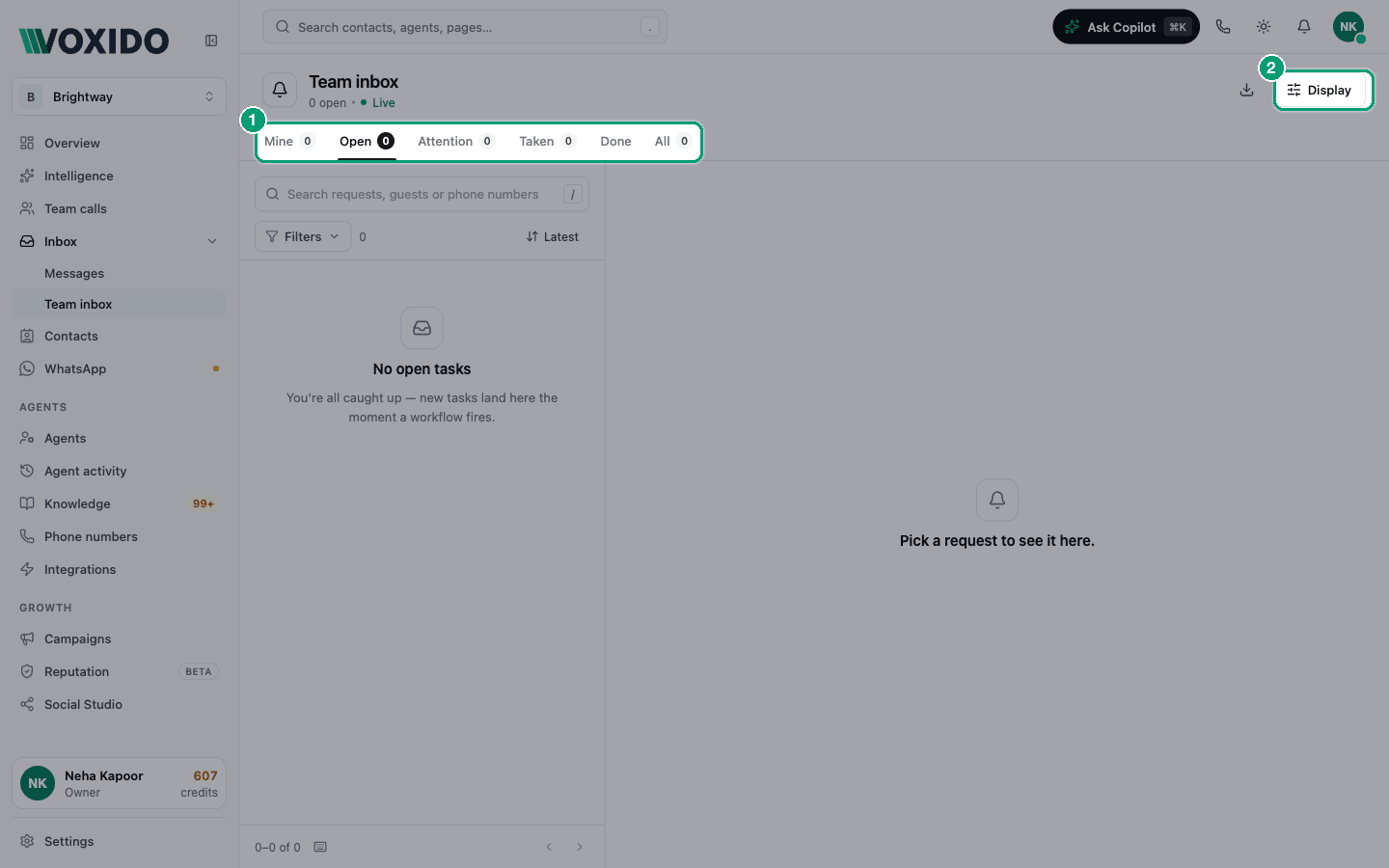
The tabs at the top split the requests. The number on each tab follows your workspace, not your filters.
| View | What it holds | The count |
|---|---|---|
| Mine | Open requests assigned to you. | How many are yours |
| Open | Requests nobody has finished: new, delivered, or taken with a promised time. | How many are open |
| Attention | Open requests past their response time. | How many are overdue |
| Taken | Requests someone acknowledged or took. | How many are taken |
| Done | Requests marked complete. | No count |
| All | Everything, including dismissed and escalated. | Total |
The page header also says, for example, "12 open · 3 past due". The list refreshes every 20 seconds, and the clocks tick every second. Press ← and → to switch views.
Take a request and finish it
- Click a request in the list. You'll see: the request on the right: priority, status, team and age at the top, then the title and the Next step card.
- Read What happened and Why you're seeing this. You'll see: the AI's summary, and why the request exists, for example "Nobody picked up when the AI tried to pass the call, so this callback was created." Open the call plays the call.
- Click Acknowledge to show you're on it. Or click Assign to me next to Assignee. You'll see: "Acknowledged". The request moves to Taken, and the escalation clock stops: "Acknowledging stops the escalation loop".
- Contact the customer from the Next step card: Call (name) or WhatsApp. You'll see: for Call, a call from your business number through Voxido, if calling from the browser is set up. If not, the button is greyed out and says why.
- When you're done, click Mark complete. You'll see: "Marking complete" with an Undo button for 10 seconds. Then the request moves to Done.
When you mark a request complete, Voxido sends the customer "Your request is complete — thanks for your patience! Let us know if there's anything else we can help with." This only happens if the customer has an open WhatsApp chat with you.
The parts of a request
| Part | What it shows |
|---|---|
| Next step | What to do, for example "Call Priya back", the customer's number, Call and WhatsApp buttons, and the SLA strip: "Callback SLA · 15 min" with On track, At risk or Breached, and the time left or over. |
| What happened | The AI's summary, and Why you're seeing this. |
| Details | Assignee (with Assign to me and Transfer), Backup owner, Stage, Escalation (for example "not escalated · Supervisors next if the SLA runs out"), Guest with Open contact, and any contact fields you pinned, including the guest's Owner. |
| Activity | One timeline of the request and the customer's contact: created, delivered, assigned, taken, escalated, completed, conversations with the AI, team calls and notes, plus changes to the contact and their other requests while this one was open. Type in Leave a note for the team… and click Comment. Notes are internal. See Read a request's Activity. |
The word Guest in the inbox means your customer.
Read a request's Activity
Activity tells the whole story of a request in one place, newest first and split by day (Today, Yesterday, then the date). It shows:
- This request's own events: created, delivered, assigned, taken, escalated, completed, conversations with the AI, team calls and notes.
- Changes to the customer's contact while the request was open: field edits, stage moves and owner changes.
- The customer's other requests while this one was open, such as a second request that came in the same afternoon.
Under each entry's time, a small marker says whose it is. This request's number is filled in, for example R2. Another request's number has a plain border, and a dashed border once it's closed. Contact means a change to the contact. These are the same numbers you see on the contact's Activity tab. See The Activity tab.
Leave a note
- Type in Leave a note for the team….
- Click Comment, or press Ctrl + Enter (Cmd + Enter on a Mac). You'll see: "(your name) left a note" at the top of the timeline. Only your team sees it. The customer never does.
Narrow the timeline
- Open All activity on the first day's line. You'll see: All activity ("Everything for Priya while this request is open"), This request (notes, calls and status changes), Contact only (stage, owner and field changes), and Priya's other requests with how many there are. The last one only shows if the customer has other requests.
- Pick one. You'll see: only those entries. If nothing fits, you see "Nothing here for this choice."
See what happened before the request opened
Changes to the contact from before this request started are hidden at first, so the timeline stays short.
- Click Show 4 earlier events for Priya (the number and name match your customer) under the timeline. You'll see: a dashed line, Before this request opened, and the older entries below it in lighter text.
- Click Hide earlier events to fold them away again.
The button doesn't show when you've picked This request, because earlier events belong to the contact, not to the request.
Examples
- A hotel. A guest's late check-out request (R2) is open. Activity shows that the front desk moved their stage to Checked in an hour ago, and that an airport pickup request (R1, closed) came in yesterday.
- A clinic. A patient asked for a call back. Before calling, click Show 3 earlier events to see that their Appointment date was changed this morning.
- A store. A customer has a refund request open. Pick Contact only to see if anyone already changed their stage to Refund issued.
People whose role can't see contacts see only the request's own Activity: no contact changes, no other requests and no All activity menu.
The action bar
| Button | What it does | When you see it |
|---|---|---|
| Acknowledge | Shows you're on it and stops escalation. It becomes yours, unless a manager assigned it to someone. | New or delivered requests |
| Mark complete | Closes the request. Undo within 10 seconds. | Open or taken requests |
| ⋯ → Escalate to (team) | Sends it up to the next team now. Greyed out at the highest level (L5), or when the next team has nobody. | Open requests |
| ⋯ → Dismiss | Clears it from the queue without finishing it. | Any open request |
A completed or dismissed request shows who closed it, for example "Completed by Rahul".
Assign and transfer
- Assign to me makes you the Assignee. If you're not in a team, it says "You're not on a team, so requests can't be assigned to you."
- Transfer opens a searchable list of teammates, grouped by team. Pick one. They are told on WhatsApp if they have WhatsApp alerts. A "No WhatsApp" tag means they won't be.
- Taking a request (with Acknowledge or Assign to me) can also make you the customer's Owner, if they have none.
Filters, search and sort
- Search ("Search requests, guests or phone numbers"). Press / to jump to it.
- Filters: Assignee, Team, Priority, Stage, Created, Check-in and Check-out (only if your contacts have those fields), Workspace (in All workspaces), Source, Type, and SLA breached only. Clear all removes them.
- Source says where the request came from: Missed handover call, Post-call check, AI agent, Escalation, WhatsApp, Workflow, System alert, Added by a person.
- Type says what it's about: New enquiry, Confirmed order, Change or cancel, Payment, Call back, Complaint, Service request, Follow-up, Partner enquiry, Other.
- Display → Sort by: Latest activity (to start), Newest created, Oldest first, Due soonest first, Highest priority first. On each row shows up to 2 contact fields on each row; In the detail card pins up to 10 in Details. Owner, the guest's Owner, is the first choice in both lists. Reset to default undoes it.
See whose guest it is
When someone covers for a colleague, they need to know whose guest it is. For example, Rahul takes a request while Meera is off, and Meera has already sent the guest a quote. Show the guest's Owner on the request:
- Click Display at the top of the list.
- Under On each row or In the detail card, tick Owner. You'll see: on each row, "Owner Meera Iyer", or "—" when the guest has no owner. In Details, the owner's picture and name, or "No owner".
The Owner shown here is read-only. Change it on the contact. See Owner, Backup owner and Reporter.
Keyboard shortcuts
| Key | Does |
|---|---|
| ↑ ↓ or K J | Previous / next request |
| ← → | Previous / next view |
| A | Assign to me |
| D | Mark complete |
| C | Call the guest |
| W | WhatsApp the guest |
| / | Search |
Shortcuts don't work while you're typing.
Download the report
Click the download button at the top: "Download the team performance report (CSV)". It covers every request for your workspace, or one team if you filtered by Team. It includes whether each SLA was met, how long people took to accept and to finish, and escalations.
Common problems
A request says Unassigned. Nobody in the team was free, or the team is empty. Click Assign to me or Transfer.
A change to the contact is missing from the request's Activity. It happened before this request opened, so it's folded away. Click Show N earlier events under the timeline. If you picked This request in All activity, switch back to All activity first.
A request's Activity shows no contact changes and no All activity menu. Your role can't see contacts, so you only see the request's own events. An admin can change your role. See Roles.
The customer didn't get the "complete" message. It only goes into an open WhatsApp chat the customer started. Customers who only called don't get it.
Requests keep going to someone who is on leave. While call routing is on, new requests aren't assigned to people who are on leave, Away, off shift or not available today. While it's off, Voxido doesn't check status: it picks the person with the fewest open requests. See How calls and requests reach your team.
Someone who is Away still got a WhatsApp alert. Team alerts go to everyone in the team who has that channel on. Only leave and a "not available" daily check-in stop them. Away and off shift only stop new requests being assigned to them.