

Customize Summary: pick the key fields your team sees first
Summary is the first thing you see when you open a contact. Customize Summary lets you choose what it shows: which sections, in what order, and which Key fields sit at the top. A key field is a detail you pin so it's always in view, such as an appointment date or a budget.
Find it: Sidebar → Contacts → click a contact → Customize Summary (bottom of the panel, on the Summary tab)
The problem it solves
Your team picks up a call and has five seconds to know who this is. Scrolling through 30 fields is too slow. Pin the four or five details that matter, and they're right there, every time, for every contact. You can change them in place, too.
Which key fields should you pin?
Pin what your team needs in the first moments of a conversation, and what changes from one call to the next.
| Business | Good key fields to pin |
|---|---|
| Brightway (a service business) | Service, Appointment date, Budget, Owner |
| Clinic | Appointment date, Doctor, Treatment, Insurance |
| School or coaching centre | Course, Grade, Parent's name, Fee status |
| Real estate | Budget, Preferred location, Property type, Site visit date |
| Loan recovery | Amount due, Due date, Promise-to-pay date |
| Retail or online shop | Last order, Order value, Preferred size |
| Hotel | Check-in date, Room type, Guests, Room number |
These are custom fields you create yourself. See Custom fields.
Rules of thumb
- Four to six is the sweet spot. You can pin up to 10, but a short list is quicker to read.
- Skip what's already there. Stage, last contacted, calls, source, phone and email already show on Summary.
- Pin Owner if you have a team. Then everyone sees who looks after the contact, and can click Assign to me.
- Pin what people update. A pinned field can be edited right on Summary.
Customize your Summary
- Open any contact and stay on the Summary tab.
- Click Customize Summary at the bottom of the panel. (Or click Pin fields or Edit pins in the Key fields card.) You'll see: the Customize Summary panel, with Sections at the top and Key fields below.
- Under Sections, click the eye on a section to hide or show it. Drag a section by its handle to move it up or down. You'll see: the sections in your new order. A hidden one is greyed out.
- Under Key fields, click Pin fields and tick the fields you want. Type in Search fields… to find one fast. You'll see: each pick as a chip, and a count such as 4/10. Owner, Backup owner and Reporter are listed under System.
- Click Save. You'll see: the panel closes, and Summary shows your sections and pinned fields.
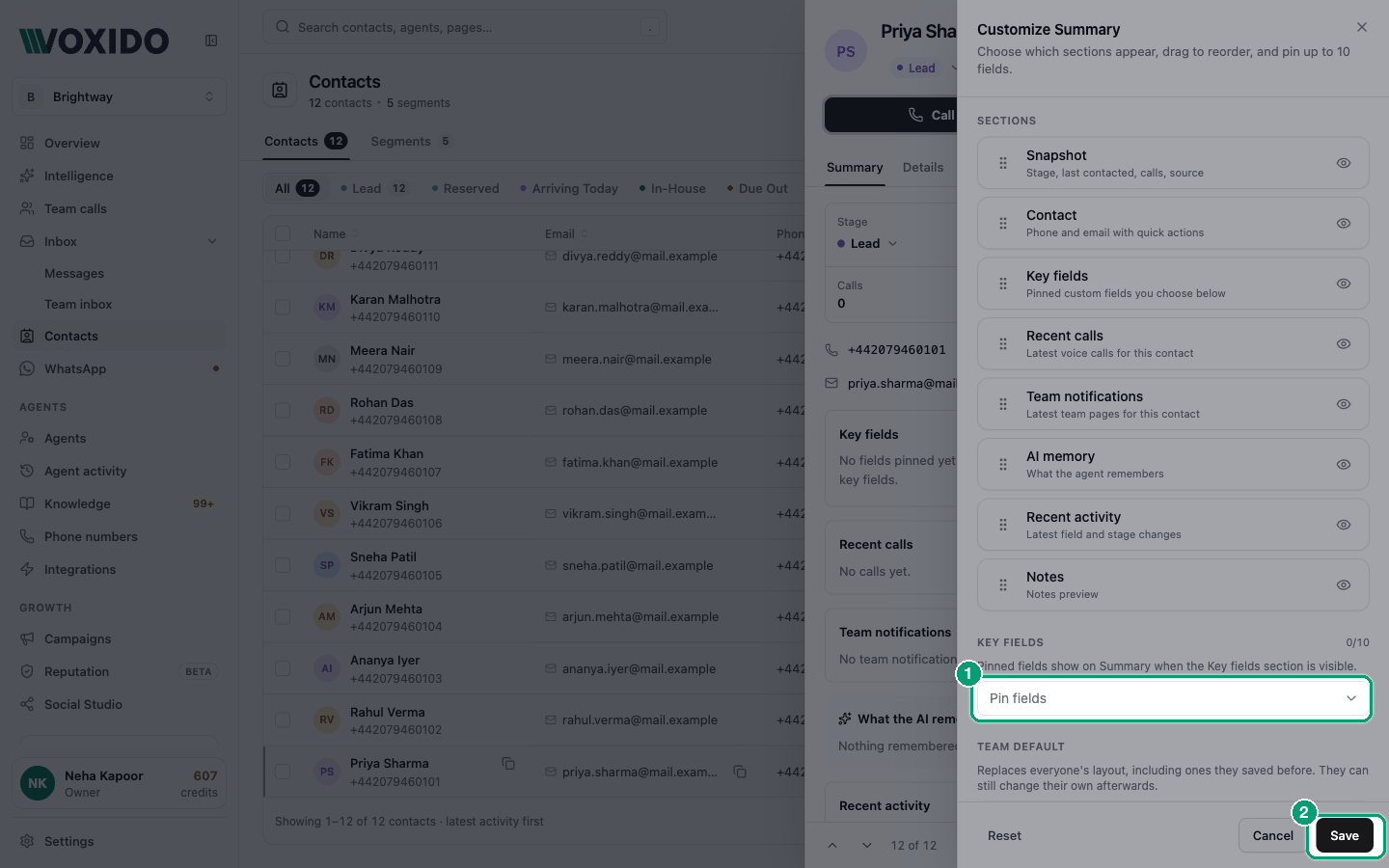
Pinned fields only show while the Key fields section is switched on.
| Section | What it shows |
|---|---|
| Snapshot | Stage, last contacted, calls, source |
| Contact | Phone and email with quick actions |
| Key fields | The fields you pin |
| Recent calls | Latest voice calls with this contact |
| Team notifications | Latest requests sent to your team about this contact |
| AI memory | What the AI remembers |
| Recent activity | Latest field and stage changes |
| Notes | A preview of your team's notes |
Set a default for your team
Who can use it: Owners and Admins
You can share your layout so everyone starts with the same Summary.
- Set up the sections and key fields as above.
- Under Team default, click one of these:
- Save as default for everyone: every contact, in every workspace.
- Save as default for this workspace: only contacts in this contact's workspace. You'll see: "Default saved", then "Now shown to everyone, in every workspace." (or "…on contacts in" the workspace's name).
- To remove a default later, open Customize Summary and click the remove button next to "A default for everyone is set." or "… has its own default."
A default replaces everyone's layout
Saving a default replaces the layouts people saved before, including your own. They can still change theirs afterwards. Tell your team before you save one.
How Voxido picks the layout you see
Voxido shows the newest of three layouts: your own, your workspace's default, and the default for everyone. With none of them, you see the built-in layout with every section on and nothing pinned.
- Your own layout is saved in this browser. On another computer, you start from your team's default.
- The panel tells you which one you're on: "You're seeing your team's default. Saving here changes it just for you." or "You're using your own layout instead of your team's default."
- Reset goes back to your team's default (or the built-in layout). Click Save to keep it.
A pinned field that a workspace doesn't have simply doesn't show for that workspace's contacts.
Examples
Before: Arjun at Brightway opens Priya Sharma and scrolls Details to find her appointment date.
After: the Owner pins Service, Appointment date, Budget and Owner, and saves it as the default for everyone. Now the whole team sees those four at the top of every contact, and can change the appointment date right there.
Common problems
I don't see Team default. Only Owners and Admins can save a default.
My pins disappeared. Someone saved a new team default after your own layout, so the newer default now shows. Pin your fields again and click Save.
I pinned a field but it doesn't show. Check that Key fields is switched on under Sections, and that the field exists in this contact's workspace.
Other places have their own picks
The Team Inbox keeps its own pinned contact fields. The fields on "How did the call go?" are chosen separately with Choose fields for everyone. See Notes and call outcomes.