

Brand settings: your business name, logo and colour
Brand settings make Voxido look like your business. You set the business name, the logo at the top of the sidebar, and the accent colour of buttons and links. They apply to everyone in your account, in every workspace.
Find it: Sidebar → Settings → Brand settingsWho can use it: Owners and Admins
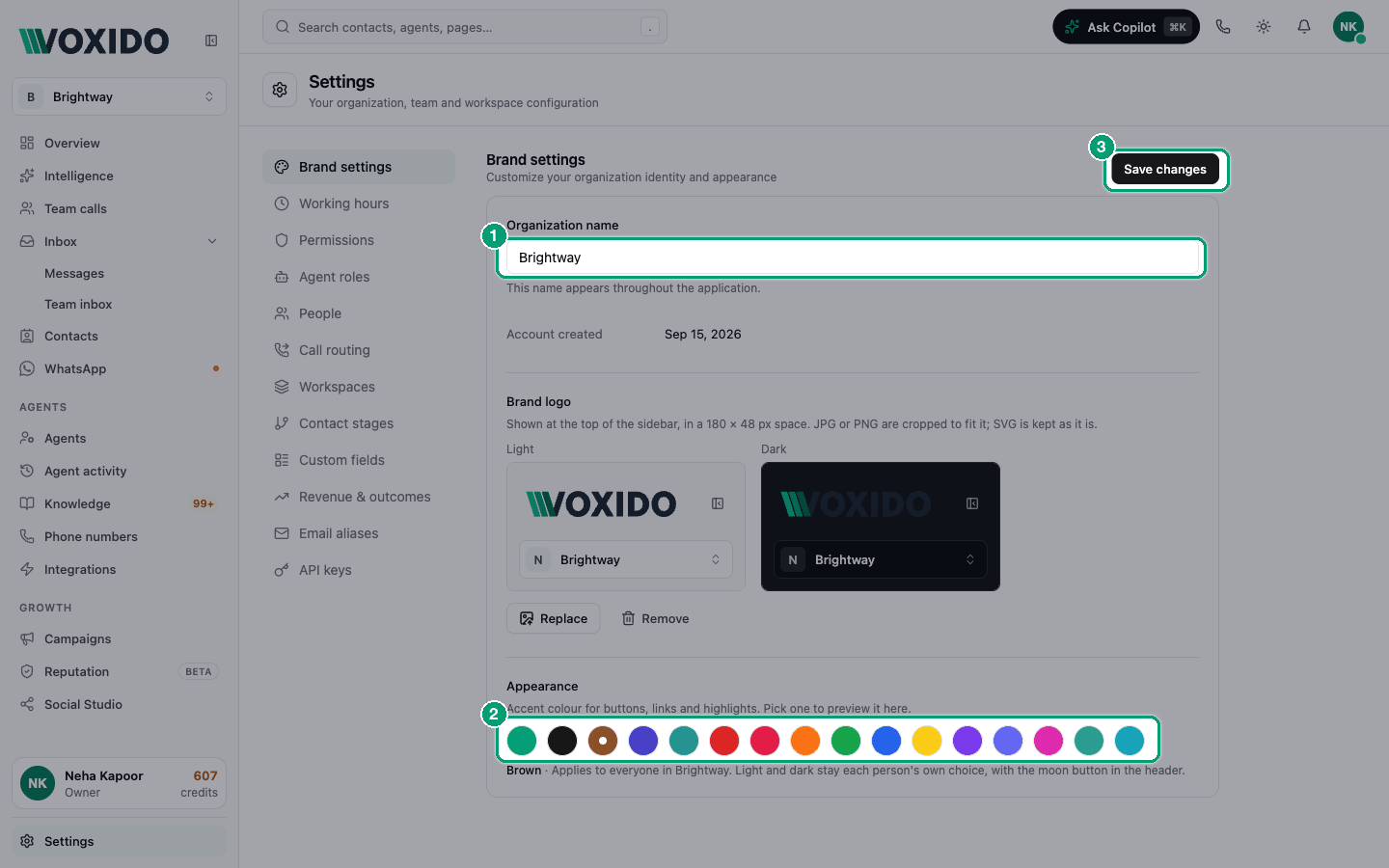
Change the business name
- Type the new name in Organization name. "This name appears throughout the application."
- Click Save changes at the top. You'll see: "Brand settings updated."
Below the name you'll also see Industry, Company size and Account created. You can't change these here.
Add your logo
The logo sits at the top of the sidebar, in a space 180 × 48 pixels.
- Under Brand logo, drop your file on Drop your logo here or browse, or click it to pick one. You'll see: for JPG or PNG, the Crop your logo window. An SVG skips this step and is used as it is.
- Drag the picture to move it and zoom to size it inside the frame. You'll see: two previews of the real sidebar, one light and one dark.
- If your logo disappears on the dark preview, pick the White background.
- Click Use this logo.
- Click Save changes at the top. You'll see: "Brand settings updated." Your logo now shows in the sidebar for everyone.
Later, use Replace for a new file, Adjust crop to crop again, or Remove to go back to no logo. Remember to click Save changes after each.
Which logo file to use
| Good | Better | Best |
|---|---|---|
| A JPG of your logo | A PNG with a see-through background | An SVG (stays sharp at any size, no cropping) |
Wide logos work best
The space is wide and short. A wide logo (your name next to your symbol) fills it better than a square one.
Pick an accent colour
The accent colour is used for buttons, links and highlights.
- Under Appearance, click a colour, like Blue or Deep teal. You'll see: the app changes colour, and a Previewing tag with "Only you see it. Save to apply it for everyone."
- Click Save (or Save changes at the top) to keep it. You'll see: everyone in your account now sees this colour.
- Changed your mind? Click Reset to go back to the saved colour.
If you leave the page without saving, the old colour comes back.
There are 16 colours, starting with Voxido (the default), Black and Brown.
What brand settings don't change
| You want to change… | Go to |
|---|---|
| Light or dark mode | The theme button in the header. It's each person's own choice. See Your account and preferences. |
| Your timezone and opening hours | Working hours |
| A workspace's name or timezone | Workspaces |
| What your agents say about your business | The agent's instructions and Knowledge. See Creating an agent. |
The old Location section is gone. The timezone now lives in Working hours.
Common problems
I don't see Brand settings. Only Owners and Admins can open Settings → Brand settings.
My logo looks blurry. Use a bigger PNG or an SVG. Voxido saves the crop at twice the size for sharp screens, so a tiny file stays blurry.
My dark logo can't be seen in dark mode. Crop it again (Adjust crop) and pick the White background.