

Connect review sources
Reputation needs your reviews first. You can connect your Google business, or paste reviews from any site as CSV (a simple spreadsheet format). Reviews from every source land in one list.
Find it: Sidebar → Reputation → Connections tab Who can use it: Owners and Admins
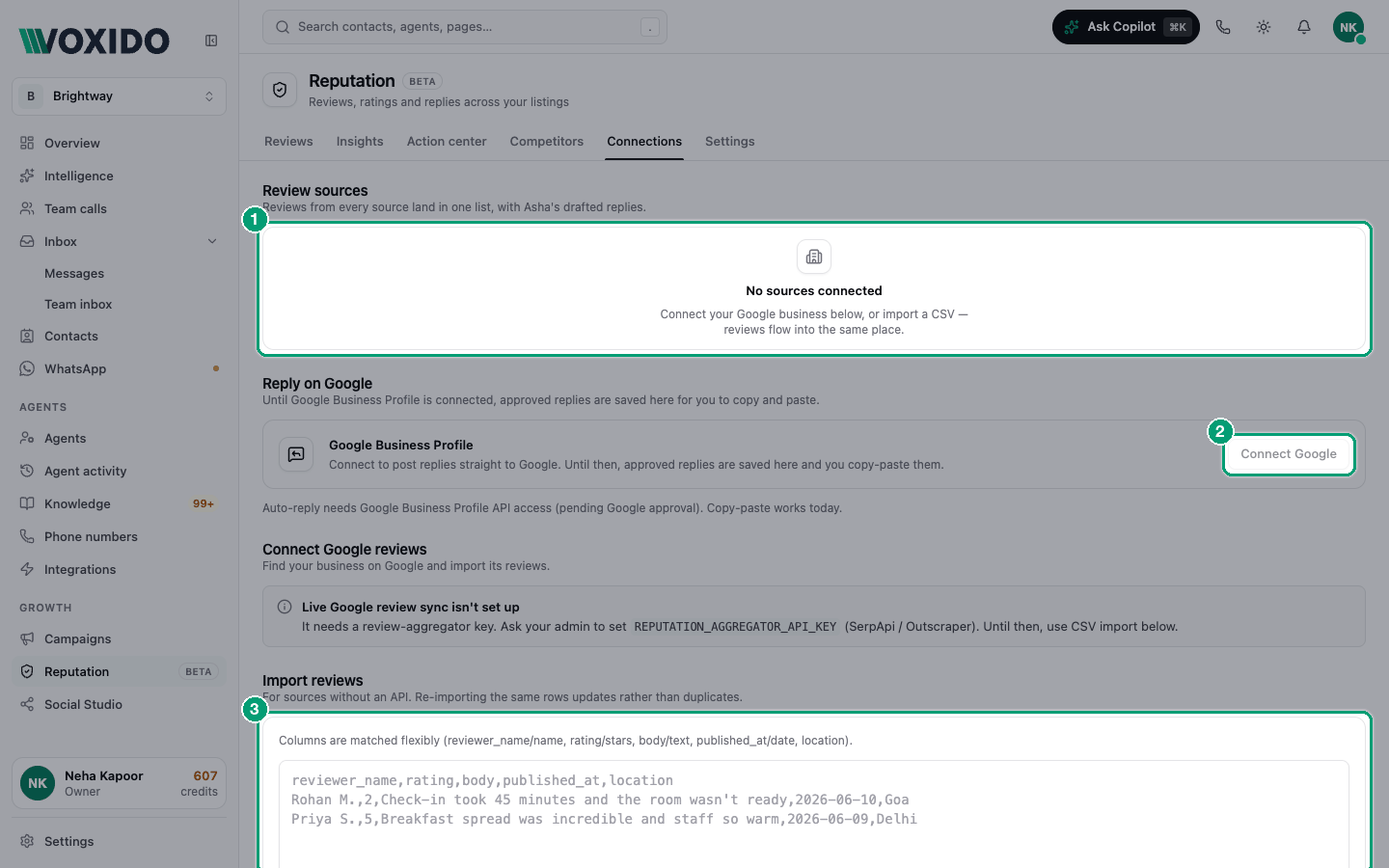
Google or CSV?
| If… | Use | Why |
|---|---|---|
| Your business is on Google Maps | Connect Google reviews | Imports your Google reviews and can sync new ones. |
| Reviews live on another site (Practo, Zomato, JustDial, a booking site) | Import reviews (CSV) | Works for any source without a connection. |
| You have both | Both | They all land in the same list. |
TripAdvisor, Booking.com, Agoda, Expedia and MakeMyTrip are listed under More sources as "Coming soon". Import them by CSV for now.
Connect your Google business
- Under Connect Google reviews, type your business name and city, like "Brightway Salon, Pune".
- Click Search. You'll see: matching businesses with their rating and review count.
- Click Connect on yours. You'll see: "Connected" and how many reviews were imported. Your business appears under Review sources.
If you see "Live Google review sync isn't set up", Google search isn't turned on for your account yet. Ask Voxido support, and use CSV import until then.
Import reviews from a CSV
- Under Import reviews, click Use sample to see the format. You'll see: sample rows in the box.
- Replace them with your own rows. Columns are matched flexibly: reviewer_name or name, rating or stars, body or text, published_at or date, and location.
- Click Import. You'll see: "Reviews imported" with how many are new, updated and unchanged.
Importing the same rows again updates them. It doesn't make duplicates.
reviewer_name,rating,body,published_at,location
Priya Sharma,5,Quick appointment and very friendly staff,2026-10-02,Pune
Rohan M.,2,Waited 40 minutes past my slot,2026-10-05,Pune
Keep reviews up to date
- Click Sync now on a source to fetch new reviews. You'll see: "Synced" with how many are new and updated.
- With more than one source, click Sync all at the top.
Disconnect a source
- Click the ⋯ menu on the source, then Disconnect. You'll see: "Disconnect this source?"
- Confirm. You'll see: "Disconnected". Imported reviews are kept.
Reply on Google
Under Reply on Google, the Google Business Profile card shows if replies can post to Google automatically.
| State | What happens to approved replies |
|---|---|
| Not connected | "Approved replies are saved here for you to copy and paste." Use Copy & open on Google on each review. |
| Connected | "Replies you approve post to Google automatically." |
If Connect Google is greyed out, "Google connections aren't enabled yet". "Copy-paste works today."
Common problems
"Search failed". Google search isn't set up for your account. Use CSV import, or ask support.
"Import failed". Check that the first row holds the column names, and that they match the list above. Click Use sample to compare.