

Import a website into a library
Your website already explains your services, prices and policies. Import it, and your agent can answer from the same pages. Voxido finds your pages, reads them, and saves each one as a document.
Find it: Sidebar → Knowledge → pick a library → Connect source → Add a website
Import or Auto-build?
There are two ways to use your website. Pick one per site.
| Add a website (import) | Auto-build from a website | |
|---|---|---|
| What you get | Each web page saved as it is | AI reads up to 30 pages and writes new, tidy documents |
| Best for | Sites with clear pages: services, FAQs, pricing | Messy or long sites where facts are spread out |
| You control | Which pages (depth, exclude paths) | Only the domain |
| Page | This page | Auto-build |
Not sure? Start with Add a website. If answers are poor, try Auto-build into a separate library and compare.
Import a website
- Go to Sidebar → Knowledge and pick the library in the Library picker.
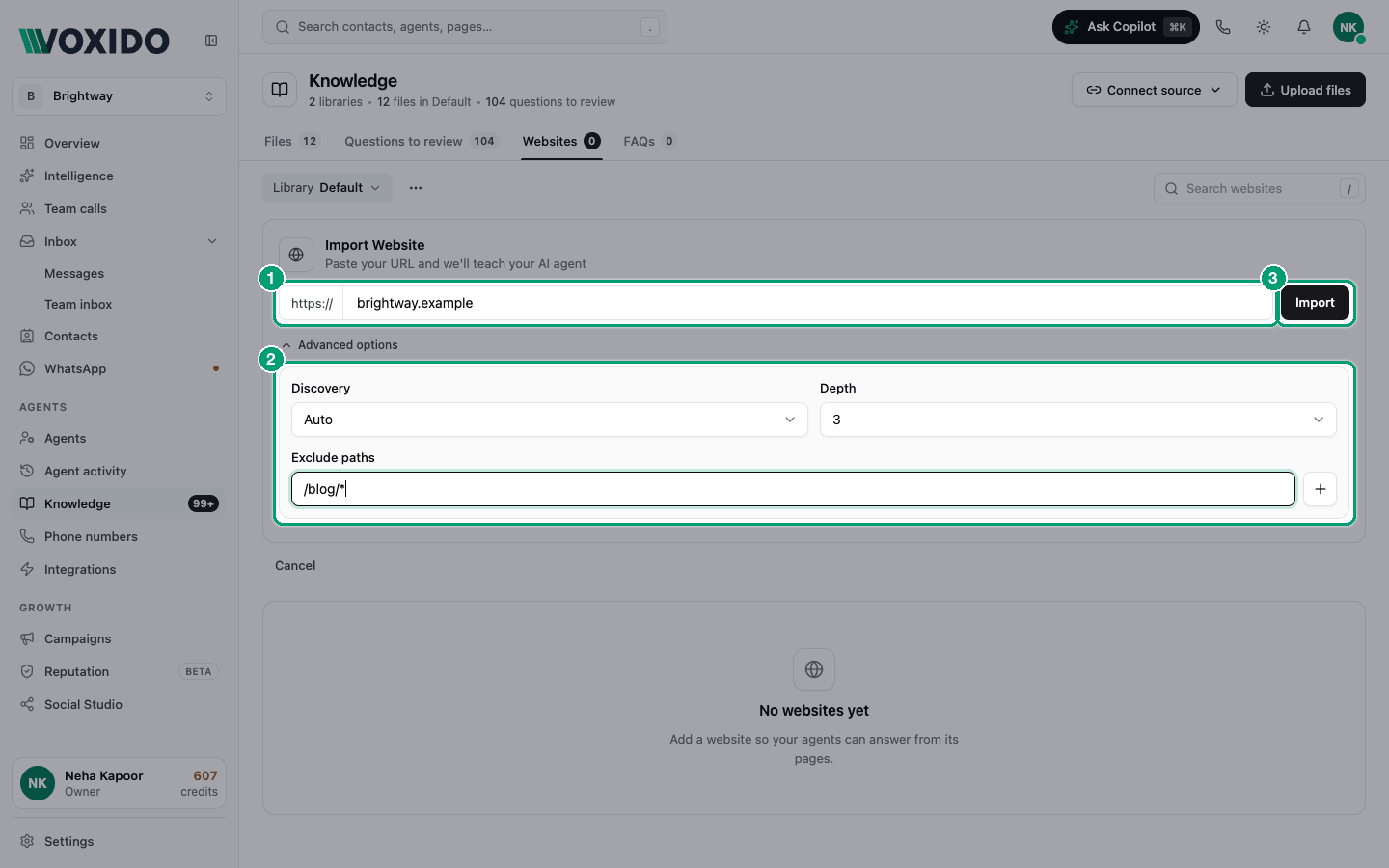
- Click Connect source → Add a website. You'll see: the Websites tab opens with an Import Website card: "Paste your URL and we'll teach your AI agent".
- Type your address after
https://, for examplebrightway.in. - Optional: click Advanced options (see the table below).
- Click Import. You'll see: a progress bar and a Content preview from the first page. Check it's the right site.
- Wait for the result. You'll see: "Done! N pages imported." The site appears in the Websites list with "N of N pages".
What each setting means
| Setting | What it does | Default |
|---|---|---|
| Discovery | How pages are found: Auto (sitemap, then links), Sitemap (only sitemap.xml), Crawl (follow links from the home page). | Auto |
| Depth | How many clicks deep to follow links, 1 to 5. | 3 |
| Exclude paths | Skip pages that match, for example /blog/* or /careers/*. Type one and click +. Click × on a tag to remove it. | None |
Skip pages that don't help
Blogs, job pages and legal small print add noise. Excluding them gives better answers.
When it finishes
| You see | Meaning | What to do |
|---|---|---|
| "Done! N pages imported." | Success. | Nothing. |
| A yellow note with an error | Some pages failed. | Click Keep what we have to save the pages that worked. |
| A red error | Nothing was imported. | Click Try again. |
| "Import cancelled." | You clicked Cancel. | Click Start over. |
Each imported page also appears in the Files tab as a document, with the site's address under its name.
Manage a website's pages
- Open the Websites tab and click the site, or its pencil icon (Manage pages). You'll see: a panel listing every page, with a Search pages... box.
- Click the remove icon on any page you don't want.
To remove the whole site, click the site's delete icon. The Delete website source window says this also removes every page imported from it. Click Delete. Then check the Files tab and delete any pages from that site that are still listed.
Keeping it up to date
Each site shows "Manual re-crawl" or how often it re-crawls. There's no re-crawl button on this screen today. If your site changed a lot, delete the website (and any leftover pages in Files), then import it again.
Rules and limits
- One import at a time per library. A second one shows "An import is already in progress. Wait for it to finish."
- Your plan sets how many pages you can import. On some plans website import isn't available.
- Read-only libraries (from a Google Sheet or a property system) can't take websites.
Common problems
The preview shows the wrong site. Click Cancel, check the address, and import again.
Important pages are missing. Try Discovery = Crawl with a higher Depth, or check they aren't in Exclude paths.
The agent quotes old prices. The site changed after import. Delete the website and import it again.