

Contact stages: design your pipeline and move contacts through it
A stage says where a contact is in your process: New, Booked, Paid, Lost. Your list of stages, in order, is your pipeline. Each contact sits in one stage at a time, and every move is written down.
Find it: Sidebar → Settings → Contact stagesWho can use it: Owners and Admins
The problem stages solve
"Which leads did we never call back? Who booked but hasn't paid?" Without stages, the answer is buried in notes. With stages, the Contacts page shows a tab per stage with a count. Your team, your AI agents and your rules all read the same answer.
Design your stages first
Spend five minutes on paper before you click anything.
- Write the steps a customer goes through, from first hello to done.
- Keep five to seven. Up to six stages each get their own tab on the Contacts page. With more, five show and the rest go under More.
- Name each stage as a state, not a task. "Booked", not "Book appointment". Everyone, including the AI, should know at a glance what it means.
- Put "interested" right after your first stage. When a call or chat shows someone wants to buy, Voxido moves them from your default stage to the next one in your list. See How stages move on their own.
- Mark your end stages Terminal, such as Won and Lost.
- Leave facts and lists out. "VIP" or "Speaks Hindi" is a custom field. "Call back today" is a segment. See Stage, custom field or segment?
Sample pipelines
The first stage in each list is the Default one. Stages in italics are Terminal.
| Business | Stages, in order |
|---|---|
| Brightway (a service business) | New → Interested → Booked → Done → Lost |
| Clinic | New enquiry → Appointment requested → Booked → Visited → Follow-up due → Lost |
| Real estate | New lead → Qualified → Site visit booked → Site visit done → Negotiation → Closed won → Closed lost |
| School admissions | Enquiry → Counselling done → Campus visit → Application sent → Admitted → Not joining |
| Loan recovery | Due soon → Reminded → Promised to pay → Broken promise → Paid → Escalated |
| Retail or online shop | New lead → Interested → Ordered → Delivered → Repeat customer → Lost |
| Hotel | Inquiry → Booking hesitation → Booked → Arriving today → In stay → Post stay → Lost |
Change the words to match how your team talks. If your team says "walk-in", use "Walk-in".
Set up your stages
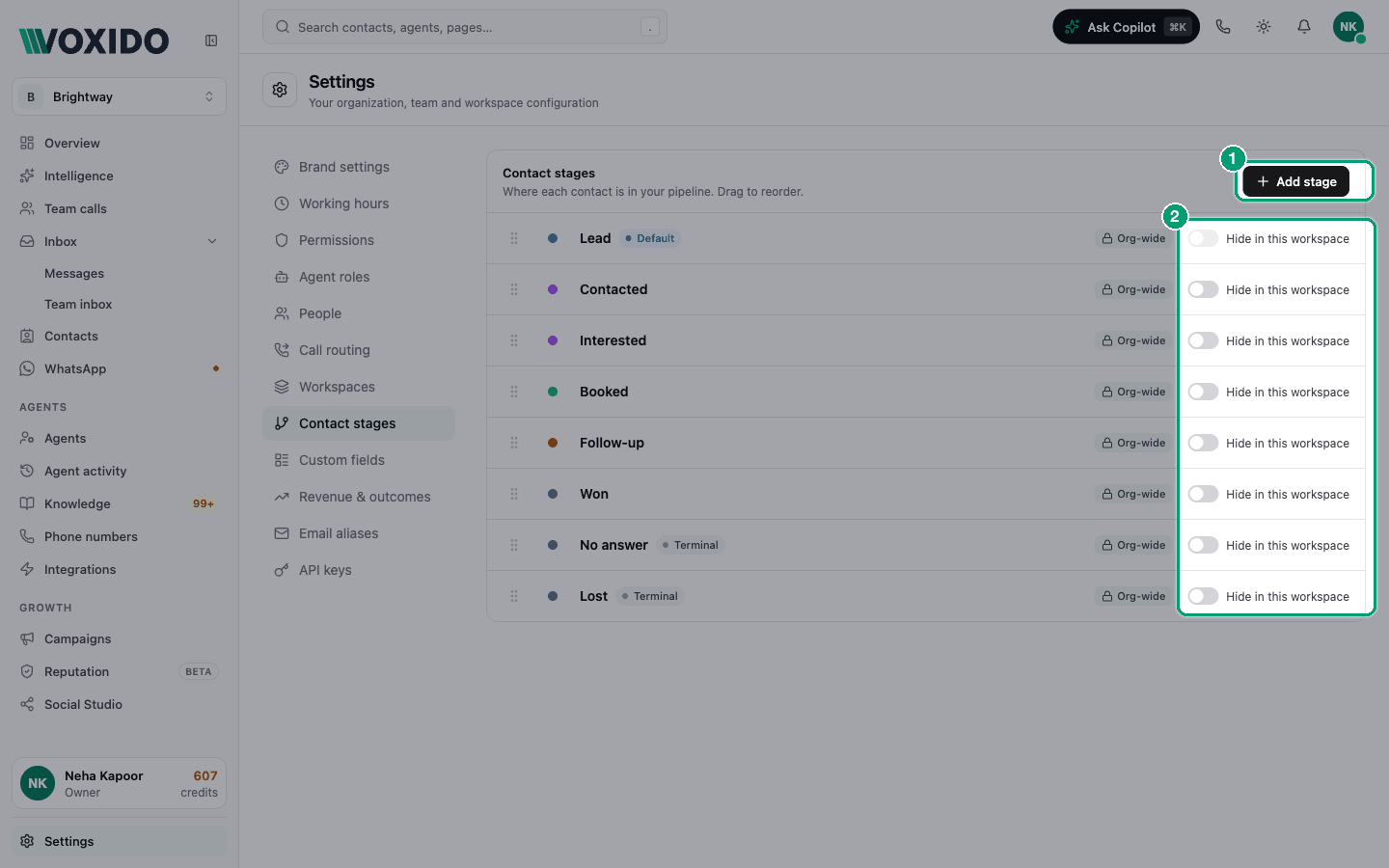
- Go to Settings → Contact stages and click Add stage. You'll see: the Add stage form with Name, Colour, Default stage and Terminal stage.
- Type a Name, such as "Interested", and pick a Colour.
- Switch on Default stage for the stage new contacts should start in. Switch on Terminal stage for an end state.
- Click Create. You'll see: "Stage created", and the stage at the bottom of the list.
- Drag each stage by its handle into the right order. You'll see: the same order on the Contacts page tabs, in filters and in every stage picker.
| Setting | What it does | Tip |
|---|---|---|
| Name | The label everyone sees. Two stages can't share a name. | The AI moves contacts by this name, so keep it clear. |
| Colour | One of 10 colours for the stage's dot and pill. | Use green for good ends, red for lost. |
| Default stage | New contacts start here: from calls, messages, Add contact and imports without a stage. Turning it on for one stage turns it off for the old default. | Usually "New" or "Enquiry". |
| Terminal stage | Marks an end, such as Won or Lost. | See What Terminal does. |
The ⋯ menu on each row has Edit, Set as default, Mark terminal (or Unmark terminal) and Delete.
Quick edits from the Contacts page
On the Contacts page, open Table settings → Stages. You can add a stage (name and one of six colours), drag to reorder, and delete. The gear button opens Settings → Contact stages for everything else.
Delete a stage
You can only delete a stage with no contacts in it. Otherwise you see "Cannot delete state: 8 contacts are assigned to it". Move those contacts first (tick them and use Change stage), then delete.
Move a contact to another stage
Any of these work, and every move lands in the contact's Activity:
- Contacts list: click the stage pill on the row and pick a stage.
- Many at once: tick the rows, then Change stage in the bar.
- Contact panel: click the stage pill under the name, or use Details → Stage.
- Edit Contact form: change Stage, then Save Changes.
- After a call: pick a Stage in "How did the call go?". See Notes and call outcomes.
- Import: a Stage column in your file. See Import contacts.
Activity shows who moved it (a person, an AI agent, an import, a sync or the system), with the old stage → the new one, for example "Meera moved the stage" with New → Booked. Click the Stage chip there to see only stage moves. See The Activity tab.
If you see "Fill in … before moving this to …", your company requires those fields before that stage. Fill them in and try again.
How stages move on their own
- After a call or chat. If the person showed they want to buy or book, and they are still on the default stage, Voxido moves them to the first stage below the default. Stages counted as won in Settings → Revenue & outcomes are skipped (see Revenue and outcomes). A contact someone already moved is never touched.
- During a conversation. An agent with the Move contact to a stage skill can move the contact itself. Turn it on in the agent's Skills, under Contacts. See Skills.
- Rules. A trigger can start an agent when a contact enters a stage. See How triggers work.
Agents can also say the stage in a greeting or prompt with the placeholder {state}.
What Terminal does
When a person moves a contact from an open stage into a Terminal one, Voxido completes that contact's open requests in the Team Inbox. The enquiry is over, so nobody chases it. The AI's own stage moves don't do this.
Terminal doesn't lock the contact. You can move them out again.
Stages with more than one workspace
A stage you create inside a workspace belongs to that workspace. A stage created in All workspaces is shared by every workspace and shows an Org-wide tag. Inside a workspace you can't edit a shared stage, but you can switch on Hide in this workspace if you don't use it there. The default stage can't be hidden. See Contacts across workspaces.
Common problems
The stage tabs show Active, Inactive, Positive and Negative. You have no stages yet. Add one and the tabs switch to your stages.
I see an upgrade card instead of the stages. Contact stages are on paid plans.
Every new lead jumps to "Lost". "Lost" is the first stage below your default. Drag your "Interested" stage right under the default.