

History and versions
Voxido keeps a record of every change to an agent. You can read the record in History, and you can bring back an older version of the Instructions from the versions menu.
Find it: Sidebar → Agents → open an agent → the versions button beside the breadcrumb, or the History section in the rail
Which one do I need?
| Your problem | Use | Why |
|---|---|---|
| "I changed the prompt and now the agent is worse." | Versions → Restore | Puts an older prompt back in the editor in two clicks. |
| "Who changed the voice, and when?" | History | Shows every saved change, with old and new values. |
| "The agent stopped answering yesterday." | History | Look for a status change (Paused) or a removed skill. |
| "I want to try a big rewrite safely." | Just save it | Every saved change to the Instructions keeps a version, so you can go back. |
Bring back an older prompt (Versions)
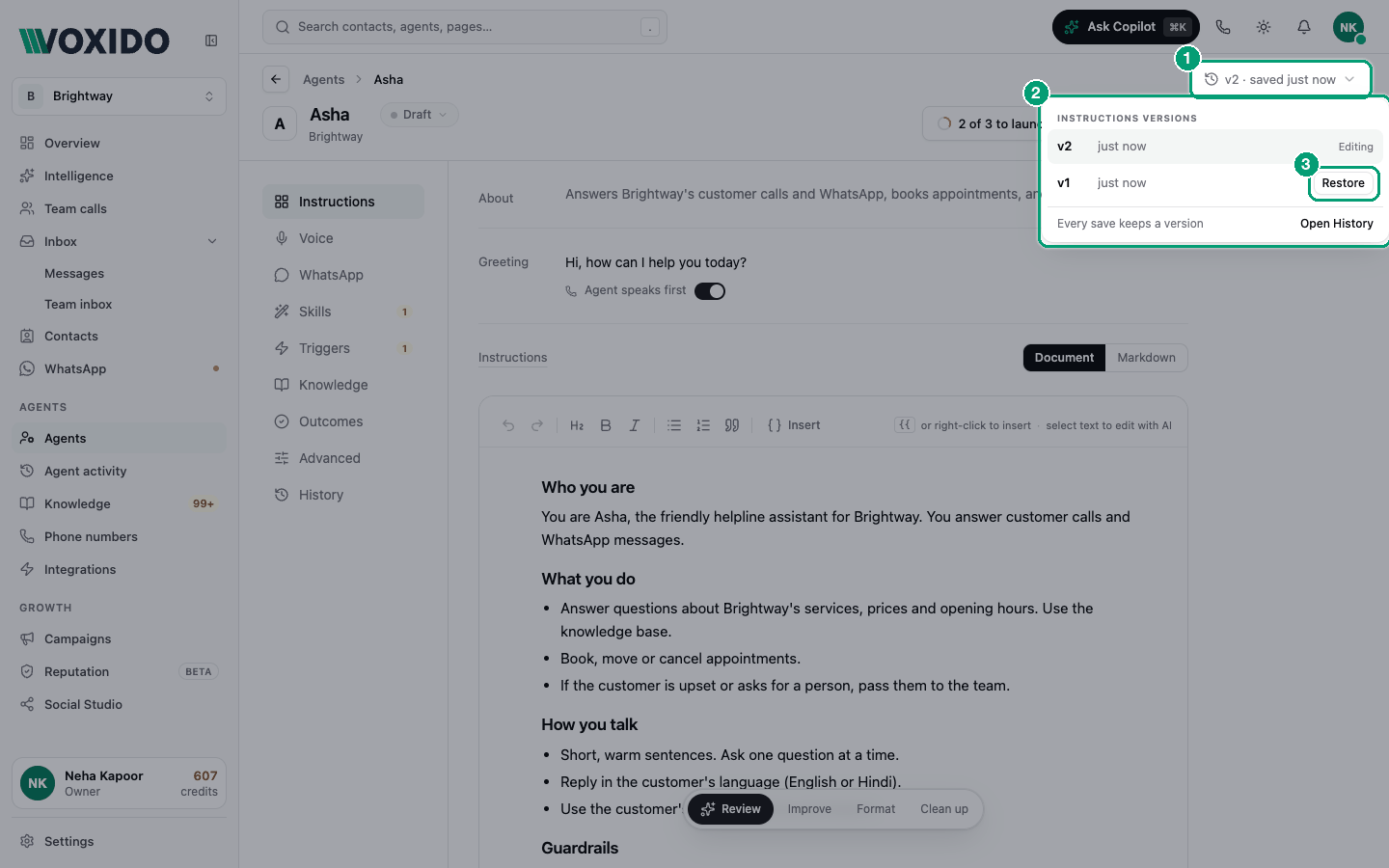
The versions button sits next to the breadcrumb at the top of the editor. It shows when the agent was last saved, and after you open it once, the version number too (for example v4 · saved …).
- Click the versions button. You'll see: a list called Instructions versions, newest first. The newest one says Editing. Older ones have a Restore button.
- Find the version you want by its time ("3 days ago") and click Restore. You'll see: a message: "Replace current draft with this version?"
- Click OK. You'll see: the older text in the Instructions box, and an amber dot on Save.
- Read it, then click Save. You'll see: "Saved". The restored text is now the newest version.
Good to know:
- A version is kept each time you save a change to the Instructions. Saving other changes, such as a new voice, doesn't add a version.
- Restore brings back only the Instructions text. The Greeting, skills, voice and other settings stay as they are now.
- Restoring doesn't delete anything. The prompt you replaced is still in the list, so you can restore it again.
- Nothing changes for customers until you click Save.
See every change (History)
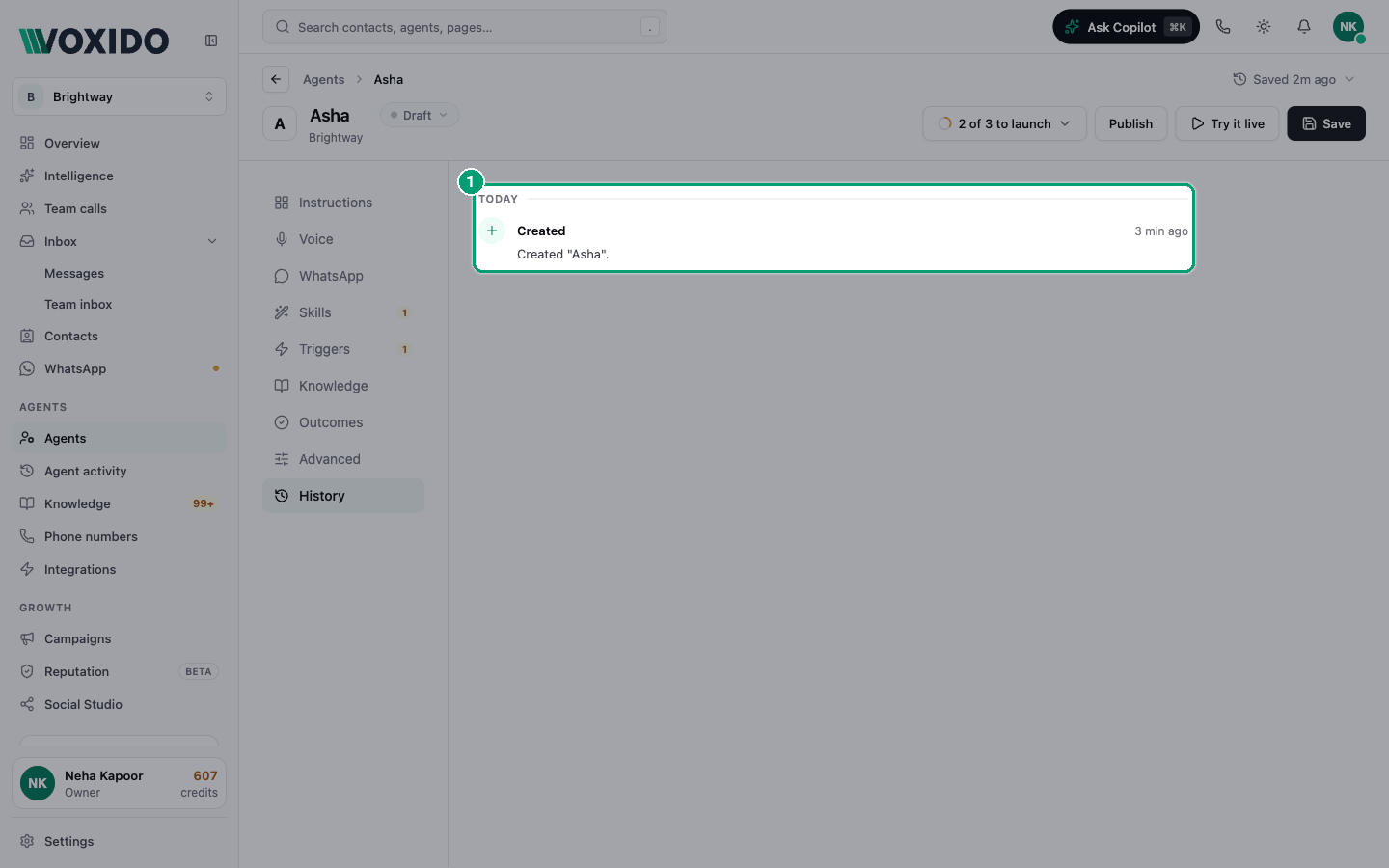
Click History, the last item in the rail.
You'll see: a timeline grouped by day (Today, Yesterday, then dates), newest first. Each entry has a label and the time:
| Label | Meaning |
|---|---|
| Created | The agent was made. Shows its name and a short summary. |
| Updated | Someone saved changes. Each change shows as Field: old → new, for example Name: Asha → Asha (Helpline). |
| Paused / Resumed | The agent was turned off or back on. |
| Deleted | The agent was deleted. |
Hover over a shortened value to see all of it. When a group of settings changed (for example Voice runtime), click Show diff to see each setting's old and new value. "re-saved, no change" means someone clicked Save without changing that group.
Open History from the versions menu
At the bottom of the versions list, click Open History to jump straight to the full record.
Common problems
The versions list says "No previous versions yet." The Instructions haven't been changed and saved since the agent was made. Older agents that were set up before the Instructions document existed also start with no versions.
"Couldn't load versions. Close and reopen to retry." Close the menu and open it again. If it keeps failing, refresh the page.
History says "Save this agent to see its history." The agent is new and has never been saved. Click Save once.
I restored a version but customers still get the old behaviour. Click Save. Then remember that a conversation already in progress keeps the settings it started with. New conversations use the restored prompt.