

Workspaces: one or several, and how to set them up
A workspace is a separate space inside your Voxido account. Each workspace has its own agents, contacts, WhatsApp numbers and campaigns. Your account has at least one, created when you set up your business.
Think of your account as a building and workspaces as rooms. Everyone shares the building's bills and front door sign (billing and brand). Each room keeps its own things.
Find it: the workspace switcher at the top of the sidebar, or Sidebar → Settings → WorkspacesWho can use it: everyone can switch between the workspaces they may open. Only Owners and Admins can create, edit, group or archive workspaces.
Do you need more than one?
The problem: "Our two branches keep mixing up each other's customers." Or: "I only have one shop. Do I need this at all?"
Most businesses need one workspace. Add more only when parts of your business have their own phone numbers, their own customers and their own team.
| Your business looks like… | Use | Why |
|---|---|---|
| One shop, clinic, salon or a one-person business | One workspace | Everything in one place. Nothing to switch. |
| A hotel group with 3 properties, or a clinic with 3 branches | One workspace per property or branch | Each branch keeps its own number, agent and guests. Head office sees all of them in All workspaces. |
| Several branches in two regions | One per branch, plus groups ("North", "South") | A regional manager sees their region together in Contacts, Overview and Team calls. |
| Separate brands (a bakery and a café) | One workspace per brand | Each brand has its own WhatsApp number, agent persona and customers. But the logo and credits are shared. |
| Departments (sales and support) | Usually one workspace, with teams in People and teams | Departments share customers. Split only if each has its own numbers and must not see the other's contacts. |
| An agency serving several clients | One workspace per client, if one shared bill is fine | Limit each client's staff to their workspace. If each client needs its own bill or logo, use a separate Voxido account per client. |
Start with one
You can add a workspace any time. Start with one, and split when you feel the need.
What's shared and what's separate
| Kept separate in each workspace | Shared by the whole account |
|---|---|
| Contacts (you can move one to another workspace; see Move a contact) | Billing and credits: one balance for all workspaces |
| AI agents (you can copy one to another workspace) | Brand: business name, logo and accent colour |
| WhatsApp numbers | The People list and teams |
| Campaigns | Call routing and working hours (a workspace can have its own timezone) |
| Messages and Team inbox jobs | API keys, SMS and email templates |
Phone numbers sit in one list for the whole account. Each number works in the workspace of the agent that answers it.
Knowledge, custom fields, contact stages and segments can be either. A shared one shows an Org-wide badge and is edited from All workspaces. Inside one workspace you can only hide it, with Hide in this workspace.
Create a workspace
- Click the workspace switcher at the top of the sidebar. You'll see: a list of your workspaces with a search box.
- Click Create workspace. (Or go to Settings → Workspaces → New workspace.) You'll see: Create a workspace, "Give it a name — you can rename it any time."
- Type a Name, like "Brightway Andheri".
- Pick a Timezone if this branch is in a different timezone. Leave it empty to use the company timezone. Slug is optional; you can skip it.
- Click Create workspace. You'll see: "Workspace created" and the new workspace in the switcher.
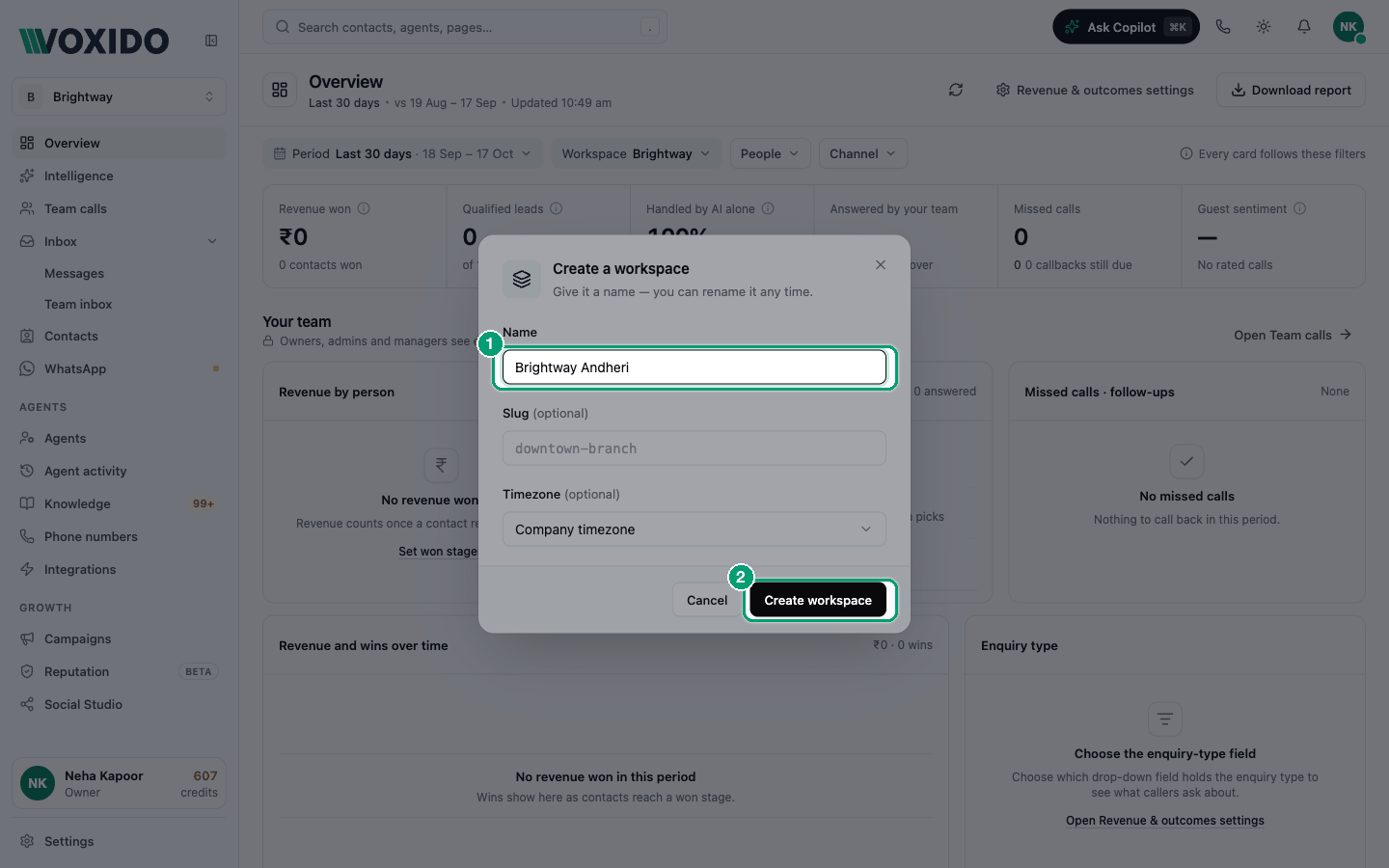
A new workspace starts empty. Nothing is copied. Next:
- Copy an agent into it: Sidebar → Agents → ⋯ on an agent → Copy to another workspace…
- Give it a number or WhatsApp. See Getting your first phone number.
- Choose who works in it: in People and teams, set each person's workspaces.
Switch workspaces
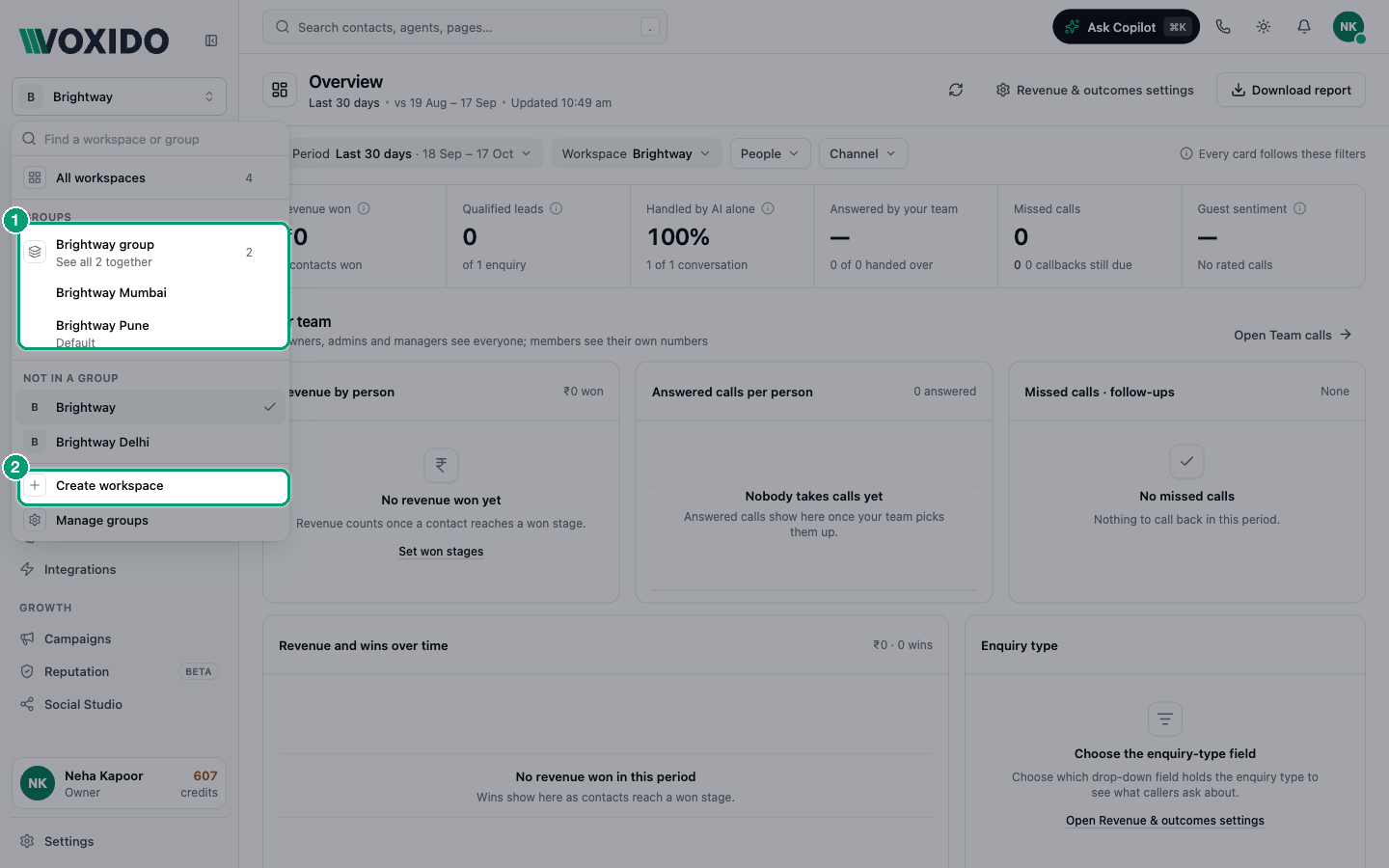
- Click the workspace switcher.
- Type in Find a workspace… or scroll, then click a workspace. You'll see: the switcher shows its name, and every page now shows that workspace's data.
Signs in the list:
- Default: the workspace made at setup. New things land here when no workspace is picked.
- A lock: the workspace is Members only (see below).
See everything: All workspaces
Pick All workspaces to see every workspace together. Contacts gets a Workspace column so you can tell them apart. It only shows when you have two or more workspaces, and only to people who may open every workspace.
Group workspaces
A group is a named set of workspaces that you look at together, like "Consumer (B2C)" or "North branches".
Why groups exist
The problem: one company, two very different teams.
- The B2C team looks after 10 hotel properties. Each property is its own workspace, with its own number, agent and guests. They track guests with stages like Enquiry → Booked → Checked in → Checked out, and fields like Check-in date, Room type and Rate plan.
- The B2B team sells to companies. Their stages are Lead → Demo → Proposal → Won, and their fields are Company size, GSTIN and Decision maker.
The B2C manager wants to see all 10 hotels in one list. Without groups, the only way to see more than one workspace at a time is All workspaces, and that shows everything: company leads next to hotel guests, GSTIN next to Room type, and both teams' stages in the same pipeline. It's confusing, and people pick the wrong stage or field.
Why a group fixes it: a group is a saved view of just the workspaces you pick. Open the "Consumer (B2C)" group and Contacts, Overview and Team calls show only the 10 hotels. Open "Business (B2B)" and you see only the B2B workspaces. Each team works in its own world, and nobody has to filter every time.
What a group does, and what it doesn't
| A group… | |
|---|---|
| Shows its workspaces together in Contacts, Overview and Team calls | Yes. Contacts adds a Workspace column and a Workspace filter, so you can still tell the properties apart. |
| Changes who can see which contacts | No. That's Workspace access on each person (see Who sees which workspace). |
| Shares agents, phone numbers, teams or call routing between its workspaces | No. They stay with each workspace. |
| Gives its workspaces their own stages and fields | No. Stages and fields belong to a workspace, or to the whole account. See Keep each team's stages and fields apart. |
| Changes other pages, such as Agents or Campaigns | No. They still show all workspaces, with a note at the top saying so. |
Other rules: a workspace can be in one group at most. Groups are for people who can open every workspace (Owners, Admins, and anyone whose Workspace access is All workspaces). Someone limited to some workspaces doesn't see groups; they work one workspace at a time.
Set up groups
- Create one workspace per property, branch or team. See Create a workspace.
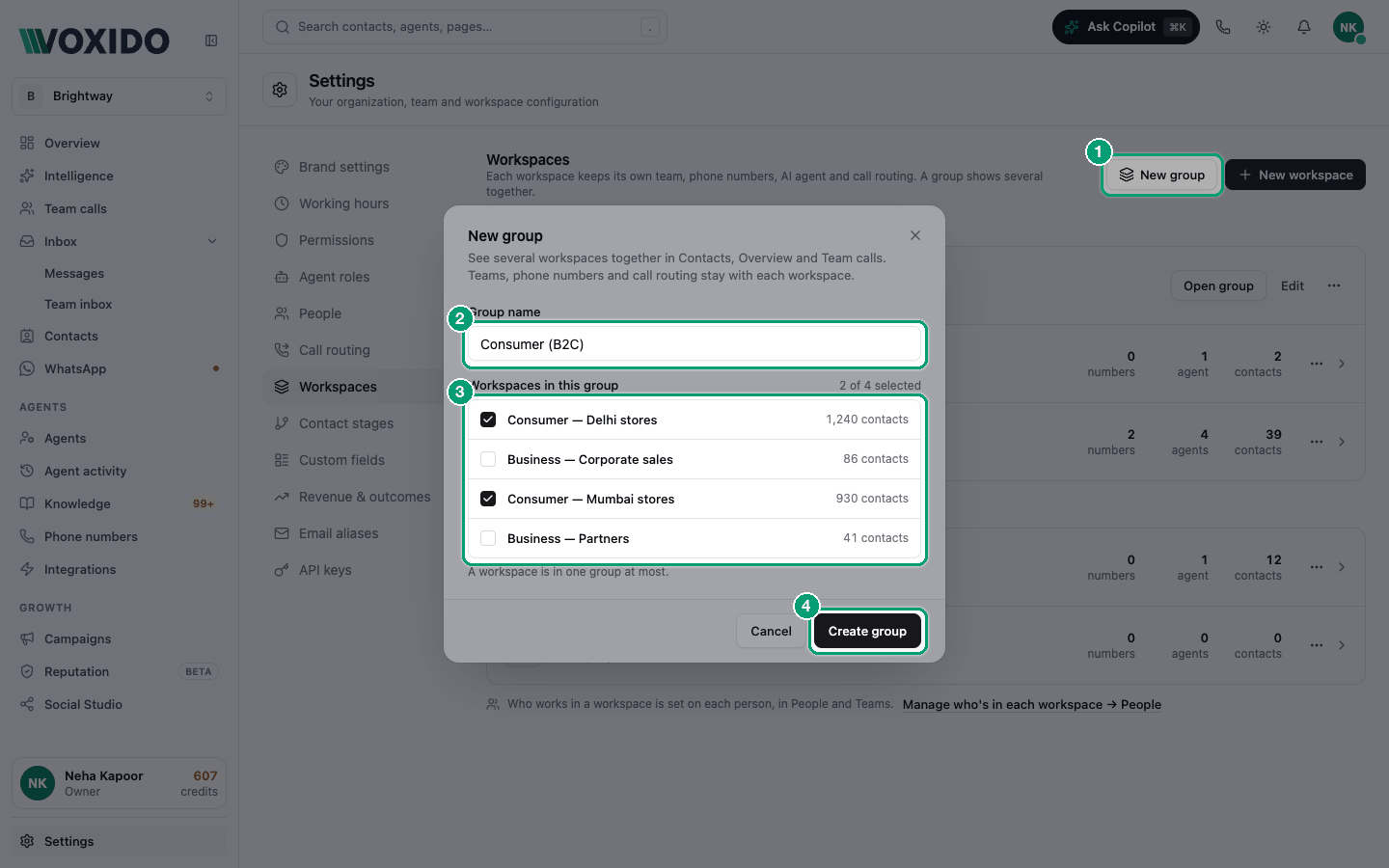
- Go to Settings → Workspaces and click New group. You'll see: New group, "See several workspaces together in Contacts, Overview and Team calls. Teams, phone numbers and call routing stay with each workspace."
- Type a Group name, such as
Consumer (B2C). - Under Workspaces in this group, tick the workspaces that belong together. You'll see: "2 of 4 selected" (or your numbers) at the top right of the list.
- Click Create group. You'll see: "Group created". The group appears under Groups on the Workspaces page and in the workspace switcher.
- Repeat for the other team, for example
Business (B2B).
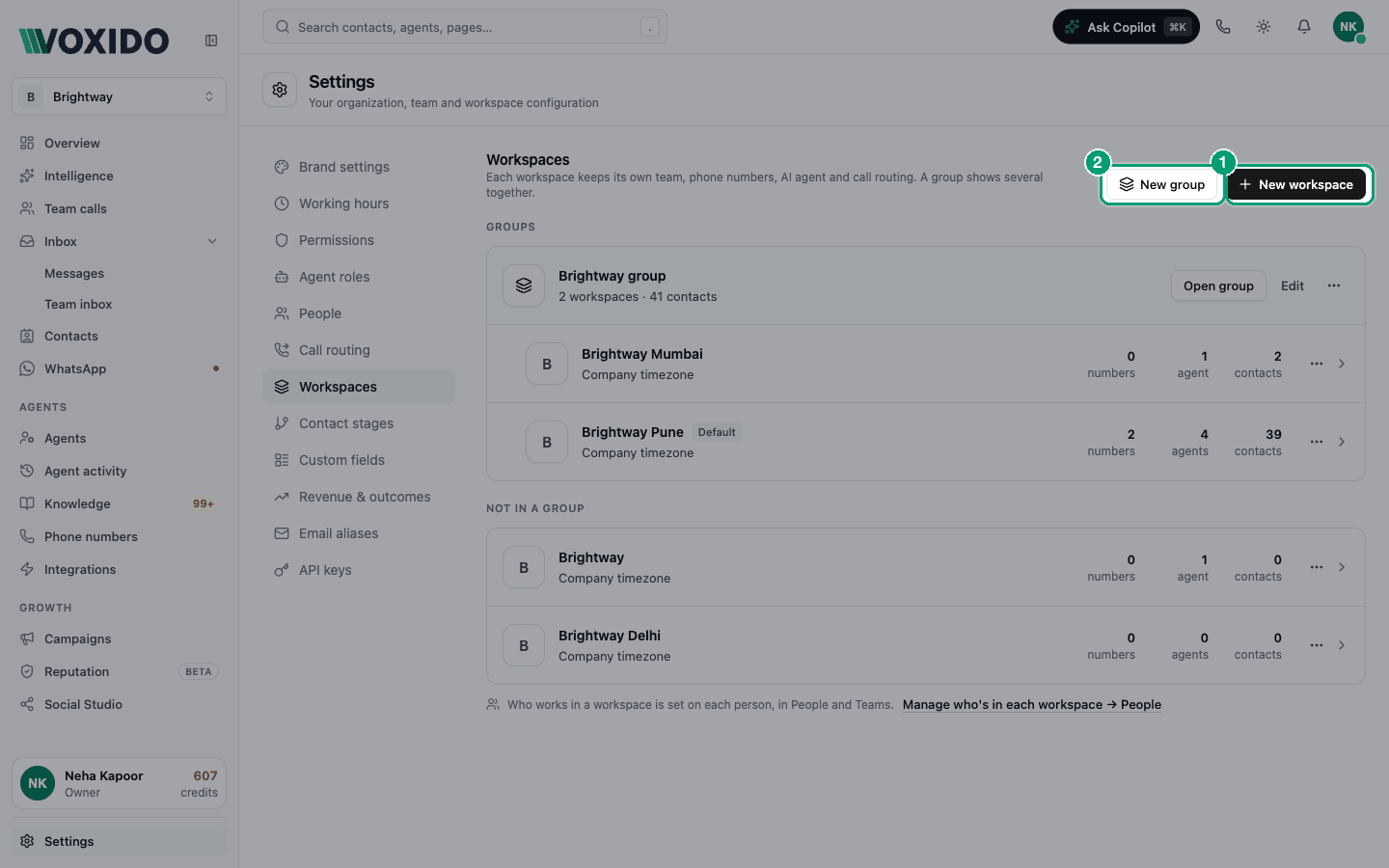
To change a group later, click Edit on it. To remove it, click ⋯ → Delete group…. Deleting a group keeps its workspaces and their contacts exactly as they are.
Keep each team's stages and fields apart
A group doesn't own stages or fields, so decide where each one lives:
| You want… | Do this |
|---|---|
| A stage or field only one team uses, in one workspace (for example GSTIN in the B2B workspace) | Create it inside that workspace. Only that workspace sees it. |
| The same stages or fields in many workspaces of one team (for example Room type in all 10 hotels) | Create it once in All workspaces (it becomes Org-wide), then open each workspace of the other team and switch on Hide in this workspace. |
| Something both teams use (for example Follow-up date) | Create it in All workspaces and leave it showing everywhere. |
Inside a workspace, an Org-wide stage or field is read-only. Edit it from All workspaces. The default stage can't be hidden. Details: Contact stages and Custom fields.
Three ways companies use groups
1. One company, a B2B team and a B2C team
| Business (B2B) | Consumer (B2C) | |
|---|---|---|
| Workspaces | B2B — Corporate sales, B2B — Partners | One per hotel: Hotel Pune, Hotel Goa, … (10) |
| Stages | Created inside the B2B workspaces: Lead, Demo, Proposal, Won | Created in All workspaces: Enquiry, Booked, Checked in, Checked out. Hidden in the B2B workspaces. |
| Fields | Company size, GSTIN, Decision maker, inside the B2B workspaces | Check-in date, Room type, Rate plan, Org-wide and hidden in the B2B workspaces |
| People | Sales reps limited to the two B2B workspaces | Front-desk staff limited to their own hotel |
| Who uses the group | The B2B head (access: All workspaces) | The B2C operations manager (access: All workspaces) |
The B2C manager opens Consumer (B2C) and sees every hotel's guests in one list, with only hotel stages and fields. The B2B head opens Business (B2B) and sees only company leads.
2. A clinic chain with two regions
Eight clinics, each a workspace. Group them as North and South. Each regional manager opens their region and compares bookings and calls in Overview and Team calls, without the other region's numbers. All clinics share the same stages, so create stages once in All workspaces.
3. A healthcare company with clinics and diagnostic labs
Clinics book appointments (Requested → Confirmed → Visited). Labs collect samples (Pickup booked → Sample collected → Report ready). Put the clinics in a Clinics group and the labs in a Labs group. Create each side's stages inside its own workspaces (or Org-wide and hidden on the other side). The lab head sees pickups and reports, never clinic appointments.
Use a group every day
- Click the workspace switcher at the top of the sidebar.
- Under Groups, click the group's name. You'll see: the switcher shows the group name. Contacts, Overview and Team calls now show only the group's workspaces.
- In Contacts, use Filters → Workspace to narrow to one or two of them. See Contacts across workspaces.
- To add a contact or import a file, open the single workspace it belongs to. A contact always lives in one workspace.
Let Copilot help
Copilot reads these docs, so you can plan with it in plain words. For example:
We're one company with a B2B sales team and a B2C team that runs 10 hotels. How should we set up workspaces, groups, stages and fields so the teams don't see each other's contacts or columns?
Copilot can explain the options, list the stages and fields you already have, and create or edit stages, fields and people for you (you approve each change). Creating workspaces and groups, and switching on Hide in this workspace, you do yourself in Settings, using the steps above.
Edit a workspace
Go to Settings → Workspaces, then click ⋯ on a row.
| Menu item | What it does |
|---|---|
| Rename | Change the name. |
| Set timezone and access | Change the timezone and who can message its numbers. |
| Make default | Make this the Default workspace. |
| Archive… | Hide it from the switcher. See below. |
Who can message this workspace's numbers
| Option | What happens | Good for |
|---|---|---|
| Open (usual) | Anyone can message. New senders become contacts. | Most businesses. |
| Members only | Only existing contacts in this workspace get replies. | A school answering only its parents, a members-only club, a staff line. |
With Members only, you write a Reply to unknown numbers. It's sent once per sender per day. Unknown senders are logged in Team inbox, and no contact is created.
Archive a workspace
Archiving hides a workspace from the switcher. There is no delete, so nothing is lost. To bring it back, click ⋯ → Restore.
You can't archive:
- the Default workspace (make another one default first), or
- a workspace that still has agents, numbers or integrations assigned. Move them first.
Who sees which workspace
| Role | Workspaces they can open |
|---|---|
| Owner, Admin | Every workspace, always. They can use All workspaces and groups. |
| Manager, Member | All workspaces, or only the ones ticked in their Workspace access. |
Someone limited to some workspaces works in one at a time. They don't see All workspaces or groups. To keep two teams from seeing each other's contacts, limit each person to their team's workspaces. Give All workspaces access only to the people who need the group views.
To change it: Settings → People → ⋯ on the person → Workspace access. See Managing your team.
Common problems
I don't see "Create workspace". Only Owners and Admins can create workspaces.
"Your plan allows up to … workspace(s)." Your account has a workspace limit. Archived workspaces count too. Ask Voxido support to raise it.
"This workspace still has resources assigned to it." Move its agents, numbers and integrations to another workspace, then archive it.
I can't edit a stage or field inside a workspace. It's shared (Org-wide). Switch to All workspaces to edit it.
I don't see Groups in the workspace switcher. Either no group exists yet (an Owner or Admin creates one in Settings → Workspaces), or your Workspace access is limited to some workspaces. Groups only show to people who can open every workspace.
The other team's fields still show in my group. They're Org-wide. Open each workspace that doesn't use them and switch on Hide in this workspace, or create them inside the workspaces that need them instead.
I can't tick a workspace in New group. It's already in another group. Remove it from that group first; a workspace can be in one group at most.