

Topping up your wallet
When you need more credits, you buy a credit pack. The credits go into your wallet and never expire. You pay through Razorpay, a secure Indian payment service, with UPI, card or net banking.
Find it: header → your photo → Billing → Top up credits. The Add Credits button on the low-balance strip opens the same window. Who can use it: Owners and Admins
Which pack to pick
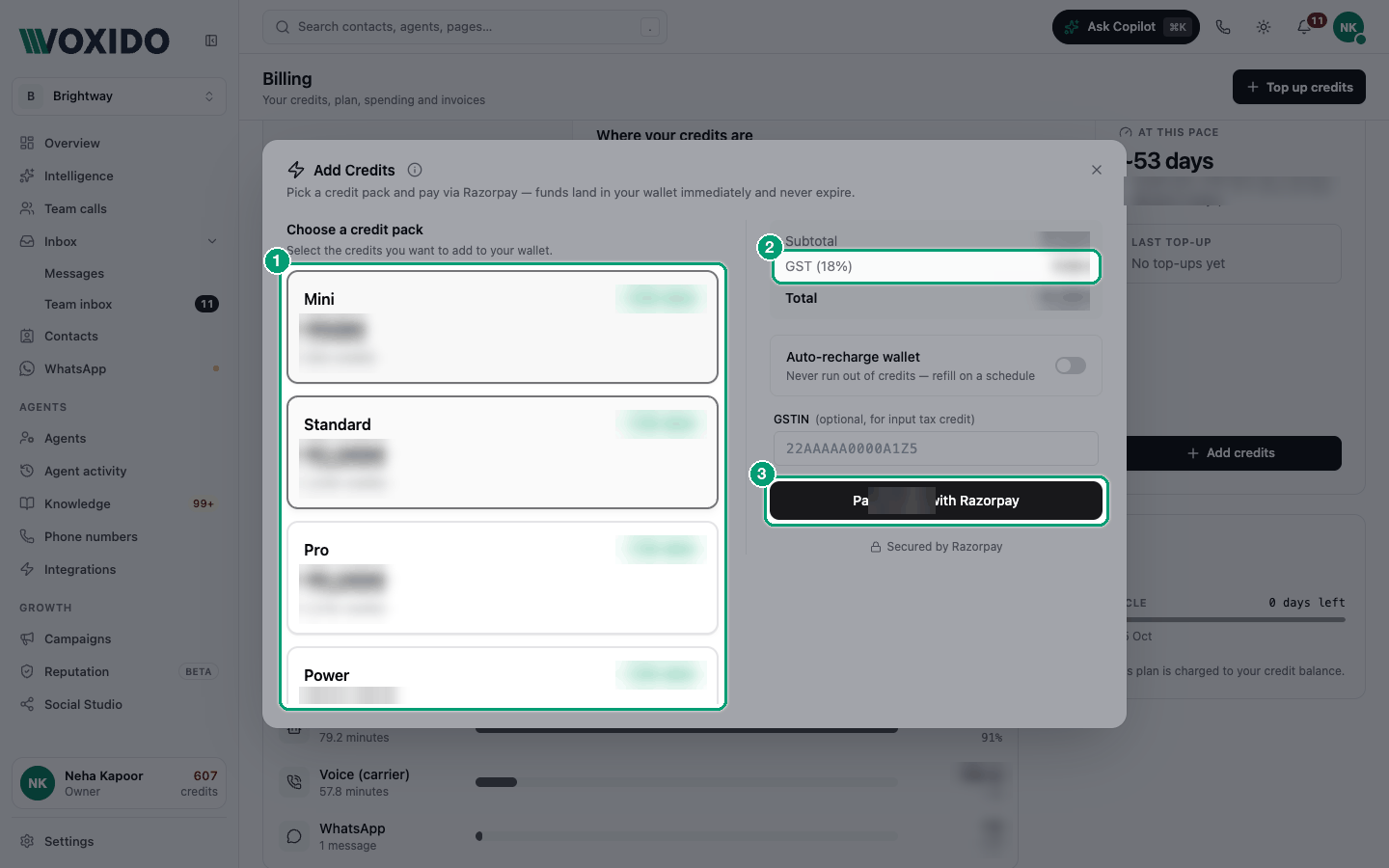
The Add Credits window lists the packs on offer today. Each card shows what you pay and how many credits you get. Packs and their prices can change, so check the window rather than an old screenshot or invoice.
| If you… | Pick |
|---|---|
| Are testing after your trial | A small pack |
| Run one agent with steady daily calls | A pack that covers about a month of your usage. Billing → At this pace shows how long your credits last. |
| Run campaigns or several workspaces | A larger pack, or switch on auto-recharge |
You can only buy a pack. There's no box to type your own amount.
Buy a pack
- Click Top up credits on the Billing page. You'll see: the Add Credits window: "Pick a credit pack and pay via Razorpay — funds land in your wallet immediately and never expire."
- Under Choose a credit pack, click a pack. You'll see: the price below: Subtotal, GST (18%) and Total.
- Need a GST invoice for your business? Type your GSTIN (your 15-character GST number). Then fill in Legal entity name and State, which become required.
- Click Pay ₹… with Razorpay. You'll see: the Razorpay payment window.
- Pay with UPI, card or net banking. You'll see: "Payment successful" and "Credits added to your wallet." The Billing page refreshes your balance.
Want it to happen by itself?
The same window has an Auto-recharge wallet switch. See Setting up auto-recharge.
About GST
Every pack price is before tax. 18% GST is added on top, and the window shows the Subtotal, GST (18%) and Total before you pay.
If you add your GSTIN, it's printed on your invoice so your business can claim the tax back (input tax credit). Leave it empty if you don't need that.
Find your receipt
- On the Billing page, under Activity, click Invoices. You'll see: a list with Date, Invoice and Amount.
- Click the download button on a row to get the PDF.
- To download several, tick them and click Download N selected.
The Payments tab lists every top-up with the Credits added.
Common problems
I paid but my credits haven't shown up. If you see "Payment captured — confirming…", your money reached Voxido and the credits will land shortly. Keep the payment reference shown in that message. If they still don't appear, contact Voxido support with it.
"Razorpay failed to load." Check your internet connection and try again.
"Add your legal entity name and state when using a GSTIN." With a GSTIN, both fields are required.
I don't see Billing. Only Owners and Admins can open it. Ask one of them to top up.