

Segments and filters: find the right group of contacts
"Who checks in next week?" "Which leads haven't we called?" Filters answer a question once. A segment is a filter you save with a name, so you, your team and your campaigns can use it again. Both always show the contacts that match right now.
Find it: Sidebar → Contacts → Filters (and the Segments tab)
Which one do you need?
| If you want… | Use | Why |
|---|---|---|
| A quick look, such as "my contacts added this week" | Filters (quick rows) | Two clicks. Not saved. |
| Your own rule, just for you, such as "budget over 5,000" | Filters → Advanced | Remembered in your browser. |
| A named group the whole team reuses | A segment | Shared, with a live count, and usable in campaigns. |
Quick filters
- Click Filters in the toolbar. You'll see: a short list: Source, Workspace, Owner, Created, Updated and Segment, each saying "Any" until you pick.
- Open a row and tick what you want.
| Row | What it narrows by |
|---|---|
| Source | How the contact came in: Voxido (created by the AI), PMS Sync, Import, Manual, API, System. |
| Workspace | Only in All workspaces or a workspace group. See Contacts across workspaces. |
| Owner | Me, Unassigned, or people by team, each with a count. See Owner, Backup owner and Reporter. |
| Created | When the contact was created: Today, Yesterday, Last 7 days, Last 30 days, Last 90 days, This month, Last month, or Custom range… (It used to be called Added.) |
| Updated | When the contact last changed, with the same choices as Created. Good for "who did we touch this week?" |
| Segment | One or more saved segments. Pick several to see contacts in any of them. |
You'll see: a chip for each pick under the toolbar, such as "Owner: Me". Click × on a chip to remove it, or Clear all to remove everything.
Quick filters, the stage tab and the search box always add up: each one narrows the list further. Quick filters reset when you reload the page.
Advanced filters: your own rules
- Click Filters, then Advanced at the bottom. You'll see: the Filters panel with one rule to start: Name contains.
- For each rule, pick a Field, an Operator and a Value. Click Add condition for more.
- With two or more rules, choose Match ALL (every rule must be true) or ANY (at least one).
- Click Apply filters. You'll see: the list narrow, and an Advanced chip with the number of rules.
Advanced rules are remembered in this browser for this workspace.
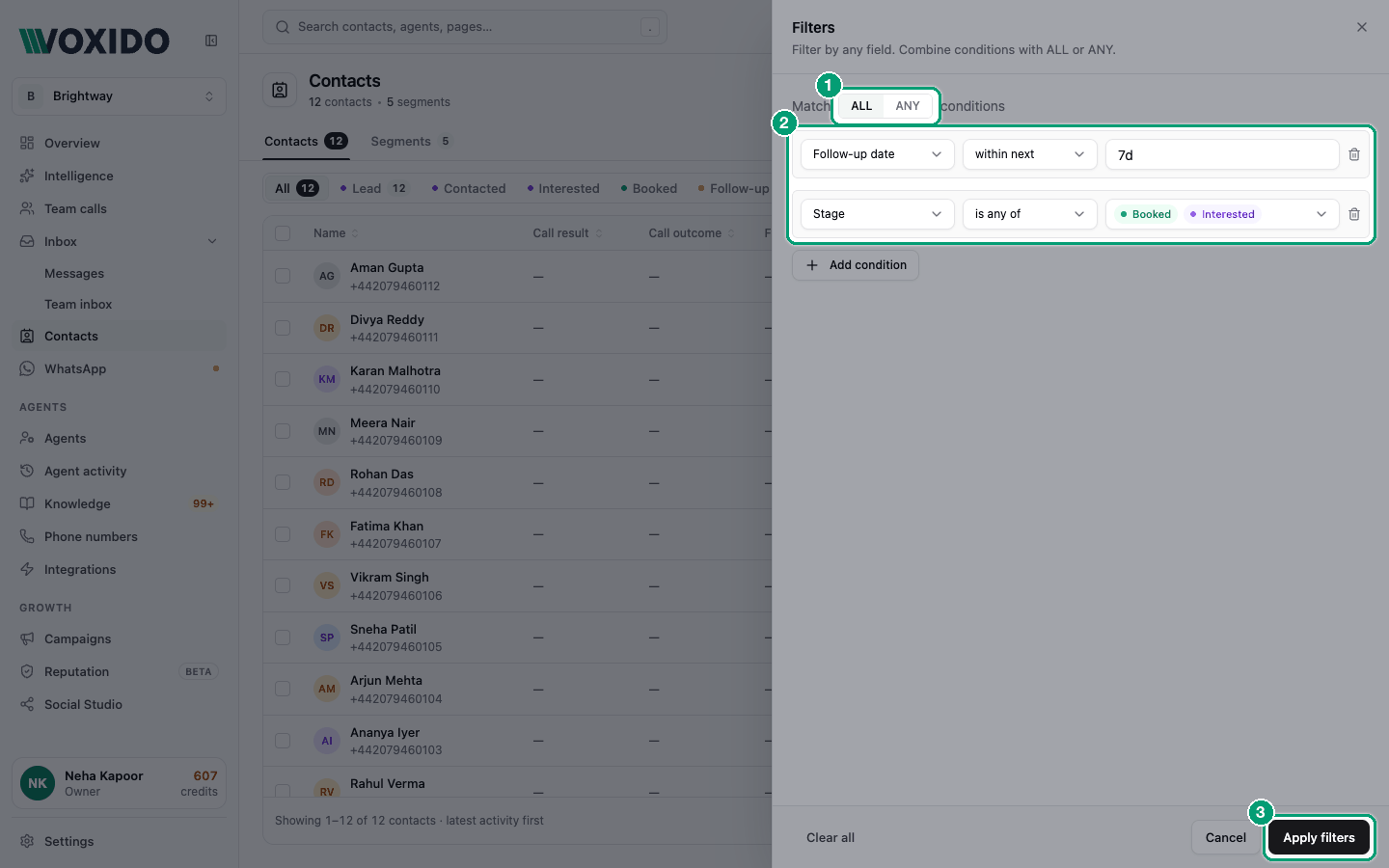
Fields you can filter on
| Group | Fields |
|---|---|
| Core | Name, Email, Phone, Owner, Status, Stage, Source, Tags |
| Activity | Call Count, Last Call Status, Line, Last Call At, Call back on, Created, Updated |
| Conversations | Call Sentiment, Call Hour of Day, Conversation Date, Outcome, Outcome Category |
| Campaigns | Campaign reached, Replied to campaign, Campaign couldn't reach, Completed campaign |
| Your custom fields | Listed under their field group |
Operators
| Field kind | Operators |
|---|---|
| Text | equals, does not equal, contains, does not contain, starts with, ends with, is empty, is not empty |
| Number | equals, does not equal, greater than, less than, is empty, is not empty |
| Date | before, after, within last, within next, is empty, is not empty |
| Picklist | equals, does not equal, is any of, is none of, is empty, is not empty |
For within last and within next, type a length of time: 7d (7 days), 24h (24 hours) or 30m (30 minutes).
Three rules of thumb
- "within next 7d" also includes dates already past. It means "up to 7 days from now". Add "within last 1d" on the same field to drop old dates.
- Use "is any of" only for Stage and Owner. For other picklists, use equals. To match several values, add one equals rule per value and pick ANY.
- Skip "between". Use two rules, greater than and less than, with Match ALL.
Examples
Guests checking in next week (hotel) or appointments in the next 7 days (Brightway) Match ALL: Check-in date within next 7d, and Check-in date within last 1d. You get dates from yesterday up to 7 days ahead.
Leads not called in 3 days There is no "not within", so make two segments and pick both in Filters → Segment:
- "Leads never called": Stage is any of New, Interested, and Last Call At is empty.
- "Leads not called recently": Stage is any of New, Interested, and Last Call At before the date 3 days ago. "before" uses a fixed date, so update it when you reuse the segment.
Promises due in the next 3 days (loan recovery) Click the Promised to pay stage tab. In Advanced: Promise date within next 3d, and Promise date within last 1d.
Call backs due within a day, or overdue (clinic)Call back on within next 1d. Contacts with no call back aren't included.
Grade 10 enquiries this month (school)Created: This month. In Advanced: Grade equals 10.
Big-budget leads never called (real estate)Budget greater than 10000000, and Call Count equals 0. This works when budgets are saved as plain numbers.
Save a segment
- Open the Segments tab and click Create Segment. You'll see: the Create Segment form.
- Type a Name, such as "Leads never called", and an optional Description.
- Under Filter Conditions, add your rules the same way as in Advanced.
- Click Preview count to see how many contacts match today. You'll see: the button change to the count, such as "42 contacts".
- Click Create Segment. You'll see: "Segment created", and the segment in the list with its rules and count.
To use it, go to the Contacts tab → Filters → Segment and tick it.
Each segment's ⋯ menu has Edit, Refresh Count (updates the number on the card) and Delete. Deleting a segment never deletes contacts.
Segments and campaigns
A campaign's audience can start From segment…: it copies the segment's rules. After that, the two are separate, so editing the segment doesn't change the campaign. Rules a campaign can't use, such as date windows and call activity, are skipped, and it tells you how many. A segment that uses ANY can't be copied. See Campaigns overview.
Arriving from a chart or a campaign
When you click a number on the Overview page or on a campaign, Contacts opens with a blue banner, such as "Showing the 23 contacts who replied to…". The rule sits under Advanced, so you can refine it. Click Clear on the banner to see everyone again.
Common problems
I see an upgrade card on the Segments tab. Segments are on paid plans.
My segment can't use "Me". A segment means the same people to everyone, so it can't say "Me". Use the Owner row in quick filters instead.
I can't edit a segment. It says Org-wide. It was made in All workspaces and is shared. Edit or delete it from All workspaces.
The segment builder lists a field I hid. The segment form lists every field in your account, including hidden ones and other workspaces' fields.