

Triggers: choose when your agent starts
A trigger is the moment that wakes your agent up. "A customer sends a WhatsApp." "It's 9 am every Monday." "Tomorrow is the appointment." Without a trigger, your agent never starts on its own.
Find it: Sidebar → Agents → open an agent → Triggers
Pick your trigger: problem → which trigger
| Your problem | Trigger to add | Why this one | Details |
|---|---|---|---|
| "Customers message us on WhatsApp and wait hours for a reply." | When a customer messages on WhatsApp | Starts the moment a message arrives. | Inbound triggers |
| "Calls go unanswered at night." | When a customer calls one of my numbers | The agent answers every call, any hour. | Inbound triggers |
| "People forget appointments, EMIs or check-ins." | Before or after a contact date | Fires a set time before or after a date saved on each contact. | Date reminders |
| "I want a weekly check-in with all members." | On a recurring time | Runs on a clock, for everyone who matches your filter. | Recurring outreach |
| "New leads should get a call quickly." | Place a call on a schedule | Dials matching contacts on a regular schedule. | Scheduled calls |
| "When staff mark a lead 'Visit booked', send directions." | When a contact's status changes | Fires when a person moves the contact to a stage. | Contact changes |
| "Remind anyone whose payment is overdue." | When a contact's info matches | Checks a field (like "Days overdue") and fires when it matches. | Contact changes |
| "When a form on our website is filled, reply at once." | When an external system notifies us | Your website, Zapier or n8n calls a web address, and the agent starts. | Webhook trigger |
Ready-made, step-by-step examples: Trigger recipes.
The trigger types
The Add a trigger window groups them like this:
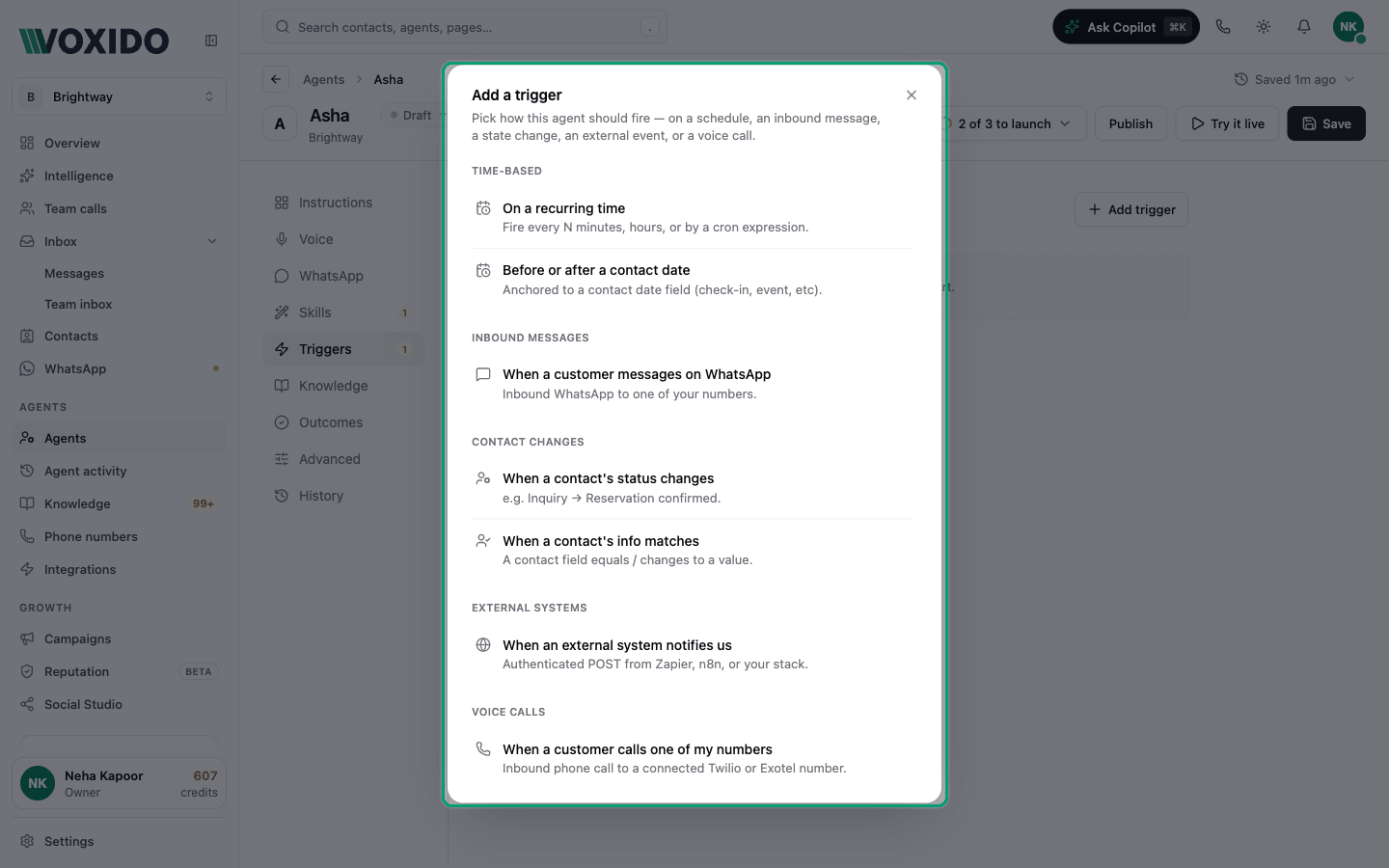
| Group | Trigger | Starts when… | Reaches out on its own? |
|---|---|---|---|
| Time-based | On a recurring time | A schedule you set comes round | Yes |
| Time-based | Before or after a contact date | A date on the contact is near or has passed | Yes |
| Inbound messages | When a customer messages on WhatsApp | Someone messages one of your WhatsApp numbers | No |
| Contact changes | When a contact's status changes | A person moves a contact to another stage | No |
| Contact changes | When a contact's info matches | A contact field matches your rule | Yes |
| External systems | When an external system notifies us | Another system sends a signed request | No |
| Voice calls | When a customer calls one of my numbers | Someone calls your number | No |
| Voice calls | Place a call on a schedule | A schedule comes round, for each matching contact | Yes |
Triggers that reach out on their own use credits
"Reaches out on its own" means the agent contacts many people without anyone clicking send. Each contact it reaches uses credits. When you add On a recurring time, Before or after a contact date or Place a call on a schedule, Voxido asks Enable automatic outreach? first. When you publish an agent with these triggers (or When a contact's info matches), it asks Activate this agent? and warns they start within 60 seconds. Always add a contact filter so you reach only the right people.
Add a trigger
Before you start: save the agent once. A new, unsaved agent shows "Save this agent once to add triggers."
- Open your agent and click Triggers in the left rail. You'll see: "What should start this agent? Add one or more triggers." and an Add trigger button.
- Click Add trigger. You'll see: the Add a trigger window, grouped as in the table above.
- Click the trigger you want. You'll see: the trigger appears in the list, opened, with its settings. For a trigger that reaches out on its own, you first see Enable automatic outreach?. Click Enable to go on.
- Fill in the settings. Each change saves by itself. You'll see: a small "Saving..." note under the settings.
- Click the trigger's row to close it. You'll see: a one-line summary, like "Daily at 9:00 AM · for contacts where Tags contains vip".
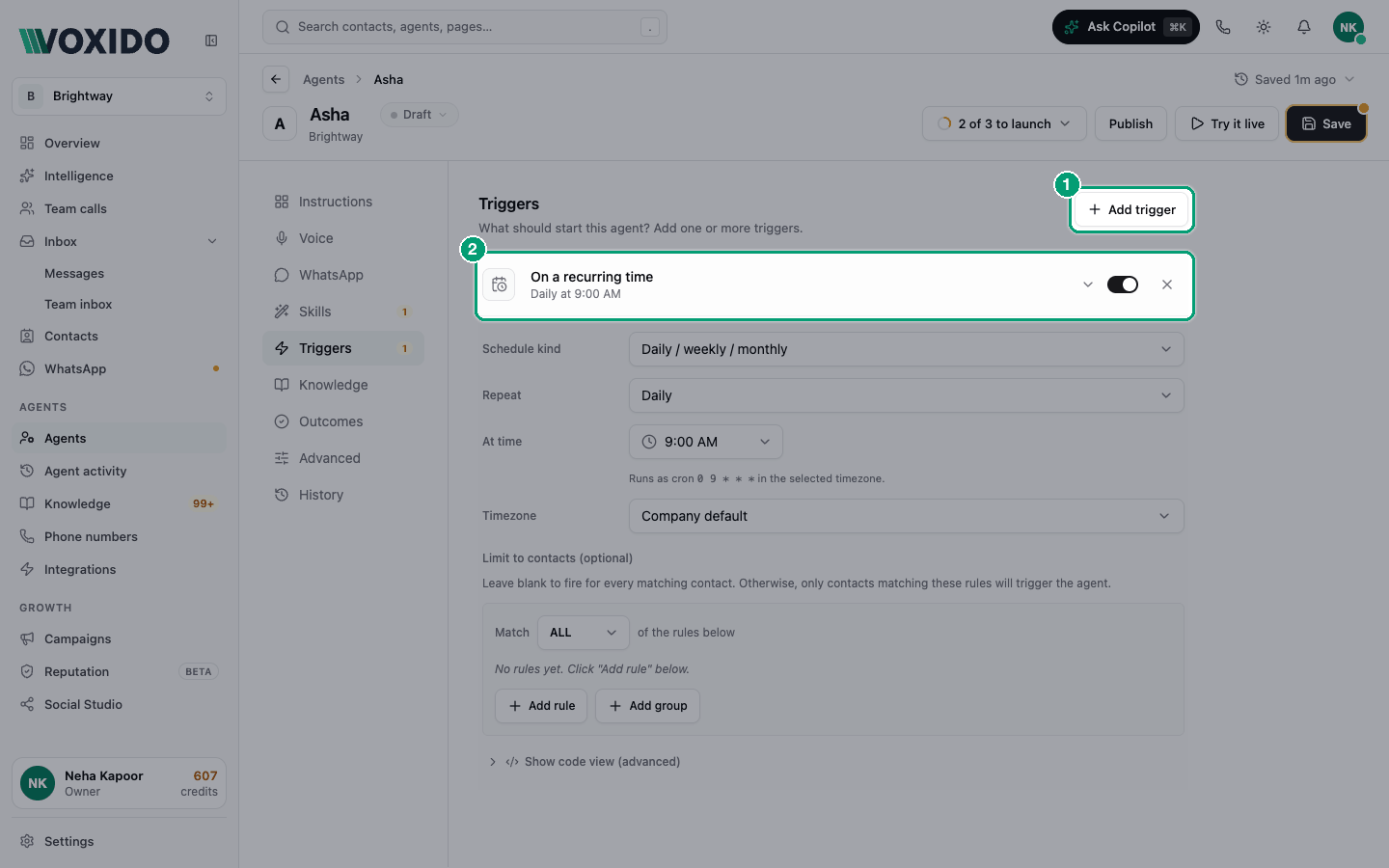
An agent can have several triggers. For example, it can answer inbound WhatsApp and send reminders.
Turn a trigger off, or remove it
Each trigger row has a switch and an ×.
- Switch off to pause just that trigger. The row shows Off. For inbound triggers, the agent stops answering those messages or calls until you turn it back on.
- × removes the trigger.
A trigger made by a campaign shows a Campaign · name tag. You can't change or remove it here; edit the campaign in Sidebar → Campaigns. See Campaigns.
Choose which contacts a trigger reaches
Most triggers have Limit to contacts (optional) (called Contact filter or Target audience on some). Leave it blank and the trigger covers every contact in this agent's workspace. Add rules to narrow it.
- Click Add rule.
- Pick a field (for example Stage, Tags or one of your custom fields), a comparison (for example equals, is empty, is at least) and a value.
- Add more rules. Use Match ALL (every rule must be true) or Match ANY (one is enough). Add group lets you mix both.
Example: Stage equals "New lead", Match ALL, Call result is empty.
Team members saved as contacts are never reached by these triggers.
What must be true for any trigger to fire
- The agent is Active. Draft, Paused and Archived agents never run. Publish the agent from its header.
- The trigger is switched on.
- The contact can be reached. Deleted, blocked, snoozed and opted-out contacts are skipped. Messaging rules (quiet hours, sending limits, opt-outs) are checked again right before sending.
When two agents could answer the same message
Only one agent answers. If several triggers match, the most specific one wins. A trigger with a number, keywords or a contact filter beats one that matches "any". Keep one general agent, and add filters to the special ones.
Common problems
My trigger doesn't fire. Work through Troubleshooting a trigger that won't fire.
I can't click Add trigger. Save the agent first.
The switch on a trigger is greyed out. A campaign manages it. Change it from Campaigns.