

Choose who gets a campaign and how fast it calls
The Audience & limits panel answers two questions: who enters this campaign, and how fast it may call them.
Find it: Sidebar → Campaigns → open a campaign → click the Audience & limits card (above the first step)
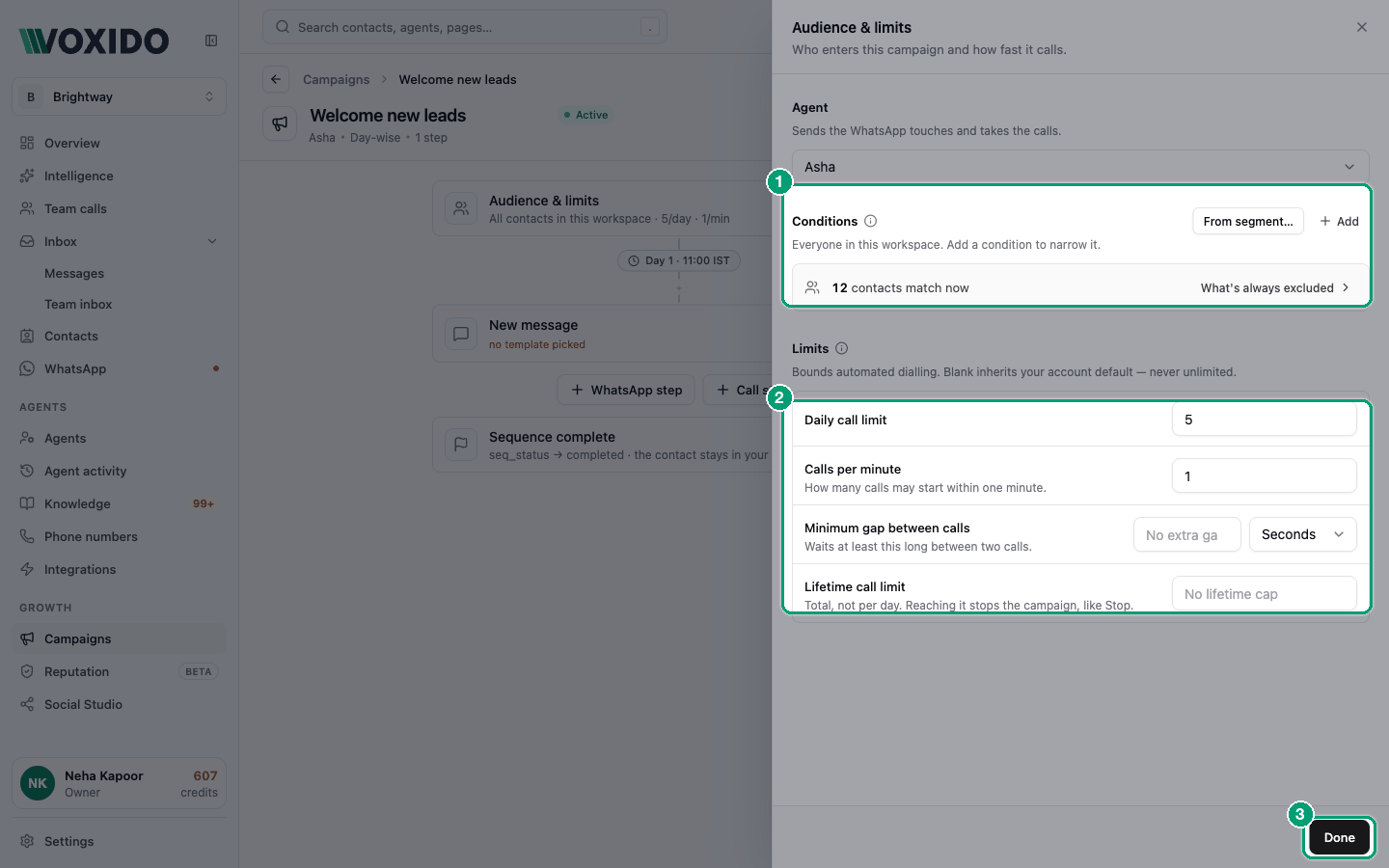
The panel has three parts: Agent, Conditions and Limits. There's no separate save — your changes go into the campaign, and you click Save on the builder when you're done. Click Done to close the panel.
Agent
The agent sends the WhatsApp messages and makes the calls. To move the campaign to another agent, pick it here. You'll see "On save, this campaign's schedule and playbook move to the new agent."
Conditions: who joins
With no conditions, the campaign is for everyone in this workspace. Add conditions to narrow it. All must match.
- Click Add.
- Pick a field: Stage, Tags, or any of your custom fields.
- Pick an operator: is, is not, is any of, contains, greater than, less than, is empty, is not empty.
- Pick or type the value. You'll see: "N contacts match now" update straight away.
How joining and leaving works
- The conditions are checked again before every step.
- New contacts who start matching join automatically.
- A contact who stops matching leaves at once. Their next steps don't go out.
- Filter on a Stage to enrol people the moment they enter that stage.
Copy rules from a saved segment
Click From segment… and pick a segment. Its rules are added as conditions. A message tells you how many were copied and how many were skipped.
Some rules can't be copied: rules on date windows, call stats or yes/no flags, and segments joined with OR. Those segments show "OR logic" or "Can't copy". See Segments and filters.
Who is always left out
Click What's always excluded under the count to see the list:
- Contacts outside this workspace's stages.
- Contacts who stopped, were disqualified or booked a meeting, and anyone who already finished this campaign.
- Opted-out and snoozed contacts, checked at send time.
- If a step has its own conditions, it narrows further.
A contact who replies is held, not removed. (The app's list also mentions "replied (engaged)"; in practice a reply pauses the campaign for that person.) The campaign waits 48 hours after their last WhatsApp message, so it never talks over a live chat. Their next step goes out later if they stay quiet.
Conditions recipes
| You want to reach… | Condition |
|---|---|
| New leads only | Stage · is · Lead |
| Leads and prospects | Stage · is any of · Lead, Prospect |
| VIP customers | Tags · contains · vip |
| People with a visit date | Visit date · is not empty |
| Loan accounts with money due | Amount due · greater than · 0 |
| Everyone except lost leads | Stage · is not · Lost |
Limits
Limits slow down automatic calls so your team, your phone lines and your contacts aren't overwhelmed. They don't apply to WhatsApp steps, or to call steps set to Don't dial — queue for the team.
| Setting | What it does | Example |
|---|---|---|
| Daily call limit | Most calls this campaign may start in a rolling 24 hours, across all its steps. | 40 |
| Calls per minute | How many calls may start within one minute. | 1 |
| Minimum gap between calls | Waits at least this long between two calls. Pick Seconds or Minutes. | 2 minutes |
| Lifetime call limit | Total calls ever, not per day. When it's reached, the campaign's automatic calls stop for good. | 500 |
The lifetime limit stops calls, not messages
The app says reaching the lifetime limit stops the campaign "like Stop". Today it switches off the campaign's call steps only — its WhatsApp steps keep going, and the list may still show Active. To stop everything, use Stop.
Rules that apply to all limits:
- Blank means "use the account default" — never unlimited.
- Your account allows 100 automatic calls a day across all campaigns, unless Voxido support set a different limit for you. The Daily call limit box shows your account's number as "(account default)".
- A campaign limit can only be lower than your account's limit, never higher. If you type more, you'll see a warning that calls still stop at the account limit. Ask Voxido support if your account limit needs to change.
- New campaigns start with Daily call limit 5 and Calls per minute 1. Raise them once you've checked the first calls went well.
- Only whole numbers, 0 or more.
- Before each automatic call, Voxido checks you have enough credit for about 10 minutes of calling.
- A call that's placed counts towards the limits, answered or not.
The Audience & limits card on the builder shows a summary, such as "Stage is Lead · 5/day · 1/min", or "Inherits your account limits — no extra pacing set".
Good / Better / Best pacing
| Daily call limit | Calls per minute | Gap | |
|---|---|---|---|
| Good — first week, checking quality | 5 | 1 | — |
| Better — steady lead follow-up | 40 | 1 | 1 minute |
| Best — large list, small team taking transfers | up to your account limit (100) | 2 | 30 seconds |
Pick numbers your team can handle if the agent hands calls over to people.
Common problems
"0 contacts match now", but I have contacts. Check that your contacts have a stage in this workspace. Contacts with no stage are left out.
The segment I wanted is greyed out. It uses OR logic or rules that campaigns can't read. Add the conditions by hand instead.
My calls go out more slowly than my limit. The account limit, working hours and the "1 call per minute" default all slow calls down. Check all three.