

Knowledge: choose what your agent answers from
A knowledge base is a folder of facts your agent can search: prices, hours, policies, FAQs, brochures. The agent's Knowledge section is where you choose which knowledge bases this agent may use. You can also add content here without leaving the agent.
Find it: Sidebar → Agents → open an agent → Knowledge
New to knowledge bases? Read What is a knowledge base? first.
Pick your path: what goes where?
| Put it in… | When | Example |
|---|---|---|
| Instructions | How the agent should behave, in every chat | "Be warm. Always confirm the date before booking." |
| Knowledge base | Facts the agent looks up when asked | Price list, opening hours, refund policy, course syllabus |
| A connected app or Custom API | Live data that changes all the time | Today's free slots, a customer's balance, room availability |
Why not put everything in the instructions? Instructions are read in every turn, so long ones make the agent slower and less focused. A knowledge base is only searched when needed. See Use connected apps and Custom APIs for live data.
What you'll see
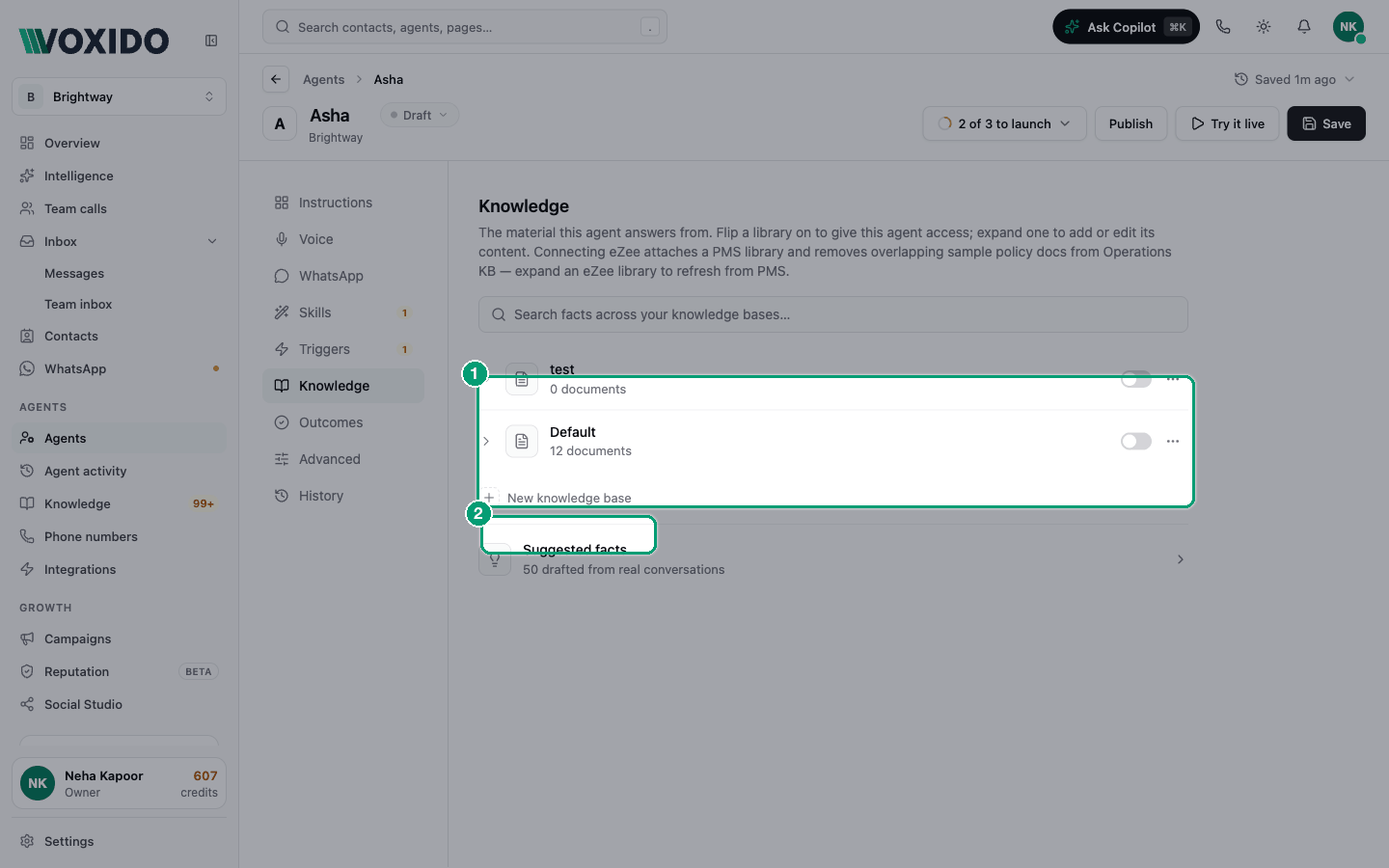
- A search box — "Search facts across your knowledge bases…". Use it to check if something is covered.
- One row per knowledge base, with its document count, a switch, and a ⋯ menu (Rename, Delete).
- New knowledge base — create one right here.
- Suggested facts — answers drafted from real conversations, ready to add (only shown when there are some).
Give the agent access to a knowledge base
- Open your agent and click Knowledge in the left rail. You'll see: your knowledge bases, each with a switch.
- Flip the switch on for each knowledge base this agent should use. You'll see: the switch turns on. You can turn on as many as you like.
- Click Save at the top right. You'll see: "Saved". The agent searches these knowledge bases from its next conversation.
Turning a switch off only removes this agent's access. It doesn't delete anything, and other agents keep their access.
Keep "Search knowledge base" on
On WhatsApp and chat, the agent also needs the Search knowledge base skill (under Skills → Answers). New agents have it on already. On phone calls, the agent can search as soon as a knowledge base is switched on.
Add content without leaving the agent
- Click a knowledge base's name to expand it. You'll see: its documents with a status (Indexed, Processing… or Error), and three links: Add file, Add text, Auto-build from website.
- Pick one:
- Add file — choose files from your computer (PDF, Word, Excel, CSV, text and more). You'll see: "Uploaded … Indexing…".
- Add text — type a Title (for example "Cancellation policy") and paste the content, then click Add to knowledge base. You'll see: "Text saved to the knowledge base. Indexing…".
- Auto-build from website — enter your domain (for example
brightway.in) and click Start auto-build. You'll see: a progress line ("Crawling…", then "Synthesising with AI…"), then the new documents.
- Wait for each document to show Indexed. Only indexed documents can be searched.
To read or fix a document, click its name. To remove it, use its delete icon. Knowledge bases linked to a Google Sheet or a hotel property system are read-only here; update them at the source and sync.
More options (website import, Google Sheets, bulk review) are on the Knowledge page: Sidebar → Knowledge. See Create a library.
Create a new knowledge base here
- Click New knowledge base below the list. You'll see: a name box.
- Type a name, for example "Brightway Services & Prices", and click Add. You'll see: "Created" and the new row.
- Expand it, add content, then switch it on for this agent and click Save.
Turn suggested facts into answers
When customers ask things your agent couldn't answer, Voxido drafts a question and answer for you. They appear under Suggested facts ("N drafted from real conversations").
- Click Suggested facts to open the list. You'll see: each drafted answer, and how many times it was asked.
- Click Add to KB on one you want. You'll see: an Add to knowledge base window with the Question and Answer you can edit.
- Fix the wording, pick a Target library, and choose New entry or Append to existing.
- Click Add to knowledge base. You'll see: "Added to knowledge base". The agent can use it once it's indexed.
Click the × to dismiss a suggestion you don't want. For a full review queue, see Review questions your agent couldn't answer.
Common problems
The agent says it doesn't know, but the answer is in my documents. Check the switch is on for that knowledge base, you clicked Save, and the document shows Indexed. Then check Search knowledge base is on in Skills. More in Troubleshooting.
I can't add files to a knowledge base. It's read-only (synced from a Google Sheet or a property system). Update the source, then sync it on the Knowledge page.
Add to KB is greyed out. You have no knowledge bases yet. Create one first.