

Campaigns: automatic follow-ups, reminders and offers
A campaign is a plan of messages and calls that your AI agent carries out by itself, on a schedule. You decide who gets it, what they get (a WhatsApp message or an AI call), and when. Voxido does the rest, one contact at a time.
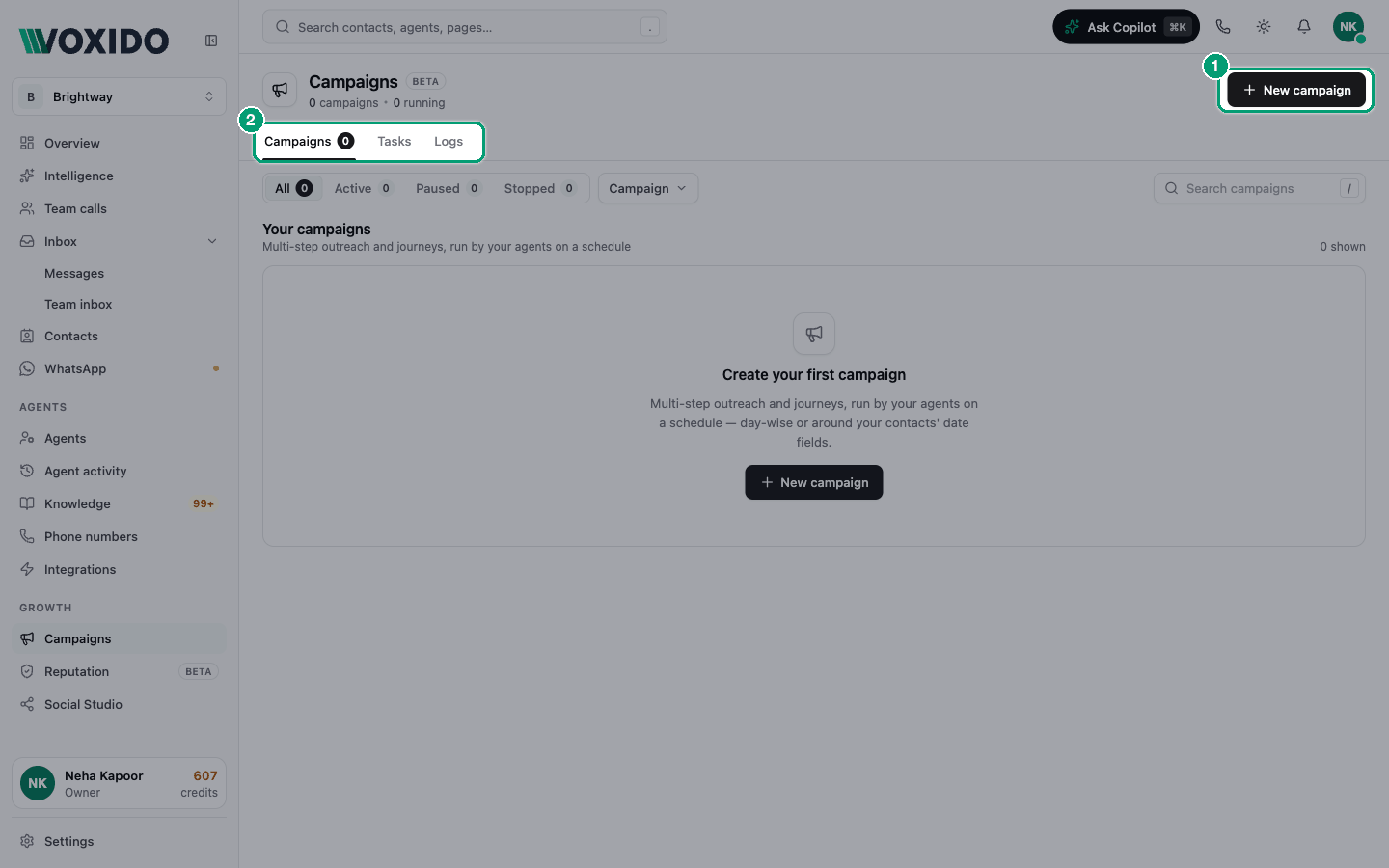
Find it: Sidebar → Growth → CampaignsWho can use it: Owners and Admins
Which campaign solves which problem?
Start from your problem. Each row says why that kind of campaign fits and links to a full recipe.
| The problem | Why this campaign fits | Timing | How to build it |
|---|---|---|---|
| "New leads go cold before we call back." (service business, real estate) | A WhatsApp the day they arrive, an AI call the next day, and a second call only if they missed the first | Day-wise | Follow up new leads |
| "Parents enquire about admission, then go quiet." (school, coaching centre) | Brochure on Day 0, counselling call on Day 1, deadline reminder on Day 4 | Day-wise | Follow up new leads |
| "New patients forget their first appointment." (clinic, salon) | Reminders counted back from each person's own appointment date | Date field | Reminders around a date |
| "Overdue borrowers forget the due date." (loan recovery) | Reminders before and on the due date, a call after it — only while money is due | Date field | Reminders around a date |
| "COD orders get refused at the door." (D2C shop) | A confirmation call an hour after each order | Date field (hours) | Reminders around a date |
| "Leads ask us to call back on Thursday — and we forget." (any business) | A call on the follow-up date the agent saved | Date field | Reminders around a date |
| "Guests arrive with no idea where to park." (hotel) | Pre-arrival details two days before check-in | Date field | Reminders around a date |
| "We have an offer for our regulars." (restaurant, shop) | One WhatsApp template to a group, once | Day-wise, one step | Send one WhatsApp offer |
| "Old customers never come back." (salon, gym, hotel) | A friendly offer, then a call, for people who've gone quiet | Day-wise or date field | Win back past customers |
When a campaign is the wrong tool
| If you want… | Use instead |
|---|---|
| A reminder for every new date of the same person (each appointment, each month's EMI) | The agent trigger Before or after a contact date. See Date-anchored reminders. A campaign's WhatsApp steps reach each person only once. |
| The agent to act the moment something happens in another system (a booking, a payment) | A webhook trigger on the agent |
| The agent to answer people who call or message you | Nothing extra — the agent on that number answers. See What is an agent. |
The two kinds of timing
Every campaign uses one kind of timing. You pick it when you create the campaign, and it can't change.
| If you want… | Choose | Example |
|---|---|---|
| Steps counted from the day someone joins the campaign | Day-wise | Day 0 welcome, Day 1 call, Day 3 nudge |
| Steps counted from a date on the contact | Around contact date fields | 1 day before Appointment date, 2 days after Check-out date |
"Joining" means the first time a contact matches the campaign's audience. For people who already match, that's the day you save the campaign.
Date-field campaigns need a date custom field that's filled in for each contact — by a CSV import, your team, an agent, a connected system, or an inbound API.
The parts of a campaign
| Part | What it is |
|---|---|
| Agent | The AI agent that sends the messages and makes the calls. It must be Active. |
| Number | The phone number attached to that agent. Replies reach this agent through it, and automatic calls dial from it. |
| Audience | Conditions that decide who joins, such as "Stage is Lead". Checked again before every step. |
| Steps | Each is a WhatsApp message or an AI call, with its own timing and optional extra conditions. |
| Limits | Caps on automatic calls: per day, per minute, gap between calls, lifetime total. |
Rules every campaign follows
These are built in. You don't have to set them up.
- Working hours. Messages and calls only go out inside Settings → Working hours (09:00–21:00 every day until you change it). A step due outside them waits. Contacts in another time zone also get them only between 09:00 and 21:00 their time.
- No talking over a chat. If a contact wrote to you on WhatsApp in the last 48 hours, their next step waits until they've been quiet for 48 hours.
- Replies go to the agent. When someone replies, the agent takes over the conversation.
- Leaving the audience stops it. A contact who no longer matches gets no more steps.
- Opt-outs are respected. A contact who opts out or is snoozed is skipped.
- Once, then done. Each contact gets each step once. After a campaign's last WhatsApp step, the contact has finished it and won't get its WhatsApp steps again.
- Late steps are dropped. A step that couldn't go out within 24 working hours of its time is skipped, not sent late. Nothing is sent "to catch up".
- Use approved templates. An approved utility template reaches anyone. An approved marketing template only reaches people who messaged you first. Agent-written (Custom) messages need the person to have written in the last 24 hours, which rarely fits a campaign's 48-hour wait.
What it costs
Campaigns use your credit wallet, per action:
| Action | Charged as |
|---|---|
| A WhatsApp template message | WhatsApp template message, per message |
| An agent-written WhatsApp message | WhatsApp conversational message, per message |
| An AI call | AI conversation minutes plus carrier voice minutes |
Skipped and held steps cost nothing. Before each automatic call, Voxido checks you have enough credit for about 10 minutes of calling; if not, the call doesn't start.
Rates can change and can differ by account, so check What actions cost credits and the live Pricing page before you plan a big campaign. Tip: start with a small audience or a low Daily call limit, check the results, then grow.
Statuses at a glance
| Status | Meaning |
|---|---|
| Active | Running on schedule |
| Waiting | Switched on, but its agent isn't active yet |
| Paused | On hold — resume any time |
| Stopped | Switched off; only you can start it again |
More: Status, Tasks and Logs.
Quick start
- Make sure the agent is Active and has a number.
- Click New campaign, name it, choose the timing and the agent.
- Set the Audience & limits.
- Add steps with the WhatsApp step and Call step buttons.
- Save, then Test a step on yourself.
Full walkthrough: Build your first campaign.